
Keeping up with technology can sometimes feel like an endless chore, especially when the rules for staying safe online seem to change every day. However, a major shift is currently happening that is incredibly important for protecting your digital identity and finances.
Microsoft recently announced that they are phasing out SMS (text message) codes as a way to verify your identity when logging into personal accounts. Because Microsoft is leading this charge, it’s highly likely other major tech and financial companies will soon follow. Here is a straightforward guide on why this is happening, what you need to do next, and how to easily set up a safer alternative.
Why Are Text Message Codes Going Away?
To understand the change, we first need to look at Two-Factor Authentication (2FA). This is simply an extra layer of security used to verify your identity. Instead of relying solely on a password, 2FA requires a second piece of information that only you have.
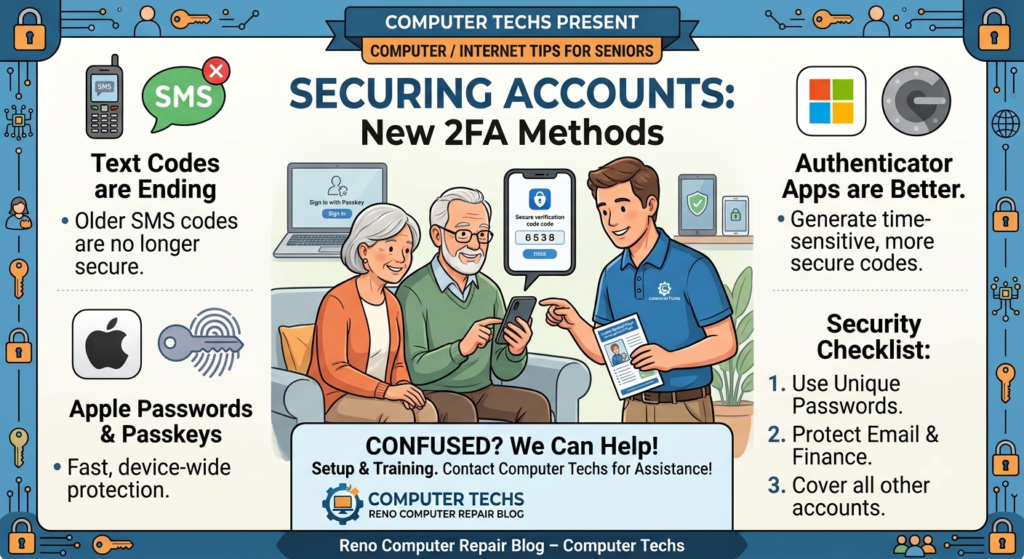
For years, the standard method was having companies text a unique, time-sensitive code directly to your mobile phone. However, text messages are no longer considered secure. In fact, SMS-based authentication is now a leading source of fraud. Scammers have figured out how to intercept these texts through “SIM swapping,” a tactic where they hijack your phone number. Moving away from SMS codes significantly reduces your exposure to these account takeovers.
The Safer Alternative: Authenticator Apps
Instead of waiting for a vulnerable text message, the modern, vastly safer solution is to use an “Authenticator App”. These apps live securely on your smartphone and generate verification codes that refresh every 30 seconds. Because they don’t rely on cell service or text messages, they are highly resistant to hackers attempting phone-based attacks.
How to get started based on your device:
- For Apple/iPhone Users: If your iPhone is up to date, you don’t even need to download a separate app. Apple recently introduced a built-in Passwords app that easily manages all of this for you. It can securely store your automatic 2FA verification codes. Even better, when you try to log into a website using Safari, your Apple device will automatically fill in the verification code for you so you don’t have to bounce back and forth between screens.
- For Android or Other Users: You can easily download highly secure, free apps like Google Authenticator or Microsoft Authenticator from your device’s app store.
Where should you use these apps? You should enable 2FA using an authenticator app on all your most important accounts.
- Your Email: Start here. Your email is the “master key” to your digital life. If a hacker gets into your email, they can reset the passwords for everything else.
- Sensitive Accounts: Next, turn this on for your financial accounts, social media platforms, and online shopping accounts (like Amazon) where your credit card information is permanently stored.
The Password-Free Future: Using Passkeys
Passwords can be guessed, stolen, or accidentally given away to a scammer. If managing passwords and authenticator apps sounds like too much to juggle, there is a newer, vastly safer alternative called “passkeys”. Passkeys are designed to replace traditional passwords entirely.
Instead of typing out a complicated password or waiting for an SMS code, a passkey uses your device’s built-in security—like your face scan, fingerprint, or computer PIN—to securely log you in. They are faster and far more secure than both passwords and text message codes.
Why Passkeys are great:
- No more memory games: You simply do not have to remember a complicated password anymore.
- Immune to data breaches: Hackers cannot steal a passkey from a data breach because the key lives safely on your device, not on a company’s server. By utilizing this device biometric authentication, phishing becomes virtually impossible.
- Works across your devices: You aren’t trapped on just one device. You can actually use your iPhone or Android smartphone as a “physical key” to securely sign into websites on your desktop computer. This cross-device login uses a combination of Bluetooth (to prove the phone is physically near the computer) and a QR code (to establish a secure encrypted connection).
Don’t Forget: You Still Need Unique Passwords For Most Websites
While 2FA and passkeys act as incredible deadbolts on your digital front door, your actual password remains your first layer of protection on sites that don’t yet support the newest features.
It is absolutely crucial that you use a unique password for each website. Using the same password for multiple accounts is exactly like using the same physical key for your house, your car, and your office. If a hacker manages to steal one password from a minor website, they will immediately try to use that exact same “key” to unlock your bank and email accounts.
Managing Your Passwords
Understandably, managing a different, complicated password for every single website can feel daunting. This is where a Password Manager saves the day. Tools like Apple’s built-in Passwords app, Google Password Manager or third-party password managers securely store all your credentials in one encrypted vault. This allows you to create highly complex, unique passwords for every site without actually having to memorize any of them.
If you prefer a different method create and store your passwords, check out How to Manage Your Passwords – Easily and Safely.
Computer Techs is Here to Help
Cybersecurity might sound complicated, but with a little guidance, it just becomes part of everyday home care—no different than changing the batteries in your smoke detector or locking your doors at night.
If setting up an authenticator app, managing unique passwords, or checking your account security feels overwhelming, you don’t have to figure it out alone. Computer Techs offers comprehensive Cybersecurity Checkups to make sure your devices are fully protected and your online habits aren’t putting you at risk.
Contact us today to schedule an appointment, and gain the peace of mind knowing your data is safe and secure.