
Running out of cloud storage can halt your device backups, stop emails from arriving, or prevent your photos from syncing. Knowing exactly where to check your storage limits—and what is eating up that space—can save you from unexpected disruptions.
Unfortunately scammers realize how important backup are and have recently started sending out fake alerts about cloud storage problems via text and email messages. Read more…
Here is a step-by-step tutorial on how to check your cloud storage settings and usage for iCloud, Google Drive/Google One, and Microsoft OneDrive.
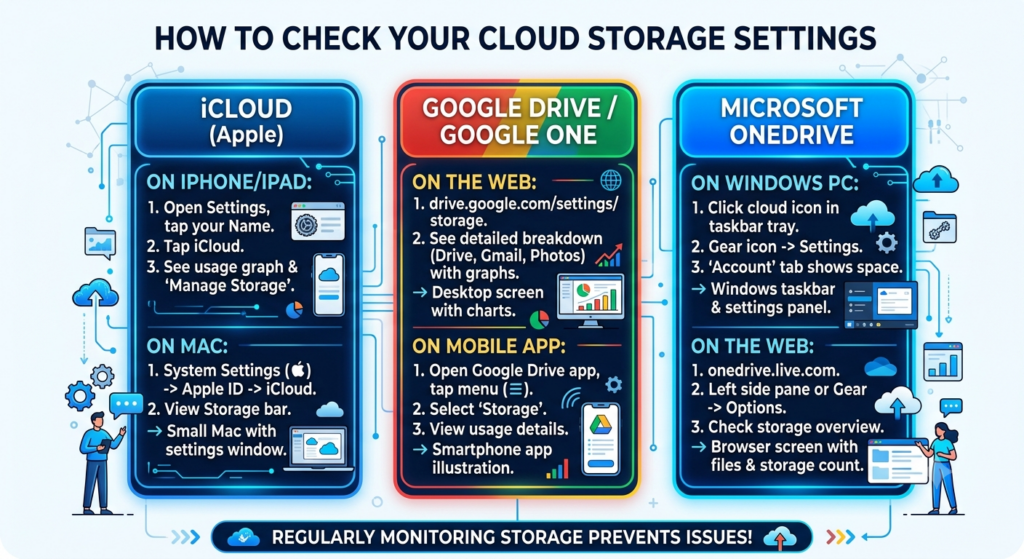
1. Apple iCloud
iCloud storage is shared across your iOS devices and Mac for device backups, iCloud Photos, and iCloud Drive files.
On iPhone or iPad
- Open the Settings app.
- Tap your name at the very top of the screen.
- Tap iCloud.
- At the top of the menu, you will see a bar graph of your storage usage. You can tap Storage or Manage Account Storage to see a detailed breakdown of which specific apps are using the most space, as well as options to delete old device backups.
On a Mac
- Open the Apple menu () and choose System Settings (or System Preferences on older macOS versions).
- Click your name at the top of the left sidebar, then click iCloud.
- You will see the iCloud Storage bar detailing your total and used space. Click the Manage button to free up space, delete backups, or upgrade your iCloud+ plan.
On the Web
- Navigate to iCloud.com and sign in with your Apple Account.
- Open the iCloud Drive app or check your account settings to view your storage limits and manually delete files to clear space.
2. Google Drive and Google One
Google shares your base storage quota (typically 15 GB for free accounts) across three main services: Google Drive, Gmail, and Google Photos.
On a Desktop Browser
- For a quick glance, go to drive.google.com and look at the bottom-left corner of the screen to see your overall usage (e.g., “X GB of 15 GB used”).
- For a detailed breakdown of exactly how much space is used by Drive, Gmail, and Photos individually, navigate to drive.google.com/settings/storage.
- To easily identify and remove large files, spam emails, or trash, use Google’s dedicated Storage Manager by visiting one.google.com/storage/management.
On Mobile (Android & iOS)
- Open the Google Drive app.
- Tap the menu icon (three horizontal lines) in the top-left corner.
- Tap Storage to view your usage breakdown by service and access cleanup suggestions.
3. Microsoft OneDrive
OneDrive integrates heavily with Windows PCs but is easily accessible on Macs, mobile devices, and the web.
On a Windows PC
- Click the OneDrive cloud icon in your system tray (usually located in the bottom-right corner of your taskbar, near the system clock).
- Click the gear icon (or “More” with three dots) and select Settings.
- Navigate to the Account tab. Here, you will see your total storage and how much is currently used. You can also click Manage storage, which will open a browser window displaying the largest files in your account.
On the Web
- Go to onedrive.live.com and sign in with your Microsoft account.
- Look at the bottom-left corner of the navigation pane to view your available and used storage.
- Alternatively, click the Settings gear icon at the top right and select Options or Storage to see a detailed breakdown of your free and used space.
On Mobile (Android & iOS)
- Open the OneDrive app.
- Tap your profile icon or the Me tab, usually found in the bottom-right corner.
- Your current storage usage and overall limits will be listed directly on this screen.
Pro Tip: Routine checks on your cloud storage can help you avoid synchronization issues across all your personal devices. Keep an eye out for large, forgotten email attachments or duplicate photos, as these are often the biggest culprits for maxed-out quotas!