
We’ve all been there: you open your inbox and find an email that sets off alarm bells. Maybe it’s a “critical security alert” from your bank, an unexpected delivery failure notification, or an urgent invoice from a vendor. It looks official, but something feels off.
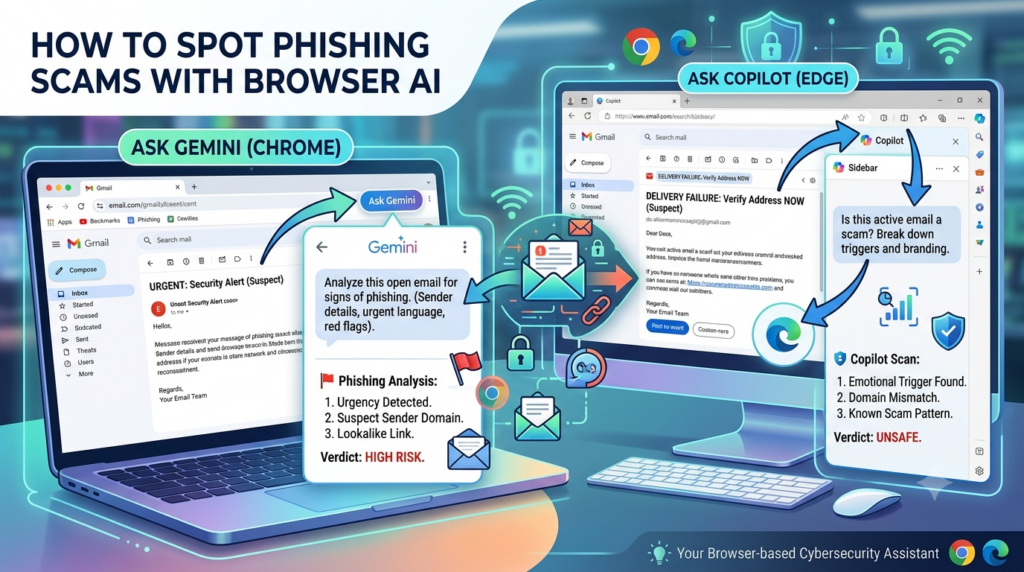
Now there’s a built-in cybersecurity assistant right in your browser toolbar. Whether you use Gemini in Chrome or Copilot in Microsoft Edge, you can leverage sidebar AI to dissect a sketchy email in seconds. Here is how to do it safely and effectively.
The Golden Rule: Look, Don’t Touch
Before using AI to analyze a potential scam, remember the number one rule of email safety: Never click links, download attachments, or reply to a suspicious email. Instead, open your browser’s AI sidebar to let it do the heavy lifting safely.
Option 1: Using Gemini in Chrome
Google’s Ask Gemini in Chrome feature allows the side panel to read and analyze what is on your active browser tab or selected text, making it incredibly easy to inspect webmail (like Gmail, Outlook.com, or Yahoo Mail) without copy-pasting.
How to use it:
- Open to view the questionable email in your browser – but do not open any attachments or links in the email.
- Click the “Ask Gemini” button in the top-right corner of the Chrome toolbar. (Note that you must be signed into a Google account and follow the quick setup steps to opt in the first time you “Start chat”).
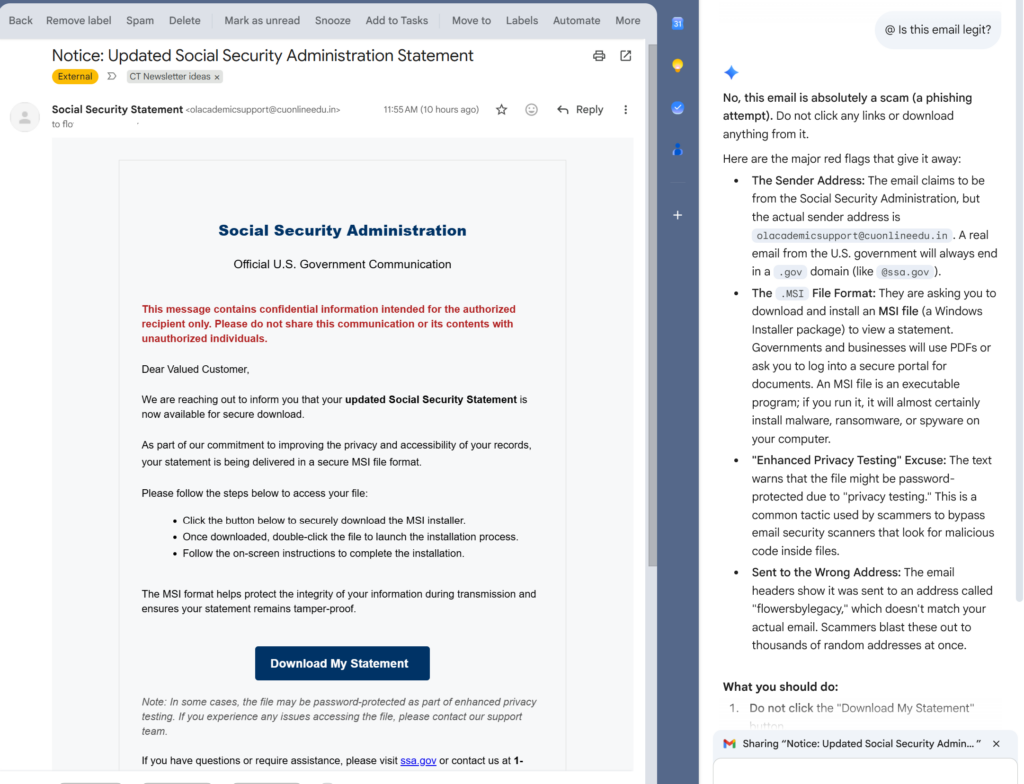
- In the chat box type a prompt referencing the page such as:“Is this email a scam?” or “Is this legit?”. Press Enter.
- Gemini will analyze the visible page text and give you a breakdown of whether the email message is a scam or not.
Option 2: Using Copilot in Microsoft Edge
If you prefer Microsoft’s Edge browser, the Copilot button anchors a powerful sidebar that can pull context directly from your active browser tab—including open PDFs, web pages, and email.
How to use it:
- Open the suspicious email in an Edge tab.
- Click the Copilot button (the blue/ribbon icon) in the top-right corner of your toolbar to slide open the Edge Sidebar.
- In the chat box, enter a prompt like this:“Is this email a scam?”
- Copilot will scan the web page context and provide an immediate assessment.
Alternative Method:
If you only want to check a specific paragraph or text, highlight the text first, then select the Copilot or Gemini button before asking your question. It will analyze only the selected text.
3 Specific Prompts to Expose a Scam
AI is exceptionally good at recognizing the psychological tricks scammers use. If a basic analysis leaves you unsure, paste the email text into your sidebar and try these highly specific prompts:
1. The Urgency Check
“Analyze this email text for high-pressure language, artificial deadlines, or fear tactics designed to make me act without thinking.”
- Why it works: Scams rely on panic (e.g., “Your account will be suspended in 24 hours”). AI can flag when language crosses the line from a professional notice to an aggressive manipulation tactic.
2. The Sender Profile Check
“Here is the email address this claims to be from: [Insert Sender Address]. What is the official domain for [Company Name], and does this sender address match their typical corporate format?”
- Why it works: Attackers frequently use lookalike domains (like
support@paypal-security-update.cominstead ofpaypal.com). While AI cannot verify the email’s cryptographic headers, it can quickly spot obvious domain mismatches that a human eye might miss.
3. The “Is This Normal?” Check
“This email claims I won a raffle / have an unpaid invoice / need to update my 2FA immediately. Based on common cybersecurity threat intelligence, is this a recognized scam template?”
- Why it works: LLMs are trained on massive datasets of documented cyberattacks. They can easily recognize the template of a known “Geek Squad invoice” or “Netflix payment failure” scam instantly.
A Quick Reality Check: AI is a Tool, Not a Shield
While browser-based AI is a fantastic first line of defense for verifying suspicious text, it is not infallible.
- AI can miss new tactics: Highly targeted, sophisticated attacks (like spear-phishing) might pass an AI style check because they don’t use generic templates.
- Keep sensitive data out of the chat: If the email contains highly sensitive personal information, account numbers, or proprietary business data, avoid pasting those specific elements into a public AI model. Stick to analyzing the generic body text and structure.
The Bottom Line: If Gemini or Copilot flags even one element of an email as suspicious, trust your gut and the AI. Delete the email, or verify it independently by navigating directly to the company’s official website via a fresh browser tab. Stay safe and stay informed.