
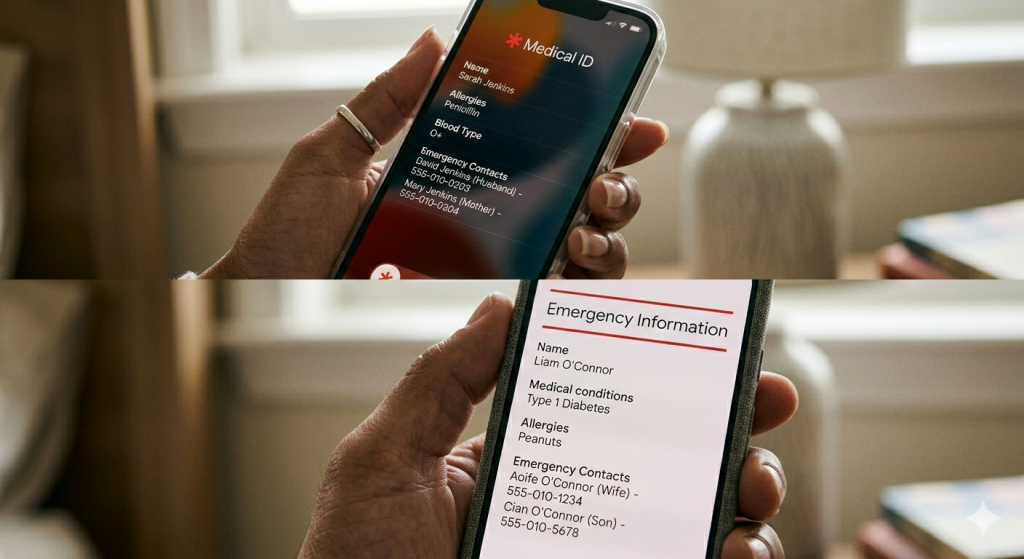
The smartphones that we carry around with us can be used for just about everything – from banking to social media. But one of the most powerful tools your phone offers is often overlooked: its ability to act as a digital medical alert bracelet in a crisis.
If you are ever in an accident and/or unable to communicate, first responders are trained to check your phone for emergency information. On older phones people would put in contacts with the prefix “ICE” – or In Case of Emergency. But on newer smartphones most people have them secured by a screen lock PIN, pattern or biometric identification. Here is how to set up your Medical ID or Emergency Info so it’s accessible when help arrives – even when your smartphone is secured.
Why this matters: First responders and hospital personnel are trained to look for this information and can quickly identify you, any allergies, blood type, and who to call, potentially saving your life when you cannot relay the information yourself.
Setting Up iOS Medical ID (iPhone)
For iPhone users, the Health app is the central hub for all safety information. Once configured, this info appears when someone taps “Emergency” on your lock screen. The setup instructions below may vary slightly based on your iOS version.
Step-by-Step:
- Open the Health App: Tap your profile picture or initials in the top right corner.
- Select Medical ID: Tap “Medical ID” from the menu options.
- Enter Your Details: Tap Edit in the top right. Fill in your medical conditions, allergies, medications, and blood type.
- Assign Contacts: Scroll down to Emergency Contacts and tap “add emergency contact.” Choose a contact and specify their relationship to you.
- Enable Lock Screen Access: Ensure “Show When Locked” is toggled ON. This is the most critical step; without it, the info remains hidden behind your passcode.
- Save: Tap Done.
Reference: Apple’s guide to set up and view your Medical ID.
Setting Up Android Medical Info
Android devices vary slightly by manufacturer, but the “Safety & Emergency” menu is now standard on most modern versions of the OS (Android 12 and newer).The setup instructions below may vary slightly based on your Android version and device manufacturer.
For Google Pixel & Stock Android
- Go to Settings > Safety & Emergency
- Tap Medical information to fill in any information you want to be displayed in your health profile
- Tap Emergency contacts to designate your ICE (In Case of Emergency) list
- Ensure “Show when locked” is enabled in the Emergency Info access screen
For Samsung Galaxy Users
- Navigate to Settings > Safety and emergency.
- Tap Medical info to fill out your profile.
- Select Emergency contacts to add your primary responders.
- Ensure “Show on Lock screen” is enabled.
Reference: Get help during an emergency with your Android phone
How to Access the Info (The “Test Run”)
It’s a good idea to teach your family members how to find this information. Here is how a first-responder would access it:
- On iPhone: Swipe up to the passcode screen, tap Emergency (bottom left), then tap *Medical ID.
- On Android: Swipe up to the lock pattern/PIN screen, tap Emergency Call, then tap View Emergency Information (you may need to tap it twice).
Final Thoughts
Setting this up takes less than five minutes but provides peace of mind for a lifetime. Make it a habit to update your information whenever your health status changes or you have a new primary contact. If you’d like help from Computer Techs with setting this up or anything else with your smartphone – contact us. Stay safe!