
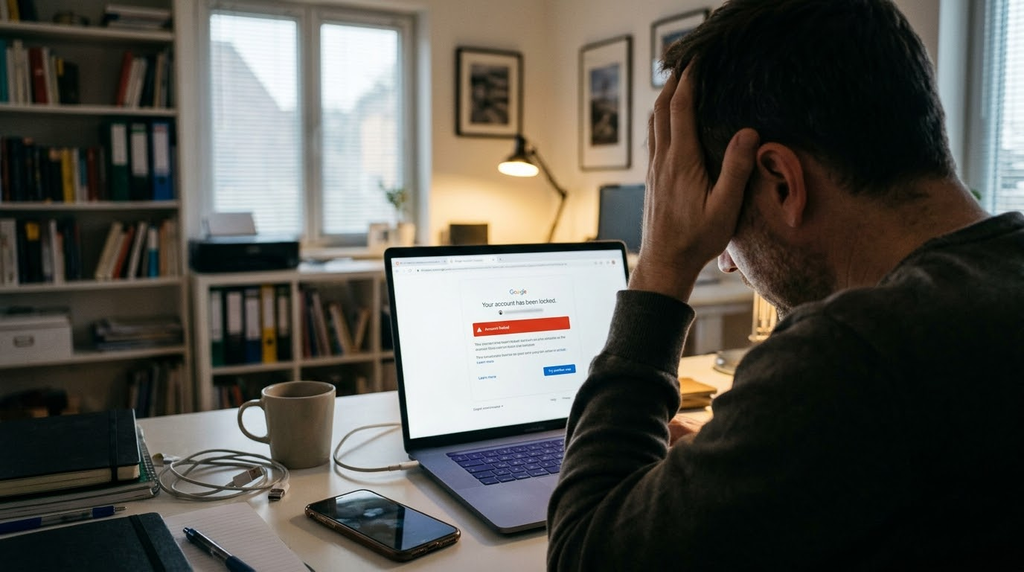
You can have the best online security in the world, but it is completely useless if you get locked out of your own accounts.
Your email address or smartphone number is the “master key” to your digital life—if someone gets into it, they can reset the passwords for your financial accounts, social media, and online shopping. But what happens when the security measures meant to keep hackers out end up keeping you out?
At Computer Techs, we frequently help customers both proactively—securing their accounts and adding redundant verification methods—and reactively, trying to help them recover accounts after a sudden lockout. The secret to staying both safe and in control is digital redundancy: making sure you never rely on a single email address, a single phone number, or a single device to prove who you are.
1. Always Have More Than One Email Address
Relying on a single email address creates a dangerous single point of failure. If your only email account becomes temporarily or permanently inaccessible—whether due to a forgotten password, a hacker changing your login info, or an outdated internet service provider (ISP) account like AT&T or Spectrum locking you out—you lose your digital lifeline.
Having a second, active email account is essential:
- It acts as your “break glass in case of emergency” tool: When you forget a password, websites use your backup recovery email to help you get back in.
- You must actually check it: If your listed backup email is an old university, work, or discontinued ISP address that you can no longer access, verification codes will land in a black hole and you could be permanently locked out.
- Setting up a backup is free and easy: You can easily set up a free Gmail, Outlook, or iCloud Mail account—in fact, you may already have one that was created when you set up your Windows, Apple, or Android device. Better yet, you can use apps like Mail, Outlook, or Gmail on your phone or computer to view messages from two or more email accounts in one convenient place.
2. Layer Your 2FA and Passkeys: The More Methods, the Better
Using just a password is like locking your front door but leaving the key under the welcome mat. Two-Factor Authentication (2FA) and Passkeys act as heavy-duty deadbolts by requiring a second form of proof—something you have (like a device or hardware key) or something you are (like a fingerprint or Face ID).
However, when setting up 2FA and passkeys, always configure more than one method—the more, the better.
Mix and Match Your Verification Options
Most major platforms—especially Gmail, Outlook, and iCloud Mail—offer flexible authentication options. Instead of relying on just one, set up multiple layers across the security hierarchy:
- Passkeys: Digital cryptographic keys stored on your devices that let you sign in with your face scan, fingerprint, or device PIN. They are virtually immune to phishing.
- Device Prompts: Push notifications sent to a trusted device you already own and are signed into (such as a Google Prompt or Apple Trusted Device).
- Authenticator Apps: Free apps like Google Authenticator, Microsoft Authenticator, Authy, or the built-in Apple Passwords app. These generate a 6-digit code that changes every 30 seconds, work offline, and aren’t tied to your phone number.
- SMS Text / Automated Voice Calls / Email Codes: While text messages are vulnerable to “SIM swapping” (and deactivating an old phone number without updating your accounts can trigger a cascade of permanent lockouts), having current phone numbers and backup emails on file is still a vital secondary layer.
- Old fashioned paper backup codes: Google and Microsoft allow you to generate one-time backup codes which you can print or take a photo of. That way you could keep them in a safe (or wallet when you travel) – or access the photo on any one of your synced devices.
3. The “Lost Smartphone” Scenario: Why a Second Device is Crucial
Pause for a moment and ask yourself: What if you lost your smartphone today, or it broke, and you couldn’t retrieve the verification codes or passkeys stored on it?
Modern security treats your smartphone as your primary physical key. If you lose your phone and it is the only place your authenticator codes, text messages, and passkeys live, account recovery can quickly become a nightmare—even if you have government-issued ID.
That is why having a second device—such as an iPad, an Android tablet, or a laptop/desktop computer—configured in advance is crucial:
- Passkeys can live on multiple devices: You don’t have to create just one passkey per account. You can (and should) create passkeys on multiple devices. Furthermore, saving a passkey to Google Password Manager or Apple iCloud Passwords & Keychain automatically syncs it across all your logged-in devices using end-to-end encryption. If your phone is lost, your iPad, Android tablet, or computer already has the key.
- Separate passkeys for non-synced devices: You can also create separate, device-specific passkeys (such as via Windows Hello) on individual machines as a dedicated fallback in case you lose a primary device.
- Install Authenticator apps on your tablet: Having your authenticator app or Apple Passwords synced on an iPad or Android tablet at home ensures you can still generate 30-second verification codes even if your phone is at the bottom of a lake.
4. Take Full Advantage of Google’s Recovery & Backup Tools
Email providers like Google and Microsoft built 2-Step Verification not just to stop hackers, but to help you regain access when things go wrong.
Google, in particular, gives you an impressive toolkit to build redundancy into your account. Don’t stop at just registering your primary cell phone—set up as many of these backup methods as possible in your Google Account Security Settings:
- Backup 2-Step Verification Phones: Add an alternate phone number—such as a spouse’s mobile phone or another trusted number—so verification codes can still reach you if your phone is missing.
- Authenticator Codes: Link an authenticator app so you aren’t solely dependent on cellular service or SMS text delivery.
- Printable Numeric Backup Codes: Google and most major email providers let you generate a set of multiple one-time numeric backup codes. Do this today. Print them out (and keep them in a fireproof safe) or save a secure photo of them. If you lose your phone and can’t use your 2FA app, these codes are often the only immediate way back in.
- Recovery Contacts & Identity Verification: Google and Apple also allow you to designate trusted recovery contacts to help verify it’s really you if you get locked out. Google even lets you record a selfie video to confirm your identity during account recovery. (Tip: You can also set up a Legacy Contact in Google or Apple accounts, so trusted next of kin aren’t locked out in an emergency).
Practical Takeaway: Your Digital Redundancy Checklist
Don’t wait until your phone is lost or an account is locked to find out your recovery info is ten years out of date. Spend some time this week checking your “Big Three” (your primary email, your secondary email, and your financial accounts):
- Maintain at least two active email addresses and set them as recovery backups for one another.
- Audit your phone numbers: Remove old landlines or canceled cell numbers immediately, and add a spouse’s or trusted family member’s number as a backup 2FA phone.
- Set up a tablet or second device: Make sure your iPad or Android tablet is signed into your password/passkey manager and authenticator app so your smartphone isn’t your single point of failure.
- Generate and store Google or Microsoft backup codes: Download your printable numeric backup codes and store them safely offline.
Need Help Setting Up Your Safety Net?
Sorting through passkeys, authenticator apps, and recovery settings across multiple devices can feel overwhelming—you are definitely not alone! Whether you want to proactively lock down your accounts with redundant backup methods or need reactive help recovering a compromised or locked account, we can come to your home and set everything up for you. Contact Computer Techs today!