Need a new printer? Why you should consider getting laser/LED vs. inkjet

When purchasing a new printer, there are several reasons you should consider getting laser vs. inkjet.

We are often asked to troubleshoot printing problems with inkjet printers. With Nevada’s dry climate, if you don’t frequently print something the ink in inkjet printers often dries out and clogs the ink cartridges and print heads, thus reducing print quality or completely rendering the printer useless.

When shopping for a printer you may be inclined to get an inexpensive printer because you don’t print very often. Though inkjet printers are usually less expensive, the cost of the ink and repair can make it a more expensive investment in the long run.

Let’s look at the pros and cons…

Pros of laser/LED printers:

  • The toner powder that’s used in laser printer toner lasts longer than ink – typically thousands of pages (vs hundreds of pages for standard ink cartridge printers). You may only have to buy more toner cartridge(s) every few years.
  • Cost-per-page of toner vs. ink is lower.
  • The toner isn’t susceptible to drying up or clogging the printer.
  • Laser printers print faster.

Cons of laser/LED printers:

  • The initial equipment cost of a laser printer is usually more expensive. Color laser printers are usually hundreds of dollars more than their inkjet alternatives.
  • Laser printers don’t print high-quality photos.
  • All-in-one laser printers are usually larger and may not fit if you have a small space to place your printer.

More information about the choosing a printer can be found in the Consumer Reports Printer Buying Guide.

The technical differences between inkjet and laser/LED printers

Inkjet and laser printers operate on very different technologies, each with their own strengths. Here’s a breakdown of how they work:

Inkjet Printers

  • Technology: Inkjet printers spray tiny droplets of liquid ink directly onto the paper. These droplets can be as small as a few microns, allowing for precise details and vibrant colors.
  • Process: They use one of two methods: thermal inkjet (heating the ink to create bubbles that force the ink out) or piezoelectric inkjet (using vibrations to eject ink).
  • Best For: High-resolution photo printing and documents requiring vivid colors. Inkjet printers are generally slower and more suitable for low-volume printing.

Laser Printers

  • Technology: Laser printers use toner, a powdered ink, and static electricity to transfer the image or text onto the paper.
  • Process: A laser beam “draws” the image on a drum inside the printer, creating an electrostatic charge. The toner adheres to the charged areas, and heat is used to bond the toner to the paper.
  • Best For: Fast printing of high-volume, monochrome documents. They are great for efficiency but less suitable for detailed photo printing.

If you’re debating which one suits your needs, it boils down to what you’re printing and how often.

Having problems with a website? Try these tips.

That moment of frustration when a website refuses to cooperate is all too familiar. Whether it’s a slow loading page, a broken link, or a complete inability to connect, website problems can throw a wrench in your productivity or simply be a major annoyance. But before you throw your hands up in despair, take a deep breath and try these simple yet effective troubleshooting tips. You might be surprised at how often the solution is quick and easy.

Try an alternative web browser

Most computers have more than one web browser installed. The most common browsers are Google Chrome, Microsoft Edge, Mozilla Firefox and Safari (macOS). If a specific website isn’t working or displaying correctly in your normal browser, open your other web browser and go to the same website. If the problem is happening with multiple browsers, and your internet connection is OK (verified by other websites working), then the problem is likely something that out of your control. Try the website again later.

Delete the cookies and website data for the website you are trying to use

Here’s how to delete cookies and website data for a specific website in the four major browsers: Chrome, Edge, Firefox, and Safari.

Google Chrome

Method 1: Through Site Information (Quickest)

  1. Navigate to the website: Open the website for which you want to delete cookies and data.
  2. Click the padlock icon (or “Not secure”) in the address bar to the left of the website’s URL.
  3. Click on “Cookies and site data” in the dropdown menu.
  4. A small window will appear showing the cookies and storage used by the current website.
  5. Click on the specific website’s entry (it will likely be the first one listed).
  6. Click the “Remove” button next to each individual cookie or data entry you want to delete.
  7. Alternatively, you can click the “Remove all” button at the bottom to delete all cookies and data for that website.
  8. Click “Done” to close the window. You might need to refresh the page for the changes to take full effect.

Method 2: Through Browser Settings

  1. Open Chrome’s menu: Click the three vertical dots (⋮) in the top-right corner of the browser window.1
  2. Go to “Settings”: Click on “Settings” in the dropdown menu.2
  3. Navigate to “Privacy and security”: Click on “Privacy and security” in the left-hand sidebar.3
  4. Click on “Cookies and other site data”.
  5. Click on “See all site data and permissions”.
  6. Search for the website: In the search bar in the top-right corner, type the name of the website.
  7. Click on the arrow next to the website in the search results. This will expand the details.
  8. Click the “Remove” icon (trash can) next to each cookie or data entry you want to delete.4
  9. Alternatively, you can click the “Clear all data” button at the top of the expanded website information to remove everything.
  10. Close the settings tab. You might need to refresh the page for the changes to take full effect.

Microsoft Edge

Method 1: Through Site Information (Quickest)

  1. Navigate to the website: Open the website for which you want to delete cookies and data.
  2. Click the padlock icon (or “Not secure”) in the address bar to the left of the website’s URL.
  3. Click on “Cookies and site permissions” in the dropdown menu.
  4. Under “Cookies and site data,” click on “Manage and delete cookies and site data.”1
  5. A page will open showing all stored cookies and site data.2 Find the entry for the specific website. You might need to expand the list by clicking the arrow next to the domain name.
  6. Click the trash can icon next to the specific cookie or data entry you want to delete.
  7. Alternatively, you can click the “Remove all” button at the top of the website’s expanded section to delete all cookies and data for that website.
  8. Close the settings tab. You might need to refresh the page for the changes to take full effect.

Method 2: Through Browser Settings

  1. Open Edge’s menu: Click the three horizontal dots (…) in the top-right corner of the browser window.3
  2. Go to “Settings”: Click on “Settings” in the dropdown menu.4
  3. Navigate to “Cookies and site permissions”: Click on “Cookies and site permissions” in the left-hand sidebar.5
  4. Click on “Manage and delete cookies and site data”.6
  5. Click on “See all cookies and site data”.
  6. Search for the website: Use the “Search cookies and site data” bar in the top-right corner and type the name of the website.
  7. Click the down arrow next to the website in the search results to expand the details.
  8. Click the trash can icon next to each individual cookie or data entry you want to delete.
  9. Alternatively, you can click the “Remove all” button at the top of the expanded website information to remove everything.
  10. Close the settings tab. You might need to refresh the page for the changes to take full effect.

Important Considerations for Edge:

  • Deleting cookies and website data for a specific site will log you out of that website and may reset any preferences you had set.
  • Be careful when deleting data, as it might remove important settings or information you want to keep for other websites.
  • After deleting the data, the website might take slightly longer to load on your next visit as it needs to retrieve the information again.

Mozilla Firefox

Method 1: Through Site Information (Quickest)

  1. Navigate to the website: Open the website for which you want to delete cookies and data.
  2. Click the padlock icon in the address bar to the left of the website’s URL.
  3. Click on “Cookies and Site Data” in the dropdown menu.
  4. A dialog box will appear showing the cookies and storage used by the current website.
  5. Select the specific website in the list.
  6. Click the “Remove Selected” button to delete the highlighted entries. You can select multiple entries by holding down the Ctrl (or Cmd on Mac) key while clicking.
  7. Alternatively, you can click the “Remove All” button to delete all cookies and data for that website.
  8. Click “Save Changes” and then “OK” to close the dialog box. You might need to refresh the page for the changes to take full effect.

Method 2: Through Browser Settings

  1. Open Firefox’s menu: Click the three horizontal lines (☰) in the top-right corner of the browser window.
  2. Go to “Settings”: Click on “Settings” in the dropdown menu.
  3. Navigate to “Privacy & Security”: Click on “Privacy & Security” in the left-hand sidebar.5
  4. Scroll down to the “Cookies and Site Data” section.
  5. Click the “Manage Data…” button.
  6. Search for the website: In the “Search websites” field, type the name of the website.
  7. Select the website in the list.
  8. Click the “Remove Selected” button.
  9. Click “Save Changes” in the pop-up confirmation window.
  10. Click “OK” to close the “Manage Cookies and Site Data” dialog box.6 You might need to refresh the page for the changes to take full effect.

Safari (macOS)

Method 1: Through the “Privacy” Tab in Preferences

  1. Open Safari’s menu: Click on “Safari” in the top-left corner of your screen.
  2. Go to “Preferences…”: Click on “Preferences…” in the dropdown menu.7
  3. Click on the “Privacy” tab.
  4. Click on “Manage Website Data…”.
  5. Search for the website: In the search bar in the top-right corner, type the name of the website.
  6. Select the website in the list.
  7. Click the “Remove” button.
  8. You can remove multiple websites by selecting them (using Cmd + click) and then clicking “Remove”.
  9. Click “Done” to close the “Manage Website Data” window.8 You might need to refresh the page for the changes to take full effect.

Method 2: Through the “Develop” Menu (If Enabled)

  • Enable the “Develop” menu (if you haven’t already): Go to Safari > Preferences > Advanced and check the “Show Develop menu in menu bar” box.9
  • Navigate to the website: Open the website for which you want to delete cookies and data.
  • Click on “Develop” in the menu bar.
  • Hover over “Website Data”.
  • Find and select the specific website in the submenu.
  • Click the “Remove” button.
  • Click “Done” in the “Website Data” window.10 You might need to refresh the page for the changes to take full effect.

Important Considerations:

  • Deleting cookies and website data for a specific site will log you out of that website and may reset any preferences you had set.
  • Be careful when deleting data, as it might remove important settings or information you want to keep for other websites.
  • After deleting the data, the website might take slightly longer to load on your next visit as it needs to retrieve the information again.

By following these steps, you can effectively manage the cookies and website data stored by your browser for individual websites.

Can your data really be taken off the dark web?

While no service can guarantee the complete and permanent removal of your data from the dark web, some services can reduce your exposure. Here’s a breakdown of what they can and cannot do:

What Dark Web Monitoring Services Can Do:

  • Monitor: These services continuously scan known dark web marketplaces, forums, and other hidden areas for your personal information. This includes things like:
    • Email addresses
    • Passwords
    • Social Security numbers
    • Credit card numbers
    • Bank account details
    • Other sensitive data
  • Alert You: If your information is found, the service will typically notify you immediately. This allows you to take action, such as changing compromised passwords or contacting financial institutions.
  • Provide Guidance: Many services offer advice and support on what to do if your data is found on the dark web. This might include steps to secure your accounts or mitigate potential damage.
  • Automated Removal Requests (Data Broker Removal): Some services go beyond just monitoring and will actively work to remove your information from publicly accessible data broker sites. These are not the dark web itself, but they are sources from which your data can be aggregated and potentially end up on the dark web. They send opt-out requests on your behalf to these data brokers.

What Dark Web Monitoring Services Cannot Do:

  • Directly Remove Data from the Dark Web: Once your data appears on the dark web, it’s extremely difficult, if not impossible, to have it completely removed. The decentralized and anonymous nature of the dark web makes it challenging to track down and control the spread of information.
  • Prevent Initial Data Breaches: These services can only help you respond after your data has been compromised and has appeared on the dark web. They cannot prevent the initial data breach that led to your information being exposed.
  • Guarantee Complete Protection: Even with monitoring, there’s no guarantee that all instances of your data on the dark web will be found. New marketplaces and methods of sharing information constantly emerge.

Think of it this way:

Imagine your personal information is like a piece of paper that has been copied and spread to many different, hidden locations. A dark web monitoring service can act like a search party that tries to find those copies and alert you to their existence. Some services can even try to stop new copies from being made by targeting the original sources on the open web (data brokers). However, they can’t go to every single hidden location and retrieve every single copy that already exists.

In conclusion, it’s your responsibility to keep informed.

Dark web monitoring services can be a valuable tool for staying informed about potential compromises of your personal data. They can provide early warnings and help you take steps to protect yourself. However, it’s crucial to understand their limitations. They cannot magically erase your data from the dark web once it’s there. Prevention through strong security practices and being mindful of where you share your information remains the most effective way to minimize your risk.

Your best defense against identity theft is freezing your credit with the major credit bureaus. This makes it difficult for identity theives to use your name and information for financial gain.

You also need to keep informed about the latest scams such as imposters using your personal information to convince you that they are a company, bank or government official, or even a friend or loved one. Imposter scams are often someone trying to persuade you to perform a financial transaction such as purchasing gift cards or Bitcoin, or process a refund into your bank account.

Visit Computer Techs YouTube playlist to watch videos about the latest scams to keep you informed.

What You Need to Know About the End of Support for Windows 10

  • Microsoft ended support for Windows 10 on October 14, 2025. There’s no more free updates*, security patches, or technical support available from Microsoft – unless you take action.
  • Most users have 3 options: upgrade to Windows 11, get a new computer with Windows 11, or extend Windows 10 security updates until October 2026.
  • Upgrading to Windows 11 is recommended for most users for its advanced security, improved performance, and new features.

Updated 11/1/25:

Now that Microsoft’s Windows 10 operating system has reached the end of mainstream support, computer users that haven’t taken action yet to address their out-of-date operating system should do so as soon as possible and definately before the end of 2025. One option is to enroll in Microsoft’s first-time ever “Extended Security Updates” program for personal computers using Windows 10, that will extend security updates for an additional year – until October 13, 2026. Continue reading below to become more informed about all of the options.

The Start button taskbar icons for Windows 10 vs Windows 11.

What Are Your Options?

If you haven’t already taken action, it’s time to do so now. Windows 10 users have three primary options:

  1. Upgrade your existing computer to Windows 11 for free
  2. Get a new computer with Windows 11
  3. Enroll in the Extended Security Updates program for free to Continue using Windows 10 until October 2026

Let’s explore these options and why ultimately upgrading to Windows 11 is probably your best choice.

[Read more…]

Learn how to spot scams that pop-up on your screen – and how to close your browser

This article originally published September 2015 – updated March 2017, February 2025

Malicious advertisements or links can redirect your web browser to webpage designed to look like an official warning from Microsoft or Apple. The fake warnings often have the following characteristics:

  • Tell you that there’s a problem with your computer, it’s been blocked, and you need to call the number presented immediately to prevent harm
  • Tell you NOT to turn off your computer
  • The warnings are often accompanied by scary alert sounds or spoken messages.
  • Your mouse and/or keyboard may become non-responsive.
If you look closely at the “security warning” you will notice that it’s just a webpage designed to scare people into calling the number.

How to “unblock” your computer and get rid of the scare message

NEVER call the number presented on the screen – scammers claiming to be Windows, Apple or tech support representatives will try to gain access to your computer to convince you that you have security problems that you need to pay to have fixed.

Try the following steps in order to close the scare/scam window:

  1. Try closing your browser using the keyboard. Here’s a few a few methods to try:
    • Hold down the [Ctrl] key, then press the [W] key. On a Mac, hold down the [Command ⌘] key, then press the [W] key.
    • Press and HOLD the Esc key (located on the upper-left corner of the keyboard)
    • On a Windows PC, press the Alt + F4 key simultaneously.
    • On a Windows PC, simultaneously press and hold the [Ctrl]+[Alt]+[Del] keys on your keyboard, select Task Manager, select your web browser, then “End Task”. On a Mac use [Command]+[Option]+[Esc], select your web browser, then select “Force Quit”.
  2. If unsuccessful, on your Windows computer try to shut down or restart your computer via the Start button icon along the bottom left taskbar: If the fake warning website covers your full screen where you cannot see the Start button icon, use your keyboard and press the Windows key [  or ] located at the bottom left corner of your keyboard, which should bring the Start menu to the foreground. You should then be able to use your mouse to navigate to Power > Shut Down/Restart.
  3. If none of the above methods work, do the opposite of what the scare page says: Turn off your computer by pressing and HOLDING the power button. After HOLDING down the power button for at least 5 seconds, the computer should shut off.
  4. After your computer is off, leave it off for at least a minute. Then briefly press the power button to turn it back on.
  5. If one of the above steps works to close the scare page and regain control of your browser or computer, you should be good to continue using your computer. However, don’t immediately go back to the website or email that redirected you to the scare page before, and don’t restore your previous browser session if prompted.
  6. If the scare page comes back after powering off your computer, it is likely going to sleep rather than completely powering off when holding down the power button for at least 5 seconds. Try powering it off again. If the message still appears, contact us for assistance. Again, never call the number on the screen.

How does the fake pop-up occur?

On a virus-free computer these pop-ups can occur when you mistype a web address, click a search link which redirects you to the malicious website, or a malicious advertisement can redirect you. If your computer already has adware or malware these pop-ups may occur when you visit any website whether or not the site is malicious or not. If you see pop-ups similar to those pictured while logged into your financial websites, contact Computer Techs right away for computer service. We also advise you to have an alternative web browser installed on your computer in case you are unable to use your primary browser.

Browsers now including scareware protection

In late 2024, Microsoft announced the intention to include scareware protection in their Edge browser. Other browsers such as Chrome, Firefox and Safari will likely follow with protections of their own. Read: Stand up to scareware with scareware blocker, now available in Microsoft Edge.

[Read more…]

Why You Should Choose an App Over a Website on Your Mobile Device

In today’s digital age, we often find ourselves debating whether to use a mobile app or a website for everyday tasks like shopping, banking, or simply staying informed. While websites are versatile and easily accessible, mobile apps offer unique advantages that make them the better choice for many activities on a smartphone or tablet. Here are the top reasons why you should consider using an app over a website on your mobile device:

1. Enhanced User Experience

Mobile apps are specifically designed for use on smaller screens, providing a more intuitive and seamless experience compared to websites. They often include:

  • Optimized Navigation: Apps prioritize usability, offering clear menus and touch-friendly interfaces.
  • Faster Performance: Since apps store some data locally, they can load content quicker than websites.
  • Tailored Interactions: Gestures like swiping, pinching, and tapping make interactions smoother and more engaging.

2. Offline Accessibility

One of the biggest advantages of apps is their ability to function without an internet connection. While websites require continuous connectivity, many apps allow you to:

  • Access previously loaded content.
  • Use offline features such as note-taking, viewing downloaded media, or tracking fitness progress.

3. Personalization and Notifications

Apps excel in delivering a personalized experience. They use data such as your preferences, usage patterns, and location to tailor content and recommendations. Additionally, push notifications keep you informed about:

  • Exclusive deals and offers.
  • Important updates or alerts.
  • Reminders for tasks or upcoming events.

4. Better Integration with Device Features

Mobile apps seamlessly integrate with your device’s hardware and software, enhancing functionality. For instance:

  • Camera and GPS: Apps can use these features for tasks like scanning a barcode, scanning documents, tracking your location, or enhancing augmented reality experiences.
  • Biometric Security: Apps often support fingerprint or facial recognition for secure and quick access.
  • Instant Sharing: Apps make it easy to share content via social media, email, or messaging platforms.

5. Improved Security

While websites can be secure, apps generally offer an additional layer of safety by leveraging device-level security features. Examples include:

  • Encrypted storage for sensitive information.
  • Two-factor authentication and biometric login.
  • Automatic updates to patch vulnerabilities.

6. Customized Ecosystems

Apps can create an integrated environment tailored to your needs. For instance:

  • Banking apps streamline bill payments, transfers, and account management in one place.
  • Health and fitness apps provide goal tracking, exercise plans, and progress reports.

7. Superior Performance for Frequent Use

If you frequently use a service, an app can save time and effort compared to repeatedly accessing a website. Apps store your login credentials, preferences, and often preloaded content, providing a faster and more efficient experience. Apps are also readily available on your home screen, providing instant access with a single tap. This eliminates the need to search for the website in your browser, saving you time and effort.

Conclusion

While websites are indispensable for certain tasks, mobile apps provide a level of convenience, personalization, and functionality that is hard to match. By leveraging the unique capabilities of your device, apps not only simplify tasks but also enrich your overall digital experience. Whether it’s shopping, banking, fitness, or entertainment, choosing an app can often make your mobile interactions faster, easier, and more enjoyable.

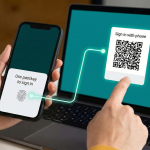
Understanding Two-Factor Authentication (2FA): Enhancing Your Online Security

With the rise in cyber threats and data breaches, protecting your online accounts is more crucial than ever. One of the most effective ways to secure them is through Two-Factor Authentication (2FA). This guide explores what 2FA is, how it works, and why it’s essential for safeguarding your digital identity.

What is Two-Factor Authentication (2FA)?

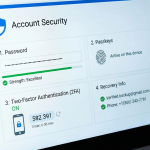
Two-factor authentication is an extra layer of security used to verify that a user attempting to log into an online account is who they claim to be. Instead of relying solely on a password, 2FA requires a second piece of information—a second “factor”—which can only be obtained by the rightful account owner.

2FA factors typically fall into three categories:

  1. Something you know – like a password or PIN.
  2. Something you have – like a mobile device or a security key.
  3. Something you are – biometrics like a fingerprint, facial recognition, or voice.

With 2FA, you’ll need two of these factors to access your account, making it significantly more challenging for cybercriminals to breach it.

How Does 2FA Work?

[Read more…]

Personalize Your Web Browsing Experience: A Guide to Customizing your Web Browser

Your web browser is your digital gateway to the internet. By customizing it, you can tailor your browsing experience to your specific needs and preferences. Whether you prefer Google Chrome, Microsoft Edge or Mozilla Firefox, just because the start/home page defaults to a certain page or website, or you don’t have all the bookmarks/favorites in one browser vs the other, doesn’t mean it has to stay that way. Here’s a simple guide to help you personalize your favorite browser:

Changing Your Home Page

Your home page is the first thing you see when you open your browser. Here’s how to change it:

Google Chrome:

  1. Click the three dots in the top-right corner.
  2. Select “Settings.”
  3. Scroll down to “Appearance.”
  4. Under “Show Home button,” toggle the switch on.
  5. Click “Change” and enter your desired URL.

Mozilla Firefox:

  1. Click the three horizontal lines in the top-right corner.
  2. Select “Options” (or “Preferences” on macOS).
  3. Go to the “Home” tab.
  4. Select “Custom URLs” and enter your desired URL(s).

Microsoft Edge:

  1. Click the three dots in the top-right corner.
  2. Select “Settings.”
  3. Under “Start page,” choose “Custom” and enter your desired URL.

Creating Bookmarks/Favorites

Bookmarks or favorites are shortcuts to your frequently visited websites. Here’s how to create them:

Google Chrome:

  1. Navigate to the website you want to bookmark.
  2. Click the star icon next to the address bar.
  3. Choose a folder or create a new one to organize your bookmarks.

Mozilla Firefox:

  1. Navigate to the website you want to bookmark.
  2. Click the star icon in the address bar.
  3. Choose a folder or create a new one to organize your bookmarks.

Microsoft Edge:

  1. Navigate to the website you want to bookmark.
  2. Click the star icon in the address bar.
  3. Choose a folder or create a new one to organize your bookmarks.

Additional Tips for Customization

  • Customize Your New Tab Page: Many browsers allow you to customize your new tab page with your favorite websites, news feeds, or productivity tools.
  • Adjust Your Browser’s Appearance: Change the theme, font size, and other visual settings to match your preferences.

Also read: You May Not be Using All the Great Features of Your Browser.

By following these steps, you can create a personalized browsing experience that suits your unique needs and preferences.

Top 5 Tech Scams to Watch Out for This Holiday Season

As the holiday season approaches, cybercriminals ramp up their efforts to exploit online shoppers and tech enthusiasts. Here are the top five technology-related scams to be aware of during the holiday season:

  1. Phishing Attacks:
    • What to watch for: Deceitful emails or texts that mimic legitimate companies, often urging you to click on malicious links or download attachments. These can lead to malware infections or identity theft.
    • How to protect yourself: Be cautious of unexpected emails, especially those with urgent requests or suspicious links. Verify the sender’s address and avoid clicking on links or downloading attachments from unknown sources.
  2. Fake Online Stores:
    • What to watch for: Counterfeit websites that mimic popular retailers, offering enticing deals and discounts. These fraudulent sites often steal your credit card information and personal data.
    • How to protect yourself: Shop on reputable websites and verify the URL before entering sensitive information. Look for secure payment gateways (HTTPS) and customer reviews.
  3. Social Media Scams:
    • What to watch for: Bogus giveaways, contests, or surveys on social media platforms that promise valuable prizes in exchange for personal information.
    • How to protect yourself: Be wary of unsolicited offers and avoid sharing personal information on social media. Stick to official company pages and verified accounts.
  4. Tech Support Scams:
    • What to watch for: Unexpected phone calls or pop-up messages claiming to be from tech support, often warning of critical issues with your computer. These scammers may attempt to charge you for unnecessary services or gain remote access to your device.
    • How to protect yourself: Never trust unsolicited calls or pop-up messages. Contact your device manufacturer or internet service provider directly for legitimate tech support.
  5. Gift Card Scams:
    • What to watch for: Requests from friends or family to purchase gift cards for various reasons, often through email or text messages. These requests may be fraudulent, with scammers attempting to steal the gift card codes.
    • How to protect yourself: Verify gift card requests directly with the person, preferably through a phone call or in person. Be cautious of unusual requests, especially if they seem urgent or out of character.

Additional Tips:

  • Keep Software Updated: Regularly update your operating system and security software to protect against vulnerabilities.
  • Use Strong, Unique Passwords: Create complex passwords for all your online accounts and consider using a password manager.
  • Enable Two-Factor Authentication: Add an extra layer of security to your accounts by enabling two-factor authentication.
  • Educate Yourself: Stay informed about the latest scams and cybersecurity best practices.

By being vigilant and following these tips, you can significantly reduce your risk of falling victim to tech scams during the holiday season and beyond.

Also read about other scams that are common year-round.

If you’ve fallen victim to a scam and need help recovering your device, accounts or identity, contact Computer Techs for assistance.

Laptop Battery Bulging: A Cause for Concern

Laptop batteries are essential components that power our devices. However, over time, these batteries can experience issues, one of which is bulging. This phenomenon occurs when the battery’s internal components expand, causing the casing to bulge outward. While it may seem like a minor cosmetic issue, a bulging battery can pose safety risks and should be addressed promptly.

Causes of Laptop Battery Bulging

Several factors can contribute to laptop battery bulging:

  • Overcharging: Repeatedly charging your laptop beyond its maximum capacity can lead to internal damage and swelling.
  • Heat Exposure: Excessive heat, either from the laptop’s internal components or external sources, can cause the battery’s chemicals to degrade and expand.
  • Manufacturing Defects: In rare cases, batteries may have manufacturing defects that predispose them to bulging.

Safety Risks Associated with Bulging Batteries

A bulging laptop battery can pose significant safety risks, including:

  • Fire: In extreme cases, a bulging battery can short-circuit and ignite, potentially causing a fire.
  • Toxic Fumes: Batteries contain harmful chemicals that can be released into the air when they overheat or rupture.
  • Physical Injury: A bulging battery can rupture, causing sharp objects to fly out and potentially injure someone.

What to Do if Your Laptop Battery is Bulging

If you notice that your laptop battery is bulging, it’s crucial to take immediate action:

  1. Unplug and Power Off: Disconnect your laptop from any power sources and shut it down immediately.
  2. Inspect for Damage: Carefully examine the battery for any signs of cracks, leaks, or other damage.
  3. Stop Using the Laptop: Avoid using your laptop until the battery issue is resolved.
  4. Contact the Manufacturer or a Professional: Reach out to the manufacturer or a qualified technician for guidance. They may offer repair or replacement options.
  5. Dispose of the Battery Safely: If the battery is damaged or beyond repair, dispose of it according to local regulations. Many electronics retailers offer recycling programs for batteries.

Preventing Battery Bulging

To help prevent battery bulging, consider the following tips:

  • Avoid Overcharging: Disconnect your laptop from the power source once it’s fully charged.
  • Keep Your Laptop Cool: Use a laptop cooling pad or avoid placing it on soft surfaces that can trap heat.
  • Monitor Battery Health: Pay attention to your battery’s health indicators and replace it if it starts to show signs of degradation.

By understanding the causes, risks, and preventive measures associated with bulging laptop batteries, you can take steps to protect yourself and your device. If you notice any signs of battery bulging, it’s essential to act promptly and seek professional assistance.