What You Need to Know About the End of Support for Windows 10

  • Microsoft ended support for Windows 10 on October 14, 2025. There’s no more free updates*, security patches, or technical support available from Microsoft – unless you take action.
  • Most users have 3 options: upgrade to Windows 11, get a new computer with Windows 11, or extend Windows 10 security updates until October 2026.
  • Upgrading to Windows 11 is recommended for most users for its advanced security, improved performance, and new features.

Updated 11/1/25:

Now that Microsoft’s Windows 10 operating system has reached the end of mainstream support, computer users that haven’t taken action yet to address their out-of-date operating system should do so as soon as possible and definately before the end of 2025. One option is to enroll in Microsoft’s first-time ever “Extended Security Updates” program for personal computers using Windows 10, that will extend security updates for an additional year – until October 13, 2026. Continue reading below to become more informed about all of the options.

The Start button taskbar icons for Windows 10 vs Windows 11.

What Are Your Options?

If you haven’t already taken action, it’s time to do so now. Windows 10 users have three primary options:

  1. Upgrade your existing computer to Windows 11 for free
  2. Get a new computer with Windows 11
  3. Enroll in the Extended Security Updates program for free to Continue using Windows 10 until October 2026

Let’s explore these options and why ultimately upgrading to Windows 11 is probably your best choice.

[Read more…]

New computer recommendations

Updated 1/26/26:

There’s been a global supply shortages for RAM and SSDs that have caused a dramatic increase in prices over the past few months. RAM and SSDs are major and expensive components that are used in computers. Therefore, inventory of computers that were built by manufacturers a few months ago before the dramatic increase in prices are now being sold through, and we expect prices of computers to rise dramatically in the next few months.

You may be reading this because the operating system on your existing computer is no longer supported. Since you’ll likely be spending the next 5-10 years or more with your next computer, please take a few minutes now to make an informed decision about what to look for in a new computer and accessories – and get the best deal. 

Our recommended minimum new computer specifications are:

  • Intel Core i3/AMD Ryzen 5 processor or better. For an Apple Mac computer we recommend getting Apple’s “M” series processor rather than an Intel processor.
  • 8 GB RAM or more
  • 256GB Solid State Drive (SSD) or larger
  • Please read New Computer Buying Guide for more detailed information.

If you’re thinking about trying to save money by buying a refurbished computer – we don’t recommend it. Typically they won’t last as long as a new computer, and are less secure due to unpatched processor flaws and some cannot be upgraded to more recent secure operating systems.

We’ve seen the best reliability with HP and Dell brands. Keep in mind that cheaper laptops and all-in-ones typically only have a vertical screen resolution of 768 pixels, whereas higher quality and clearer screens are 1080 pixels or higher.

Click on the links below to view recommended computers meeting the minimum recommended specifications noted above at the respective retailer’s website. Some models may be available in-store. If you come across a good deal elsewhere, remember to look for specifications that are a minimum of what’s listed above.

[Read more…]
How to save money on internet, phone and TV service in 2026

Saving money on internet, phone, TV, and cell service can be a game of strategy! Here are some tactics to consider:

General Strategies:

  • Negotiate your current bills: Call your providers and politely but firmly negotiate a lower rate or better deal. Mention competitors’ offers or threaten to cancel. Be prepared to walk away.
  • Bundle services: Consider bundling multiple services with the same provider. For example, Spectrum and AT&T both offer considerable discounts on wireless phone service when you bundle with their home internet service. But it may not make sense to bundle ALL of your services.
  • Downsize your plan: Analyze your usage for internet and cell phone data. If you’re not using all the features or amount of internet speed/data in your current plan, downgrade to a cheaper one.
  • Shop around: Compare prices and deals from different providers in your area. You might find a better offer than your current one.
  • Look for discounts: Many providers offer discounts for seniors, students, low-income families, and military personnel. See if you qualify for any.
  • Utilize free options: Explore free alternatives for TV, like streaming services with free trials or using a library card for free access to movies and audiobooks.
[Read more…]

The Case Against Using the Email that AT&T and Spectrum Provides

Most people that have been using the Internet in the Reno area for a long time have an email address that ends in @att.net, @sbcglobal.net, or @charter.net. You probably got this email address for free when you first signed up for internet service years ago.

It is the address your friends use to contact you, and it is the username for financial, device, social media and medical accounts. The idea of changing it now probably feels like a huge headache.

However, Computer Techs and other technology experts strongly suggest that you stop using email provided by your Internet provider – commonly AT&T and Charter/Spectrum in the Reno area. It isn’t just about having the newest technology—it is about protecting your freedom and keeping your information safe.

Here is a simple explanation of why you should consider making a change, and why it is worth the effort.

[Read more…]

Backup Options in 2026: Safeguarding Your Digital Life Across Devices

In 2026, our digital lives are more intertwined with our devices than ever before. From cherished family photos to critical work documents to keeping track of medications and health history, the data on our computers, tablets, and smartphones is invaluable. Losing it can range from a minor inconvenience to a catastrophic event. Fortunately, a robust ecosystem of backup solutions exists, offering peace of mind across Windows, macOS, iOS, iPadOS, and Android devices.

This article explores the essential backup options available in 2026, covering both popular cloud services and reliable local methods, ensuring your data remains safe and accessible.

The Importance of a Multi-Layered Backup Strategy

“Moving” you photos or documents to an external flash drive or other storage media to save space is not a backup – and not recommended. If that external storage gets lost or the data gets corrupted, the data is lost. It’s crucial to understand the “3-2-1 backup rule.” This golden standard recommends:

  • 3 copies of your data: The original and at least two backups.
  • 2 different types of media: For example, a local hard drive and cloud storage.
  • 1 offsite copy: To protect against local disasters like fire or theft (typically handled by cloud backups).

Adhering to this rule significantly reduces the risk of permanent data loss.

Cloud Backup Solutions: Convenience and Accessibility

Cloud services offer automatic, offsite backups that are accessible from virtually anywhere. They often come with subscription plans that scale with your storage needs.

[Read more…]

Fortress Inbox: The 4 Pillars of Securing Your Email Account

Your email is the “master key” to your digital life. It’s where you receive sign-in codes and password resets for your bank, social media, healthcare portals and even other email accounts that you likely have. If a hacker gets into your email, they can get into most everything else.

Securing it doesn’t have to be complicated. By implementing these four layers of defense—unique passwords, passkeys, 2FA, and recovery info—you can make your account virtually impossible to breach.

[Read more…]

How to use a passkey on your smartphone to sign in on a computer

One of the best things about passkeys is that they aren’t trapped on just one device. Even if you haven’t synced your passkeys through a cloud service like iCloud Keychain or Google Password Manager, you can still use your iPhone or Android phone as a “physical key” to sign into websites on any computer.

This cross-device login uses a combination of Bluetooth (to prove the phone is physically near the computer) and a QR code (to establish a secure encrypted connection).

If you aren’t already familiar with setting up and using passkeys, read this article first: A Beginner’s Guide to Passkeys: How to Set Them Up, Use Them, and Sync Across Devices

Here is how to use a passkey stored on your smartphone to sign into a website on your Windows PC or Mac.

[Read more…]

Do this now: Protect your browser passwords from prying eyes

Browsers are designed for speed. By default, if you are logged into your computer, your browser assumes it is safe to autofill your usernames and passwords the moment a login page loads.

This creates a dangerous “single point of failure.” If you step away from your unlocked laptop for just a minute, or if someone gains remote access to your computer, they have instant access to your bank, email, and sensitive accounts without needing to know a single password.

You should fix this immediately. Every major desktop browser allows you to require re-authentication—entering your computer’s PIN, password, or using a fingerprint scan—before it fills in credentials. This adds a layer of protection that stops unauthorized users in their tracks.

Here is how to enable these protections on desktop versions of Chrome, Edge, Firefox and Safari.

[Read more…]

Browsing Made Easier and Safer: What’s New in Your Web Browser

The internet is always changing, and so are the tools we use to explore it—our web browsers (like Chrome, Edge, and Safari). In 2025, you might notice some exciting new features designed to make your time online easier, safer, and smarter, especially when it comes to logging in and protecting you from tricky scams.

🤖 Smart Helpers: The New AI Features

Artificial Intelligence (AI) is like a clever assistant built right into your browser now. These new AI tools are designed to help you understand and interact with the web more efficiently.

  • Quick Summaries: If you open a long article or a complicated page about a topic, the AI can read it and provide a short, easy-to-understand summary for you. This saves you time and gets you the main points right away.
  • Ask Questions: Instead of searching for something and clicking through many links, you can sometimes just ask your browser a direct question about the page you’re looking at. For example, if you’re on a recipe website, you could ask the AI, “How many calories are in this dish?”
  • Better Accessibility: The AI is also making the web easier for everyone. It can now describe images for those with vision impairments or offer new tools that let you easily adjust the color, contrast, and text size of a webpage to reduce eye strain.

🛡️ Stronger Protection Against Scams (Scareware)

Scammers often try to trick you with alarming, fake messages called scareware. These are those shocking pop-ups that suddenly appear, flashing warnings that your computer is infected with a virus and urging you to call a fake “tech support” number right away.

In 2025, web browsers like Microsoft Edge are building in powerful new features to spot and stop these scams before they can trick you.

  • Automatic Blocking: The browser now uses its own “smart sensors” to look for the signs of a fake warning page (like the screen suddenly going full-size or blocking your “Back” button).
  • Shutting it Down: When the browser detects one of these scary scams, it will automatically block or shut down the malicious page, often before the fake warning even finishes loading. This prevents you from seeing the scary message or accidentally calling the scammer’s number.

🔑 Say Goodbye to Passwords with Passkeys!

One of the biggest changes is a new way to log into your favorite websites called Passkeys. Think of Passkeys as a digital “key” that is much more secure and easier to use than your old passwords.

  • No More Remembering: You won’t have to remember long, complicated combinations of letters and numbers anymore.
  • Simple Log-in: To use a Passkey, you simply unlock your device (your phone, tablet, or computer) the way you normally do—using your fingerprint, your face (Face ID), or your device’s simple PIN.
  • Super Safe: Passkeys are much harder for scammers to steal because the “key” stays locked on your personal device. They can’t trick you into giving away your fingerprint or PIN over the phone or email.

Tip: You don’t need to switch all at once! Most websites will still let you use your old password as a backup. When you see a site ask you to “Create a Passkey,” you can give it a try for better security.

These new changes are all about making the internet a more comfortable, convenient, and most importantly, safer place for you to explore.

Beware: The Latest Tech Scams You Need to Know About

Cybercriminals are always looking for new ways to trick people, and we at Computer Techs are seeing an uptick in scams that target computer and internet users. These scams often look convincing on the surface, but with a little extra caution, you can spot the red flags before becoming a victim.

Fake Invitations and Social Security Statements

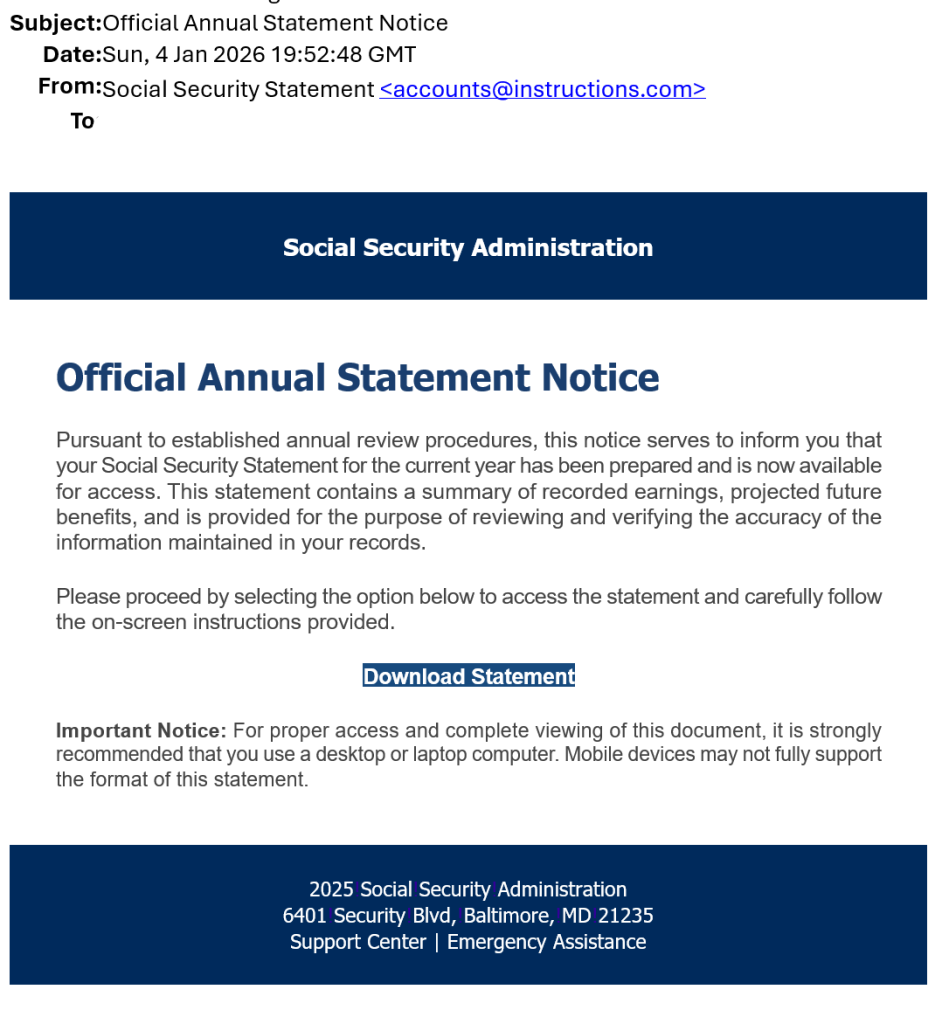
One of the most dangerous scams making the rounds is an email that appears to come from someone you know—a neighbor, friend, or even a family member. The message might say something like “RSVP for the celebration (of life)” ,“Click here to view the invitation.”, “Check out this important document” or “Check out the pictures”.

If you click the link, it discreetly downloads a remote access trojan onto your computer. Once installed, scammers can take control of your system, access your online accounts, steal data, or even lock you out completely.

Since the re-named file is a legitimate remote support tool often used by businesses, antivirus programs do not detect it as malicious. But what scammers can do via remote access to your computer can be very dangerous and impact your finances and identity.

This same method of a disguised remote support tool has also been seen as a fake Social Security Statement, and will likely evolve into other methods of deceptive delivery.

👉 How to protect yourself:

  • Never click unexpected links, even if they appear to come from someone you trust.
  • If the email feels suspicious, call the person directly to confirm they really sent it.

Fake Invoice Scams (McAfee, Geek Squad, and More)

Another common scam involves fake invoices seemingly from big-name companies such as McAfee, Geek Squad, Norton or PayPal. These emails claim you’ve been charged for a subscription renewal and provide a phone number to call if you want to cancel.

Of course, the invoice is fake. If you call, scammers may trick you into giving them remote access to your computer or your credit card details.

👉 How to protect yourself:

  • Legitimate companies don’t send invoices out of the blue for services you didn’t order.
  • Check your bank account or official account page directly instead of trusting an email.
  • Don’t call the number in the email—go to the company’s official website for real contact information.

How to Spot a Scam Message

Scammers rely on urgency, fear, or curiosity to get you to click. Before responding to any unexpected email, text, or phone call – even if it appears to come from someone you know – take a step back and look for these signs:

  • Bogus addresses or phone numbers – Hover over (but don’t click) an email address or link to see where it really leads.
  • Bad grammar and spelling mistakes – Billion-dollar corporations don’t send sloppy emails.
  • Generic greetings – Messages that start with “Dear Customer” instead of your actual name are suspicious.
  • Pressure to act quickly – “Act now or lose your account!” is a classic scam tactic.
  • Think about the situation – Why would a friend send you something out of the blue? Why would you get an email from PayPal or McAfee if you don’t even have an account with them?

The Golden Rule: Don’t Click

Above all, never open unexpected email links or attachments. If something looks even a little off, pick up the phone and call the person or company using a number you trust—not the one in the suspicious message.

Click here to view examples of the latest phishing and scams that we’re seeing.

Final Thoughts

Scams are becoming more sophisticated, but with a little vigilance you can stay safe. When in doubt, remember: slow down, verify, and never click blindly.

Using Webmail for Reliable Email Troubleshooting

In today’s digital world, many people access their email through email clients or apps installed on their mobile devices or computers. Popular email clients include the Mail app on Mac and iOS, Microsoft Outlook and Thunderbird on Windows, and Samsung Email on Samsung Android devices. These applications provide a convenient, organized way to view and respond to email from one or multiple accounts in a single interface.

However, when encountering email problems such as missing messages, sending or receiving errors, or synchronization issues, it is best to troubleshoot by going directly to the source of your email — known as webmail. Webmail is the online interface or website hosted by your email provider where your email is stored on their servers. From a webmail interface, you interact directly with the email server, bypassing the email client or device-specific issues.

Why Check Webmail?

  • Source of Truth: Since webmail interfaces connect directly to the email server, they show the true state of your inbox and messages without local app caching or syncing delays.
  • Bypasses Device Issues: If an email client or app is misconfigured or experiencing software problems, your webmail will still show your emails correctly.
  • Larger Screen Advantage: Using webmail on a computer or large-screen device offers better visibility, navigation, and options for managing complex email tasks.
  • Settings and Configurations: Many webmail portals offer comprehensive settings and diagnostic tools that can help identify issues such as filters, blocked addresses, or forwarding rules.

Common Webmail Services

Below are links to the most popular webmail services where users can log in to directly access their email accounts:

  • Yahoo Mail: A popular webmail service with a clean interface and organizational tools.
  • Gmail: Google’s widely used email service known for its powerful search and spam filtering.
  • AOL Mail: The classic free email provider is still around and popular with seniors.
  • Outlook.com Mail: Microsoft’s webmail for personal accounts including Outlook, Hotmail, and Live.com.
  • AT&T/Yahoo Mail: AT&T’s partnership with Yahoo offers a simplified version of Yahoo Mail branded for AT&T internet subscribers. Also accessible from the Mail button on AT&Ts Currently.com.
  • Spectrum Email: Spectrum’s webmail accessible for Charter/Spectrum internet subscribers.

Troubleshooting Tips Using Webmail

  • Log into your webmail account on a desktop or laptop browser.
  • Verify that new emails are arriving and old emails appear as expected.
  • Check your spam, trash, and other folders for misplaced or redirected emails.
  • Review account settings, filters, forwarding rules, and security notifications.
  • Test sending and receiving emails directly from webmail to isolate client-specific issues.
  • Reset passwords or security settings if login problems exist.

By starting troubleshooting at the source with webmail, users ensure they understand the true status of their email accounts before adjusting device or app settings. This approach simplifies diagnosing issues and often highlights whether the problem resides with the email provider or your local email client.

If you’re having problems with accessing all of your emails, contact Computer Techs for personal help.

Using the Same Password Everywhere Is Like Using Your House Key for All of Your Locks

Imagine if one single key unlocked your house, your car, your office, and even your safety deposit box at the bank. Convenient? Sure. Safe? Absolutely not. If you were to lose that key—or if someone were to steal it—they would instantly have access to everything important in your life.

That’s exactly what happens when you reuse the same password across multiple accounts.

The Convenience Trap

It’s easy to see why people reuse passwords. With dozens of logins for banking, shopping, email, and social media, it feels impossible to remember them all. One strong password used everywhere seems like the simplest solution. But that convenience comes at a steep cost.

The Domino Effect of a Breach

When a website suffers a data breach—and millions do every year—your password may end up exposed. If that password is the same one you use for your bank or email, cybercriminals can walk right in without resistance. Just like losing your universal key, one compromised password means every part of your digital life could be unlocked.

This is known as credential stuffing, where hackers try stolen email and password pairs across hundreds of sites until they find matches. It works disturbingly well when people reuse the same password everywhere.

Building a Better Lock System

Instead of one “master key,” you should think of your online security like a set of different, specialized locks:

The Bottom Line

Using the same password everywhere may feel easier, but it’s the digital equivalent of handing out a single key that opens your entire life. A smarter approach is to use different keys for different locks—keeping your most valuable accounts protected even if one password gets lost.