Computer / Internet Tips & News – exclusively for Computer Techs clients
Support for Windows | macOS | iOS | Android
Welcome to the Computer Techs Computer / Internet Tips & News blog. This purpose of this site is meant to provide a service to our valued customers, by keeping you informed with the latest news and tips related to your computer and the internet. Consider using the search box on the left side of the website to help you find a specific topic or article, or scroll through articles below to learn something new.
Get $25 Off your next service call for recommending Computer Techs
If you’re happy with our service, please consider recommending Computer Techs to a friend or relative. If we service their computer, you get $25 Off your next service call.
The details: Please have your friend or relative mention your name during the appointment, or after the appointment contact Mark Cobb with the name of the person that you recommended/referred. The referred person must be a new Computer Techs customer and not reside in the same household as the referrer.
Today’s smartphones retain a lot of personal data that you likely wouldn’t want to get into the wrong hands. Below is a list of just some of the data that can be accessed if someone got into your smartphone:
Someone can receive one-time passwords via text message or authenticator app that can be used to reset account passwords
Impersonate you by being able to send and receive calls, email and text messages on your behalf
Impersonate you through any social networks apps that you use
Access any notes, passwords or private pictures you may have stored
Reset your phone and sell it
How you can protect your smartphone
The most important thing you should do is to protect your smartphone with a numeric passcode and/or biometric authentication (finger or facial recognition). 6-digits is better than 4-digits – but 4-digits is definitely better than no passcode. Also, set your smartphone to auto-lock and require the passcode after 5-minutes or less of inactivity (less time is better).
I am surprised by how many clients I’ve helped who had no passcode on their phone. Smartphones are easily lost or misplaced, and a passcode will help keep your data out of the wrong hands. Most people don’t keep their doors unlocked, so why keep their smartphone unlocked?
Other things to keep your smartphone safe include:
Only install apps from trusted developers with lots of favorable reviews
Treat every text message and email from unknown senders as suspicious – particularly if it’s asking you to do something. Most text messages from financial institutions come from a 5-or-6-digit “short code” – not a 10-digit phone number.
Connect your smartphone to Wi-Fi when at home, and make sure you keep the operating system (typically iOS or Android) up-to-date with the latest security patches.
You don’t need an antivirus or security app, nor a VPN. Protections are already built into the operating system of your mobile device, and apps are vetted before being made available in the app stores. However, be judicious about the apps that you install, because occasionally stuff gets by the reviewers.
Most importantly, password protect your device. You are more likely to lose or misplace your device than getting hacked from the outside.
Do you need help with your mobile device(s). Contact us to discuss your needs.
Updated 6/27/22 to reflect new Charter/Spectrum speeds
Wireless carrier T-Mobile is expanding their services to include Home Internet in some areas of Reno/Sparks. Assuming you are in their limited service area – should you switch?
Why you may want to switch
If you’re on a budget, at $50/month TMHI is less expensive than most AT&T and Spectrum internet plans.*
TMHI is available in some rural areas that are under-served by AT&T and Spectrum.
If you’re in an area served only by AT&T’s legacy DSL service with speeds less than 6 Mbps, and Charter/Spectrum is not an option.
* Low-income households may qualify for a discount of up to $30/month on internet service from many providers through the Affordable Connectivity Program.
Why you may NOT want to switch
Wireless service speeds are more variable and can be less reliable than other wired providers, particularly during peak times.
If you’re on a bundled package with AT&T, DirecTV or Spectrum and don’t want to change your TV and/or home phone service.
Internet speeds provided by local home internet providers
The chart below shows a comparison of the speeds provided by the major internet providers. Streaming video needs the most bandwidth (higher speeds), but that number only needs to be as high as 25 Mbps for streaming the highest-quality 4K Ultra HD content.
INTERNET PROVIDER
TYPICAL INTERNET SPEEDS – Download Mbps / (Upload Mbps)
How many times has this happened to you? You’re on your computer reading, catching up with friends on Facebook, or searching the internet when a pop-up window shows up claiming that your browser has been hacked or blocked.
If it’s your first time seeing such a message splash across your screen, you’ve been lucky until now. Every day millions of computer users all over the globe see such messages whenever they surf the internet. And no, it doesn’t mean that your browser has been compromised. It’s simply pop-up phishing designed to scare you into calling the number, which scammers use to target unsuspecting victims.
What Is Pop-Up Phishing?
Pop-ups are generated by websites to offer users additional information or guidance (such as how to fill in a form, how to apply a discount code, etc.)
With pop-up phishing, you get something malicious disguised as a scare message to get you to act. Pop-up phishing occurs when criminals hijack legitimate websites with malware code, causing the website to spring up these “your computer has been hacked” messages whenever a new user visits the website.
Pop-up phishing is usually so effective because of the type of message that “pops up” and the content of the message. They typically provide a phony warning to an unsuspecting website visitor, claiming that the visitor’s computer security has been compromised. The visitor is then asked to either download a necessary tool to remedy the “security threat,” such as an antivirus program (often malware in disguise), or contact a phony phone number for “help.”
How Does Pop-up Phishing Work?
Fake pop-ups inform users that their computer is under attack or has a technical problem. They direct visitors to call a phone number listed on the pop-up to get a professional that can help resolve the danger, one that never existed in the first place.
Cybercriminals make a lot of money from pop-up phishing scams yearly. They target unsuspecting users worried about their computer’s security to extort money from them and “fix problems and resolve threats” that do not exist.
How to identify fake pop-ups
Here are different ways of spotting a fake pop-up:
Spelling Mistakes
One of the simplest ways to spot a fake pop-up is to pay attention. They are often littered with all sorts of spelling mistakes. If there’s an image on the pop-up, it’ll likely look unclear or unprofessional.
Compare it to a legitimate pop-up.
Some pop-up phishing notifications claim to be from your internet service provider. Being able to differentiate between a genuine notification from a fake can save you a lot of trouble.
If you haven’t been paying attention to pop-ups from your antivirus software, you should start doing that now. That way, whenever you come across a fake, you can quickly tell. If you’re confused and don’t know the difference, just ignore the pop-up, open your antivirus program, and do a deep scan to see if there’s anything wrong.
Close your browser
Most fake pop-ups put your browser in full-screen mode, and to make matters more annoying, you may find yourself unable to minimize or close your browser. This is usually a sure sign that it’s a scam. If this happens, close the browser using the Ctrl+W keyboard keys, task manager, or shut down/restart your computer.
How To Protect Yourself Against Pop-up Phishing Scams
If a scam pop-up message appears on your screen, here’s what you should do:
Avoiding calling any number shown on the pop-up
Do not click the pop-up for any reason.
Close your browser using the Ctrl+W keyboard keys, task manager, or shut down/restart your computer. If you’re unable to do that, you can press-and-hold your computer’s power button to shut it down.
Do not share your payment and personal details with anyone.
Make sure your operating system and browser are up to date.
Before downloading any app or browser plugin, read the reviews from other users. It may just save you from downloading something dangerous.
Never open any attachments in spam emails, or click to “unsubscribe” from them.
Only go to trusted sites to download your software and apps.
Do not click on any links in messages, emails, or websites you aren’t familiar with.
Examine the permissions that the app you wish to download is requesting to ensure it is legitimate.
For more information on how to stay safe while surfing the internet, contact us.
Email open rates typically range between 20 and 30 percent while SMS stands at a staggering 98 percent. 90 percent of texts are opened within three seconds of receipt. The average text is read within 90 seconds of receipt while that number is 90 minutes for email. This characteristically rapid response for text messages makes them a popular avenue for SMS scams and phishing – sometimes called “smishing”. Scams after all require that the target respond quickly before they have a change of heart or think their decision through.
The average text is read within 90 seconds of receipt. That metric is 90 minutes for email.
The speed and regularity of reading and responding to texts is why you should delete scam texts immediately. If they lie around your inbox too long, you could unintentionally click on the fraudulent link at some future date. Scam SMS comes in diverse forms. Knowing SMS scammers’ modus operandi is critical to avoiding falling victim. Check out these types of texts you should get rid of without hesitation.
1. A Friend’s Friend You’ve Never Heard Of
Scammers know they have a good shot at success if they can convince you that you are someone they may know and can trust. Since they cannot guess the origin and nature of your friendships, their best bet is to pose as someone referred to you by your friend or acquaintance. For the average adult, friends and acquaintances garnered through life can number in the hundreds or thousands.
So, if the scammer sent you a text message purporting to be a referral from your friend Melissa or Michael, chances are you have someone by that common name that you have at the minimum, a distant connection to. You would feel compelled to take a look and respond to the message to avoid embarrassing your friend or friend’s friend by stating you don’t remember them.
Now, this type of text could very well be genuine. But as with virtually all scam texts, if it includes a URL the sender wants you to click on, delete it immediately.
2. A Package You Were Not Aware Of
Who doesn’t love surprise gifts and just incoming packages in general? When we order something at online stores such as Amazon, there’s a palpable excitement as we anticipate its arrival. If you get a text message claiming you have a package waiting for you, it is tempting to click on the link to see the details, claim it and/or specify the destination. Yet, this is one of the most common SMS scams.
While the link could be a trigger for the download of malware to your phone, it is often a means of extracting confidential personal information from you via a fake webform. Armed with that data, the scammers can execute elaborate identity theft, empty your account, and max out your credit card.
3. Your Bank Account or Credit/Debit Card is On the Verge of Closure
Our bank accounts and credit/debit cards are a key driver of our everyday quality of life. You may be sent into a panic if you receive a text message claiming your bank account or card will be closed in case you do not urgently confirm your PIN, password, and other information. Often, there will be a narrow deadline such as the need to provide the information within hours of receipt.
Bank accounts and cards do get closed for various reasons. So, once again, this rides on a realistic scenario. Still, account closure is unlikely to happen with such urgency. There will be a lead time of at least weeks or months. To check if it’s a scam, call the bank directly on their official listed phone numbers (you can find these on their website’s Contact Us section), or on the back of the card. If it doesn’t check out, delete it promptly.
4. You’ve Won an Award You Did Not Know You Were in the Running For
This plays on the elation that accompanies an unexpected gift. But nothing comes that easy. Nearly all notable awards require that you formally and intentionally enter the contest before you are assessed against other participants. Few organizations would want to go through the painstaking process of identifying a winner only for the selected candidate to reject it.
What does this all mean? If you receive a text message about an award you’ve won, it’s likely scammers looking to cash in at your expense. Do not click on the link they ask you to even if it is apparently the only means to claim your award. Usually, these text messages download malware to your phone that would need removal.
Conclusion
These are some of the common types of scam texts but this is not an exhaustive list. Other types of scam SMS range from claims that your videos/photos have been posted somewhere, to inauthentic COVID-19 pandemic updates. Irrespective of the type of message, take a screenshot of the message for later review by an IT professional, then delete the message. Under no circumstances should you click the links, respond to the text or call the sender.
Think you have been a target of scam texts? Most people have. Contact us if you need assistance.
Data theft, file loss/corruption, system disruption, email/SMS spam, unauthorized popup ads and remote control. When your PC is infected by malware, these are some of the major risks you could be exposed to. Prevention is the best-case scenario. But no antivirus can guarantee 100 percent protection from malware.
No antivirus can guarantee 100 percent protection from malware
You must brace for instances when malware does seep through any defenses you may have. It’s vital that you know the telltale signs of malware infection. Whereas malware is designed to be as unnoticeable to the end user as possible, it is after all an alien and unwelcome application. Most times, you can pick up warning signs that something feels off. Here are some of the major red flags.
1. Unexpected Pop Ups
Have you ever been working on your PC when suddenly, a window pops up on the screen with an alarming message? That could very well be a sign of malware. Typically, the notification will declare your computer is virus infected. It will propose that the only way you can get rid of the unwelcome message is by clicking on the highlighted button.
It’s a classic trick where someone purports to offer you assistance against malware whereas in the real sense, they want to use your uninformed consent to gain entry, steal information and propagate infection.
2. Phishing Emails
It’s difficult for an email user to completely avoid phishing messages. Spam filters do a good job of preventing many phishing emails from getting to our inboxes, but a few will break through. A phishing email is not necessarily a sign of malware infection. What you should pay attention to is an uptick of these scam emails.
If you were getting one phishing email per month but now have to grapple with five a week, then that could be because malicious software on your PC is aiding that nefarious effort.
3. Slowing Performance
If you regularly use your computer, then you already have an idea of what ‘normal’ looks like as far as processing speed and response time is concerned. Against this baseline, a slow computer could mean a virus problem. Certain forms of malware will overload your computer by occupying a significant proportion of your processor’s and memory’s capacity.
Slowing performance that has no clear cause may be due to malicious software
There may be valid reasons why your PC would suddenly slow down. But these can be tied to definitive changes such as a recently installed application. If you do notice slowing performance that has no clear cause, malicious software may be at play.
4. Frequent Crashing
Malware aims to perform or facilitate unauthorized activity but without overly disrupting the PC user’s experience. That is easier said and done though so the presence of unwelcome apps will sometimes lead to unresponsiveness and/or unexpected rebooting. Also, malware may deliberately initiate a reboot to further embed itself in your computer’s system.
Crashing does not always mean malware infection. Bug-plagued or poorly configured apps can destabilize your PC’s operating system too.
5. Changed Browser Homepage
Your browser’s homepage is not something you will regularly change. For most people, it remains with the default setting throughout. In many instances, that would be a major search engine page such as Google.com or Bing.com.
So, if your browser’s home page changes and you do not remember doing it, that is likely because of a virus. Often, trying to change it back to the default won’t help much as the malware will amend the setting again to the page it prefers. This will happen until the virus itself is removed.
6. Antivirus Warnings
Fake infection popups are a sign of malware. But so are legitimate alerts from your PC’s antivirus. It’s after all your first line of defense. It’s true that antivirus software developers are in business so they’ll regularly push notifications meant to encourage you to move to a paid plan or subscribe to an additional security product by them.
Any legitimate warning from your antivirus should be taken seriously
Still, irrespective of the motive, any legitimate warning from your antivirus should be taken seriously. It’s one of the easier and safer ways to get rid of malware. Your antivirus can detect malware even before it is successfully installed. But no antivirus will ever ask you to call a phone number for assistance.
Wrapping Up
As long as your PC is connected to the Internet, receives email and/or has had a USB flash drive plugged into it, there is always the risk of malware infection. This realization can be a source of anxiety. It doesn’t have to be though. As long as your antivirus is active and up-to-date, you practice safe computing habits and keep an eye on the warning signs of infection, you can rest easy.
Suspect your PC has a malware problem? Contact us.
The internet is a huge part of our daily lives. Whether you’re communicating with family over Zoom, checking what your friends are up to on Facebook or buying your weekly groceries, you no doubt use an Internet browser most days of the week – either on your computer, tablet or smartphone.
Internet browsers have a host of cool tricks and functions that make the browsing experience more pleasurable and straightforward. To make the most of these features, you need to understand what they are and how they work.
One such feature is the use of multiple browsing tabs. Tabs enable you to open multiple websites in one browser, without cluttering your desktop with too many browser pages. Being able to use tabs can enhance your browsing experience and make using the internet much easier.
Every leading browser has options for tabbed browsing – even smartphones and tablets.
Tabs are hugely popular – and have a great range of benefits. It’s estimated that the average person has between 2 -3 tabs open at any one point.
Of course, to take advantage of tabs, you need to know how to use them. So, below, we’ll dive into what browser tabs are, why you should use them and how to get started.
What’s a Browser Tab?
With multiple browser tabs open, you can have multiple websites open at the same time within one browser. Each open website will appear as a “tab” at the top of your browser window. You can use your mouse, keyboard-shortcut or finger to switch between your open tabs/websites.
Why is Using Multiple Tabs Beneficial?
Have you ever signed into a website and then been asked to check your email for a verification code, which you’ll need to enter on that page.
In this instance, you may have wondered if there’s a way to check your email without losing the page you’re on. This is where browser tabs come in.
With multiple tabs, you can keep your current page while opening a new tab to check your email.
Other use cases for browser tabs include:
When you are writing an email and want to look up a synonym of a word
When you have two email accounts and want to switch between the two
When you’re reviewing your stock portfolio and want to research information about a company without exiting your account
When you’re researching airline flights and are comparing providers for the best deals
When you’re multi-tasking – reading the news, ordering groceries etc.
When you want to click a link on a page without losing the webpage you’re on
How to Open a New Tab
It’s straightforward to open a new browser tab. In your browser, click the new tab or “+” button that appears in the top right-hand corner of your browser’s toolbar.
When you click this button, you will open a new tab. The new tab will either show as your browser’s homepage or a blank page, depending on the settings you have configured for your browser.
How to Open Links in New Tabs
If you want to open a link on a website into a new tab, right-click the link with your mouse and select the option that says “open link in new tab.”
There’s also a way to do this via your keyboard. You can press and hold the Ctrl key down, then click on the link with your mouse, and a new tab will automatically.
If you’re conducting research online or doing some reading, opening links in new tabs is a great skill to have! For example, if you’re reading our blog and see a link that you like, you don’t have to lose the page you’re on.
Instead, by opening a link in a new tab, you can keep your current page while opening a new one too! In fact, why not click the ‘blog’ link above right now and test it out!
How to Close Different Tabs
One thing to be aware of is that, if you don’t close down tabs once you’re finished with them, you could end up with a huge string of tabs – which will feel overwhelming!
Moreover, having too many tabs open can make your browser feel cluttered and tricky to navigate.
So, make sure you close down your tabs once you’re finished with them. Doing this is simple. You can close the tab by clicking the little “x” icon on the right side of the tab.
Need help getting around your internet browser or other software?
Computer Techs provides expert IT training to Reno area residents on a wide variety of computer and software topics.
If you’d like to learn more about improving your online browsing experience, we can help. Contact us today with any questions or computer needs.
Updated 10/18/23 to include other accounts besides email.
You may have signed up for your email account long ago – before additional account recovery information was required. If you get locked out of your email account tomorrow, does your account have enough account recovery information to allow you to easily reset your password and get back into your account?
Account recovery information includes other methods to confirm your identity including:
A mobile phone number that can receive a text message
A secondary email address
Account security questions – i.e. “your first pet’s name”
This year we’ve had several clients get permanently locked out of their AT&T/Yahoo email and other accounts because there wasn’t enough secondary verifiable information to convince the customer support representative to reset the password. Don’t let that happen to you. Log into your email account today – before a hacker does – to update your profile information with a cell phone number that can receive one-time-password verification text messages. Alternatively or additionally you could provide a secondary email address or setup account security questions/answers. If available, setup 2-Step Verification – sometimes called Multi-Factor Authentication – for even better protection.
Don’t forget to secure your other accounts
While you’re securing your email account, we also recommend securing your other accounts that could be accessed by hackers. Those accounts include:
Bank and brokerage accounts where funds could be transferred out by a scammer
Social media accounts where someone could take over your identity to scam your friends and family
Your Microsoft, Apple and/or Google accounts which are used to login to your computer or mobile device
To secure your accounts as mentioned above, once logged into one of your online accounts, look for a section called profile or security to make the changes and additions. Instructions for some common accounts include:
Have you ever looked at a product on an e-commerce website and noticed that, later, an advertisement appears for that same product on another website?
This is the work of advertising ‘cookies’ and other tracking tools, which monitor your online browsing activities to present you with relevant, targeted advertisements.
This can be a great thing. Targeted advertisements can help you to discover new products and makes the browsing experience feel more personalized.
In line with this, 71% of consumers prefer ads to be targeted to their interests and shopping habits, and 3 out of 4 consumers prefer fewer, but more personalized ads.
However, while some people enjoy targeted advertisements, many also feel like their online privacy is being invaded. A different research study found that 79% of Americans on the web worry about companies infringing their online privacy.
It’s easy to see why. Personal ads can make you feel a little like you’re living in the world of ‘big brother’. Not everyone wants to be monitored 24/7 – and that’s ok.
Moreover, let’s say you are researching birthday gifts to buy for your partner. Targeted ads mean that your partner could end up seeing an ad about the proposed gift – which would ruin the surprise!
As people have become more aware of their online privacy, the leading web browser players have released private browsing options.
Below, we’ll explore how private browsing sessions work – and how you can set one up on your computer.
What is a Private Browsing Session?
A private browsing session is a feature available in most popular web browsers. When you switch on private browsing mode, your browser creates a one-time, isolated session that is kept separate from your main browser.
While your main browser collects your browsing history and data, the private browser essentially only has a short-term memory. It won’t save any of the data about the websites you visit or things you buy. Once you finish the session, the data is gone for good.
Going back to the birthday use case, you can see why private browsing is useful! It ensures that no one else who uses your computer can see what you’ve been looking at online.
When Did Private Browsing Mode Begin?
Apple was the first manufacturer to release a private browsing mode. In 2008, it launched a ‘private browsing’ feature. Following this launch, the private browsing mode grew in popularity, leading to other big players like Microsoft and Google launching similar features.
How To Start a Private Browsing Session
It’s simple to get started with a private browsing session. Here’s how to launch it on each of the most popular web browsers.
Google Chrome: Launch Google Chrome as you would normally. Then, near the top right hand of the screen, click the 3-dot menu “Customize and control Goole Chrome”. You’ll see an option that says “New Incognito Window” click this to launch private browsing mode. Then, browse the web as you normally would.
Safari: Open Safari as you would normally. In the top left hand of the screen, click the “File” button. Then click the option to open a “new private window”. This will take you to private browsing mode.
Microsoft Edge: Launch your Edge browser, then click on the three dots button in the top-right corner. Then, click on “New InPrivate window” to open a browser in private mode.
Firefox: Open Firefox, click the 3-dash menu button near the upper-right, then click New Private Window.
The Benefits of Private Mode
If you’re concerned about your online privacy, then private browsing is a great way to reduce your worries. Private browsing is convenient for:
Not having cookies saved from the websites that you visit, so that you won’t get related adverts later on
If you’re using someone else’s computer to login to your email or financial institution, your browsing history is not saved
Avoiding rising prices on items by viewing the same item repeatedly
If you want to feel more in control over your data and online privacy, private browsing mode is definitely a great option.
Get Help Improving Your Online Safety & Privacy
Computer Techs enjoys working with Reno area residents to help them get more from their technology while also keeping their personal data secure. We can help keep you better protected online.
The next time you’re browsing on your computer, and you see a quiz on Facebook or another social media site that looks appealing, think before you click.
With the political season back upon us, you need to be aware of how the data you share in these quizzes might be used.
You might not think that a quiz about your favorite foods or personality type will be beneficial to political parties but, these days, you never know. Any data you share could ultimately be used for political profiling.
What is political profiling?
Profiling is a method of analyzing individuals’ data to classify them into groups or sectors. Political parties have used profiling techniques for decades, but it has entered a new realm in light of the internet.
With tools like artificial intelligence and data analytics, political parties can create detailed profiles about individuals and groups, which could even be used to unethically manipulate their political choices through fake news and social media advertisements.
In this event, Cambridge Analytica collected the data of millions of people via an app called This Is Your Digital Life. The app was an online survey that asked users questions about their political preferences and personality traits. All of the answers given in this quiz were then used for data analysis during the 2016 presidential election campaign.
As a side note, if you’re worried about third parties having access to your data, contact us. We can help you improve your online data privacy and reduce unwanted advertisements.
How do political parties use profiling?
Profiling is used as the basis for targeted online content that is aimed at specific, tailored audiences. With Facebook ads, political parties can create highly personalized content and choose who to share it with, so they know it will have the most impact.
Unfortunately, because Facebook and other social media sites allow such targeted ads, this means that end users don’t get a complete or fair picture of the political sphere. You may only see specific messages over and over again, which can lead to misinformation and swing votes unfairly.
What should I do to avoid being profiled?
Aside from avoiding online surveys, you can do a few things to help prevent the spread of misinformation during the political season. You might think that these ads won’t target you, but older citizens are actually a prime demographic for political parties.
To ensure fair political outcomes, it’s important to educate yourself on the spread of false information. While players like Facebook and Twitter are working to stop the spread of fake news, you also need to do your own due diligence.
Always fact check before sharing a post on social media. This will make sure that you only spread accurate, legitimate news and stories.
Check the source of the news or story before your share. Mainstream news is the best source you can rely on. Information shared by a friend or relative – unless it is a first person account – is not always reliable, as you don’t know where they might have shared the story from.
Look out for what the story is trying to prove or disprove. Often, fake news stories will have a clear agenda, such as discrediting a person or group of people. If a story is hammering into one person or group, there may be bias motivations behind it. You should also be wary of stories from a specific political party or candidate, as they have a clear agenda to show themselves in a better light and discredit their opponents.
Watch out for highly emotive stories. While some news stories may make you feel sad or shocked, some fake news pieces are designed to elicit an emotive response. By making you feel something, fraudsters are hoping you will react quickly – without thinking it through.
Be aware of your own confirmation bias. If you see a story that aligns with your views and emotions, you’re more likely to believe it. This phenomenon is known as confirmation bias. In line with this, people over 65 were more likely to share false or misleading content on Facebook during the 2016 presidential campaign. If your data is being used for profiling, you’ll likely see many stories like this. Just by being aware of profiling and confirmation bias, you can prevent the spread of misinformation.
Improve your online privacy today!
If you want support with improving your online privacy and data protection, reach out to us.
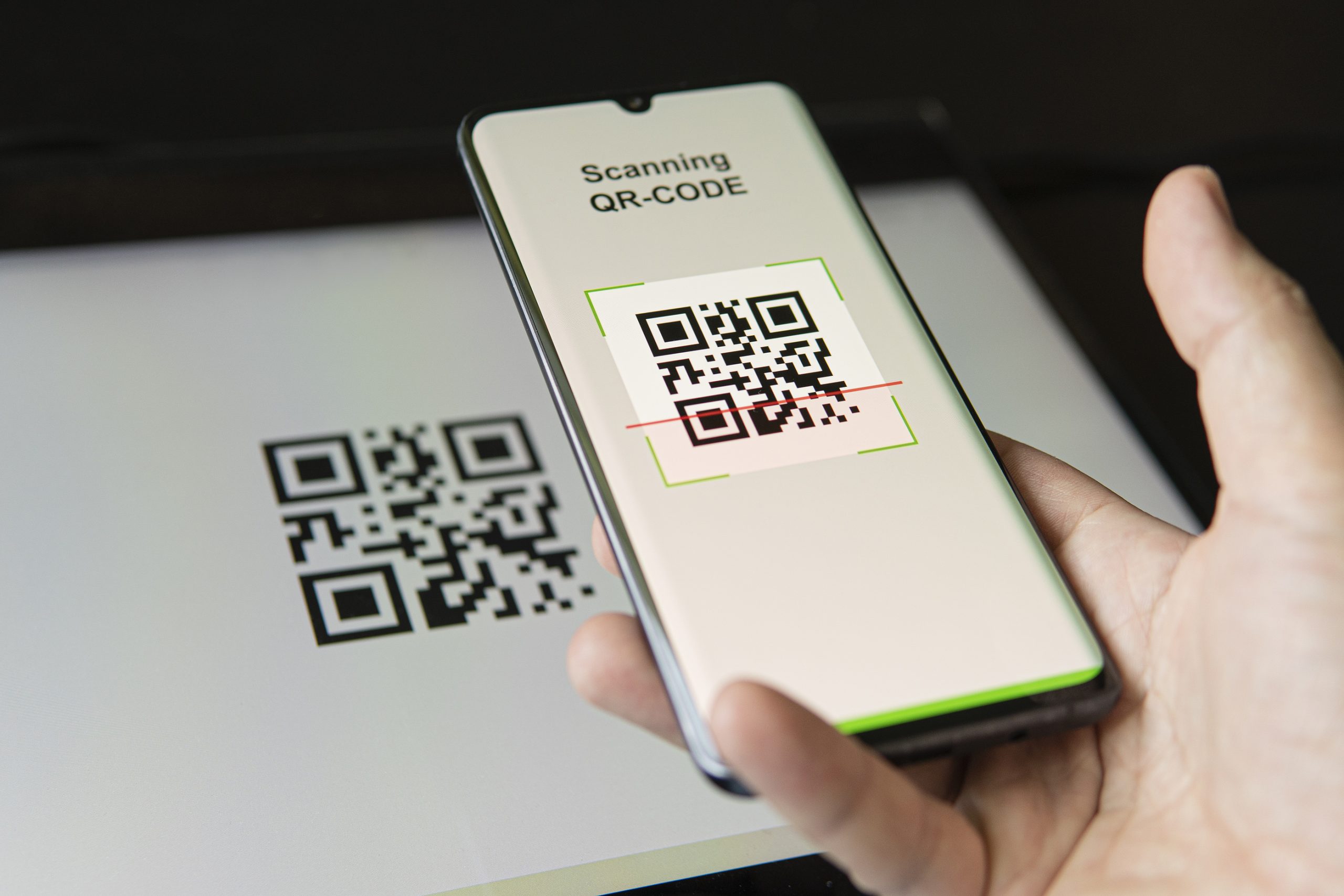
QR is an acronym for quick response – which makes sense as QR codes respond very quickly to requests to use them. Essentially, a QR code is a square-shaped barcode that you can scan with your mobile phone to load a website or application. QR codes can also be used to load phone numbers, login pages, and Wi-Fi details.
QR codes have their origin in the business world. They were invented to help improve the speed of supply chain processes. Over the last few years, though, QR codes have firmly entered the consumer world. Most recently, QR codes have become an essential part of the pandemic response, helping to facilitate ‘contactless’ services.
You may have been to a restaurant and noted a QR code sticker on your table. Your server may have asked you to use the QR code to load the menu instead of receiving a paper one. Similarly, QR codes have also been used for contact tracing to help keep track of COVID-19.
While QR codes are really useful, they can seem daunting if you don’t know how to use them. In fact, a YouGov study found 14% of Americans find QR codes to be challenging to use, with adults over the age of 65+ especially are likely to say so (20%).
Below, we’ll explain how to use QR codes. We’ll also help you to understand which QR codes are safe to use – and which you should be wary of.
How do I use a QR code?
Most mobile phones that have cameras have QR scanner capabilities. If you have an older mobile phone, your camera might not come with this capability. In this case, you should be able to download a QR scanning app from the Apple Store or Google Play. If you’d like assistance with this, let us know, and we can help.
Once that’s done, it takes just a few simple steps to scan a QR code.
Open the QR application or the camera on your phone.
Point your camera at the QR code – DO NOT press the shutter button to take a picture. Line up your camera so that all four corners of the code are in view.
Click the link that’s presented.
Your phone will now do the work for you! It should automatically take you to the website, application or data attached to the QR code.
Are QR codes safe?
Legitimate QR codes are safe to use. You need to be wary, though, of fraudulent QR codes that are made by cybercriminals. These codes look like legitimate QR codes but have dangerous consequences.
A malicious QR code might:
Install malware onto your phone
Take you to a malicious website that asks you to hand over personal details or financial information
Make your device join a suspicious Wi-Fi network that allows attackers to see and steal your data
Because we can’t read QR codes, it’s very easy to fall for a QR code scam. Plus, as these codes are increasingly popular, hackers are betting on the fact that people won’t suspect anything untoward.
Most recently, the FBI has warned of a scam in Texas, where hackers have been placing fraudulent QR codes near parking meters in Austin. Many civilians have scanned the codes to pay for parking, but the codes actually lead to a fake payment website. Not only are people getting parking tickets, but they’re paying hackers! It’s unknown whether the hackers are also stealing the credit card information given on the fake website – but it’s very possible!
This type of attack will become increasingly common. We’ll see more and more hackers print malicious QR codes and place them in public in order to trick people.
Don’t fall victim to a QR code scam!
This kind of scam shouldn’t put you off using QR codes entirely. You just need to be careful about the ones that you use.
We recommend being wary of all codes posted in public places. Make sure to inspect the code before scanning. It’s also helpful to look at the URL of the QR code if you have scanned it. Legitimate URLs are easy to spot, such as https://computertechsreno.com/ Look at the grammar, punctuation and spelling on the website to make sure it appears legitimate – particularly if the website is asking for payment details.
Malicious URLs tend to have spelling mistakes and are suspiciously long.
If you’re still unsure, don’t scan the QR code. We advise avoiding scanning all codes attached to street poles – as these can’t be trusted.
Generally speaking, QR codes on restaurant tables and in shops can mostly be trusted – but always check with a member of staff if you’re not sure. You can scan QR codes from sources you trust, like on TV, on popular websites, or a trusted person’s business card.
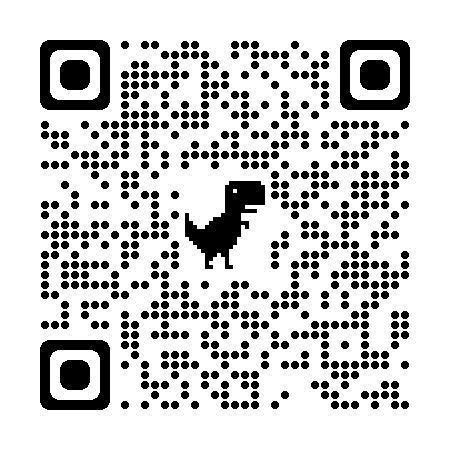
If you’re not sure about a QR code, don’t hesitate to get in touch with us. We can help you to protect your mobile phone. If you’d like assistance, contact your tech, or scan the following QR code with your smartphone:
Scan the QR Code above from your smartphone to have it take you to https://computertechsreno.com/contact/