Computer / Internet Tips & News – exclusively for Computer Techs clients
Support for Windows | macOS | iOS | Android
Welcome to the Computer Techs Computer / Internet Tips & News blog. This purpose of this site is meant to provide a service to our valued customers, by keeping you informed with the latest news and tips related to your computer and the internet. Consider using the search box on the left side of the website to help you find a specific topic or article, or scroll through articles below to learn something new.
Get $25 Off your next service call for recommending Computer Techs
If you’re happy with our service, please consider recommending Computer Techs to a friend or relative. If we service their computer, you get $25 Off your next service call.
The details: Please have your friend or relative mention your name during the appointment, or after the appointment contact Mark Cobb with the name of the person that you recommended/referred. The referred person must be a new Computer Techs customer and not reside in the same household as the referrer.
It would be pretty great if antivirus protected us from all the online security threats out there. Unfortunately, though, this isn’t the case.
Often, customers ask us if they should purchase a third-party antivirus software rather than use the basic one that comes with their operating system. Our answer to this question is usually: stick to the antivirus that comes with your computer.
Let’s take a look at why below.
What antivirus can and can’t do
Antivirus software works by scanning your devices, applications and files for traces of viruses or malware. Viruses are a type of malicious computer program designed to alter how your computer operates. It can, for example, steal sensitive data or lock you out of accessing your files.
Viruses are scary stuff – and antivirus is vital for defending against these types of threats. However, antivirus isn’t a holy grail. It only protects against one type of cyber security threat. There are a whole plethora of other threats out there that you need to watch out for.
Human error is the biggest security threat out there today
Recent research found that a massive 85% of data breaches can be traced back to human error. This means that it’s not viruses or malware responsible for most successful cyberattacks; it’s people.
As humans, we all make mistakes – and this is what today’s cybercriminals count on. Many of today’s cyberattacks focus on manipulating victims into clicking suspicious links or sharing financial information with a fraudulent entity. Here are some examples:
Phishing emails: Phishing emails are fraudulent emails criminals send to their victims. Typically, the email will impersonate a trusted brand. It will ask the victim to either call, click a link, download an attachment or share sensitive information. There were 241,342 victims of phishing in the US in 2020 – and those are just the ones that were reported.
Dodgy online advertisements: Malvertising is a type of cyber attack technique where hackers inject malicious code into advertisements. When you visit a website with malvertising the malicious code can launch anything from a harmless yet deceptive warning message, to enabling a hacker to steal your data or even take it for ransom.
Replying to texts from unknown senders: Similar to phishing is what’s known as SMishing. SMishing happens when a cybercriminal sends a fraudulent text to your mobile, pretending to be a trusted entity. The text will usually contain a link, which takes you to a page where you’re asked to share sensitive information – like your bank card information.
The best protection is education
All of the above cybercriminal tactics are not new. Phishing, malvertising and SMishing have been around for years. However, criminals continue to use these tactics because they have a high success rate.
While antivirus and other solutions can protect against basic forms of malware, they can’t stop a phishing/SMishing message from landing in your inbox, nor can they prevent you from calling a scammer’s number in a deceptive pop-up ad or message.
To that end, the best way to protect yourself from today’s cyber threats is through education. Understanding how to spot these threats can ensure you don’t fall victim.
Here are some tips to bear in mind.
How to spot phishing
Watch out for emails where:
The tone of the email sounds unfamiliar or strange
You don’t recognize the sender address
There are spelling mistakes and grammatical errors
The request seems urgent or unusual
How to spot malvertising
Watch out for pop-ups where:
The advert tells you to call a number to fix a problem with your device
There are spelling errors in the copy
The advert promises something too good to be true
The advert doesn’t seem relevant to your recent search history
How to spot SMishing
Watch out for texts where:
The message seems too good to be true
The request appears urgent or unusual
There are spelling and/or grammatical errors in the message
What to do if you’re not sure whether an email or text is genuine
Often, cybercriminals will impersonate trusted brands in their phony emails and texts. They may pretend to be your healthcare provider or bank and request information urgently.
If you’re not sure whether such a request is genuine, we advise that you validate any requests over a separate channel. For example, if you receive an email from your bank that you weren’t expecting, call them to check if they sent that email. Always call and verify before engaging with these requests.
Don’t forget that we are happy to support you with your questions about information security and education. If you have any concerns about phishing and SMishing, we’d be glad to take a look at your device for you.
As well as this, we can help with improving your computer’s security defenses, so you experience less phishing and pop-up ads.
Protect yourself from common security threats
Contact us today if you need help with protecting your computer or have any questions about phishing, SMishing, and malvertising.
You may have heard about 3G cellular networks being shut down this year. Fortunately your cellular service provider should have notified you about the change long ago so you’ve likely already changed to a compatible 4G or 5G device.
So what is 3G, 4G, 5G?
3G, 4G and 5G are mobile wireless cellular radiotelephone generations. 3G networks were introduced in 1998, and eventually replaced earlier 2G and 1st generation mobile networks. 4G was first deployed in the United States by Verizon in 2011. 5G networks began deployment in 2019, and are predicted to have over 1.7 billion subscribers by 2025. But now wireless carriers want to free-up the frequencies used by 3G networks for 5G networks.
What’s so great about 5G?
5G – or the 5th generation of wireless cellular networks – brings faster data speeds mainly through newly available frequencies that allow more data and digital phone calls from more users to be transmitted simultaneously. The new frequencies were previously underutilized or freed up from other users of the wireless spectrum, and sold at auction to many of the big-name wireless carriers. Much of the new spectrum is at very high frequencies (3 GHz+) – which doesn’t travel as far or penetrate buildings as well as the original wireless cellular frequencies in the 0.6 to 2.5 GHz range.
5G (generation) cellular vs 5 GHz (frequency) Wi-Fi
As mentioned above, 5G cellular refers to the new 5th generation of wireless cellular networks, whereas your home Wi-Fi may display “5G” meaning the 5 GHz frequency available on most modern Wi-Fi routers.
We’ve been receiving lots of reports from clients that their Facebook account has been hacked. In reality, usually it’s just been cloned. Here’s what’s happening.
If you have a Facebook account, by default your Friends list is set to “Public” – meaning anybody on the internet can see who your Facebook friends are. But miscreants and scammers can use this information along with other public information to impersonate you by creating a new Facebook profile – even with your public profile picture(s). Then they send friend requests to all of your friends. Once your friends become friends with the new “you”, a scammer can persuade your friends that your original Facebook account was hacked and your friends are lead to believe the new account is really you. Scammers will then use your new Facebook profile controlled by them to have your friends confide in “you” to obtain personal/private information and/or gift cards or other financial scams.
What you need to change right away
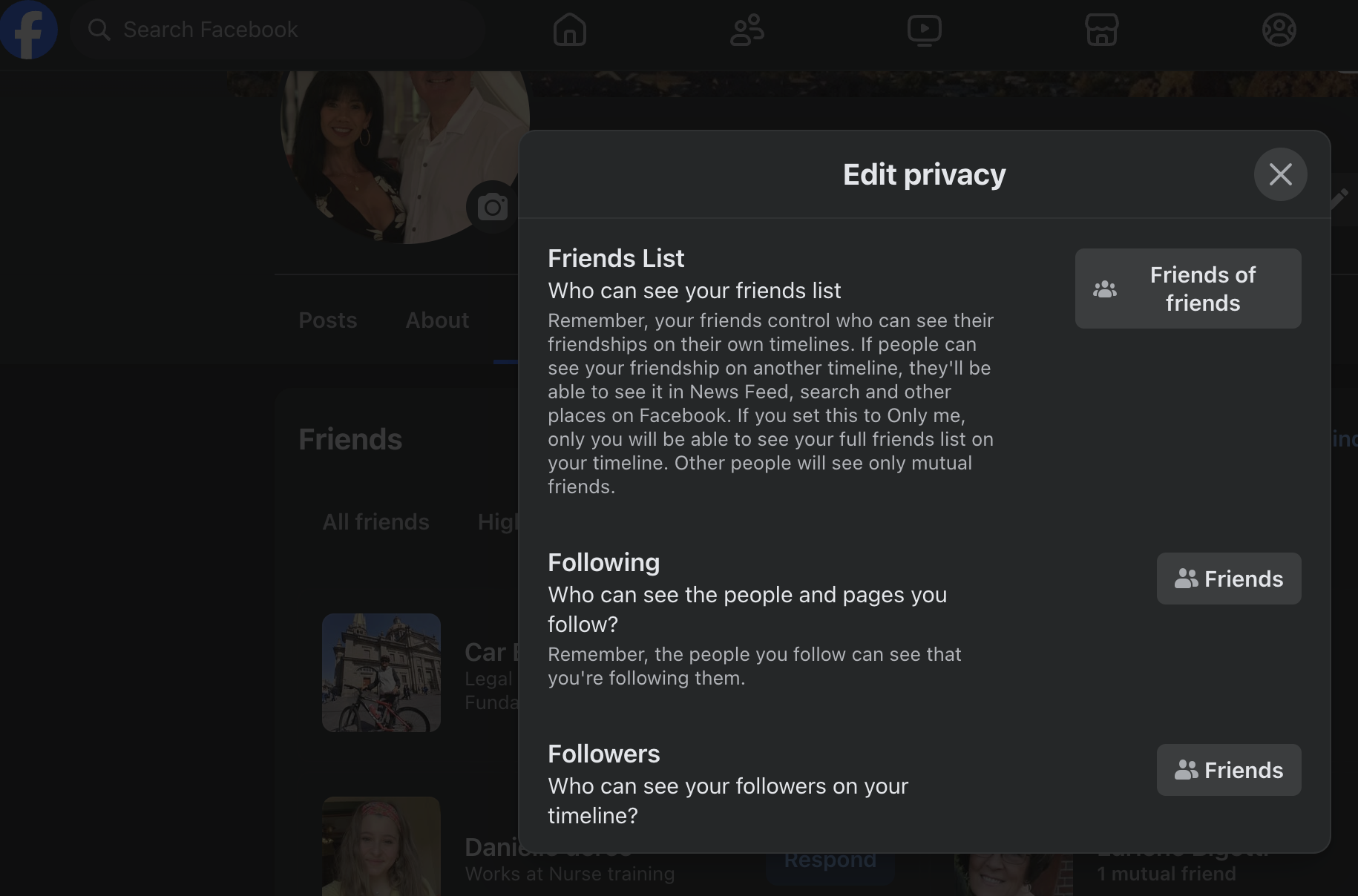
We recommend using Facebook’s Privacy Checkup to review your settings, and make sure that scammers can’t use public information from your Facebook account. In Facebook, go to your Account > Settings and Privacy > Privacy Checkup. In “Who can see what you share”, make sure “Who can see your friends list on your profile?” is NOT set to Public. In Privacy Checkup we also recommend going through “How to keep your account secure”, and make sure that you’re using a unique password for Facebook.
An additional step is to make sure that your only “Friends” can see your Followers – it’s set to “Public” by default. Check this setting by click the 3 dots near the top of your Friends list > Edit Privacy > Followers.
We are truly in the age of overwhelming choice when it comes to TV. There are more shows available to watch than ever before – across more platforms than we can keep count of. As well as cable, there’s a host of streaming services out there like Netflix, Amazon Prime Video, Disney Plus, HBO Max, and Hulu.
With so much choice, deciding which option is best for you can be tricky. Should you ‘cut the cord’ and move to streaming? If so, which platform? Is streaming even better than cable or satellite TV anyway?
These might be some of your questions. We’ll aim to answer them below.
First things first: what is streaming?
Streaming is a form of video sharing that occurs over the internet rather than via your cable box or satellite dish.
Is streaming more cost-effective than cable?
We all know that cable TV can be expensive. DecisionData.org found that the average US cable bill is $217.42 per month or $2,549 annually.
Given this price, many people think a streaming service will be much cheaper. This is technically true in some cases, as services like Netflix or HBO Max cost about $15/mo.
However, not all streaming platforms come in at this low price. For example, YouTube TV and Hulu + Live TV start at about $65/month – but they include many channels and networks.
If you replace cable/satellite TV with one streaming platform, you will likely save money. However, the average US household subscribes to four streaming services, which can quickly add up to the same price – if not more – than your cable/satellite TV bill.
Each streaming platform creates its own unique shows, as well as loaning older TV shows for its users to watch. If you only opt for one streaming service, you’ll undoubtedly miss out on some shows you want to watch.
To that end, we advise you to carefully look at the streaming services out there and compare them with your cable TV programming schedule. If, for example, you’re a big sports fan, cable/satellite TV is the best bet for you. If you don’t care about sports and want access to a lot of TV series on demand, then a streaming service could work well.
Here’s some resources to see what networks are on the different services:
Suppose TV – A tool for searching and comparing video services
The Streamable – Search for movies, TV shows, channels, sports teams, streaming services, apps, and devices.
Is your internet connection up to snuff for streaming?
Yes, you still need to pay for a robust, high-speed internet connection to stream videos. Netflix states that the minimum speed you need to stream high definition video is 5 megabits per second – so if you still have DSL internet, you may not be able to stream. The minimum price for high-speed internet that’s compatible for streaming is about $50/month.
If the internet connection into your home is not right next to your TV(s), you’ll need to make sure that your wireless/Wi-Fi connection is up to streaming – otherwise you may see a lot of pauses and buffering when streaming.
If you’re not sure whether your internet service or Wi-Fi connection is suitable for streaming, contact us. We’ll be happy to take a look for you and talk you through your options.
How to stream – using the right equipment
Most new televisions sold today are “Smart TVs” that can connect to the internet and have apps for the major streaming providers such as Netflix and Amazon Prime Video. But if a new streaming provider comes along, Smart TVs are typically the last device to be able to add apps to support new services.
If you want the flexibility to add new services as well as more choices, you’ll want to consider getting a streaming device to connect to your TV. The most popular devices include Roku, Apple TV, Amazon Fire TV and Chromecast. Here’s a review of the best streaming devices.
If you’re used to using a DVR to be able to pause and record live and scheduled broadcasts – that feature only comes on the high-priced services that include live TV (YouTube TV and Hulu + Live TV). Most other services offer on-demand streaming of programs in lieu of a DVR.
Are you prepared to learn how to use streaming?
Another thing to consider with streaming is the hassle and administration that comes with learning how to use a new interface, getting it set up on your TV and finding the right channel each time.
With cable/satellite TV, things are easy. You just click the remote, and the channels appear. With streaming, though, this isn’t the case. To stream, you may need to switch to a different input source on your TV, and then find the application that has the program you want to watch. Each streaming service also has its own unique interface that you need to learn how to use.
Final thoughts
Ultimately, whether or not you opt for a streaming service will depend on your unique preferences.
If a streaming service has a show that you’re desperate to watch, then you should go for it! We’ll be happy to help you set up the service and teach you how to use it, so you can stream with confidence. Hopefully the show will still be available on the same service next month – as contracts with content providers and streaming services are ever-changing.
Saying this, if you’re only thinking about moving to streaming because everyone else seems to be, then we advise that you don’t bother. Cable/satellite TV still has a lot of great shows that you can watch.
Plus, despite what people say, streaming isn’t necessarily less expensive than cable – especially as most people will purchase more than one streaming service.
Get current expert advice on TV and streaming device set up!
If you want support with setting up a new streaming service or are looking for advice on whether you should cut the cord or opt for streaming, reach out to us. Our friendly team are on hand to help.
Contact us today with any questions at 775-624-6888 or reach out online.
Once upon a time, the cloud referred to something you’d look up and see in the sky. In the age of technology, though, the cloud is something wholly different altogether. Essentially, the cloud offers a secure way to store and back up your data – things like your documents, files, photos and contact details.
Before the cloud, you’d store this data on your computer hard drive. While you can still do this, it’s also wise to use the cloud too. This is because if your hard drive fails, then you can still access your data. Also, more of us now use computers and mobile phones. If you use the cloud, then you can access your information from multiple devices.
The average employee uses over 30 cloud-based services each day.
In the same way that different companies sell different brands of phones – like Nokia, Samsung and Apple – there are a number of companies that sell cloud storage. The main ones in the consumer space are Apple, Google and Microsoft.
Below, we’ll dive into each of their cloud offerings, so you can get a better idea of what solution is best for your needs.
iCloud
If you have an iPhone or a Mac, then Apple’s iCloud is the best option for you. iCloud only works natively on Apple devices. It enables you to access your data seamlessly across your devices, including notes, photos, calendars and documents.
Once you have set up iCloud, you can configure it to automatically back up your data, so you don’t need to keep remembering to click ‘backup’. You get 5 GB of free storage with iCloud.
Moreover, if you are in a family of Apple users, then the iCloud has excellent functionality that allows you to easily share photos, files and more with other iPhone or Mac users.
OneDrive
OneDrive is Microsoft’s answer to cloud storage. Anyone who has a Microsoft email account can access OneDrive for free. However, you only get 5GB of free storage before you need to start paying.
Like iCloud, Microsoft enables you to store and share your personal information and files in the cloud. You can access these files by logging into your email account in your web browser.
Google Drive
Google Drive is another cloud-based storage solution, which allows you to store files and photos online and access them from your phone, tablet, or computer with a login. Google Drive also has a wealth of features – such as Google Docs and Google Sheets – that allow you to create word processing documents and spreadsheets in the cloud, without paying for software.
Google Drive offers 15GB of free storage, 3x the free storage space of the others listed above.
Which Service is Best for Me?
No service is better than the other. It depends on your unique preferences. Some people prefer the interface of Microsoft OneDrive, while others prefer Google Drive.
We suggest looking at what applications you use know and taking a decision from there. For example, if you’re already set up with a Microsoft account, then it likely makes sense for you to use OneDrive.
Alternatively, if you’re an avid Apple user or have a Gmail account, then you’ll want to select iCloud and Google Drive, respectively.
Don’t Forget About Security
Your cloud is only as secure as the devices that have access to it. Make sure all your devices are protected with robust PIN and password controls.
Another thing to make sure of as you start using the cloud, is to make sure your files are configured securely and that you practice good password hygiene.
We advise that you set up account recovery options. These will help you to regain access to your cloud accounts in the event of losing your password. You’ll be asked to set up a security question, link your mobile phone to your account, or provide an alternative email address.
We also recommend that you use multi-factor authentication for your cloud accounts. This requires you to verify your identity when you log into your account. You’ll need to provide your password, and another form of authentication – such as a code sent to your phone or a link in your email.
Of course, we understand that navigating cloud accounts can be complex – especially at the beginning. That’s why we are on hand to help you find and configure the best cloud storage for you.
Get Help With Cloud Storage and Backup
We enjoy working with our clients to help them get more from their technology while keeping their personal data secure. We can help you put automated solutions in place that keep you better protected online.
Most of us will have experienced a data breach at one point or another. Maybe you’ve received an email from LifeLock telling you that one of your passwords has been compromised. Or you’ve logged into an app on your iPhone and received a warning that your password has appeared in a data breach.
It can be worrying to receive these notifications. You’ll likely wonder how your password ended up in a breach and why. More importantly, you’ll want to know how you can fix the issue as quickly as possible.
Below, we’ll explore how data breaches happen and how you can best protect yourself in the event of a worst-case scenario.
How Data Breaches Occur
According to research, there are over 15 billion stolen passwords on the Dark Web. The Dark Web is like the criminal underworld of the internet. It’s where criminals go to buy illegal things like drugs and weapons. It’s also where cybercriminals purchase malware and stolen sensitive data – information like passwords, emails and even financial records.
So, how does this information end up on the Dark Web in the first place? Well, in today’s digital world, data breaches have unfortunately become commonplace. Even though many businesses do their best to protect customer data, it takes just one error or mishap to let a cybercriminal into their systems.
When this happens, cybercriminals tend to steal the most lucrative thing they can: sensitive, personal data. Data has its own currency today. Criminals mainly use this data to commit fraud and con people – and companies – out of money.
What Does a Stolen Password Notification Mean?
When you receive a stolen password notification, this means that one of your logins has shown up on the Dark Web. One of the companies you have an account with was likely breached. Sometimes, an organization will alert you to a data breach via email or text. However, occasionally, cybercriminals are able to steal data without an organization being any the wiser – which is why identity theft protection services can give you peace of mind.
Another way to check if your data is for sale on the Dark Web is to use the website Have I Been Pwned. Simply type your email address into the website, and it will let you know if your details have appeared in a data breach.
What Should I Do If My Password Has Appeared on the Dark Web?
Depending on the type of account that has been compromised, there are a few things that you should do. First, change your password for the account as quickly as possible. Second, log in to your financial accounts and check that everything is as it should be.
If anything looks suspicious, then get in touch with your bank immediately. Even if nothing seems out of the ordinary, we recommend keeping an eye on your account for a few days after the breach notification.
These steps will help to reduce the immediate impact of a data breach. There are also other things you can do that will help to prevent disruption from future data breaches:
Use two-factor authentication: One of the easiest ways to improve your personal security is to enable two-factor authentication on your email and bank accounts. This uses a verification step in addition to your username and password – a one-time passcode sent to your email, text message or authentication app – to allow you to access your accounts. Two-factor authentication provides extra protection even if a hacker knows your password, they won’t be able to get into your accounts.
Use a password system and/or password manager: You should have a unique password for every account you use. This way, if one of your accounts is breached, the others aren’t vulnerable. We know that remembering lots of passwords is near impossible. This is why we recommend you use a password system and/or password manager to simplify the process.
Monitor your credit: You should regularly check your credit to ensure that nothing looks out of the ordinary. It’s rare but, sometimes, data breach notifications come too little too late. So, it’s best to be proactive and regularly check your bank statements for evidence of identity theft. Keep an eye out for things like anomalous payments, payments made at odd times and withdrawals that look unfamiliar.
Protect Yourself from Data Breaches
If you are worried about the security of your personal data or want help implementing more robust password controls, we’re here to help. Contact us today.
Tablets have become a popular mobile device that fits a gap between the personal computer and the smartphone. It’s not always convenient to go to your computer to look up a website, and smartphone screens are so small that the experience just isn’t the same.
When lounging on the sofa or traveling, tablets can provide a good experience for shopping online, browsing certain sites, or accessing social media. But, they do have limitations and aren’t a full replacement for a desktop or laptop PC.
Statistics seem to back this up. While the iPad was first introduced over a decade ago (in 2010), tablets still only represent about 3% of devices used on the web. In comparison, smartphones make up 61% and desktop computers make up 36%.
If you’ve been wondering if you can just get by with a tablet and leave your computer behind, here are some things you’ll want to take into consideration.
Limited Apps
Computers are designed to run just about any app or software that you may have, but tablets are mobile devices and thus can only use mobile apps. They can’t install software as PCs can.
This limits the types of things you can do because you can only access digital tools that have an app designed for tablets. You may also find that the app experience isn’t the same as when using software on your computer.
Not All Websites Are Mobile Friendly
Some websites are still not mobile-friendly. This means that you could end up unable to navigate a site easily if you only have a tablet to access it. When using a PC, you have a larger screen and it can be easier to enter information into website forms.
More Difficult to Type on a Small Keypad
When using a tablet you have a keypad to use instead of a keyboard. This can make it harder to type and make it take longer to type up a report or do any type of writing.
Mobile screens also have keypads that hide and appear depending on the actions you take, this can make it harder to type because if you accidentally brush the touch screen, you can end up losing your keypad.
A computer is going to give you a better typing experience for several reasons:
The keyboard is larger
The keyboard doesn’t hide
You can actually press the buttons
Less chance of hitting the wrong key
Many PC keyboards have a number pad on the right-side
Larger Screen Size
While tablet screens are larger than smartphones, they are typically much smaller than a computer monitor or laptop screen. Smaller screens make it more difficult to read certain websites unless you zoom in. But then you may end up losing your navigation bar or where you are on the page.
A larger screen also allows you to better multitask and have two windows up on the screen at the same time. Many tablets only allow one app on the screen at a time, and it can be annoying to have to continually close out and reopen apps to go back and forth between them.
A computer allows you to have multiple apps and windows open at once. You can even add a second monitor to a computer if you like to give yourself even more screen space.
Can’t Add Upgrades (Memory, Storage, etc.)
Computers tend to last longer than tablets because they have the ability to have upgrades added. You can upgrade computer memory, storage, and other components to improve performance and capacity.
One easy upgrade that can be done is to add memory (aka RAM). This can speed up a computer considerably. Storage can also be added to increase the number of files you can save on the hard drive. These types of upgrades can give you more years of usable life out of your PC.
On the other hand, tablets can’t be upgraded in this same way. So, once the storage on your tablet is full, you have to remove files or purchase a new one. Things like memory upgrades also aren’t pertinent to tablets. So, if you notice yours slowing down, you won’t have the same options as you do with a computer.
Not As Many Accessories
There are thousands of different accessories that you can use with a computer, such as printers, headsets, scanners, CD drives, and more. You are much more limited as to the types of devices you can use with a tablet. For example, you may only be able to print wirelessly, but not attach your device to a printer.
Would You Like a Faster Computer?
If your computer is running slow, there are several things Computer Techs can do to give it new life and speed.
Apple recently added two new features to their latest iOS 15 operating system that will help you and someone you trust access your Apple account and mobile device should you forget your password or when you die.
Setting up a Recovery Contact now will allow someone you know and trust help you regain access to your Apple/iCloud account or device should you forget your account password or device passcode.
Adding a Legacy Contact now will allow someone you know and trust access data such as your photos, messages and notes after your death.
For more details and instructions, see the Apple help articles below. If you need help with setup you may contact your tech.
Unfortunately, sometimes death is sudden. Therefore now is the time to decide what to do with your online accounts when you pass away. Refer to the links below for various popular online accounts and their digital legacy policy and instructions.
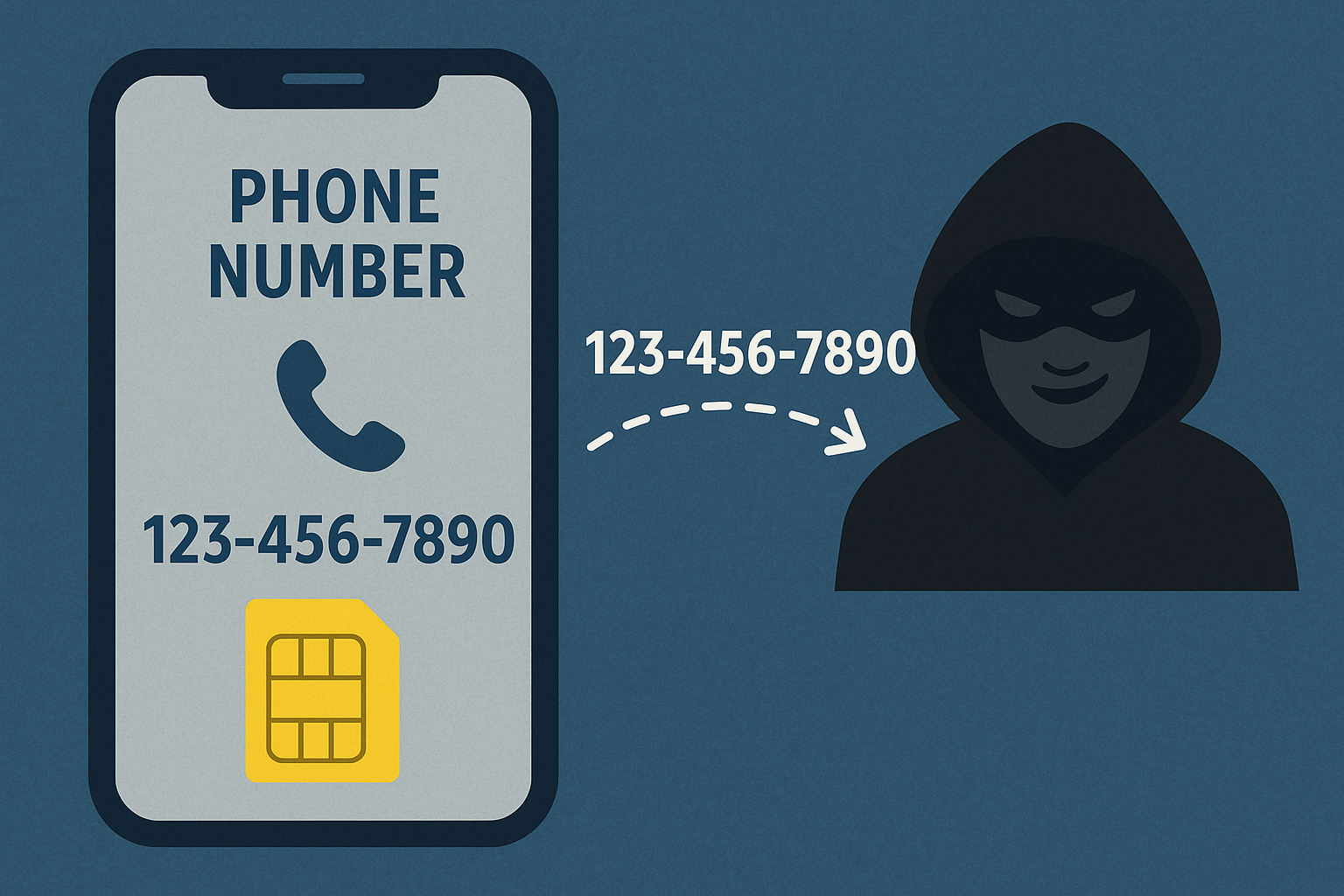
Your mobile phone number has become increasingly valuable because it’s the way that hackers can gain access to your online financial, email and social media accounts. We now are encouraged to use our smartphone and attached phone number to prove who we are – often via Multi-Factor Authentication (MFA), a method that requires not only entering your username/email address and password into a website, but also entering a code or responding to a prompt sent to your cell phone.
But what if someone gained access to your mobile phone – or increasingly more common – your mobile phone number? Hackers that successfully SIM swap or port-out your phone number would have access to reset/change “forgotten” passwords and gain access to online financial, email and social media accounts.
Fortunately the major wireless carriers have taken steps to let you thwart hackers and prevent your phone number from being taken from you without your prior knowledge. It involves contacting your wireless carrier.
Instructions for the major U.S. carriers are below. If you use an MVNO (Mobile Virtual Network Operator) such as Consumer Cellular or Spectrum Mobile – call 611 from your wireless phone and ask to setup a port-out PIN or other port-out/SIM swap protection to prevent unauthorized porting of your phone number without your prior knowledge.
It’s important to protect your phone number before a hacker poses as you and takes over your phone number before you get a chance to protect it. If you need help with protecting your phone number, contact your tech.