Welcome to the Computer Techs Computer / Internet Tips & News blog. This purpose of this site is meant to provide a service to our valued customers, by keeping you informed with the latest news and tips related to your computer and the internet. Consider using the search box on the left side of the website to help you find a specific topic or article, or scroll through articles below to learn something new.
Get $25 Off your next service call for recommending Computer Techs
If you’re happy with our service, please consider recommending Computer Techs to a friend or relative. If we service their computer, you get $25 Off your next service call.
The details: Please have your friend or relative mention your name during the appointment, or after the appointment contact Mark Cobb with the name of the person that you recommended/referred. The referred person must be a new Computer Techs customer and not reside in the same household as the referrer.
The “Heartbleed bug” is a flaw in the OpenSSL encryption standard that is used by half a million websites which was uncovered on April 7. A majority of websites that require passwords for access use OpenSSL encryption to “scramble” the data transferred between your computer and the website’s server. OpenSSL has since been patched and millions of websites – many that you likely use – are being updated and new encryption certificates and keys are being issued.
So what does this all mean for the average computer user? Though it’s unclear at this time if the flaw was exploited on any of the websites you use, you should change your passwords. Here is a website that you can use to check to see if the websites that you use were impacted by the bug, and if it is now safe to change your password: Check to see if websites that you use were vulnerable to the Heartbleed bug: https://lastpass.com/heartbleed.
Now is a great time to implement a password system that makes your passwords secure, different for every site, yet easy to remember. See How to change your email password.
More Heartbleed information:
Widespread Encryption Bug, Heartbleed, Can Capture Your Passwords
Heartbleed Bug: Should You Panic?
Half a million widely trusted websites vulnerable to Heartbleed bug
 Print This Article Print This Article
Updated April 8, 2014
It’s been widely publicized that Microsoft ended support for their 13-year old operating system Windows XP in April 2014. Some people have been asking how to tell what version of Windows their computer has. One easy way to tell is to look at “Start” button which is usually located in the lower-left corner of the desktop screen.
 If your Start button looks similar to this, you’ve got Windows XP which was installed on new computers from 2001-2008. Support ended April 8, 2014. If you are still unsure if you have Windows XP, visit amirunningxp.com If you have Windows XP it’s time to buy a new computer. See our new computer buying advice at newpc.ctreno.com
 If your Start button looks similar to this, you’ve got Windows Vista which was installed on new computers from 2007-2009. Support will end in 2017.
 If your Start button looks similar to this, you’ve got Windows 7 which is still installed on new computers beginning in 2009. Support will end in 2020.
 Windows 8 Start button. Windows 8 is installed on new computers beginning in 2012.
Updated November 2015:
AVG AntiVirus releases program updates from time-to-time, and you will likely see pop-ups similar to those pictured below in the lower-right corner of your screen when an update is available. Whenever there’s an update that requires your interaction, AVG will try to entice you into upgrading to a paid version, add complimentary software or make other unnecessary changes. But if you follow the instructions below, you can continue with the free protection that is recommended for most home computer users at no charge. If updating AVG seems like too much trouble, see the bottom of this article for other options.
(more…)
Updated 8/26/14:
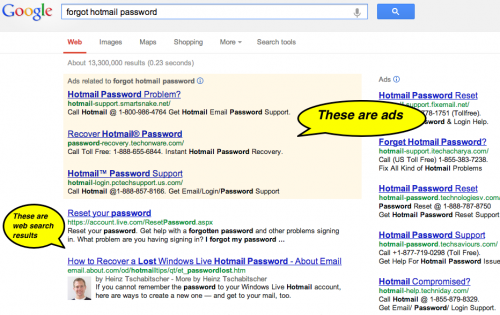
When you have a problem with your computer, printer or other technology device you may be tempted to search the internet to find a resolve for the problem. When you using Google, Bing, Yahoo, etc. you will usually get search results from multiple advertisers that if contacted the person on the phone will attempt to scare you into paying lots of money for made-up non-existent computer problems.
This is similar to the phony telemarketing calls from Microsoft scam, but since you are initiating the call you are lead to believe that you have contacted the official tech support for the company that you searched for. We frequently get calls from clients who have been the victim of such scams, after paying several hundreds of dollars and giving their credit card number to an untrustworthy person.
Click the screenshots below to see examples of search results I found recently. As you will see there are plenty of ads and phone numbers listed from companies that will likely attempt to swindle you.

The next time you have a tech support problem contact Computer Techs, a local trustworthy business who will give you honest advice and help you resolve your computer problems. We’ve been in business for over 10 years, and don’t charge clients for a quick phone call or email reply.
If you’ve been the victim of a tech support scam please contact us so that we can help you get your money back and check your computer for any malware or trojan software that the scammer may have left behind.
Print This Article
Updated April 1, 2019:
It not a matter of if your hard drive will fail – it’s when. The average life of a hard drive is 5 years. Your computer’s hard drive stores all of your documents, pictures, music and other important files that you keep on your computer. Are you prepared if tomorrow a virus locks you out of all of your files, your hard drive fails, or your data is stolen or damaged by fire or natural disaster? Now is the time to backup your important data – before disaster strikes.
I use 3 methods for data backup, and it is recommended that you backup your data similarly. I perform a daily computer image backup of my entire hard drive to an external hard drive attached to my computer. Secondly I use Carbonite to automatically backup my data twice daily via the internet to a secure data center in Utah. Lastly I sync/backup my Documents folder to DropBox or Google Drive, so that I can also easily access my frequently used files from multiple computers and devices.
Are you prepared if you lost access to your email account? If a hacker found out your password or security questions, they could delete all of your contacts or lock you out of your account forever. But if you setup 2-step verification for email access before a hacker does – you can easily regain access to your account. 2-step verification often involves allowing your email provider to send a text message to your phone if someone tries to access your email account, or if you forget your password. Click here to find out how to do it.
Also see: How to create a secure and easily memorable password system.
Print This Article
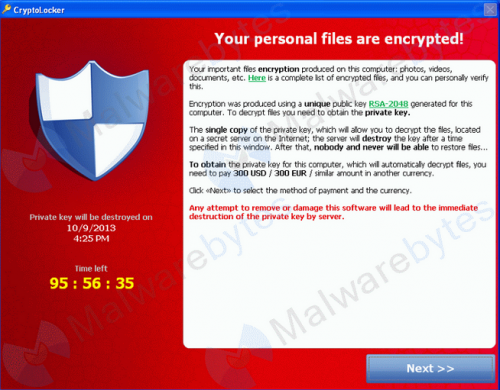 A new virus has been spreading lately – mainly through email attachments disguised as shipping notices from UPS and the like. The trojan virus “ransomware” encrypts the computer’s documents, pictures, music and other personal files making them inaccessible. It then demands a $300 ransom be paid within a few days to decrypt the files, or the files become inaccessible forever. A new virus has been spreading lately – mainly through email attachments disguised as shipping notices from UPS and the like. The trojan virus “ransomware” encrypts the computer’s documents, pictures, music and other personal files making them inaccessible. It then demands a $300 ransom be paid within a few days to decrypt the files, or the files become inaccessible forever.
Anti-virus programs have been mainly unsuccessful at detecting or blocking this new virus since it is rapidly changing and evolving, and the Anti-virus vendors are having a hard time keeping up with it. Since no anti-virus program is 100% effective at detecting viruses, you need to follow some basic computer safety tips so that you don’t get this new virus.
To help avoid from getting this new virus, follow the information in the following articles:
– How to spot fake email from legitimate companies
– Disable Java in your web browser
Print This Article

Yahoo recently changed the look of their free email service and customizable home page, leaving many with questions how to navigate the new look and features.
The most common concern we’ve been hearing is that printing an email message no longer works or prints correctly. To print an email click the “Actions” or “More” button on the toolbar at the top of the message, then click “Print” or “Print Message”. A print dialog box will pop-up in a new window, however to see the window you may need to disable pop-up blocking for *.mail.yahoo.com in your web browser’s pop-up blocker options.
A new feature that you may find helpful is the ability to attach files or pictures to new email messages by simply dragging the attachment from your computer’s file browser window.
For more information about the new AT&T/Yahoo Mail, see AT&T’s help article or Yahoo’s help article.

For more information about the new att.net/My Yahoo customizable page, see AT&T’s help article or Yahoo’s help article.
Print This Article
 If you’re having problems opening your Microsoft Office documents or spreadsheets, or emailing such files, a Microsoft Update is the likely culprit. Other symptoms of the bad update include your document icons may change to orange, and trying to open them gives a prompt to install, purchase or activate Microsoft Office. If you’re having problems opening your Microsoft Office documents or spreadsheets, or emailing such files, a Microsoft Update is the likely culprit. Other symptoms of the bad update include your document icons may change to orange, and trying to open them gives a prompt to install, purchase or activate Microsoft Office.
To fix the problem go to the Control Panel > Programs and Features > right-click on Microsoft Office Starter 2010- English and click “Change”. This will Repair Microsoft Office and should fix the problem.
See this Microsoft TechNet article about the problem if you are still having problems after the repair, or want to learn more.
Print This Article
Updated September 2013:
Most banks offer online banking services which let you check account balances and cleared transactions, transfer funds between accounts and pay bills directly from your bank account without writing and mailing a check.
I have been using internet banking for over 10 years. My favorite feature is Bill Pay – the ability to schedule bill payments that will be automatically deducted from my checking account on a future date that I specify. I pay utility bills, car payments, credit cards bills and even my lawn care company using the bill pay service that my bank offers. I not only save time, I also save money because I no longer have to buy stamps or worry about checks getting delayed or lost in the mail.
Bank of America has online tutorials on how to use Bill Pay and other features of online banking – your bank may offer similar tutorials.
Online banking on your computer, tablet or smart phone is secure because transactions are encrypted between your device and the bank’s computers. Banks require the use of a secure username and password and other authentication measures to help prevent unauthorized access to online accounts. In many ways online banking is safer than handing your credit card to a server at a restaurant, or having your checking or credit card account information being handled in the mail.
Computer Techs offers one-on-one tutoring on how to use online banking. Contact us to schedule an appointment.
Print This Article
The Department of Homeland Security’s United States Computer Emergency Readiness Team (US-CERT) website offers non-technical tips and advice about common security issues affecting computer and internet users.
Articles include tips in several different categories including Attacks and Threats, Email and Communication, Mobile Devices, Privacy and Safe Browsing.
You can learn more about computer and internet safety by visiting the website at http://www.us-cert.gov/ncas/tips
Print This Article
« Previous Page — Next Page »
|


