Welcome to the Computer Techs Computer / Internet Tips & News blog. This purpose of this site is meant to provide a service to our valued customers, by keeping you informed with the latest news and tips related to your computer and the internet. Consider using the search box on the left side of the website to help you find a specific topic or article, or scroll through articles below to learn something new.


Get $25 Off your next service call for recommending Computer Techs

If you’re happy with our service, please consider recommending Computer Techs to a friend or relative. If we service their computer, you get $25 Off your next service call.

The details: Please have your friend or relative mention your name during the appointment, or after the appointment contact Mark Cobb with the name of the person that you recommended/referred. The referred person must be a new Computer Techs customer and not reside in the same household as the referrer.


Which updates are safe to install – and which aren’t

Filed under: Computing Tips,Security - Aug 19 2013

Updated April 2016:

Computer users are prompted to install updates from programs such as Adobe Reader, Flash Player or Java. With many fake programs that try to convince people to download official-looking updates, it’s often hard to know what is safe to accept and install.

If you DO NOT have your internet browser open (Internet Explorer, Chrome, etc.) and you receive a prompt in the notification area just to the left of the clock on your computer’s taskbar that a program needs your permission to update, it is generally safe to do so. However, if you are being prompted to download or install something while you’re viewing a web site while your internet browser is open, it’s most likely a gimmick to get you to install adware or malware.

Consider signing up for our Computer Maintenance Plan to take away the worry of knowing which updates to install or not, and keep your computer up-to-date and maintained.

If you’d rather do updates on your own and want to check to be sure if an update is legitimate or not, below I have provided direct website links to the most common browser add-ons that that you are likely to need and are updated frequently. Read the installation prompts and check-boxes carefully and uncheck any extra programs or toolbars that you may be prompted to install.

Adobe Flash Player– Used by websites such as Youtube.com and CNN.com to display videos. Official updates are usually presented as a pop-up box in the upper-left corner of your screen when you first start your computer.

Adobe Acrobat Reader – Used by many websites to view and print official documents and manuals that have a file extension of .PDF. Official updates are usually presented by a notification icon on your taskbar to the left of the clock.

Java – Used by most websites to allow programs to run on a website. Online games, dynamic maps, and customizable home pages using drag-and-drop and just a few examples of websites that use Java and/or Javascript. Official updates are usually presented by a notification icon on your taskbar to the left of the clock and sometimes along with a blinking notification about “jucheck.exe”.

QuickTime – In April 2016 Apple advised that QuickTime will no longer be supported and contained security vulnerabilities. Therefore, QuickTime should be uninstalled. It was used by some websites to display video and/or audio, most commonly movie trailers and videos playable in iTunes. Used on Apple and non-Apple computers, official updates are usually presented by a pop-up box from Apple Software Update.

Windows Update (link works only with Windows XP and Internet Explorer), on Windows Vista or newer go to Windows Update in the Control Panel – These updates fix security flaws and provide reliability updates for the Windows operating system. Windows Updates are usually downloaded and installed automatically on the 2nd Tuesday of every month. Occasionally some updates need to be manually installed and will show a yellow shield or light-blue icon in the notification area just to the left of the clock on your computer’s taskbar to prompt you to install the updates.

If you use an Internet Explorer based browser, sometimes a website may prompt you to download an ActiveX control – as shown below in the yellow bar between the address bar and the top of the web page. In this case be sure you are at a well-known trustworthy website, and read everything to make sure what the website is prompting you to install is really required in order to use the website. When in doubt – don’t do it. In the example below, I would not install an ActiveX control from “Shop at Home Select” because I don’t know or trust them.

ActiveX Control prompt


Print This Article Print This Article

Why you shouldn’t bundle all of your services with one provider

Filed under: Computing Tips,Tech Support - Jul 31 2013

Updated September 2015

AT&T and Charter promote the idea of bundling of services to save you money and the convenience of paying one bill. However both providers have had multi-day service outages in parts of the Reno area in recent years, in which customers have lost access to multiple essential services.

Technology is vulnerable to disruptions: The cable down the street that provides service to your neighborhood could be cut by a contractor carelessly using a backhoe. The junction box servicing your area could suffer a hardware failure or be damaged by vandalism or an accident. The satellite providing your television service could be damaged by a solar flare or meteoroid.

Because of these vulnerabilities I promote the idea of not bundling all of your services with one provider so that you have multiple methods to make phone calls, access the internet and watch TV in case one of your providers goes down.

Below I detail the providers that I use:

Internet

Primary: Charter internet – connected to my home via coaxial and fiber optic cables running through my neighborhood.

Secondary: AT&T Wireless – my iPhone or Samsung Galaxy SIII smart phone can be tethered to my computer and connect to the internet via a wireless 4G LTE connection to nearby cell towers.

Phone

Primary: AT&T landline service – connected to my home via copper wires than run from my home to the central telephone office.

Secondary: AT&T Wireless – provides a wireless connection to nearby cell towers.

Tertiary: VoIP service provided by CallCentric – I use an Obihai OBi202 device with CallCentric service to make and receive calls over my Charter internet connection.

Television

Primary: Dish Network – TV signals delivered wirelessly via satellites.

Secondary: Roku streaming player – I can watch mainly pre-recorded movies and television shows streamed over my Charter internet connection.

Tertiary: Local channels available for free “over the air” – received wirelessly from television towers located on nearby mountaintops.

Email Service

Primary: Gmail – Google’s free email service that offers secure connections and 2-step verification.

Secondary: Outlook.com – Microsoft’s free email service that also offers secure connections and 2-step verification.

Tertiary: Exchange Online – Microsoft’s business-class email service that’s just $4/month, is used with your own domain name, and offers syncing of mail, contacts and calendars between multiple devices.

Backup

You have a backup of all of your important data, right? Computers and hard drives fail on average at about 5 years. If you’re not backing up, you need to start doing so today!

Primary: External hard drive – I backup my data and a clone image of my entire hard drive to an external hard drive.

Secondary: Online/off-site services – I backup all of my computer’s data using Mozy online automatic backup, and I also recommend Carbonite. I backup my iPhone’s settings and data to Apple’s iCloud service.

Tertiary: Other online services – I backup the pictures I take with my phone to Google Photos, and iCloud Photo Library. My music is stored on Google Play Music and Apple’s iTunes Match service.

Web browser

Though technically a web browser is not a service, it’s a program or app that lets you visit web sites. If your primary browser isn’t working for some reason you need an alternative.

Primary: I use Google’s Chrome browser.

Secondary: I use Mozilla’s Firefox and Microsoft’s Internet Explorer as a backup when Chrome does not work at all or for a particular web site.


Print This Article Print This Article


Tablet sales slowing as people discover things you can’t do with a tablet

Filed under: Computing Tips - Jul 26 2013

iPad & Samsung Galaxy TabSales of the iPad and Android-based tablet computers have skyrocketed in the past few years. People have discovered that tablets can be a handy secondary computing device, but they still can’t completely replace their desktop or laptop computer. Below are some of the things that you cannot do with a tablet and other drawbacks.

  • Typing and navigating around a touch-screen device can be challenging compared to the precision of a keyboard and mouse. A physical keyboard is only available as an extra stand-alone item, and there is no mouse pointing-device available.
  • Some websites do not display properly (or at all) on a tablet’s web browser. Websites that require Flash Player, Java or other browser plugins will not work.
  • Printing is available on some devices but limited to basic settings, and forget about printing decent quality pictures.
  • There’s no Microsoft Office (Word, Excel, Powerpoint) yet, however Apple’s productivity apps and Google Drive are good alternatives if you don’t mind the learning curve.
  • Tablets do not have a CD/DVD player, nor a way to transfer files from a USB flash drive or external hard drive.
  • You cannot view more than one app at the same time on a tablet screen.
  • The hardware and battery are not user replaceable. For the most part if your tablet breaks, you have to buy a new one rather than repair it.

More reading:

Why the iPad still can’t be a true PC replacement
8 Things Tablets Still Can’t Do
Can an iPad Really Replace a Computer?

Print This Article Print This Article

AT&T email upgrade offers security enhancement: What you need to do now to help prevent hacking

Filed under: Archived,Computing Tips,Security - Jun 16 2013

AT&T recently began upgrading email accounts to a new look, and added a security feature that will help prevent the widespread hacking that has been occurring over the past few years. When the upgrade is ready, you will see the web page below if you access your “web mail” via http://att.yahoo.com/mail or http://mail.yahoo.com in a web browser. You may also access your web mail via the Mail icon on the AT&T/Yahoo or Yahoo home page. Click the “Switch Now” button to proceed with the upgrade.” If you only access your email through an program such as Windows Live Mail or Outlook you won’t notice the new look, however you should still enable the new SSL security feature described later in this article. You can click on the screen shots below to view a larger version.

AT&T webmail upgrade notice

AT&T Yahoo email upgraded UI

To help prevent hacking of your email account, we recommend that that you immediately enable SSL. To do so, click on the gear icon on the upper-right corner of the upgraded web mail and select “Mail Options”. In the General section, click on the checkbox to the left of “Make your att.net Mail more secure with SSL (i.e. preventing others from accessing your account at Internet cafes)”. Click “OK” on the refresh notice, then click on “Save”. (See screen shot below).

AT&T Yahoo email SSL checkbox


Print This Article Print This Article

How to show sub-folders

Filed under: Computing Tips - May 31 2013

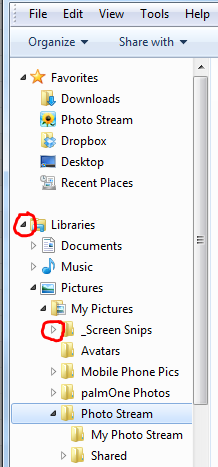
Sub-folder triangles A sub-folder is a folder within a folder. When viewing folders on your computer, sometimes sub-folders are hidden until you click on the sideways triangle just to the left of the folder name (or double-click on the folder). When sub-folders are shown, the triangle will “point” downward instead of to the right. See the example shown in the graphic.


Print This Article Print This Article
Multiple methods of accessing your e-mail

Filed under: Computing Tips - May 22 2013

Most internet service providers provide more than one way to access your email: Webmail (web-based email) and POP/IMAP mail which is accessed via an email client/program. The main advantage of using an email program is that you can avoid the ads that are shown when viewing your email in a web browser. Below is a chart detailing the 2 different ways to access your e-mail, and some advantages and disadvantages to both.

Feature

WEBMAIL

POP/IMAP MAIL PROGRAM

Accessibility

Accessible via a web browser from any internet connected computer. Web browsers include Internet Explorer, Mozilla Firefox, Google Chrome or AOL’s desktop software.

Accessible with an email client/program such as Outlook/Outlook Express, Windows Mail/Live Mail or Mozilla Thunderbird.

Speed

Faster particularly if you use a slower internet connection, such as basic DSL. Viewing your messages using webmail is as fast as displaying any other web page within your browser.

Slower to retrieve since POP mail is downloaded and stored on your computer. IMAP mail synchronizes your mail between your computer and your email provider’s mail server. Large emails with attachments can take several minutes to download particularly on a slow internet connection.

Storage

Your mail is stored on your email provider’s computers.

If your email is setup as POP, email is downloaded to your computer then usually removed from your email provider’s computers (server). If it setup as IMAP, the same emails exist on both your computer and the server.

Use with multiple computers/devices

When you read, write or delete a message the message folders will be the same on each computer or web browser that you check your mail with.

If your email is setup as POP, your email program needs to be configured to keep the messages on the server after downloading them. This allows you to download your messages onto multiple computers/devices or be able to view all your messages with webmail. *

SPAM filtering software on your computer

Will not work with web mail.

Will work with most POP email client/programs.

Photo sharing software

Many programs will not work using web mail.

Many programs integrate easily with POP/IMAP email programs

Sending attachments to your e-mail

More complicated

Less complicated

* If you use POP mail, your internet service provider or Computer Techs can give you information on how to set-up your email program, and how to configure it to leave copies of your messages on their computer’s server.

Below is a list of common internet service providers and their webmail address. Note that you don’t need to enter in the “http://” prefix in the address bar of your browser – your browser should automatically fill it in the prefix for you after you enter the address.

AT&T/Yahoo – mail.yahoo.com or att.yahoo.com/mail
Charter/Spectrum – webmail.spectrum.net
AOL – mail.aol.com

Besides email provided by your internet service provider, there are many free email services. Yahoo is only accessible via a web browser with their free service. Google’s Gmail and Microsoft’s Outlook.com (formerly “Hotmail”) are good alternatives, however all of the free services show advertisements next to your email messages.

If you are interested in reading more details about the different email protocols, see Wikipedia for more information about  webmail, POP email, or IMAP.

Print This Article Print This Article

How to switch from AT&T/Yahoo Mail to Gmail or Hotmail/Outlook.com

Filed under: Computing Tips,Security - May 18 2013

Update 5/8/13: AT&T has announced a June upgrade to their web mail that may include a security feature used by most other email services that encrypts email over the internet between Yahoo’s servers and your computer. The option to “turn on SSL” would help prevent the account hacking problem that currently plagues the email service. As such, you may want to hold off on switching away from using AT&T/Yahoo Mail until the upgrade has completed to see if extra security has been enabled.

Due to ongoing security issues with AT&T/Yahoo Mail, and other problems we’ve seen with randomly disappearing contacts and a 2-step verification process that does not work, we are now recommending that AT&T/Yahoo Mail users switch away from using the service. The most logical alternatives are Hotmail/Outlook.com and Gmail.

We can help you make the switch in about an hour in most cases, including setup of your new email account on all of your computers and portable devices. If you’d prefer to do it on your own, keep in mind that if you’re using an AT&T/Yahoo email account, you should not delete the email account associated with your AT&T account since it is also used as your username for access to your AT&T services.

Here’s how you can switch to Gmail http://support.google.com/mail/bin/answer.py?hl=en&ctx=mail&answer=117173

Here’s how you can switch to Hotmail/Outlook.com http://winsupersite.com/article/windows-live/outlookcom-tip-import-email-143978

Print This Article Print This Article

How to enable Internet Explorer toolbars that are hidden by default

Filed under: Computing Tips - May 14 2013

Updated May 2013:

Microsoft has started automatically updating their web browser to Internet Explorer version 10 (on Windows Vista and 7 only). IE10 is more secure and has a more simplistic interface – the menus, toolbars and buttons are hidden when first installed. This is a drastic change from earlier versions of Internet Explorer and you might miss the various toolbars. To display the Menu, Command, Status, or Favorites bar, simply right-click an empty area next to a tab and check which items(s) you want displayed (see screen shot below). You might want to lock the toolbars as well so the settings you make don’t unexpectedly change.

Click here to learn more about Internet Explorer 10 on Microsoft’s website.

Also see How to change your browser’s home/start page.

Print This Article Print This Article

Windows XP end-of-support deadline is less than 1 year away

Filed under: Archived,Computing Tips - Apr 18 2013

Windows XP logoIn April 2014, Microsoft will end support of Windows XP. The 12-year-old operating system was the standard operating system offered on new PCs from 2001 through 2007. A Windows XP computer won’t just stop working in April 2014, but the absence of monthly critical security updates will make it more susceptible to getting viruses and malware that can steal your personal information if the computer is continued to be connected to the internet.

There is no method to upgrade to a newer version of Windows on computers with Windows XP. Since the average life of a computer hard drive is approximately 5 years, now is a good time purchase a new computer. See this article for information on how you can still get a computer with Windows 7. Also see How to shop for a new PC and get the best deal.


Print This Article Print This Article

Windows 8 after six months – Windows 7 still a recommended choice when possible

Filed under: Computing Tips - Apr 15 2013

Windows 8 was released in October 2012, and now that it’s been in stores for six months we’ve had quite a bit of experience with Microsoft’s “modern” operating system. Our advice last year that recommends getting a new computer with Windows 7 when possible still stands. Windows 7 is more familiar and intuitive for long-time Windows users.

If you prefer to shop for new computers at a local national retailer such as Costco, Best Buy, Staples or Office Depot, Windows 8 is the only operating system available on new PCs. However Windows 7 is still available on new computers custom configured direct from Dell and HP. See our most recent New Computer Deals newsletter for details and more buying advice.

Print This Article Print This Article

« Previous PageNext Page »