Welcome to the Computer Techs Computer / Internet Tips & News blog. This purpose of this site is meant to provide a service to our valued customers, by keeping you informed with the latest news and tips related to your computer and the internet. Consider using the search box on the left side of the website to help you find a specific topic or article, or scroll through articles below to learn something new.


Get $25 Off your next service call for recommending Computer Techs

If you’re happy with our service, please consider recommending Computer Techs to a friend or relative. If we service their computer, you get $25 Off your next service call.

The details: Please have your friend or relative mention your name during the appointment, or after the appointment contact Mark Cobb with the name of the person that you recommended/referred. The referred person must be a new Computer Techs customer and not reside in the same household as the referrer.


Your computer or maintenance expense may be tax deductible

Filed under: Computing Tips - Jun 28 2014

If you use your computer to check on your investments, manage rental property or use it for business, you may be able to claim all or a portion of computer repair, maintenance and equipment expenses as a tax deduction. Check with your tax professional for details.


Print This Article Print This Article

How to block annoying ads in the new AT&T/Yahoo Mail and other websites

Filed under: Computing Tips - Jun 27 2014

Update June 2020: While there are hundreds of available “ad blocker” extensions that can be added to Chrome or other web browsers, they have become increasingly ineffective as more websites can detect when an ad blocker is being used. An example is Yahoo Mail which has recently been notifying users of ad blockers that they can either UNblock ads, pay to go ad-free, or downgrade to an older version of Yahoo web mail.

A 4th option is our recommendation to switch away from using AT&T/Yahoo Mail. Original article below…


With the latest changes to AT&T/Yahoo Mail, annoying ads have been added to the webpage. This article explains how you can block ads in webmail and other websites.

Our favorite method to block annoying ads on websites is to install the browser extension Adblock Plus. Several different versions of the extension are available for different browsers including Internet Explorer, Google Chrome, Mozilla Firefox and Safari.

Once the browser extension is installed, very little configuration is necessary to start blocking ads in AT&T/Yahoo webmail.

If you need help installing or configuring Adblock Plus, contact us and we can take care of it remotely or on-site.

Print This Article Print This Article

Pricing comparison: Computer Techs vs. the others

Filed under: Tech Support - Jun 01 2014

Why choose any place else for your technology service needs? Computer Techs is not only more affordable than the national chain stores, we’re local, experienced and take pride in our service. Computer Techs will come to you for all services, whereas some of the other guys’ services are offered in-store only.

In-home service Computer Techs Best Buy Geek Squad Staples easytech Office Depot Tech Depot
New PC setup & data transfer $89-$249 $99+ $99+ $119+
Virus removal $89-$249 $199 $299 N/A
Printer setup $89 $129 $99 $119
Wireless router setup $89 $129 $99 (one device) $129
Tune-up $49 (remote) – $89 $119 $99 $59 (in-store only)
Website source: Source link Source link Source link Source link

Effective 6-1-14


We can help with many computer issues without coming out to your home

Filed under: Passwords,Tech Support - Jun 01 2014

A majority of our customers already take advantage of our remote support service

Remote Support allows us to see your computer screen and operate your keyboard and mouse via your internet connection. This can be helpful if you need a quick-fix to a problem, question or other service that doesn’t require an in-home visit. Or perhaps you’d like service outside of our normal in-home daytime business hours. With Remote Support we offer lower rates than coming out to your home. Payment can be made via credit card on our secure webpage at the completion of the service.

Remote Support is available for most services, including (but not limited to):

  • Troubleshoot web browser redirects and fake scare warning screens
  • Help with recovery of forgotten passwords and hacked accounts
  • Virus/malware/adware/pop-up scan/removal
  • PC slowdown issues
  • Software installation and troubleshooting problems
  • Microsoft Office help
  • Data backup and recovery
  • Preventative/proactive maintenance
  • Email setup/customization
  • Training/tutoring

Remote support is not available if you don’t have a connection to the internet. Please contact us if you have questions.

To get started, while talking with your technician on the phone we will have you go to our web page at CTreno.com/help then download and run the “Remote Support” program. You will be presented with an ID and temporary passcode to tell us, which will allow us temporarily access to your computer only for the duration of the call. You’ll be able to watch everything being done on your computer just as if we were there in person.

Print This Article Print This Article

Does your computer have adware?

Filed under: Computing Tips,Security - May 26 2014

Adware is advertisement-supported software that is usually is bundled with other programs that are downloaded from the internet. For example you may download a free program from the internet, but in order for the website to make money they typically bundle the program with adware, browser toolbars and/or browser hijackers.

These Potentially Unwanted Programs (PUPs) will display advertisements, re-direct your internet search results and even change your browser home/start page. Adware should be removed as soon as possible because the ads often contain popups that report false computer error and update messages that lead to the installation of malware and other more severe computer problems. If your home page gets changed by adware, searching the internet through that page will often lead to untrustworthy and advertising supported search results.

Adware is sometimes avoidable if you carefully read each page as you are installing a program, and uncheck any optional adware boxes before clicking “Next”.

Contact Computer Techs today to have adware removed correctly and thoroughly by a professional.


Print This Article Print This Article

How to self-troubleshoot & fix common computer problems

Filed under: Computing Tips,Passwords,Scams,Tech Support - May 26 2014

Updated October 2023:

If your computer is slow or freezing up, your internet is not working or you can’t print – before calling for help there’s often some troubleshooting you can do that will likely fix the problem. Please Print This Article Print This Article and keep the printed page near your computer for future reference.

Computer won’t power on

If it’s a desktop computer, unplug the power cord to your computer for at least 30 seconds, then plug it back in and see if it will then turn on via the power button. If it’s a laptop, tablet or smartphone, press and hold the power button until you see it turn on. If you’ve held the power button for at least 20-seconds, release and try again.

Computer freezing up, non-responsive or showing you error messages

Turn off or restart your computer. This will often fix problems by clearing out the computer’s temporary memory and giving the computer a fresh start. If your computer will not shut off normally you can press and hold the power button on the computer until it shuts off (usually after about 5 seconds).

You’re seeing a scary warning message that you’re computer is blocked, with instructions to call a phone number

It’s a scam designed you to scare you into calling the number – a scammer. See this article for instructions on how to get rid of the scare screen.

Can’t connect to the internet

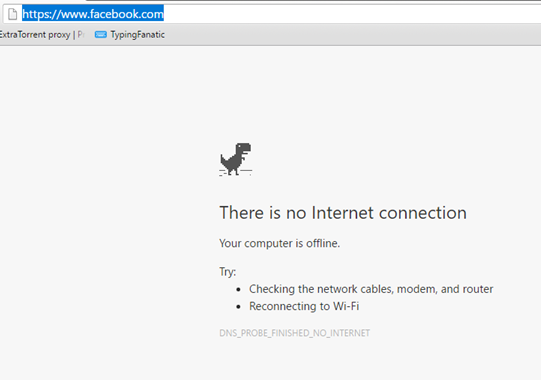
First, check the network status icon in taskbar. If you see the Network unavailable icon that looks like a globe, there’s a problem with your internet connection. If you see the Wi-Fi available icon, you’re not connected to your wireless router. Go to the next steps to continue…

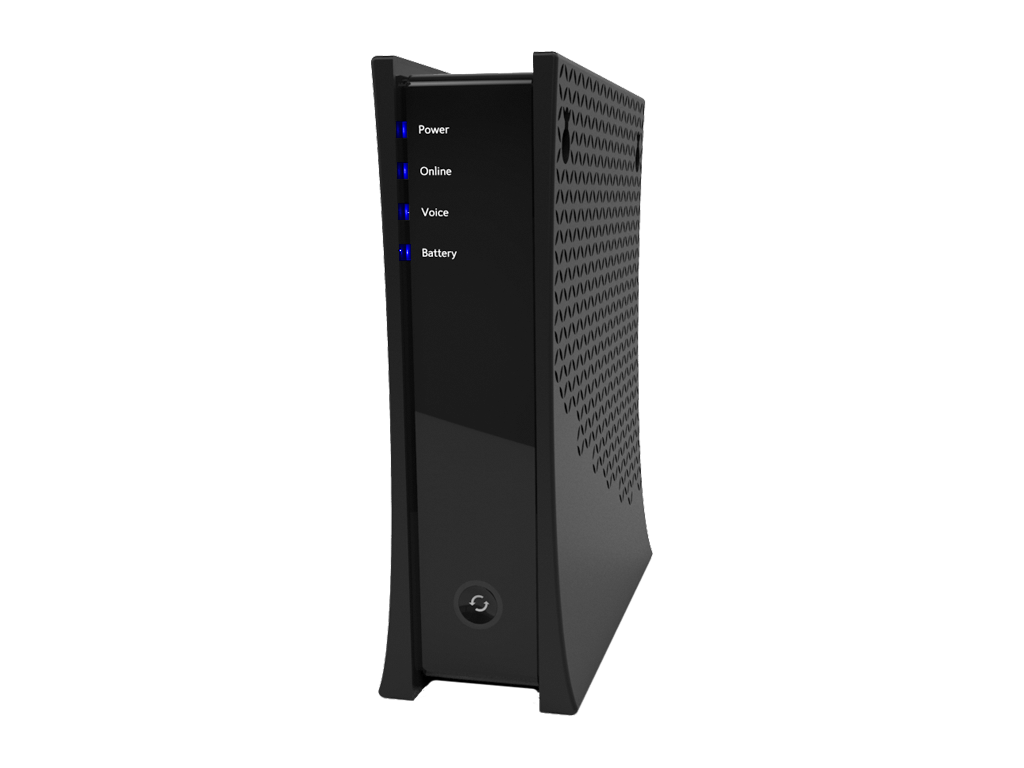
Are all the lights on your internet modem and/or router lit and their normal color? If not, turning off or unplugging the power to your modem and/or router for a minute will often fix internet connection problems. If you have a router, power-on your internet modem first – wait a minute for all the lights to come on – then power-on your router. If all the lights on your router and/or modem look normal, then maybe it’s a problem with your internet browser (see the next step).

Can you reach some/none websites in your browser?

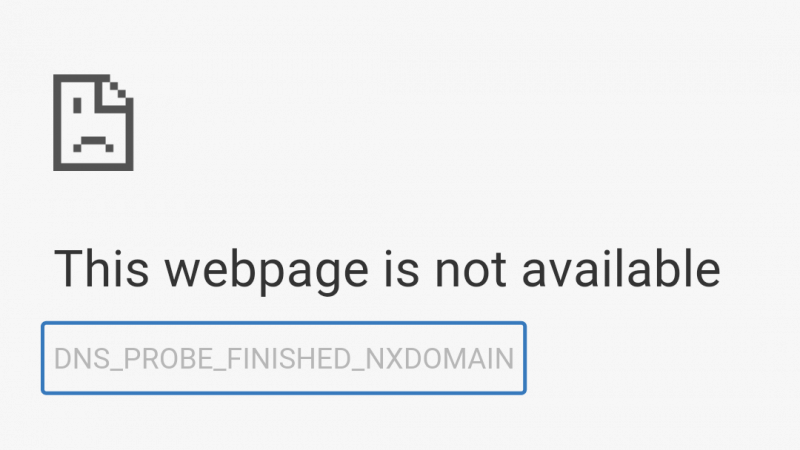
If you’re seeing “This webpage is not available”, it may just be a problem wIth the specific webpage or homepage that you’re trying to view. Try navigating to a different website.

If you can’t access any websites, and it doesn’t say “no internet connection”, it could be a problem with the specific web browser that you’re currently using. The most common web browsers are Google Chrome, Mozilla Firefox, Microsoft Edge and Apple Safari. If a web page does not display normally (or at all) in your usual web browser, try using a different browser to go to the website(s) that are not working.

Printer not working

If nothing happens when you try to print, make sure you are printing to the correct printer. When in the print preview screen, double-check to make sure your Printer/Destination is selected accordingly. If there is no communication between the computer and printer, turn off the printer then back on. Otherwise, unplug the power to the printer, then plug it back in.

Printed pages are blank, have streaks not printing all colors? Print this test page, then compare the printed output vs. what you see on your screen. You may need to clean the printer’s print heads or change the ink(s). Refer to your printer manual for instructions.

For further printer troubleshooting, see this article.

Can’t send/receive email?

  • First check your internet connection (above).
  • If you use an email program such as Windows Mail, Outlook or Apple Mail, check to see if you’re able to send/receive email via your webmail – see below for the web address for the most common email services*.
  • Are you getting an error message about your password being incorrect? If so, type in your current password where prompted.
  • If it appears that only some of your email is coming in or out, try sending an email to yourself to see if you receive it back.
  • We recommend having email with more than one provider for times when one of your email services may not be working. You can sign up for a free email account with Google’s Gmail, or Microsoft’s Outlook.com.

* Type the following address into your web browser address bar to access the webmail version of common email providers:
Yahoo or AT&T/Yahoo Mail: mail.yahoo.com
Gmail: gmail.com
AOL mail: mail.aol.com
Charter/Spectrum email: webmail.spectrum.net
Microsoft Hotmail/Outlook.com: outlook.com

When all else fails…

If the above steps do not solve your problem, please contact Computer Techs. See our website for contact information or call the number on your tech’s business card.

Also read: Have a backup plan for everything: Why you shouldn’t bundle all of your services with one provider

New twists in tech support phone scams

Filed under: Computing Tips,Passwords,Scams,Security - May 24 2014

Updated 8/19/14:

For several years we’ve been warning people about tech support scams where someone claiming to be from Microsoft, your internet service provider or computer manufacturer calls to inform you that your computer is in danger and filled with trojan viruses or critical errors, or that your Windows license has expired.

keyboard S C A MIn a later twist, shady companies began advertising on Google, Yahoo, Bing and other websites targeting search terms such as “HP tech support number” in hopes that vulnerable computer users would call them. After calling the number the representative would say that in order to help with the problem they would need to remote access to the computer. See examples in this article. Then just like the unsolicited calls from “Microsoft” above, you are lead to believe that your computer is infected.

Recently shady companies are now advertising on mobile search websites targeting search terms such as “Android tech support” or “iPhone tech support”. Similar to other tech support scams, after calling the number you are told to connect your smartphone to your computer then allow them remote access to your computer. You are then led to believe that trojan viruses on your computer are the cause of your smartphone troubles, and they offer to “fix” your computer.

(more…)

How to change your email password

Filed under: Computing Tips,Passwords,Security - Apr 30 2014

Updated April 2020:

Below are links to instructions for changing your password at most major email providers. Please review how to safely manage your passwords when creating a new password.

AOL Mail

AT&T/Yahoo email – att.net, sbcglobal.net, prodigy.net, nvbell.net

Charter/Spectrum email

Gmail

Hotmail/Outlook.com

Yahoo Mail

If you access email on your smart phone, tablet or email program on your computer, don’t forget to update the password that is stored on those device(s) with the new password you created in the steps above.

Print This Article Print This Article

AVG pop-up about Heartbleed is a lure to install paid version

Filed under: Archived,Security - Apr 25 2014

AVG Heartbleed popupIf you have AVG Anti-Virus Free Edition you may see a pop-up similar to shown at right. If you click “Learn More” it takes you to an AVG webpage with information about the Heartbleed bug that affects website servers, then recommends an upgraded paid version of AVG.

As with other AVG upgrade prompts we recommend that you decline the upgraded version – the free version is sufficient for most people.


Print This Article Print This Article

Microsoft offers cheaper Office 365 subscription and free online version

Filed under: Tech Support - Apr 15 2014

Microsoft now offers a cheaper subscription option to their Office 365 suite. For $69 per year (or $6.99 per month), you can use the full suite of Microsoft Office products including Word, Excel, Powerpoint, Outlook and others on 1 computer plus 1 tablet computing device. Their original subscription option which is still available allows the use of the full suite of Office products on 5 computers plus 5 tablets in a household for $99 per year (or $9.99 per month).

Office OptionsLast month Microsoft released a version of Office designed for the iPad. Though the app is free to install, a Microsoft Office subscription is required in order to create or edit files. Oddly the initial release of the app doesn’t have the ability to print but Microsoft says that the feature will be coming in a future release of the app.

Besides a subscription to Office, Microsoft currently offers several versions of Office 2013 with a one-time purchase starting at $139 per computer. Alternatively you can access free simplified web page versions of Word, Excel and PowerPoint and OneNote at Office Online. See Get started at Office.com

For more information on the subscription and one-time purchase options see Compare Microsoft Office versions.

Print This Article Print This Article

« Previous PageNext Page »