Category: Computing Tips

Free and inexpensive backup options means there’s no excuse for your data not being backed up

Filed under: Computing Tips,Tech Support - Jan 06 2015
Why Backup?

Updated September 2018:

Accidents and disasters happen. Hard drives fail. Portable devices get lost or stolen. New viruses encrypt data then charge ransom to unlock it. Fortunately data backup is not expensive anymore, so there’s no excuse for your data not being backed up. If you don’t know how to backup, we can setup a solution based on your needs.

A backup means that your important documents, pictures, music, emails, contacts, etc. exist in more than one location, in the event that the primary data is lost.

Computers should be backed up to an external hard drive, or a “Cloud” synchronization service such as Google Backup and Sync, Microsoft OneDrive, or Carbonite.

Smartphones and tablets should be backed up to services provided by the maker of the phone’s operating system such as Apple’s iCloud or Google’s Android backup & sync settings.

If you’re not sure how to backup your computer and devices, please contact us to setup an appointment so that we can help you start your backup routine today.

Print This Article Print This Article

Why your most important password is the one that secures your email

Filed under: Computing Tips,Passwords,Security - Dec 04 2014

Some people think that nobody would be interested in reading their email, so their email password doesn’t need to be secure. However if a hacker accesses your email consider the following common occurrences:

  • A hacker can change your password and lock you out of your account.
  • A hacker can go to financial and shopping websites and have password reset requests sent to your email address. With access to your financially related websites in the hands of a bad guy, you could potentially lose thousands of dollars.
  • A hacker can copy your contact list and/or send emails on your behalf asking for money or send spam and malware that appears to come from you.

If your email password is not unique or easily guessed by others, please see how to change your email password.

I suggest reading this more in-depth article by security researcher and former Washington Post reporter, Brian Krebs: The Value of a Hacked Email Account.

Print This Article Print This Article

Are you frustrated with your Internet provider’s email “service”

Filed under: Computing Tips - Dec 04 2014

Updated October 2019:

The 2 major Internet service providers in Reno – AT&T and Charter/Spectrum – offer free email addresses as part of their service. But the email “service” is an afterthought which they don’t make any money on. AT&T’s email is provided by Yahoo, has a history of being hacked and is often filled with advertisements. Charter’s email interface is slow and clunky. Spam filtering on both services is poor to non-existent. Both AT&T and Charter also let you view your email on an email app on your computer or mobile device, but syncing between devices and web browsers is often problematic, and syncing your contacts isn’t possible with Charter/Spectrum’s service.

Fortunately there are very good alternatives to AT&T’s and Charter’s email, and you can continue to use your present email address if you choose. Google’s Gmail and Microsoft’s Outlook.com offer better security, spam filtering and less advertising – all free of charge.

If you’re frustrated with your Internet service provider’s email, contact us to customize an email solution to your needs.

Also read: Why you should ditch your internet provider’s email – and how we can help.

Print This Article Print This Article

Need a new printer? Why you should consider getting laser/LED vs. inkjet

Filed under: Computing Tips - Nov 09 2014

Updated 11/16/23 to add LED:

When purchasing a new printer, there are several reasons you should consider getting laser vs. inkjet.

We are often asked to troubleshoot printing problems with inkjet printers. With Nevada’s dry climate, if you don’t frequently print something the ink in inkjet printers often dries out and clogs the ink cartridges and print heads, thus reducing print quality or completely rendering the printer useless.

When shopping for a printer you may be inclined to get an inexpensive printer because you don’t print very often. Though inkjet printers are usually less expensive, the cost of the ink and repair can make it a more expensive investment in the long run.

Let’s look at the pros and cons…

Pros of laser/LED printers:

  • The toner powder that’s used in laser printer toner lasts longer than ink – typically thousands of pages (vs hundreds of pages for standard ink cartridge printers). You may only have to buy more toner cartridge(s) every few years.
  • Cost-per-page of toner vs. ink is lower.
  • The toner isn’t susceptible to drying up or clogging the printer.
  • Laser printers print faster.

Cons of laser/LED printers:

  • The initial equipment cost of a laser printer is usually more expensive. Color laser printers are usually hundreds of dollars more than their inkjet alternatives.
  • Laser printers don’t print high-quality photos.
  • All-in-one laser printers are usually larger and may not fit if you have a small space to place your printer.

More information about the choosing a printer can be found in the Consumer Reports Printer Buying Guide.

The technical differences between inkjet and laser/LED printers

Inkjet and laser printers operate on very different technologies, each with their own strengths. Here’s a breakdown of how they work:

Inkjet Printers

  • Technology: Inkjet printers spray tiny droplets of liquid ink directly onto the paper. These droplets can be as small as a few microns, allowing for precise details and vibrant colors.
  • Process: They use one of two methods: thermal inkjet (heating the ink to create bubbles that force the ink out) or piezoelectric inkjet (using vibrations to eject ink).
  • Best For: High-resolution photo printing and documents requiring vivid colors. Inkjet printers are generally slower and more suitable for low-volume printing.

Laser Printers

  • Technology: Laser printers use toner, a powdered ink, and static electricity to transfer the image or text onto the paper.
  • Process: A laser beam “draws” the image on a drum inside the printer, creating an electrostatic charge. The toner adheres to the charged areas, and heat is used to bond the toner to the paper.
  • Best For: Fast printing of high-volume, monochrome documents. They are great for efficiency but less suitable for detailed photo printing.

If you’re debating which one suits your needs, it boils down to what you’re printing and how often.

Print This Article Print This Article

Cloud storage services back up your files and gives you access from multiple devices

Filed under: Computing Tips,Passwords - Jul 31 2014

Updated 7/31/14:

Most households have multiple computing devices these days – such as desktops, laptops, smartphones and tablet portable devices – and many want the ability to synchronize files between their devices.

There are many companies that offer cloud (aka “over the internet”) syncing and storage services. In this article I highlight 3 of the most popular – Google Drive, Microsoft OneDrive and Dropbox. All 3 of these services will backup and sync one folder and any sub-folders within it. Your computer can be configured to store your pre-existing folders of Documents, Pictures. Music, etc. inside the synced folder. Since the files are accessible from multiple devices and your personal web site means that those files are backed up and accessible should one or more of your devices become damaged, lost or stolen.

Some of the main features and benefits of the services include:

  • 2-15 GB of online storage for free, with paid plans for more storage as needed.
  • Automatically syncs when new files or changes are detected.
  • Work on files even if you’re temporarily not connected to the Internet. Your changes sync once your computer has an Internet connection again.

(more…)

Why you should have a Google/Gmail and Microsoft account

Filed under: Computing Tips - Jun 29 2014

If you don’t already have a Google/Gmail and a Microsoft/Outlook.com account, there are several reasons that you may need one besides just for a secondary email address.

A Google/Gmail.com email is used for:

  • A primary or secondary email address due to Gmail’s superior junk/spam filtering and syncing of contacts and calendars with a mobile device
  • Using Google’s Picasa picture management program and free online photos backup on Picasa Web Albums or Google+ Photos
  • Using Google Drive online backup and synchronization folder (similar to Dropbox), and the accompanying Google Docs, a free online document creation and management suite
  • Required on an Android smartphone or tablet for backing up the device’s settings, purchasing apps and using location services

A Microsoft/Outlook.com account is used for:

  • A primary or secondary email address due to the Hotmail.com/Live.com/Outlook.com superior superior syncing ability of mail, contacts and calendar between your computer and mobile devices
  • Using Microsoft Office 2013 or Microsoft Office 365 subscription for syncing or managing your subscription
  • Using the multiple computer settings synchronization offered in Windows 8
  • Required on a Windows Phone smartphone or tablet for backing up the device’s settings, purchasing apps and using location services
  • Using Microsoft OneDrive online backup and synchronization folder (similar to Dropbox)
  • Using Office Online, an internet-based document creation and management suite

Print This Article Print This Article


Your computer or maintenance expense may be tax deductible

Filed under: Computing Tips - Jun 28 2014

If you use your computer to check on your investments, manage rental property or use it for business, you may be able to claim all or a portion of computer repair, maintenance and equipment expenses as a tax deduction. Check with your tax professional for details.


Print This Article Print This Article

How to block annoying ads in the new AT&T/Yahoo Mail and other websites

Filed under: Computing Tips - Jun 27 2014

Update June 2020: While there are hundreds of available “ad blocker” extensions that can be added to Chrome or other web browsers, they have become increasingly ineffective as more websites can detect when an ad blocker is being used. An example is Yahoo Mail which has recently been notifying users of ad blockers that they can either UNblock ads, pay to go ad-free, or downgrade to an older version of Yahoo web mail.

A 4th option is our recommendation to switch away from using AT&T/Yahoo Mail. Original article below…


With the latest changes to AT&T/Yahoo Mail, annoying ads have been added to the webpage. This article explains how you can block ads in webmail and other websites.

Our favorite method to block annoying ads on websites is to install the browser extension Adblock Plus. Several different versions of the extension are available for different browsers including Internet Explorer, Google Chrome, Mozilla Firefox and Safari.

Once the browser extension is installed, very little configuration is necessary to start blocking ads in AT&T/Yahoo webmail.

If you need help installing or configuring Adblock Plus, contact us and we can take care of it remotely or on-site.

Print This Article Print This Article

Does your computer have adware?

Filed under: Computing Tips,Security - May 26 2014

Adware is advertisement-supported software that is usually is bundled with other programs that are downloaded from the internet. For example you may download a free program from the internet, but in order for the website to make money they typically bundle the program with adware, browser toolbars and/or browser hijackers.

These Potentially Unwanted Programs (PUPs) will display advertisements, re-direct your internet search results and even change your browser home/start page. Adware should be removed as soon as possible because the ads often contain popups that report false computer error and update messages that lead to the installation of malware and other more severe computer problems. If your home page gets changed by adware, searching the internet through that page will often lead to untrustworthy and advertising supported search results.

Adware is sometimes avoidable if you carefully read each page as you are installing a program, and uncheck any optional adware boxes before clicking “Next”.

Contact Computer Techs today to have adware removed correctly and thoroughly by a professional.


Print This Article Print This Article

How to self-troubleshoot & fix common computer problems

Filed under: Computing Tips,Passwords,Scams,Tech Support - May 26 2014

Updated October 2023:

If your computer is slow or freezing up, your internet is not working or you can’t print – before calling for help there’s often some troubleshooting you can do that will likely fix the problem. Please Print This Article Print This Article and keep the printed page near your computer for future reference.

Computer won’t power on

If it’s a desktop computer, unplug the power cord to your computer for at least 30 seconds, then plug it back in and see if it will then turn on via the power button. If it’s a laptop, tablet or smartphone, press and hold the power button until you see it turn on. If you’ve held the power button for at least 20-seconds, release and try again.

Computer freezing up, non-responsive or showing you error messages

Turn off or restart your computer. This will often fix problems by clearing out the computer’s temporary memory and giving the computer a fresh start. If your computer will not shut off normally you can press and hold the power button on the computer until it shuts off (usually after about 5 seconds).

You’re seeing a scary warning message that you’re computer is blocked, with instructions to call a phone number

It’s a scam designed you to scare you into calling the number – a scammer. See this article for instructions on how to get rid of the scare screen.

Can’t connect to the internet

First, check the network status icon in taskbar. If you see the Network unavailable icon that looks like a globe, there’s a problem with your internet connection. If you see the Wi-Fi available icon, you’re not connected to your wireless router. Go to the next steps to continue…

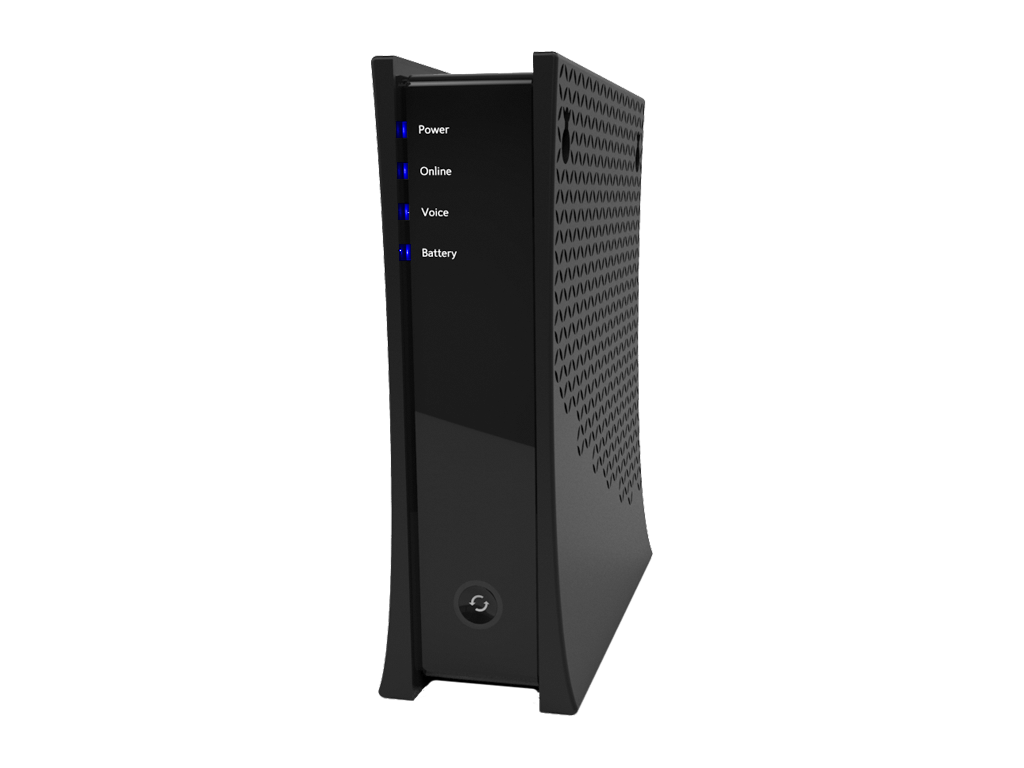
Are all the lights on your internet modem and/or router lit and their normal color? If not, turning off or unplugging the power to your modem and/or router for a minute will often fix internet connection problems. If you have a router, power-on your internet modem first – wait a minute for all the lights to come on – then power-on your router. If all the lights on your router and/or modem look normal, then maybe it’s a problem with your internet browser (see the next step).

Can you reach some/none websites in your browser?

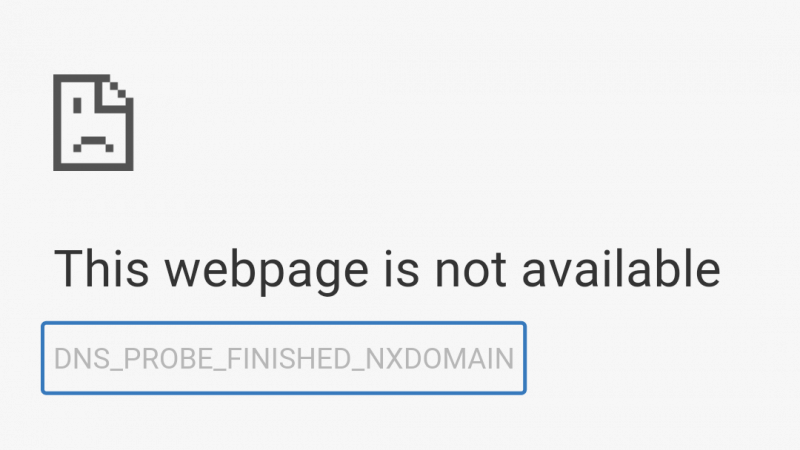
If you’re seeing “This webpage is not available”, it may just be a problem wIth the specific webpage or homepage that you’re trying to view. Try navigating to a different website.

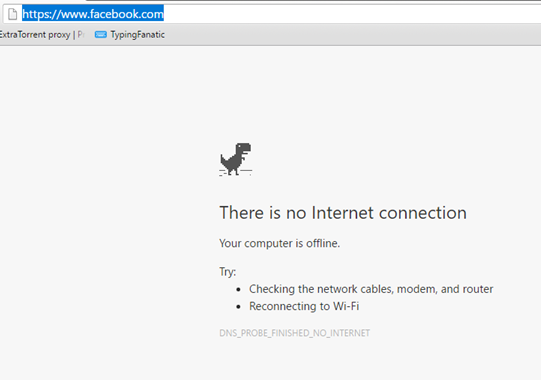
If you can’t access any websites, and it doesn’t say “no internet connection”, it could be a problem with the specific web browser that you’re currently using. The most common web browsers are Google Chrome, Mozilla Firefox, Microsoft Edge and Apple Safari. If a web page does not display normally (or at all) in your usual web browser, try using a different browser to go to the website(s) that are not working.

Printer not working

If nothing happens when you try to print, make sure you are printing to the correct printer. When in the print preview screen, double-check to make sure your Printer/Destination is selected accordingly. If there is no communication between the computer and printer, turn off the printer then back on. Otherwise, unplug the power to the printer, then plug it back in.

Printed pages are blank, have streaks not printing all colors? Print this test page, then compare the printed output vs. what you see on your screen. You may need to clean the printer’s print heads or change the ink(s). Refer to your printer manual for instructions.

For further printer troubleshooting, see this article.

Can’t send/receive email?

  • First check your internet connection (above).
  • If you use an email program such as Windows Mail, Outlook or Apple Mail, check to see if you’re able to send/receive email via your webmail – see below for the web address for the most common email services*.
  • Are you getting an error message about your password being incorrect? If so, type in your current password where prompted.
  • If it appears that only some of your email is coming in or out, try sending an email to yourself to see if you receive it back.
  • We recommend having email with more than one provider for times when one of your email services may not be working. You can sign up for a free email account with Google’s Gmail, or Microsoft’s Outlook.com.

* Type the following address into your web browser address bar to access the webmail version of common email providers:
Yahoo or AT&T/Yahoo Mail: mail.yahoo.com
Gmail: gmail.com
AOL mail: mail.aol.com
Charter/Spectrum email: webmail.spectrum.net
Microsoft Hotmail/Outlook.com: outlook.com

When all else fails…

If the above steps do not solve your problem, please contact Computer Techs. See our website for contact information or call the number on your tech’s business card.

Also read: Have a backup plan for everything: Why you shouldn’t bundle all of your services with one provider

« Previous PageNext Page »