Welcome to the Computer Techs Computer / Internet Tips & News blog. This purpose of this site is meant to provide a service to our valued customers, by keeping you informed with the latest news and tips related to your computer and the internet. Consider using the search box on the left side of the website to help you find a specific topic or article, or scroll through articles below to learn something new.


Get $25 Off your next service call for recommending Computer Techs

If you’re happy with our service, please consider recommending Computer Techs to a friend or relative. If we service their computer, you get $25 Off your next service call.

The details: Please have your friend or relative mention your name during the appointment, or after the appointment contact Mark Cobb with the name of the person that you recommended/referred. The referred person must be a new Computer Techs customer and not reside in the same household as the referrer.


Search Gmail Like a Pro

Filed under: Computing Tips,Internet Tips - Dec 17 2021
Search Gmail Like a Pro

Email has become one of the main ways we communicate both for work and personal conversations. It’s estimated that a person sends and receives an average of 126 emails per day, and that’s just for work.

We all know that it doesn’t take long for an inbox to get unwieldy and fill up with older messages that are no longer needed or spam that can be deleted. But in between those unnecessary messages are emails that you need to keep. Trying to balance the two can be a challenge.

Some users even get so many emails, they begin having computer issues and have to call in a technician because their email program is no longer working properly due to being overloaded.

If you’re one of the many Gmail users out there, we have some great tips to help you search Gmail like a pro to find what you need and declutter your inbox.

Graphical user interface, application

Description automatically generated with medium confidence

At the top of your Gmail home page, you’ll find this “Search mail” function to use for these tips.

Get Rid of Emails Taking Up Valuable Storage Space

If you’re a free Gmail user, then you get 15GB of free storage space that is shared across all the apps in your Google account. This includes any files you’ve stored in Google Drive as well as your Gmail storage.

To keep your storage optimized and help free up space, you can use this search tip to locate the emails taking up the most space due to large file attachments.

In the Gmail search box type: Larger:10M and then press your Enter key.

This will bring up all email messages in any of your boxes (including sent) that are over 10 megabytes in size and allow you to easily look through them to delete anything you no longer need.

This can often free up a significant amount of space, especially if you have older sent messages from years past with large file attachments. 

Make sure to empty your Trash folder after you’ve deleted the messages to completely remove them from your storage. 

Select All Tip

If you want to select all messages that come up in one of these searches, instead of selecting them one by one or page by page, do the following:

  1. After you’ve completed the search, click the top checkbox that will select all messages on the page.
  1. Look to the right, and click the area that says “Select all conversations that match this search.” 

If you want to get rid of all the emails that have come up during your search, this will allow you to select all of them quickly and then you can click the delete button.

This also works in your Trash folder. 

Graphical user interface, text, application

Description automatically generated

Get Rid of Older Emails You No Longer Need

Over time, it’s surprising just how many messages can collect in your Gmail account. If you’ve had it for several years, then you could have years of old messages or sales notices from retailers that you no longer need.

Removing these can both free up space and improve your ability to find current emails faster because your system won’t have to search through years’ worth of irrelevant emails.

To locate older messages, you can use this search term in the Gmail search box: Before:YYYY/MM/DD and then press your Enter key.

Add the date that you want to search in the search statement, for example, “Before:2018/12/31”, which would bring up all your emails with a sent or received date prior to December 31, 2018.

You can then easily delete the ones you no longer need.

Use Search Combinations for Deeper Targeting

What if you want to look for messages that have attachments, that are larger than 11MB and older than 2 years? You can use Google’s mail search terms to do this.

For the above search, you would type the following into the Gmail search bar: has:attachment larger:11M older_than:2y

Press enter and you’ll see a listing of messages that meet all those criteria.

You’ll often be surprised by just how many older messages have been building up in your Gmail account over time. 

Unlock More Search Options

Don’t worry if you can’t immediately remember these search operators, because Google has made it easy for you to access these searches and others using a search panel.

Just click the small icon at the far right of the Gmail search to open a panel of search operators.
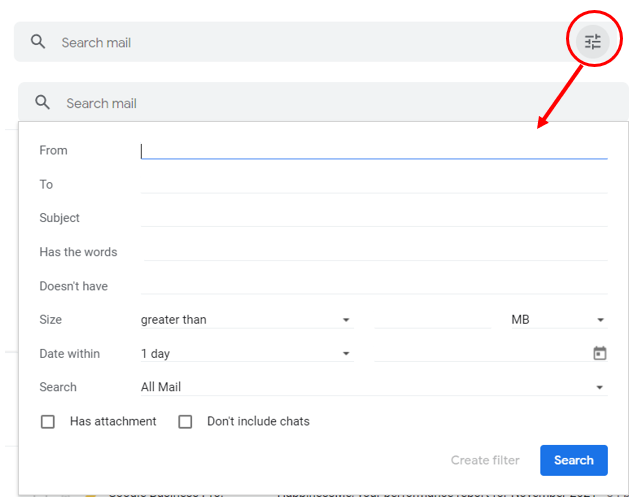
Graphical user interface, application, email

Description automatically generated

You can use this to get very specific in your email searches to locate messages you no longer need.

For example, if you have older messages from a job you moved on from years ago, you can use “Has the words” and type the name of that company to quickly locate all related messages and delete them.

See the complete list of search operators you can use with Gmail here.

Need help getting around your email or other software?

Computer Techs provides expert IT training to Reno area residents on a wide variety of computer and software topics. Contact us today with any questions or computer needs.

6 Reasons You Don’t Really Need a VPN

Filed under: Computing Tips,Security - Dec 03 2021
6 Reasons You Don’t Really Need a VPN

One of the applications that you may hear about to keep your online connection more secure is a virtual private network (VPN). This is a service that basically takes your internet connection and reroutes it through its own servers before connecting you online.

VPNs are sold by lots of companies using FUD (fear, uncertainty, doubt) tactics. These companies make promises of encrypting your online connection and keeping your data safe. However, some of them have been found to be not very private after all.

What Is a VPN?

A VPN is a service that will route your online traffic through one or more of its servers. These servers can be anywhere in the world, and at times, you may be using different ones.

The VPN is designed to encrypt internet traffic and make your online connection secure by being a middle man between you and the internet. 

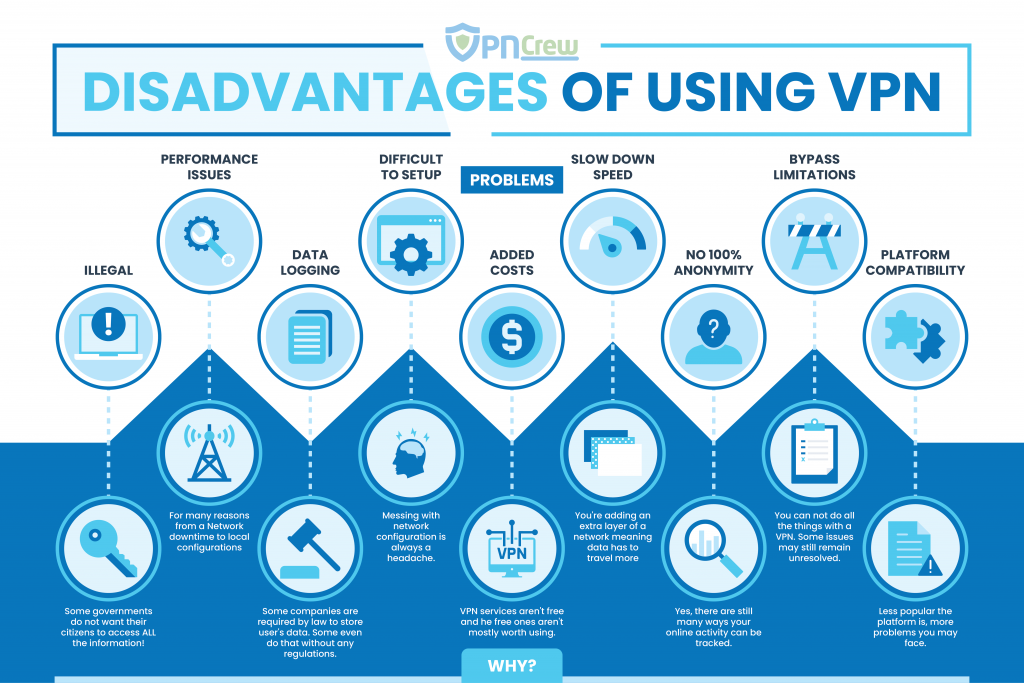
Before you get scared into thinking you need a VPN, you’ll want to check out our list below of the reasons that you may not really need one after all.

Icon

Description automatically generated with medium confidence

Used with permission from VPNCrew

Can Slow Down Your Connection Speed

When you connect to a VPN, your internet traffic gets routed through a third party. This is like taking the long way to go to the grocery store. Instead of connecting directly from your internet service provider (ISP) to the internet, you’re taking a detour through a VPN service that could be thousands of miles away.

This detour can slow your connection speed, especially if the VPN server is across the ocean in another country. This can lead to buffering frustration when trying to watch streaming services and worse quality video calls due to slower internet.

Can Cause Login Problems Due to Location Differences

Not all applications play well with VPNs and you may start having login problems. This can especially be the case when logging onto sites that look at your location to determine the type of content to serve you.

You may also find that you do a Google search like usual, but all the search results are in another language. This can be because the IP address of the VPN server is coming from a certain country so the site thinks you are located in that country and is providing content based upon that server location.

They’re Complicated to Use

Because a VPN changes how you connect to the internet, it can be complicated to set up and use. It may end up conflicting with other processes you have going, such as file sync with online cloud storage. 

This type of app is difficult to adjust so it’s not conflicting with any online or hard-drive-based apps. Uninstalling the VPN may be the only way out of an issue that has occurred after it was installed.

They’re Illegal in Some Countries

Some countries restrict internet content, and the use of a VPN to get around that restriction is prohibited. So, if you travel overseas and use a VPN on any of your devices, you could be breaking the law without realizing it.

May Be Storing Your Online Data Without Your Knowledge

It’s been found that many VPNs store your online session data, despite the promises made on the company’s website. Some may be governed by laws requiring them to store that data, and others may do it out of carelessness or for more nefarious reasons related to selling it.

If you use a free VPN, you need to be very careful about this, because if you’re not paying anything for the service, then it’s most likely you (your data) is the revenue generator for the business.

There are Better Ways to Protect Your Data

A VPN is not necessarily the best way to protect yourself and your data while online. There are other options that don’t require you to route all your internet traffic through a third party.

Some of these options include:

  • Use of a DNS Filter: A DNS filter blocks malicious websites even after you’ve clicked the link for one. It will redirect you to a warning page instead. Setting up a DNS filter is done on your computer or router.
  • Multi-factor Authentication (MFA): MFA is one of the best ways to keep your online accounts secure, and it’s free. You should enable this on every account that you have. According to Microsoft, MFA blocks 99.9% of fraudulent sign-in attempts.

Contact us for your online security needs.

Computer Techs can help you reduce risk by employing online security best practices. Contact us today with any questions or computer needs.

Also read: Why you probably don’t need to worry about public WiFi anymore

The Washington Post

Google making 2-Step Verification mandatory to sign-in

Filed under: Internet Tips,Passwords,Security - Nov 30 2021

Source: Fortune and Google

Google announced in May that it would start automatically requiring users to adopt two-step verification as a security precaution when they sign into services such as Gmail. That plan, which the company said would expand by the end of this year to 150 million users on mobile and desktop, has now started.

What is two-step verification?

Passwords, no matter how strong, may not actually be the best way to keep online accounts secure. Two-step verification, sometimes referred to as two-step authentication, reduces the chances of hackers or other outsiders gaining unauthorized access to your information. This usually means adding an extra security step to log in, like a code sent to your phone via text or a voice call, or a code generated by a Google Authenticator, that users must enter in addition to their usual password.

Why is this happening now?

Google has been encouraging its users to enroll in two-step verification for the past few years. The company has also moved to reduce the need for its users to enter passwords and pushed the use of secure tokens, which instead allow users to sign in to partner websites and apps with a single tap. In addition to the 150 million user accounts Google will automatically enroll in two-step verification this year, creators on sister service YouTube will be required to turn it on by November 1 to access their channels. Google expects that all of its users will eventually be required to login using two-step verification, the company told Fortune.

What’s going to change for me?

You can check whether you’re already enrolled in two-step verification through Google’s Security Checkup. If you’re not, it’s likely you will be eventually. Users who regularly sign in to their account, use Google products on their mobile devices, and who have recovery information on their accounts, like a recovery phone number or email, will be among the first to be automatically enrolled. But if you’re annoyed by the idea of signing in twice, don’t worry. After setting up two-step verification on your computer, you can choose not to use it again on that particular device, and go back to using just your password when you sign in. It’s only when someone else tries to sign in to your account from another computer that users will still have to go through the two-step verification process.

Print This Article Print This Article

Google Isn’t Evil – Why We Like Google

Filed under: Computing Tips,Internet Tips - Nov 19 2021
Google Isn’t Evil - Why We Like Google

It’s easy to vilify large tech companies. They hold a lot of power over our online lives. One organization that people like to point to as a monopoly is Google. The company owns over 91% of the worldwide search market share, but it got there for a reason.

Google’s business model is to give people searching online what they want. So it’s in the company’s best interest to make your online life easier. Keeping people searching on its site allows Google to continue running a successful ad business to earn revenue.

Yes, it’s true that you do give up some of your information to the search engine in exhange for using its services (including YouTube, which Google owns). But the trade in Google’s case is a fair one for many.

It’s important to know who you can trust when you’re online so you can keep your personal data protected as much as possible.

Why is Google not such a bad guy? Here are several reasons why we like Google.

(more…)

Watch Computer Techs recommended videos on YouTube

Filed under: Humorous,Internet Tips,Scams,Tech Support - Nov 17 2021

Computer Techs recommended videos is a YouTube playlist consisting of our favorite videos that will educate the viewer about computer and technology related scams, usage tips, and sometimes a funny video that gives us a good laugh. Be sure to press the “Subscribe” button to get notified about new videos that we add from time-to-time.

Whenever you need help with your computer or anything related to technology, please contact your Computer Techs technician.

You can also visit the YouTube playlist in the future by typing youtube.CTreno.com in your web browser address bar.

Windows 11 released 10/5/21 – What you need to know

Filed under: Computing Tips - Oct 11 2021

Updated March 2022:

Microsoft’s latest version of their operating system – Windows 11 – was released October 5, 2021. It looks and behaves a bit differently than Windows 10 and has some new features, yet many things haven’t changed at all. While Windows 11 will work on many computers manufactured since late 2017, it’s still just an optional update since Windows 10 will still be supported until October 2025. Windows 11 comes preinstalled on new computers going forward.

In early 2022 Microsoft began recommending that people upgrade to Windows 11 on computers that qualify. You may be wondering what our advice is about getting Windows 11. At this time we don’t feel that there’s a compelling reason to upgrade your existing computer to Windows 11 due to the following reasons:

However if you’re shopping for a new computer it will likely come with Windows 11 – and that’s okay. For more information about Windows 11 click here.

If you’ve already upgraded to Windows 11 and change your mind, you have 10 days to downgrade back to Windows 10. See Microsoft’s instructions here. If you’ve made other suggested changes and want to go back to the way things were before, contact Computer Techs for help.

Print This Article Print This Article

Reveal passwords stored in your browser – and check for the ones exposed in data breaches

Filed under: Computing Tips,Passwords,Security - May 25 2021
Password security

Updated May 2023:

All major web browsers have the option to save the login and password for the websites that you visit so it’s easier to login the next time you visit a site. If you don’t already have a password system to create secure and memorable passwords, or a password manager to store your logins and other secure information – your browser’s password manager can securely store logins for you and will suggest a strong and unique password for new websites that don’t have a saved password yet.

If you don’t want your logins visible to anyone looking at your computer or device, make sure that you use a password or PIN to access it. Below you find instructions for accessing the password manager for the most popular web browsers:

Google Chrome: In Settings > Passwords, you will find your Saved Passwords, and the ability to view, edit or remove passwords individually. There’s also an option to use Google’s Password Checkup to “Check Passwords” to keep your passwords safe from data breaches and other security issues.

Microsoft Edge: In Settings > Passwords, you will find your Saved Passwords, and the ability to view, edit or remove passwords individually. There’s also an option to “Show alerts when passwords are found in an online leak”.

Mozilla Firefox: In Settings > Logins and Passwords, Firefox Lockwise will display your logins with the ability to view, edit or remove passwords individually. There’s an also a default option to “Show alerts about passwords for breached websites”.

Safari: In Preferences > Passwords, you will find your Saved Passwords, and the ability to view, edit or remove passwords individually. There’s also a default option to “Detect passwords compromised by known data leaks.”

You can also store and access passwords within the operating system of your device. Details for various operating systems are listed below:

Android: Manage passwords – Android

iOS/iPadOS: How to find saved passwords and passkeys on your iPhone or iPad.

macOS: How to find saved passwords and passkeys on your Mac.

You can also find out more about information leaked in data breaches and check to see if your email address has been exposed at Have I Been Pwned and Firefox Monitor.

If you need help with logins/passwords, contact Mark at Computer Techs.

Print This Article Print This Article

10-digit dialing required by October 2021

Filed under: Computing Tips - May 11 2021

If you’re used to calling your neighbor or doctor by just dialing their 7-digit phone number – things are about to change. Beginning October 24, 2021 you must dial 10-digits to reach any number in the 775 area code – and most area codes in the United States. If you dial only 7-digits you will be instructed to hang-up and re-dial using the 10-digit phone number.

The change is so that callers may reach the National Suicide Prevention Lifeline by dialing the 3-digit number “988” – similar to dialing “911” for local emergencies.

Now is the time to start updating the phone numbers stored in your cell phone to the full 10-digit number.

For more information click here.

Print This Article Print This Article

Here’s how to make it easier to read articles in your web browser – use Reader Mode

Filed under: Computing Tips,Internet Tips - Mar 31 2021

Some web pages – particularly articles on news and informational websites – have become nearly unreadable and full of distractions over the years with flashing and inline ads, videos, and unreadable fonts. Reader Mode can make many web pages easier to read – and it’s as easy as toggling it on or off. In this article I give instructions on how to enable reader mode (if necessary) in today’s most popular web browsers – and how to toggle it on or off for many web pages.

Google Chrome

To use Reader Mode on Chrome it must first be enabled in a special settings area:

1. Type this into the address bar: chrome://flags/

2. Search for “Reader Mode” to show the Enable Reader Mode settings shown below. Click on the dropdown box and click on Enable.

3. After you relaunch your browser, Reader Mode will be available to toggle on/off on many websites via an icon near the right-end of the address bar – as highlighted above by the magenta circle.

Firefox

Reader view is built into the Firefox browser. If the page has a Reader View, you will see an icon near the right-end of the address bar.

Click on the icon, and the browser will reload the page in Reader View.

Firefox offers some options for its reader mode that allow you to change font, size, and background color.

Microsoft Edge

Reader View on Edge can be toggled on/off on available websites by clicking on the greyed-out book icon next to the favorites star.

When you click it, it will turn blue, and the Reader View of the page will load.

Safari

In Safari on macOS and iOS, “Show Reader View” can be accessed by clicking the left-side of the address bar, then “Show Reader View”.

Print This Article Print This Article

Internet crimes up over 69% in 2020: Phishing scams more than double and people over 60 the most common victims

Filed under: Internet Tips,Passwords,Scams,Security - Mar 22 2021

The FBI’s Internet Crime Complaint Center has released its annual report. The 2020 Internet Crime Report includes information from 791,790 complaints of suspected internet crime—an increase of more than 300,000 complaints from 2019—and reported losses exceeding $4.2 billion.

Topping the list of types of reported internet crimes was phishing, which more than doubled last year. People over 60 were the most common victims according to the report. Nevada had the 8th most complaints of the states and territories included in the report – yet it is the 32nd most populous.

The phishing category also includes vishing, smishing and pharming – all techniques via email, voicemail, text messaging or via fraudulent websites that attempt to trick victims into divulging personal information such as passwords or credit card numbers.

People over 60 were the most common victim – likely due to the age group growing up in a more trusting society and their less understanding of technology.

Perhaps most surprising is that Nevadans reported the most complaints per thousand people than any other state.

In summary, become educated on how to spot internet crimes so that you or someone you know doesn’t become the next victim.

Print This Article Print This Article
« Previous PageNext Page »