Category: Tech Support
Do you need help with transferring your pictures from a digital camera or cell phone? Or perhaps transferring music to an iPod or iPad? We can help with most technology gadgets. Below is a sample of some of the gadgets we’ve recently helped setup:
1. Digital camera – taking pictures at optimal size, transferring to the computer, editing and sharing them.
2. iPod – Converting CDs to play on an iPod and creating playlists for multiple family members.
3. iPhone, Blackberry & other smart phones – wirelessly connecting devices to personal wireless broadband network to minimize carrier data charges while at home.
4. iPad/iPod Touch – Setup in-home wireless internet access and iTunes account to enable purchase of eBooks, games and other apps.
5. DVD player & other set-top devices – Setup internet access to enable streaming Netflix movie & TV show rentals.
6. Wii, Xbox, Playstation – Setup in-home wireless internet access to enable updating the gaming device software and allow game-play with players from anywhere.
7. Free PC-to-PC video chat – Setup web camera, headset and free Skype account for talking and (optionally) seeing the other person.
Call us if you need help with any tech gadget, because we’re not only computer help experts.
 Print This Article Print This Article
A common misconception is that increasing your internet speed plan will speed up your computer. Slow internet speed (below about 500 Kbps) will cause large web pages and downloads to load more slowly, but have no other speed effect on your PC.
You can check your internet speed at various speed test websites such as Speakeasy. Depending on which speed plan you subscribe to, most people with Charter high-speed internet will get about 1,000 – 20,000 Kbps. AT&T high-speed internet customers will get about 500-16,000 Kbps. Comparatively, a dial-up modem connection maxes out at approximately 50 Kbps. Anything above 500 Kbps shouldn’t show noticeable web page load delays.
If your web surfing seems slow even though your speed is above 500 Kbps, likely culprits are your web browser (Internet Explorer, Firefox, etc. ), too many web browser tool bars, or overall computer performance (not enough memory, a slow processor or a slow hard drive).
Computer Techs can run various diagnostic test to see what is causing your computer to be slow and tune-up your PC to make it speedier, with no need for extra monthly charges from your internet service provider.
Print This Article
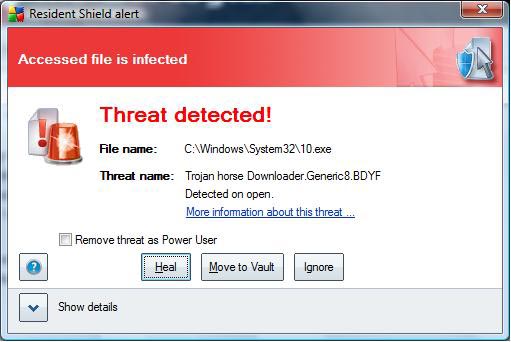
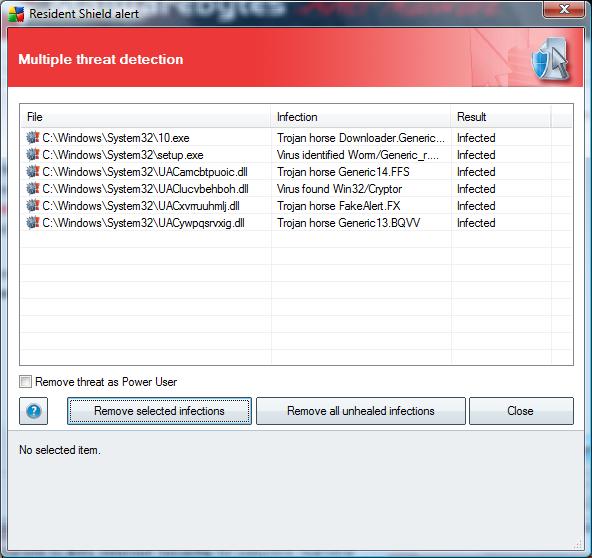
How can you recognize real vs. fake anti-virus warnings? In the case of AVG Anti-Virus, if it detects a virus it will prompt you to “Heal”, “Move to Vault” or “Ignore” a virus threat (as shown below).
Common fake anti-virus programs prompt you to buy a license, or click for a “free” scan as shown by clicking “more…”
(more…)

AT&T High-Speed Internet Customers: If you currently use the AT&T Yahoo! Browser, AT&T has a support article (below) that states there will no longer be updates for it, and it is recommended that you un-install it. Your bookmarks can be accessed from the bookmarks icon on the Yahoo Toolbar, or from http://bookmarks.yahoo.com
There will be no further technical updates for the AT&T Yahoo! Browser and we recommend you follow the steps below to un-install. Your system will still have an Internet Explorer browser installed, which you could continue to use or upgrade.
Follow these easy steps:
- Uninstall AT&T Yahoo! Browser – Follow these steps to remove AT&T Yahoo! Browser from your computer:
- Click Start on the Windows Toolbar
- Click Settings and select Control Panel.
- Select Add/Remove Programs.
- Select AT&T Yahoo! Applications.
Note: on some versions this could read “SBC Yahoo! Applications” or “SBC Yahoo! Browser”
- Select Change/Remove.
- Select AT&T Yahoo! Browser.
- Select Uninstall.
- Select Yes
- Access the Internet via Internet Explorer
- Click on this icon on your desktop

- or find Internet Explorer under Start, Programs, Internet Explorer and select Open
- Consider updating your browser – We recommend downloading the new Internet Explorer 8 optimized for AT&T powered by Yahoo! which is compatible with your AT&T Internet service and can provide improved Internet browsing and security. However, any of the below browsers are compatible with AT&T Internet service and will provide a similar experience, along with the latest bug fixes from the software vendor. (If you already have one of these browsers installed on your computer, you do not need to take this step.) Compatible browsers include:
- Internet Explorer optimized for AT&T powered by Yahoo!:

- Mozilla Firefox
- Safari If you download a new browser, be sure to open the browser, go to att.net, and click the text link in the upper right corner to make att.net your homepage.
- Use your Bookmarks – Did you have bookmarks with your AT&T Yahoo! Browser that you want to retrieve – don’t worry, they’re saved. To access your AT&T Yahoo! Browser saved bookmarks, please visit http://bookmarks.yahoo.com and login with each user ID that had bookmarks saved.
Article URL: http://helpme.att.net/article.php?item=12284
If you have multiple AT&T Sub Accounts/e-mail addresses, at the bottom of the Member Center > Manage Sub Accounts page there is an option to save all of your accounts in a drop-down menu on your computer’s web sign-in page.

Print This Article
Windows updates that require acceptance of an End User License Agreement (EULA), will not automatically install. Instead the Windows Update shield will show in the system tray by the clock, and you have to accept the EULA before they are installed. Updates that don’t automatically install include updates for Internet Explorer and the Microsoft Windows Malicious Software Removal Tool.
In previous articles I’ve recommended against installing Internet Explorer 8 at this time. Below are some screen shots on how to not install it. Hover you cursor above each picture and instructions will pop-up.
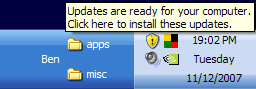 Click on the Windows Update shield 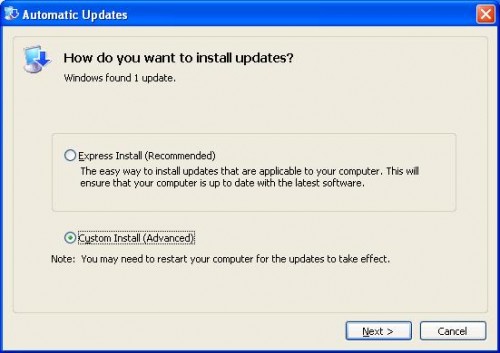 Select "Custom Install (Advanced)", then Next...  UNcheck the box next to any update(s) that you don't want installed  Choose if you want to hide the update from appearing again
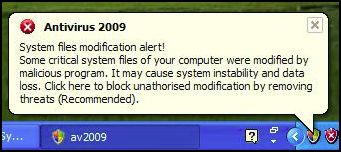
Updated March 28, 2009 (added link to more online articles):
Fake anti-virus programs have been appearing on an ever-increasing number of computers in the past year, tricking people into believing they have a large number of viruses and privacy threats on their computer and recommending that people buy specific software to fix the problems.
One common fake program, Antivirus 2009, pops up a realistic-looking Windows Security Center window that recommends the purchase of a license for the program. It also presents a balloon pop-up from the system tray (by the clock on the bottom right of the screen) that further alarms people, and leads them to believe that purchasing the program will remove the immediate threats to their computer’s security. The fact is that the program is a scam which shows false scan results and fake realistic-looking windows in an attempt to trick people into buying their program.
Screen shots at the bottom of this article show signs that you may have this fake program installed on your computer. Other signs that you may have a fake removal program on your computer include grammatical errors in the text of alerts that pop up, multiple alert methods, and urgent messages that suggest the immediate purchase/registration of a program that you’ve never heard of before.
What to do if you get warning messages from a program that you have never installed: To avoid or reduce the damage caused by these scammers, I suggest that if you get a pop-up window from an unknown program telling you that there are problems with your computer, you immediately turn off or restart your computer and see if the program returns after your computer is back on. Previous methods of clicking the red “X” on the upper-right corner of the box have been ineffective at keeping this malware from installing.
Many legitimate Anti-Virus programs do not yet completely remove fake anti-virus programs. Computer Techs often uses manual removal methods to completely remove the bogus program and the traces it leaves behind.
Fake anti-virus programs are not a new problem. Over 2 years ago I wrote about similar programs. There is even a website that until May 2007 attempted to provide current updates on the names and techniques of all the rogue anti-spyware programs.
More Articles: PC World writes “Fake infection warnings can be real trouble“. The Register has written an in-depth article on how this scam gets spread and entices people to install it.
(more…)
 AVG recently released version 8.5 of their popular security products. We often recommend and install AVG Anti-Virus Free Edition on customer’s computers. Computers with AVG Anti-Virus 8.0 or earlier have started to receive an upgrade notice on the screen. This is also AVG’s opportunity to advertise and sell people their paid products with more features, however we still recommend the free version for most computers. “Internet Security” suites use more system resources which slows computer performance and adds unnecessary and redundant extra programs. AVG recently released version 8.5 of their popular security products. We often recommend and install AVG Anti-Virus Free Edition on customer’s computers. Computers with AVG Anti-Virus 8.0 or earlier have started to receive an upgrade notice on the screen. This is also AVG’s opportunity to advertise and sell people their paid products with more features, however we still recommend the free version for most computers. “Internet Security” suites use more system resources which slows computer performance and adds unnecessary and redundant extra programs.


AVG places an icon on your desktop showing which version you have installed. If you have AVG Free 8.0 or earlier on your computer, please follow the update information below:
After you see an update notice on your screen, you may bypass the advertisements for the paid products that AVG offers and follow the instructions to download and install AVG Anti-Virus 8.5 Free Edition.
Alternatively you may download/save the installation file from the AVG website. After it’s finished downloading, run the installation file to install the program. During installation a screen will prompt you with 3 choices: Add/Remove features, Repair or Uninstall the program – choosing “Repair” will update AVG to the new version. On the following screen I suggest UNchecking the box to install the AVG Security Toolbar, then proceed with the rest of the installation.
Since a large number of people around the world are downloading the new version, it’s possible that the download may take a long time or fail. If so, try again at a later time.
In the near future earlier AVG versions will be completely phased out and no longer receive updates.
Print This Article
2009 is Computer Tech’s 6th year in business. Since I started the business in 2003 we have serviced established relationships with approximately 1500 customers. Last year we performed service on approximately 1000 computers. I take great pride in people being able to trust Computer Techs, and know that we provide a great deal of computer experience.
Over the years techs have come and gone, and some I had to let go due to ethics or reliability issues. Occasionally I will be informed about a previous Computer Techs tech that is doing business independently but still using resources and supplies that were provided by Computer Techs. Computer Techs provides Work Order receipts, business cards, an answering service, advertising and licensing requirements for our current techs.
If it has been a while since you’ve contacted your previous tech for service please visit our contact web page to verify if he/she is still working for Computer Techs. If a phone number and e-mail address is listed, that tech is currently working for Computer Techs.
Updated December 2008:
If you’ve been holding off on getting a new computer with Windows XP (instead of Windows Vista) time is running out soon. Microsoft stopped shipping retail copies of Windows XP as of June 30, however it is still available installed on new PC’s from manufacturers as a “downgrade” from Windows Vista for a while longer. Though exact dates are hard to find, the Windows Life-Cycle Policy website suggests that the Windows XP license availability (end date) is January 31, 2009.
In a letter from Microsoft earlier this year they gave the latest official word about the availability and support dates of Windows XP, promote Vista and mention the next version of Windows – “Windows 7” – which is expected to be released late next year.
If you need a new computer without Windows Vista, Computer Techs can get you a new state-of-the-art HP desktop computer with Windows XP Professional for as low as $550. If you’re ready to move to Vista, we can get you a computer with Vista as well. Just contact us for all the details.
Print This Article
Adding RAM (Random Access Memory aka “Memory”) is the usually the best bang-for-the-buck hardware upgrade to make your computer faster.
After you start your computer, the operating system (Windows) and various background programs such as anti-virus and other programs that are evident by icons in the system tray by the clock are loaded from the hard drive into RAM. Once you start opening programs such as your internet browser or word processing software, those programs also load into memory. It’s not uncommon to have 50 or more programs running on your computer before you start your first program. At some point you can have so many programs running that the RAM becomes full. At that point rather than just keeping you from starting any more programs your computer will then start to run programs from virtual memory which is a dedicated space on your hard drive. Using virtual memory dramatically slows down your computer, and puts excess wear on the hard drive.
To prevent needing to use virtual memory and slowing down your computer, RAM can be added to most computers. RAM prices have come down over the years, and it’s now possible to upgrade to up to 1 GB (1024 MB) of RAM for under $50. Computer Techs can install the memory for you in about 1/2 hour or less.
 You can check to see how much RAM your computer has by going to Start > Control Panel > System and looking on the General tab. These days to get the best computer performance you should have a minimum of 512 MB to 1 GB (1024 MB) of RAM, depending on what programs you use on your computer. You can check to see how much RAM your computer has by going to Start > Control Panel > System and looking on the General tab. These days to get the best computer performance you should have a minimum of 512 MB to 1 GB (1024 MB) of RAM, depending on what programs you use on your computer.
If you’d like Computer Techs to help speed up your computer by adding more RAM, give us a call. We can acquire the memory that is compatible with your computer and install it for a part+labor total that is often less than $100.
Print This Article
« Previous Page — Next Page »
|