Category: Tech Support

The truth about registry cleaners

Filed under: Computing Tips,Scams,Tech Support - Aug 22 2008

One of the most controversial programs being sold for computers is regsitry cleaning software. While there are legitimate registry cleaners, many of them advertised on the internet are scams that provide false information to lure people into buying their product – similar to the fake anti-virus programs that are causing widespread problems with people’s computers.

In a recent review of legitimate registry cleaners in PC World Magazine, the author advises that the programs require careful analysis of the results that they display. More time is required to back-up the registry before making any changes, and paying attention to any computer glitches that may occur after cleaning the registry. It’s a time-consuming process which may or may not speed-up your computer.

From my experience, registry cleaners provide little or no performance benefit. The results are often difficult to interpret, and what action to take based on the results is confusing. Cleaning the registry can cause more harm than good. Bottom line, avoid registry cleaning programs and let the professionals at Computer Techs make a recommendation based on a thorough analysis of your PC. When tuning-up our computer we rarely use a registry cleaner, we use several different cleaning tools and manual setting adjustments depending on the job to improve the speed of your computer. Occasionally backing up your data and re-installing Windows, your programs and your data is the best way to bring your computer back to the way it performed when you first got it.

Print This Article Print This Article
Service Pack 3 for Windows XP released

Filed under: Archived,Security,Tech Support - May 07 2008

UPDATE: DUE TO INSTALLATION ISSUES WITH WINDOWS XP SERVICE PACK 3 ON HP/COMPAQ COMPUTERS WITH AMD PROCESSORS – I DO NOT RECOMMEND MANUALLY INSTALLING IT AT THIS TIME. AT SOME POINT IT WILL LIKELY AUTOMATICALLY INSTALL AS PART OF OTHER WINDOWS CRITICAL UPDATES, AFTER A PATCH HAS BEEN APPLIED.

May 7 – In the past week Microsoft has released Service Pack 3 for Windows XP which is primarily a cumulative update of security and reliability patches that have been released since Service Pack 2 was released in August 2004. Service Pack 3 is currently available as a manual installation from Microsoft’s windowsupdate.com website, or it may have already been downloaded onto your computer which can be manually installed by clicking on the yellow shield and exclamation point icon which is in the system tray by your clock in the lower-right corner of your screen. If you hover your mouse over the yellow shield, a balloon pop-up will say “Updates are ready for your computer.”

Installation typically takes under 30 minutes. If you decide to put off installing Service Pack 3 manually, it will likely be automatically installed within the next few months. At this time I suggest most users wait until it is automatically installed.

Below is a description of Service Pack 3 from Microsoft…

Windows XP SP3 combines all previously released performance, security, and stability updates. It also provides a limited number of new and enhanced functionalities, although it does not significantly change the Windows XP experience or bring functionality from newer versions of Windows to Windows XP. The goals of Windows XP SP3 are to:

• Provide a new baseline for customers still deploying Windows XP, to help them avoid the inconvenience of applying individual updates.

• Fill gaps in the updates users might have missed by declining individual updates when using Automatic Updates, and to deliver updates not made available through Windows Update.

Windows Vista provides the most advanced security and management capability, but for PCs that cannot be upgraded to Windows Vista right now, Windows XP SP3 ensures these PCs have all available updates and allows these PCs to leverage some new Windows Server 2008 capabilities, such as Network Access Protection (NAP).

If you’re interested in a more detailed description about the changes in Service Pack 3 you can read Microsoft’s PDF file Overview of Windows XP Service Pack 3.

[Old Article] AVG Anti-Virus Free 8.0 now available – download and install now

Filed under: Archived,Security,Tech Support - May 07 2008

AVG Free 8.0 is now available, and you may have already received a notice that updates for AVG Free 7.5 will not be available after specified dates.

In AVG/Grisoft’s usual manner to stimulate sales of their not-free products, they are highly suggesting that people upgrade to their 8.0 full-featured paid product rather than their 8.0 Free version. As in the past I still only recommend their free product since security “suites” which include firewalls and other features are redundant and can significantly slow down your computer.

If you are still using an old computer with Windows 98 or Windows ME, Grisoft has followed many other security software developers by not supporting the older operating systems in their latest AVG 8.0. If you’ve been putting off buying a new computer, now is a logical time to make the switch into the new century.

There are a few ways you can download and install AVG Free 8.0:

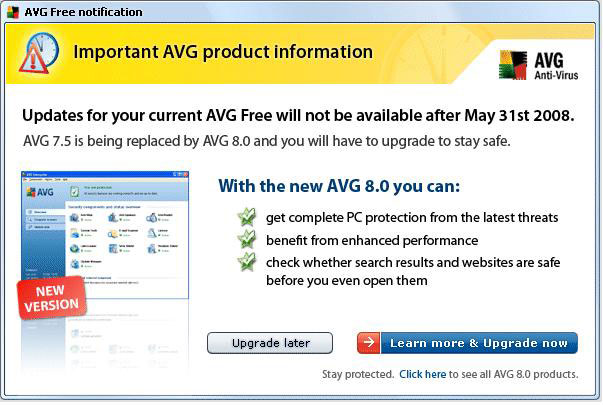
METHOD 1. If you see a window as show below on your computer…

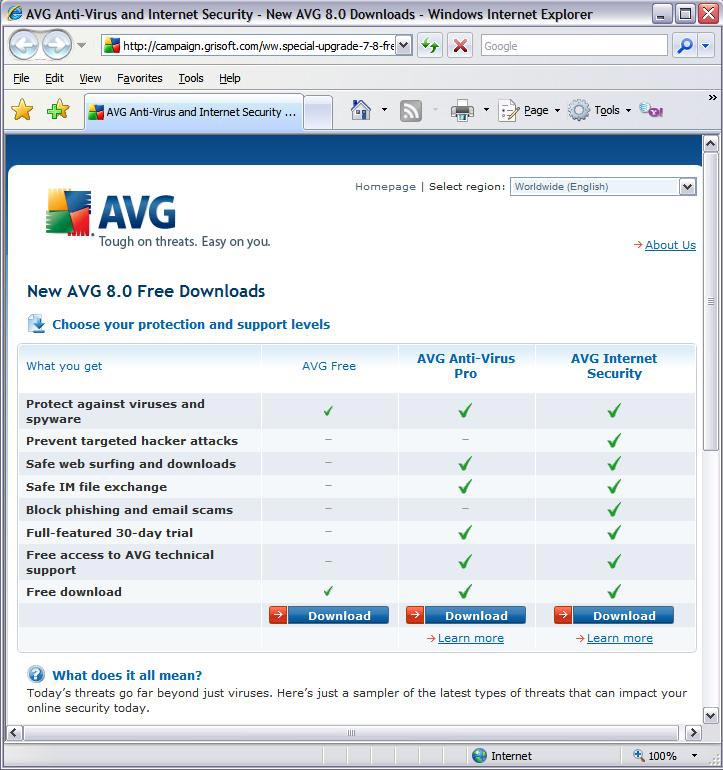
… To upgrade to the new FREE version, click the smaller “Click here” link at the bottom of that window which will take you to this web page as shown below…

… Click on the “Download” button below AVG Free and follow the prompts to download. When prompted, save the file to your desktop (XP), Downloads folder (Vista) or another folder where you can find the file after you’ve download it. After the file has completed downloading, double-click the file on your computer “avg_free_stf_en_8_###a####.exe” to run the program which will uninstall your previous version of AVG and install the new version.

METHOD 2. I have also setup a direct link to the Free version download page at CTreno.com/avg Follow the download and install instructions listed above.

METHOD 3. I have put the installation file on the Computer Techs website. Click http://computertechsreno.com/files/avg_free_stf_en_8_176a1400.exe and follow the save and installation instructions described in Method 1.

During installation there will be a screen which asks if you want to install the AVG Security Toolbar – I recommend unchecking that box. If you leave it checked and later decide you don’t want the extra Internet Explorer toolbar to appear, you can right-click on a blank area of the Internet Explorer toolbars area, then left-click on “AVG Security Toolbar” to remove the checkmark and the toolbar.

Print This Article Print This Article
Why haul your computer to a shop?

Filed under: Tech Support - Apr 03 2008

One reason I started an ON-SITE computer service business 5 years ago is because being one-on-one with customers allows me to ask questions about the computer and vice versa.

I just came across this investigative report that shows how taking your computer to a shop where the person checking-in the computer doesn’t ask detailed questions and is not likely the person doing the repairs, which can lead to mis-diagnosis and unnecessary repair bills.

Computer manufacturer’s phone support is often a waste of time

Filed under: Tech Support - Jun 01 2007

Nearly every day I hear a story from a customer who had spent countless hours on the phone with their computer manufacturer’s tech support. Often times their problem is never fully resolved. Sometimes they are advised to “simply” insert their Recovery CD, but the phone support tech does not clearly explain that doing so will wipe-out every file and setting ever put on the computer, and restore the computer to the way it arrived from the factory.Customers often contact us after such mishaps to reconnect the internet, setup the e-mail, install the latest security patches, setup the printer and other items to get the computer back to the way things were before they called their manufacturer’s tech support.

To give them some credit however, phone support is difficult. A doctor won’t diagnose a medical problem over the phone. A mechanic won’t diagnose a problem with a car over the phone. Then why should someone reply on an accurate computer diagnosis over the phone? Computers and the software that they run are very complex. Diagnosing and fixing computer problems can only be done reliably by an on-site service technician.

The moral of this story is if you decide to call your computer manufacturer for help, if they advise you to run the Recovery CD, tell them you are going to get a second opinion – then call Computer Techs. 

I’d like to thank all Computer Techs customers for their continued patronage. Our calls for service continue to grow each month, and we have added additional techs to take-on the additional workload. However we still have room to grow. If you have a friend or family member that could use our services, please let them know about our service or forward them our newsletter. Word-of-mouth referrals are always appreciated.

We hope that the next time you need service on your computer or tutoring, you will contact us. You may contact our techs directly – please see our contact information page at www.CTreno.com/contact

Some Windows Updates causing problems

Filed under: Tech Support - Jun 01 2007

Windows updates are updates that Microsoft usually releases by automatically downloading and installing on your computer on the 2nd Tuesday of every month. These updates are programs or files that patch or fix flaws in Windows or other Microsoft products. The updates are usually classified as ‘critical’ because they patch or fix items related to the security of your computer. Hackers and malicious software writers will discover and try to take advantage of flaws in Microsoft products.

Occasionally when Microsoft releases a patch it will cause problems with other software programs on people’s computers. In April a critical update caused an incompatibility with certain sound device drivers causing an error message to appear every time people start their computer. Days after the initial Windows Update was released a patch was available for manual download from Microsoft’s website to fix the problem.

You may be tempted to not automatically download or install Windows Critical Updates due to these occasional problem. However this brings up a Catch-22 situation since not installing Windows Critical Updates can leave your computer vulnerable to security exploits.

If you suddenly experience problems with your computer after the 2nd Tuesday of the month, contact us to see if others are experiencing similar problems possibly due to a Windows Critical Update. We can advise you if an updated manual patch is available, or other actions to take.

AT&T Yahoo! changes to more secure e-mail – changes may be required

Filed under: Archived,Passwords,Tech Support - May 15 2007

We’ve had several questions recently from our customers who have AT&T Yahoo! DSL service, and have received an e-mail about an “Important Security Update” with their e-mail service.

In the e-mail, customers are advised that they if they use an e-mail client (such as Outlook or Outlook Express) they need to change some of their settings in order to continue receiving e-mail. They offer an automatic way of changing the settings via download of their “Self Support Tool”, or you can manually change the settings.

I recommend the manual method. As a service to our customers, I have posted step-by-step instructions with screen shots showing the new settings in Outlook Express.

(more…)

[Old Article] Reminder: New Version of AVG Anti-Virus – Mandatory Upgrade

Filed under: Archived,Security,Tech Support - Mar 15 2007

Grisoft has released version 7.5 of their AVG Anti-Virus program. If you have an old version of AVG Anti-Virus on your computer you will be presented with a window box notifying your old version was discontinued in February. You will be given several choices for upgrading to the new version, including an option to download and upgrade to the latest free version (see bottom of box).

The “click here” link in the box will take you to a AVG 7.5 product page – including an option on the bottom “To download new AVG Anti-Virus Free Edition 7.5, please click here.”

You can also upgrade to the new free version from within the AVG Test Center or Control Center by going to the “Information” menu > “I Need Help – Online Services”, then click on the “Download” link, “Installation Files & Documentation”, then download the new version and follow the upgrade instructions.

If you should decide to buy one of their paid products, as always I do not recommend “Security Suites” which combine extra (and often redundant) software which can slow down your computer and cause more problems than they claim to fix. An Anti-Virus and Anti-Spyware program is sufficient for most computer users.

[Old Article] New Version of AVG Anti-Virus – Mandatory Upgrade

Filed under: Archived,Security,Tech Support - Nov 15 2006

Grisoft has released version 7.5 of their AVG Anti-Virus program. If you have AVG Anti-Virus on your computer you may be presented with a window box notifying your old version will be discontinued in January 2007. You will be given several choices for upgrading to the new version, including an option to download and upgrade to the latest free version (see bottom of box).

The “click here” link in the box will take you to a AVG 7.5 product page – including an option on the bottom “To download new AVG Anti-Virus Free Edition 7.5, please click here.”

You can also upgrade to the new free version from within the AVG Test Center or Control Center by going to the “Information” menu > “I Need Help – Online Services”, then click on the “Download” link, “Installation Files & Documentation”, then download the new version and follow the upgrade instructions.

If you should decide to buy one of their paid products, as always I do not recommend “Security Suites” which combine extra (and often redundant) software which can slow down your computer and cause more problems than they claim to fix. An Anti-Virus and Anti-Spyware program is sufficient for most computer users.

Wireless home network troubles becoming more frequent

Filed under: Tech Support - Aug 15 2006

Computer techs are more frequently coming across problems with wireless home networks where too many wireless devices in close proximity are causing interference and reliability issues.

The most common wireless network standards – 802.11b and 802.11g – transmit radio waves in the unlicensed 2.4 Ghz frequency spectrum. You may have seen that same “2.4 Ghz” frequency promoted on cordless phones. Bluetooth is another 2.4 Ghz wireless technology that is often used with cell phone headsets and wireless keyboards and mice. Even microwave ovens cook food using powerful radio waves at 2.4 Ghz.

With so many devices transmitting at 2.4 Ghz, interference can be a problem. Interference can cause wireless networks to become slow or completely drop the connection. Devices such as “repeaters” that claim to extend the range and increase the signal of wireless networks also tend to increase the interference problem.

If you have a wireless network and are experiencing frequent drop-outs or disconnects, there are some things we can do with your existing equipment to help reduce the problems. However a few of our customers have had too much interference in their neighborhood to reliably operate on a wireless network. If that is the case I am now recommending a newer wired technology that uses the existing household power plugs and wires to connect computers and share high-speed internet connections in different rooms.

« Previous PageNext Page »