Category: Tech Support
 A smart phone such as an iPhone, or one with the Android operating system lets you do so much more than just making and receiving phone calls – it’s like having a portable internet-connected computer. In this article I detail the many things that I was able to do with my smart phone while on a vacation in the San Francisco bay area, and in day-to-day life. A smart phone such as an iPhone, or one with the Android operating system lets you do so much more than just making and receiving phone calls – it’s like having a portable internet-connected computer. In this article I detail the many things that I was able to do with my smart phone while on a vacation in the San Francisco bay area, and in day-to-day life.
• With the Maps app I was able to get directions to different cities & landmarks, get travel times with traffic slow-down time estimates, and pinpoint our current location while traveling on a trolley car.
• With the mobile web browser I was able to search the internet to look-up a popular restaurant that I heard about, check reviews, and make a reservation.
• Used the “Check Please” app to help figure the tip on our dinner.
• While waiting at the trolley-stop, I used the mobile web browser to access the web address posted that was posted on a sign and found route map.
• I ordered Alcatraz ferry tickets.
• With the Email app I was able to receive receive dinner and ferry reservation confirmations.
• I used the mobile web browser to search for “bay bridge toll amount” and “new bay bridge completion” and downloaded an app that simulates driving on the bay bridge.
• I used the Google Places app to find nearby dining and reviews – which uses the smart phone’s built-in GPS to find my current location.
• When our XM Satellite Radio stopped working for a brief time, I brought up the Pandora Radio app to listen to music while driving.
• When it was time to fill-up the gas tank I used the Gas Buddy app to find the best price on fuel at nearby gas stations.

• I used the camera to take hundreds of pictures.
• Remembered how I used a Disneyland park attraction wait times app last year to help manage time waiting for attractions at the park.
• Read news from home using various apps from local media outlets.
• Played “Words With Friends” – a game similar to Scrabble – while waiting in long lines at the amusement park.
• While my wife was shopping with my daughter, and I was riding the trolley with my son, we both used the camera and picture messaging apps to send pictures back and forth.
• Each day I used a weather app to help decide how to dress for each day’s activities in the bay area’s micro-climates.
• I used my bank and credit card companies’ apps to check my balances, spending, transfer funds and pay bills.
• To compile this list I used the Notes app often as I thought of different things to add to the list.
So as you can see, a smart phone came in handy for more than just phone calls during our vacation. It also comes in handy every day in day-to-day life, and a backup for many of the things I do on my desktop computer. If you need help with setting up or getting more use from your smart phone or tablet computer, give us a call – we can help.
 Print This Article Print This Article
Updated November 2012:
Some people have initiated a call to AT&T internet or email support, computer hardware companies such as Dell or HP, or responded to an ad on the internet while searching for help with a computer problem, and were eventually lured into agreeing to purchase a yearly tech support plan costing several hundreds of dollars. Often the “tech”/telemarketer is luring uninformed computer users into the large fee by telling them that their computer has severe problems that require immediate attention, when in fact there are minor or no problems at all.
We’ve had several clients report that they’ve called AT&T for internet or email tech support issues, and if they weren’t able to immediately fix their problem they were transferred to AT&T ConnecTech – a $180 yearly service (billed monthly) where a representative can remote control a computer to troubleshoot issues.
The drawbacks of the service are:
• The representative’s technical know-how is sometimes misguided. Several times we’ve been called to fix a problem which their representative has made worse or misdiagnosed.
• Representatives are usually located in India and other foreign countries, have heavy foreign accents or speak in a language which is hard to understand.
• Calls with inexperienced agents in which there is a language barrier can take hours to troubleshoot. We’ve had several clients mention they’ve spent up to 4 hours on the phone only to get seemingly nowhere to resolving the problem.
Our recommendation when calling AT&T for tech support issues is to refuse to be transferred to their for-pay support. Computer Techs provides honest, local support. We can resolve computer issues quickly, either on-site or remotely, often for much less than the other companies yearly fee.
Print This Article
You’ve probably seen the TV ads or computer pop-ups for websites such as CyberDefender, PCMatic.com, MyCleanPC, FinallyFast.com and others. They promise to speed up your computer by fixing registry errors, reducing clutter, tweak settings, etc. Their websites promote a 100% guarantee, 5-star ratings from well-known web sites and user reviews that make their claims seem believable. But doing a little research shows the truth about many of these quick-fix programs and websites: many can be classified as scams.
An article which investigates MaxMySpeed.com echoes the warning signs and experiences of many people who try the service. The five-star user and website reviews are often inflated. The free programs scan your computer and always find problems, then offer to “fix” the problems for a fee. Trying to close out of the program or decline payment options often results in more pop-ups and scare tactics. And the results it finds are inflated and inaccurate. In summary they present false results to scare you into purchasing the product.
One person tried the free download, but was then told it would cost $390:
My computer was seriously slow and locking up… …So, I thought I’d go out on a limb and try Double My Speed. The good news: they fixed my computer and it runs great now. The bad news: it is a classic bait-and-switch. Their website allows a free scan but to fix the issues found requires buying their software. Then, they require a phone call to activate the software. This phone call is actually a sales event, where they try to sell their 24/7 service to support your computer. I went ahead and bought it, depending on the guarantee in case I was not satisfied. Their tech (what they called a “certified level 3 technician”) spend many hours connected to my computer. The result was as advertised. The price was ridiculously high–I could have bought a new desktop–but decided that if it didn’t work I would get my money back and if it did, I could avoid going to the store, shopping for a new desktop, lugging it home, transferring my files, and so on. The price was $130 three times (three easy payments!) and I was able to talk the rep down by discounting the amount I had paid online for their initial service. That also extended the license on the software from 1 year to 2.
Do yourself and your pocketbook a favor and avoid quick-fix programs and websites. There is no single program that will fix all of your computer problems. Computer Techs uses dozens of specific tools to fix your computer based on the problem(s). Stick with a local company that you can trust to work on your personal computer.
Other articles worth reading:
The truth about registry cleaners
FinallyFast.com refunds thousands is scareware suit
Ascentive sued for tricking customers with scareware
Print This Article
Apple released iOS 5 this month, an update for iPhones, iPads and iPods that improves device speed and adds over 200 new features and enhancements. Anandtech.com has posted a comprehensive review of iOS 5 with screen shots and videos detailing some of the changes and new features.
One of the most notable improvements that comes with iOS 5 is access to iCloud – a synchronization and backup system. Photos, contacts, calendars and email with @me.com addresses sync between iCloud and multiple iDevices and PCs or Macs. iTunes Match will sync your music with the cloud. Daily automatic backups will allow the device information and settings to be restored to an existing or new device if needed. And future iOS updates will be automatically installed after iOS 5 is installed.
Would you like to print from your device? Printers that support AirPrint will show up automatically when you select “Print” on your iDevice. If your printer is not listed, there is 3rd party software that can be installed on a PC or Mac that is connected to a printer that enables printing from your iDevice.
To upgrade your iDevice to iOS 5 you need the latest version of iTunes installed on your computer, and all apps should be updated to the most current versions. After your device is connected to your computer with the supplied USB cable – iTunes should detect your device and prompt to download and install iOS 5.
If you need help updating your device, setting up the iCloud backup and syncing features, setting up printing or showing you the new iOS 5 features – give Mark at Computer Techs a call.
Print This Article
If you are unable to boot to your operating system after the last AVG 2011 update 3292, it is necessary to do the following to solve the situation:
EDIT 12/3/10: Follow the instructions on this AVG FAQ. This supersedes advice given below.
Method #1:
Windows 7 Startup Repair
Described at this Microsoft website – follow section “To open the System Recovery Options menu on your computer”
To open the System Recovery Options menu on your computer
- Remove all floppy disks, CDs, and DVDs from your computer, and then restart your computer using the computer’s power button.
- Do one of the following:
- If your computer has a single operating system installed, press and hold the F8 key as your computer restarts. You need to press F8 before the Windows logo appears. If the Windows logo appears, you need to try again by waiting until the Windows logon prompt appears, and then shutting down and restarting your computer.
- If your computer has more than one operating system, use the arrow keys to highlight the operating system you want to repair, and then press and hold F8.
- On the Advanced Boot Options screen, use the arrow keys to highlight Repair your computer, and then press Enter. (If Repair your computer isn’t listed as an option, then your computer doesn’t include pre-installed recovery options, or your network administrator has turned them off.)
- Select a keyboard layout, and then click Next.
- Choose your User Name from the drop-down list and type-in your password (if none – leave blank).
- On the System Recovery Options menu, click a tool to open it.
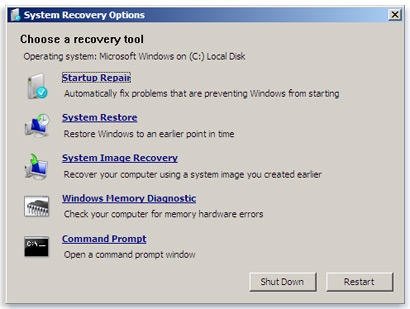
Choose “System Restore”, follow the prompts to choose a restore point previous to December 1, then restart your computer when finished restoring. If your computer restarts normally, after logging to your operating system, please download the latest AVG installation file, run it and when asked, choose the Repair installation option. If Method #1 is unsuccessful, follow the steps for Method #2 (below).
Method #2:
- Download, create and run the AVG Rescue CD as mentioned in AVG Rescue CD guide. – We will leave copies of the AVG Rescue CD at Technology Center
- Select the Utilities item in the main menu and run the Midnight Commander file manager.
- In Midnight Commander, navigate to the following folder:
mnt\sda1 (if you have more disks, number can vary)
- Then navigate to:
Program Files (x86)\AVG\AVG10
- Find the following files:
- avgrsx.exe or avgrsa.exe
- avgchsvx.exe or avgchsva.exe
- Delete both files by pressing the F8 key and confirm the deletion.
- Quit the Midnight Commander and reboot your computer by selecting the Reboot option in the main menu.
After logging to your operating system, please download the latest AVG installation file, run it and when asked, choose the Repair installation option.
Print This Article
 Before going online to shop and engage in financial transactions on your computer this holiday season, we recommend a check-up/tune-up so that you can be assured that your computer is secure and as speedy as can be. Before going online to shop and engage in financial transactions on your computer this holiday season, we recommend a check-up/tune-up so that you can be assured that your computer is secure and as speedy as can be.
Many of the viruses and malware these days are being distributed through infected web sites. If your computer doesn’t have the latest security patches for Adobe Reader, Java and other web-browsing plug-ins, viruses and malware can easily install on your computer without any action on your part. Some of the malware is undetectable with normal anti-virus software and require special tools to detect and remove.
If your computer is slow, hidden viruses and malware may be the culprit. Unnecessary programs running in the background and toolbars often slow-down the computer and internet browsing. Often times more memory (RAM) can be added to dramatically speed-up performance.
Give us a call today so we can schedule a security check-up and tune-up before you spend time shopping on the internet this holiday season.
Print This Article
Updated April 2012:
Shopping for a new computer can present people with confusing choices. Frequently I research the best deals on new PCs from local retailers and publish my findings. If you’d like to receive an e-mail from Computer Techs about the best deals on recommended computers from local retailers, click here and sign-up for our “new computer deals” newsletter. You can view our most current newsletter at newpc.CTreno.com.
Whether you take our advice or want to shop on your own, below are some tips to help you select a new PC and get the best deal:
• Don’t spend more for a faster speed of the same processor. For example, if a store is charging $100 to upgrade from a 2.8Ghz processor to 3.0Ghz – the extra money does not justify the small increase in performance difference.
• Don’t spend extra for a larger capacity hard drive unless you plan on editing & storing video files.
 • Laptop, Netbook or desktop? If you need portability or don’t have the room for a desktop PC, consider a laptop. Laptops generally come with screen sizes of 11″-17″. They are nearly as quick and powerful as desktop computers these days. If considering a laptop, test it thoroughly in a store before purchasing – test keyboard and touchpad usability and comfort, and look at screen clarity. You may even want to consider getting a tablet computing device. • Laptop, Netbook or desktop? If you need portability or don’t have the room for a desktop PC, consider a laptop. Laptops generally come with screen sizes of 11″-17″. They are nearly as quick and powerful as desktop computers these days. If considering a laptop, test it thoroughly in a store before purchasing – test keyboard and touchpad usability and comfort, and look at screen clarity. You may even want to consider getting a tablet computing device.
• Many major electronic and office supply stores offer tech services that will tune-up and customize your new computer by removing unnecessary trial software, etc. Computer Techs offers more complete service including in-home setup of your new computer, connecting your internet/home network, printer, and other devices, transferring your files and installing programs to your new PC – all at a better value than offered elsewhere.
• I don’t recommend buying an extended warranty. Stores make a huge profit-margin on extended warranties, and the sales people usually make big commissions to push them. Extended warranties often only cover hardware repairs after the manufacturer’s warranty has run out. Only about 10 percent of our service calls involve hardware repairs – so repairs that would be covered by an extended warranty are rare.
• If you’re purchasing a new printer or other device that needs a USB cable, many stores mark-up the cable’s price by a few hundred percent. You can purchase a 15-foot USB cable for a printer from Computer Techs for approximately $15. If you’re replacing a printer, you can likely use the cable from your old printer.
• If the thought of going to the store, fighting the crowds, salespeople and choices overwhelm you – then don’t do it. For a nominal fee, we will purchase your new computer equipment for you, set it up in your home, and teach you how to use it.
Print This Article
Updated September 2010:
We often recommend AVG Anti-Virus because it has good virus detection without slowing down your computer like other security suites do. However, AVG nor any other Anti-Virus software catches 100% of threats. The best offense is a good defense – read Don’t rely only on Anti-Virus software to keep your computer virus-free.
Sometime I compare protection for your car with protection for your PC. If you have all the best protection for your car (seat belt, multiple air bags, etc.) and then drive your car off a cliff, you’ll likely be killed. Similarly if you have all the best security protection on your PC and then install a malicious program on your computer, you’re likely to get your computer infected.
Historic tests of anti-virus products reveal that a majority of the programs detect 70-90% of known viruses (reactive detection), and 50-70% of unknown viruses (proactive detection). Since no program has a 100% detection rate, practice good defensive computing behavior to help prevent viruses.
 AV-comparatives also conducts regular tests of anti-virus products. Their test results can be found here. AV-comparatives also conducts regular tests of anti-virus products. Their test results can be found here.
Print This Article
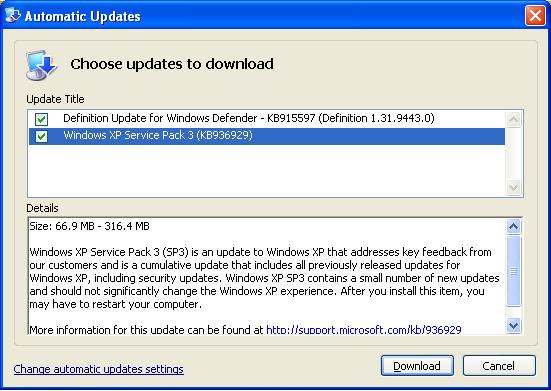
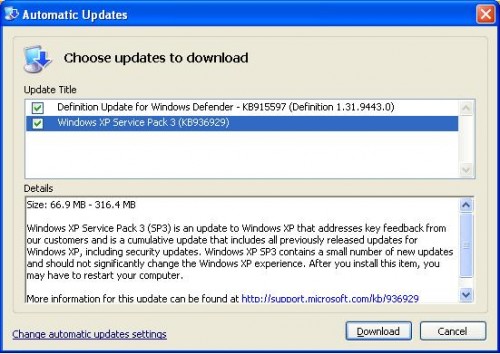
On July 13, 2010, Microsoft ended support and updates for Windows XP versions earlier than Service Pack 3. Service packs are an accumulation of updates, reliability and security patches rolled into one large installation. At this time Microsoft is scheduled to continue support for Windows XP Service Pack 3 until April 8, 2014.
To check your version of Windows XP, go to the Control Panel, System and look under the General tab.
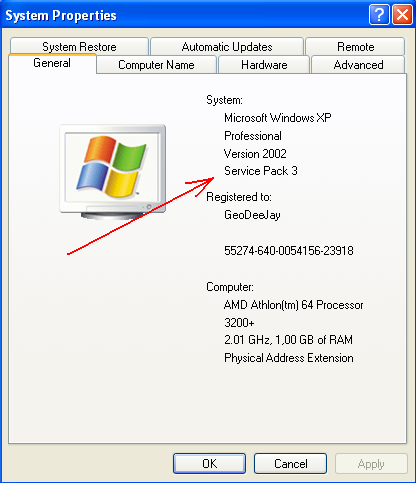
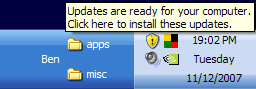
If your version on Windows XP is Service Pack 2 or earlier, it is recommended that you update to Service Pack 3 as soon as possible. Computer Techs can install Service Pack 3, or you can do it yourself. To update from Internet Explorer web browser go to http://www.windowsupdate.com. You can also check for current updates via the yellow security shield in the system tray by the clock on your task bar.
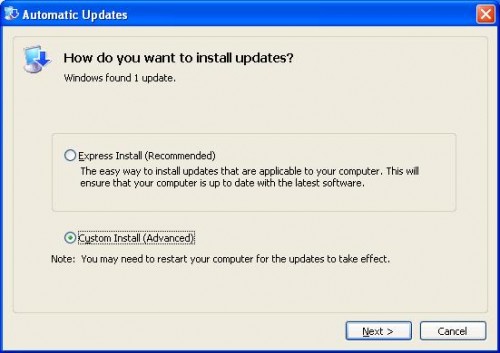
Clicking Custom Install (Advanced), should reveal Windows XP Service Pack 3…
Print This Article
If you’re happy with our service, please let others know by recommending us to your friends and family, and/or by writing a review about our service. If you personally recommend us to a friend or relative and we help them, you get $25 off your next service call.
Why trust someone who “knows” computers and works on them in their spare time? Why trust someone who you called from a pop-up ad on your computer? You shouldn’t! Computer Techs is a local business that works with computers and related devices on a daily basis and has been doing so since 2003. When you need help with your computing devices, you can trust Computer Techs to be there when you need us, and stand behind our service.
When people search for Computer Support or Repair Services on the internet, they often search Google, YellowPages.com or Yahoo Local. Please consider letting others know about our service by posting a review at one or more of the following web sites:
Google Review
Facebook
Yelp
YellowPages.com User Review
Angie’s List
Print This Article
« Previous Page — Next Page »
|