Category: Security
Updated March 28, 2009 (added link to more online articles):
Fake anti-virus programs have been appearing on an ever-increasing number of computers in the past year, tricking people into believing they have a large number of viruses and privacy threats on their computer and recommending that people buy specific software to fix the problems.
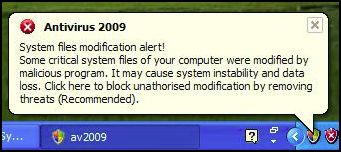
One common fake program, Antivirus 2009, pops up a realistic-looking Windows Security Center window that recommends the purchase of a license for the program. It also presents a balloon pop-up from the system tray (by the clock on the bottom right of the screen) that further alarms people, and leads them to believe that purchasing the program will remove the immediate threats to their computer’s security. The fact is that the program is a scam which shows false scan results and fake realistic-looking windows in an attempt to trick people into buying their program.
Screen shots at the bottom of this article show signs that you may have this fake program installed on your computer. Other signs that you may have a fake removal program on your computer include grammatical errors in the text of alerts that pop up, multiple alert methods, and urgent messages that suggest the immediate purchase/registration of a program that you’ve never heard of before.
What to do if you get warning messages from a program that you have never installed: To avoid or reduce the damage caused by these scammers, I suggest that if you get a pop-up window from an unknown program telling you that there are problems with your computer, you immediately turn off or restart your computer and see if the program returns after your computer is back on. Previous methods of clicking the red “X” on the upper-right corner of the box have been ineffective at keeping this malware from installing.
Many legitimate Anti-Virus programs do not yet completely remove fake anti-virus programs. Computer Techs often uses manual removal methods to completely remove the bogus program and the traces it leaves behind.
Fake anti-virus programs are not a new problem. Over 2 years ago I wrote about similar programs. There is even a website that until May 2007 attempted to provide current updates on the names and techniques of all the rogue anti-spyware programs.
More Articles: PC World writes “Fake infection warnings can be real trouble“. The Register has written an in-depth article on how this scam gets spread and entices people to install it.
(more…)
 AVG recently released version 8.5 of their popular security products. We often recommend and install AVG Anti-Virus Free Edition on customer’s computers. Computers with AVG Anti-Virus 8.0 or earlier have started to receive an upgrade notice on the screen. This is also AVG’s opportunity to advertise and sell people their paid products with more features, however we still recommend the free version for most computers. “Internet Security” suites use more system resources which slows computer performance and adds unnecessary and redundant extra programs. AVG recently released version 8.5 of their popular security products. We often recommend and install AVG Anti-Virus Free Edition on customer’s computers. Computers with AVG Anti-Virus 8.0 or earlier have started to receive an upgrade notice on the screen. This is also AVG’s opportunity to advertise and sell people their paid products with more features, however we still recommend the free version for most computers. “Internet Security” suites use more system resources which slows computer performance and adds unnecessary and redundant extra programs.


AVG places an icon on your desktop showing which version you have installed. If you have AVG Free 8.0 or earlier on your computer, please follow the update information below:
After you see an update notice on your screen, you may bypass the advertisements for the paid products that AVG offers and follow the instructions to download and install AVG Anti-Virus 8.5 Free Edition.
Alternatively you may download/save the installation file from the AVG website. After it’s finished downloading, run the installation file to install the program. During installation a screen will prompt you with 3 choices: Add/Remove features, Repair or Uninstall the program – choosing “Repair” will update AVG to the new version. On the following screen I suggest UNchecking the box to install the AVG Security Toolbar, then proceed with the rest of the installation.
Since a large number of people around the world are downloading the new version, it’s possible that the download may take a long time or fail. If so, try again at a later time.
In the near future earlier AVG versions will be completely phased out and no longer receive updates.
 Print This Article Print This Article
The free anti-virus software that we usually recommend for most people, AVG Anti-Virus, just released version 8.5 which adds additional protection for infected website protection. An AVG press release states “Active Safe-Surf checks the web page behind every link for hidden threats at the only time that matters – when users are about to click on that link.” The update also changes the look of the small icon in the system tray (by the clock) when the program is not up-to-date or in an error state.
AVG places an icon on your desktop showing which version you have installed – for example “AVG Free 8.5” If you have AVG Anti-Virus on your computer, please see the following update information:
AVG 8.0: Users of AVG 8.0 will receive an automatic program update to the new version. No user action is required. See update instructions posted here.
AVG 7.5 or earlier: If you are using AVG Free 7.5 or earlier, you will need to download and install the latest installation file from the AVG website. During installation of the updated program you will be prompted with 3 choices: Add/Remove features, Repair or Uninstall the program – choosing “Repair” will install the new version. AVG 7.5 will soon be completely phased out and no longer receive updates.
Print This Article
When you send an email message to more than one person, if you do not address the recipients as Blind Carbon Copy (BCC), you may be contributing to the spam email problem.
A common way spam and viruses are spread is via email. If you send a message to multiple email addresses without using Blind Carbon Copy, all the email recipients’ addresses are visible to all other recipients – and to any virus or spambot that may be on any of the recipients’ computers. Many viruses and spambots gather e-mail addresses from infected computers to redistribute viruses and spam.
Letting email addresses be visible to others is also a privacy concern – there may be people in your address book that don’t want their email address spread around for others to see.
You may be unknowingly spreading false information
Many urban legends are spread via email – often in the form of chain letters that urge you to forward the message to everyone that you know. Useful websites that help separate factual from fictional email chain letters are Snopes.com, TruthOrFiction.com and Hoax-Slayer.com.
Interestingly, I’ve received emails with a subject “Advice from Snopes.com” – but Snopes denies that it’s something they’ve distributed. Even if the email says that the information was verified on Snopes.com, do yourself and your email recipients a favor by investigating it on Snopes first.
Print This Article
If you haven’t yet upgraded to the new AVG Anti-Virus Free Edition 8.0, you’ve likely seen the message pictured below come up on your computer. Despite earlier notices that updates will no longer be available as of May or June, AVG is now announcing that the end of updates for version 7.5 is the end of 2008 August 31, 2008.
We recommend upgrading to the new Free Edition 8.0 as mentioned in this earlier blog post as soon as possible. The new free version includes added anti-spyware protection as well as an anti-virus, a more user-friendly interface, less obtrusive updates and more comprehensive scanning without slowing down your computer.

UPDATE: DUE TO INSTALLATION ISSUES WITH WINDOWS XP SERVICE PACK 3 ON HP/COMPAQ COMPUTERS WITH AMD PROCESSORS – I DO NOT RECOMMEND MANUALLY INSTALLING IT AT THIS TIME. AT SOME POINT IT WILL LIKELY AUTOMATICALLY INSTALL AS PART OF OTHER WINDOWS CRITICAL UPDATES, AFTER A PATCH HAS BEEN APPLIED.
May 7 – In the past week Microsoft has released Service Pack 3 for Windows XP which is primarily a cumulative update of security and reliability patches that have been released since Service Pack 2 was released in August 2004. Service Pack 3 is currently available as a manual installation from Microsoft’s windowsupdate.com website, or it may have already been downloaded onto your computer which can be manually installed by clicking on the yellow shield and exclamation point icon which is in the system tray by your clock in the lower-right corner of your screen. If you hover your mouse over the yellow shield, a balloon pop-up will say “Updates are ready for your computer.”
Installation typically takes under 30 minutes. If you decide to put off installing Service Pack 3 manually, it will likely be automatically installed within the next few months. At this time I suggest most users wait until it is automatically installed.
Below is a description of Service Pack 3 from Microsoft…
Windows XP SP3 combines all previously released performance, security, and stability updates. It also provides a limited number of new and enhanced functionalities, although it does not significantly change the Windows XP experience or bring functionality from newer versions of Windows to Windows XP. The goals of Windows XP SP3 are to:
• Provide a new baseline for customers still deploying Windows XP, to help them avoid the inconvenience of applying individual updates.
• Fill gaps in the updates users might have missed by declining individual updates when using Automatic Updates, and to deliver updates not made available through Windows Update.
Windows Vista provides the most advanced security and management capability, but for PCs that cannot be upgraded to Windows Vista right now, Windows XP SP3 ensures these PCs have all available updates and allows these PCs to leverage some new Windows Server 2008 capabilities, such as Network Access Protection (NAP).
If you’re interested in a more detailed description about the changes in Service Pack 3 you can read Microsoft’s PDF file Overview of Windows XP Service Pack 3.
AVG Free 8.0 is now available, and you may have already received a notice that updates for AVG Free 7.5 will not be available after specified dates.
In AVG/Grisoft’s usual manner to stimulate sales of their not-free products, they are highly suggesting that people upgrade to their 8.0 full-featured paid product rather than their 8.0 Free version. As in the past I still only recommend their free product since security “suites” which include firewalls and other features are redundant and can significantly slow down your computer.
If you are still using an old computer with Windows 98 or Windows ME, Grisoft has followed many other security software developers by not supporting the older operating systems in their latest AVG 8.0. If you’ve been putting off buying a new computer, now is a logical time to make the switch into the new century.
There are a few ways you can download and install AVG Free 8.0:
METHOD 1. If you see a window as show below on your computer…
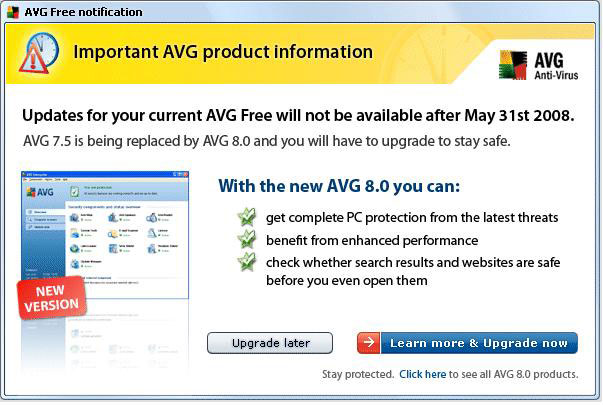
… To upgrade to the new FREE version, click the smaller “Click here” link at the bottom of that window which will take you to this web page as shown below…
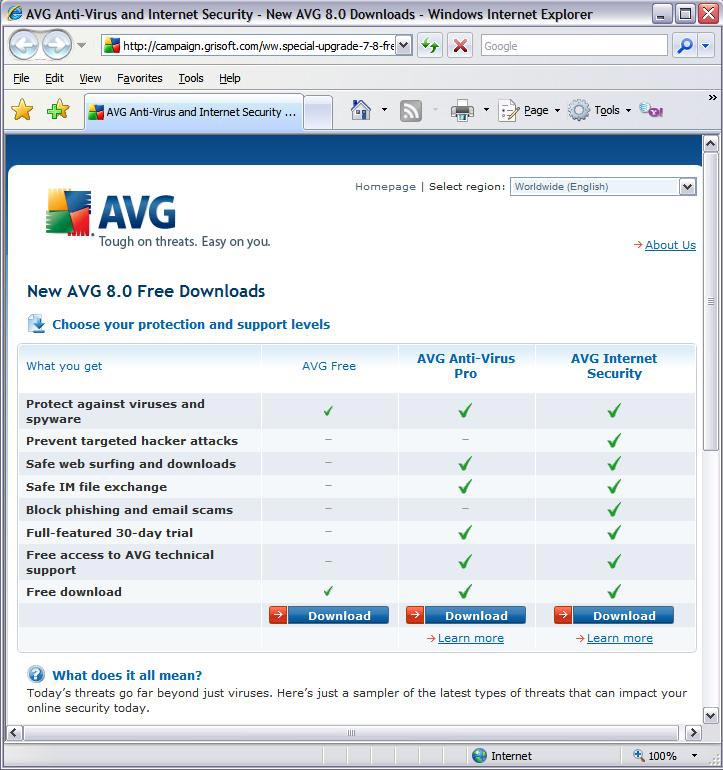
… Click on the “Download” button below AVG Free and follow the prompts to download. When prompted, save the file to your desktop (XP), Downloads folder (Vista) or another folder where you can find the file after you’ve download it. After the file has completed downloading, double-click the file on your computer “avg_free_stf_en_8_###a####.exe” to run the program which will uninstall your previous version of AVG and install the new version.
METHOD 2. I have also setup a direct link to the Free version download page at CTreno.com/avg Follow the download and install instructions listed above.
METHOD 3. I have put the installation file on the Computer Techs website. Click http://computertechsreno.com/files/avg_free_stf_en_8_176a1400.exe and follow the save and installation instructions described in Method 1.
During installation there will be a screen which asks if you want to install the AVG Security Toolbar – I recommend unchecking that box. If you leave it checked and later decide you don’t want the extra Internet Explorer toolbar to appear, you can right-click on a blank area of the Internet Explorer toolbars area, then left-click on “AVG Security Toolbar” to remove the checkmark and the toolbar.
Print This Article
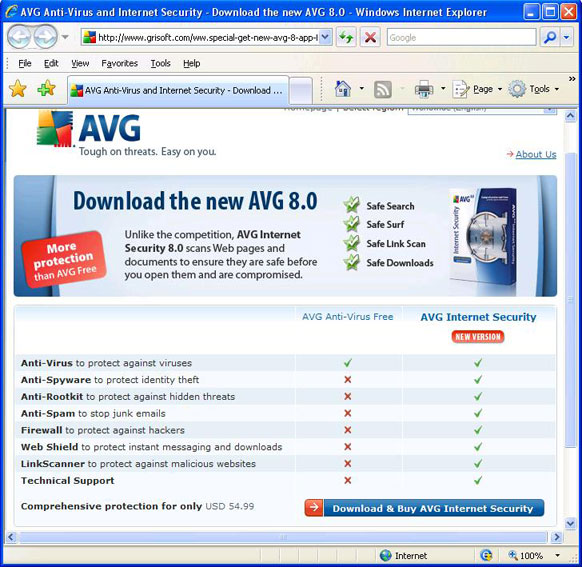
 Advertisements in AVG Anti-Virus Free Edition have recently began promoting their new AVG Internet Security 8.0. In my opinion most people don’t need the additional features that AVG Internet Security 8.0 provides since most of the additional features are redundant or free from other sources. I list specific examples below, as well as a screen shot of the AVG website which compares the free and paid versions. Advertisements in AVG Anti-Virus Free Edition have recently began promoting their new AVG Internet Security 8.0. In my opinion most people don’t need the additional features that AVG Internet Security 8.0 provides since most of the additional features are redundant or free from other sources. I list specific examples below, as well as a screen shot of the AVG website which compares the free and paid versions.
- AVG Anti-Spyware and Anti-Rootkit are available separately in a free versions.
- Anti-Spam is provided by many e-mail services, and the AVG program doesn’t filter spam in web mail.
- Windows already has a built-in incoming firewall.
- There are similar free products to “Web Shield” and “LinkScanner”. This type of protection is as only good as their list of known bad websites which are increasing faster than the protection programs can keep up. Your best protection against bad websites is behavioral by practicing safe internet surfing habits.
At this time for most people I recommend just keeping AVG Anti-Virus 7.5 Free Edition. Eventually they may offer 8.0 in a free version, and I will post updated advice if and when the time comes.
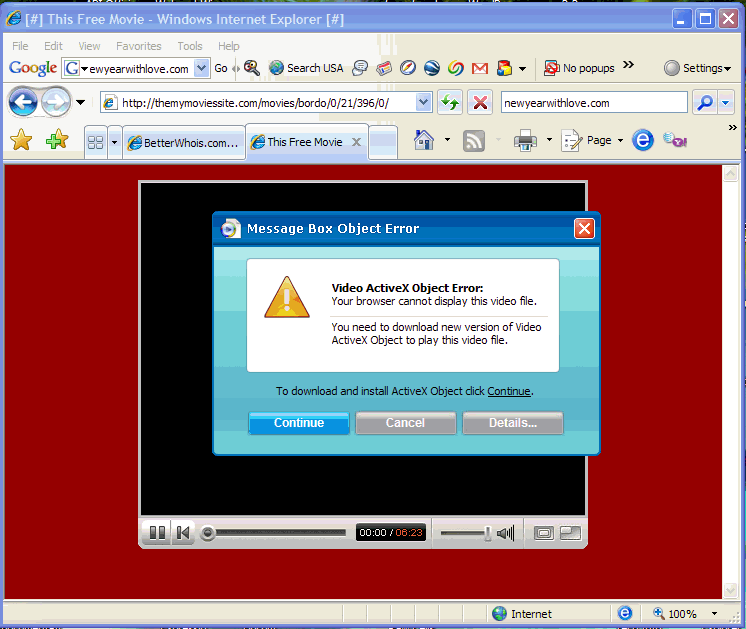
The popularity of the video sharing website YouTube.com has prompted scammers to register website domains with letters similar to y-o-u-t-u-b-e in hopes that people will mis-type or not notice that a link on a web page or e-mail is not pointing to the real website.
I’ve seen dozens of computers infected with spyware and viruses after the owner went to a fake YouTube website and was prompted to install “Video ActiveX Control” in order to view the video. See the screenshot below of an example of downloads you should avoid. The real YouTube uses Adobe Flash Video Player, something that is already installed on most computers. You can check to make sure you have the latest Flash Video Player – currently at version 9,0,115,0 – on this Adobe web site.
Remember to follow safe browsing habits and do not download anything from websites you do not know or trust, and to look carefully at the website address.
There are thousands of web sites on the internet that claim that their registry cleaner or anti-virus/anti-spyware program will solve your computer problems. Many of these programs are “snake oil” or scams that often install additional unwanted spyware or trojan viruses and cause other problems to your computer. SpywareWarrior.com has compiled a comprehensive list of some of the fake programs. Many of the programs give false warnings of problems with your computer and entice you to scan your computer for “free”. After the scan the programs often present a detailed list of more problems and offer to fix the problems for “only $39”.
In summary, these programs are scams – and there were likely no problems with your computer before you came across the website that produced the pop-up advertisement. I first documented this problem in March 2006.
Below are examples of an indication that you may already have installed one of the scams…

The official-looking alert below is shown in the taskbar notification area, and is an indication that one of the fake programs has already been installed on your computer.

If you see notices similar to the examples above, I recommend contacting Computer Techs to have us remove all traces of the fake program, and any additional spyware that they usually install. While some anti-spyware or anti-virus programs may detect the fake programs, many will not remove all of the remnants that the programs leave behind. We’ll also provide you with education on how to avoid installing these programs in the first place.
« Previous Page — Next Page »
|


