Category: Security
Wi-fi routers and modems allow you to share your high-speed internet connection with multiple computers or wireless devices throughout your home. Though convenient, most wi-fi routers have security risks if not configured differently from the default out-of-the-box settings. Below are the first 3 things that Computer Techs professionals do to secure a newly installed wireless router:
1. Set-up WPA wireless encryption: Wireless encryption effectively “scrambles” the wireless radio signals between your router and wireless devices so that only devices that have the wireless encryption key can communicate with it. There are 2 standard encryption methods – WEP and WPA – we use the more secure WPA method whenever possible.
2. Changing the default SSID: The SSID is the name of your network that is broadcast that other people with wireless devices can see. We change the SSID to a name that is recognizable by you, but not necessarily by others within range of your wireless network. The typical range of a wi-fi wireless network is a few hundred feet.
3. Changing the router’s administrator/management password: The administrator/management password should be changed to help prevent unauthorized changes to the settings of your wireless router. Unauthorized changes could lock you out of your wireless router and network. Also computer malware can now change router settings to direct your internet browsing to fake web sites.
If securing your wireless router looks a bit confusing, give us a call so that a Computer Techs expert can properly secure your wireless router for you.
 Print This Article Print This Article
Email spammers and scammers are now breaking into email accounts and collecting known “active” email addresses from people’s address books.
Known ways that spammers are hacking accounts include:
• Guessing a weak password.
• Guessing a known security question so that the password can be changed/reset.
• Sending an email from what looks like the email provider asking to reply to the email and give the email password.*
Once spammers get a hold of email addresses they send spam messages promoting bargain pharmaceutical drugs, software, etc. They forge their email address to appear to come from one of the people in the hacked address book since people are more likely to open an email that appears to come from someone they know.
Another recent scam is to send individual e-mails to everybody in the address book asking for money. The scam usually includes something like “I am on vacation in Europe and lost my passport and cell phone. Please wire me some money so that I can get back home.” Since the e-mail address is forged to look like coming from a known friend, the recipient may believe the e-mail and send money to a scammer.
* Below is an actual e-mail that looks like it’s from Yahoo, in which scammers have been getting Yahoo e-mail account information.

If you get an e-mail from what appears to be someone you know that contains advertisements or asking for money, it’s likely their e-mail address is being forged. Just delete the e-mail. If contacts are telling you that you are sending spam, immediately change your e-mail account password and password retrieval security questions, just in case your account has been hacked.
See Creating secure and memorable passwords.
Print This Article
On July 13, 2010, Microsoft ended support and updates for Windows XP versions earlier than Service Pack 3. Service packs are an accumulation of updates, reliability and security patches rolled into one large installation. At this time Microsoft is scheduled to continue support for Windows XP Service Pack 3 until April 8, 2014.
To check your version of Windows XP, go to the Control Panel, System and look under the General tab.
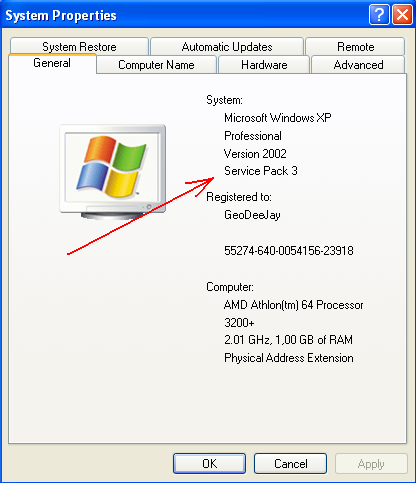
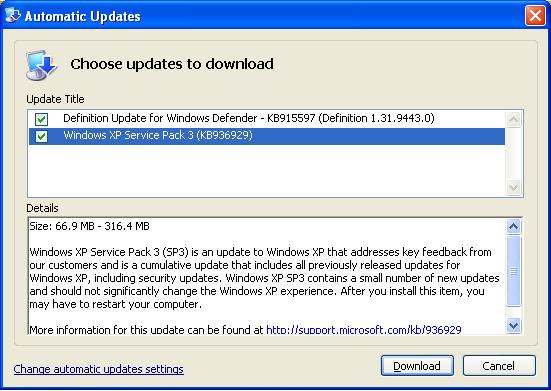
If your version on Windows XP is Service Pack 2 or earlier, it is recommended that you update to Service Pack 3 as soon as possible. Computer Techs can install Service Pack 3, or you can do it yourself. To update from Internet Explorer web browser go to http://www.windowsupdate.com. You can also check for current updates via the yellow security shield in the system tray by the clock on your task bar.
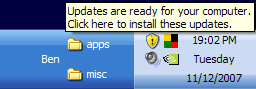
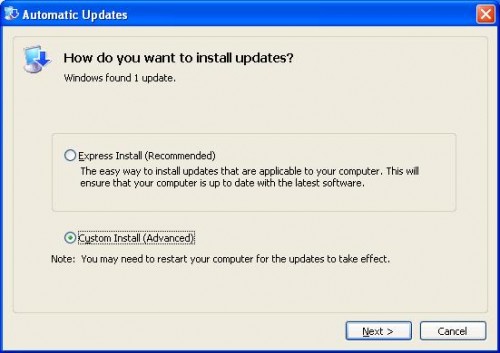
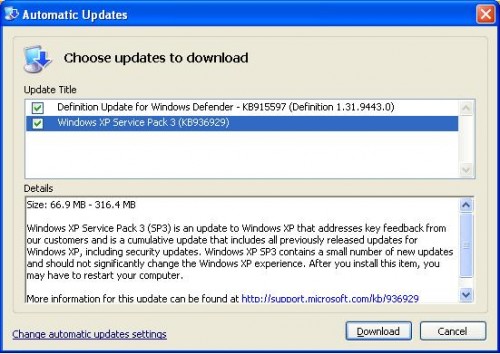
Clicking Custom Install (Advanced), should reveal Windows XP Service Pack 3…
Print This Article
Updated June 2010:
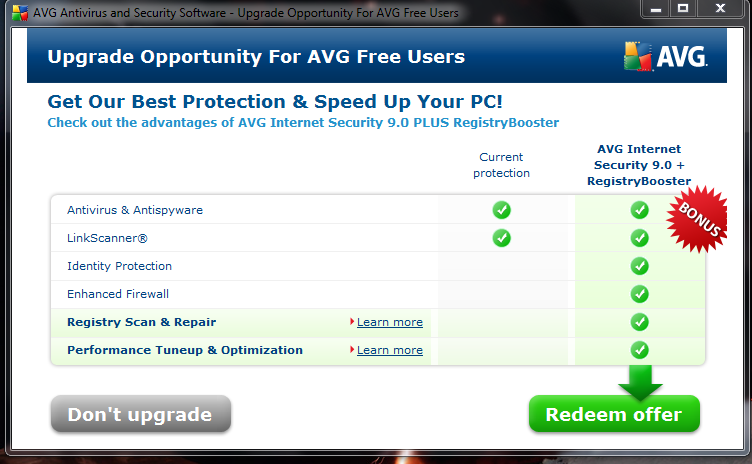
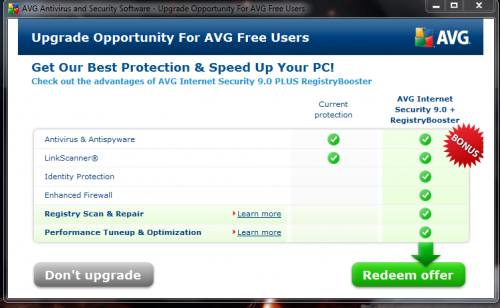
An advertisement pop-up from AVG Anti-Virus Free Edition has recently begun promoting an offer to upgrade to a paid version with more features. In my opinion most people don’t need the additional features that AVG Internet Security provides since most of the additional features are redundant or free from other sources. The upgraded program also has more components of AVG that run in the background, thus slowing down the computer. Specific examples of the additional modules included in AVG Internet Security are listed below:
- Firewall: The Windows firewall already on your PC is sufficient and doesn’t pop-up an alert for every unknown program attempting to make an internet connection. Also, routers and some broadband modems provide more secure hardware firewall protection.
- Web Shield: You can avoid viruses by not clicking on unknown links or files in Instant Messaging programs web sites.
- Anti-Rootkit: AVG Free detects some rootkits
- Anti-Spam: Anti-spam programs don’t work with AOL, Yahoo and other web mail services. If you use a mail program like Outlook or Windows (Live) Mail, their protection is likely no better than the junk email filters included with those programs.
- Identity theft protection: Though the name of this protection is somewhat vague, this is the only extra protection I would recommend for some people. This protection “uses a technology called behavioral analysis to make sure all the programs running on your computer are operating the way they should. If it spots something suspicious that could indicate an attempted ID theft attack, it shuts that activity down, preventing any possible theft from happening”. This protection is also available as a $19.99 annual upgrade to AVG Free, or any other security product. You can also install a similar free product called ThreatFire.
- RegistryBooster: Please read The truth about registry cleaners.
At this time for most people I recommend they decline the upgrade to AVG Internet Security 9.0 + RegistryBooster and close the pop-up window.
Print This Article
Now that nearly every U.S. household can access the internet, it’s easy for scammers to infect millions of computers by tricking computer users to install viruses and malware. Below are 3 of the most common methods to watch out for which scammers use to install software without your consent which can render a computer useless until a ransom is paid, use the computer as a spambot or capture keystrokes and login information.
1. The phony e-mail attachment: You may get an e-mail that looks like it’s from UPS, Facebook, the IRS or Microsoft prompting you to open the attachment with the “.zip” extension to view “the package information”, “your new password” or “a critical update”. What happens when the attachment is opened is a fake anti-virus program will be installed on your computer and render it nearly useless until you pay to register the program. Even paying for the program does not get rid of it. It’s a scam to get you to pay money for a problem you never had. We call it “ransonware” or “scareware”.
2. The phony e-mail with a link: You may get an e-mail that looks like it’s from your bank, PayPal, Amazon.com or e-mail provider without an attachment. There is a link in the e-mail that looks like it will direct you to the senders website to “verify information” or view the “details of your order”. When the link is clicked normally you would be directed to a fake yet realistic looking website that would prompt you to enter financial and/or personal information that would later be used for malicious purposes. Sometimes the link is directed to a website that would pop-up a fake anti-virus program as described above.
3. The fake website: you may click on a link in Facebook, forum or search result and then you see a pop-up for a legitimate-looking anti-virus program that looks like it’s scanning your computer and finding multiple threats. It’s a scam to eventually get you to purchase a program for a problem with your computer that didn’t exist until after you installed the fake program.
As mentioned in previous articles if you see a pop-up from an unknown program that is warning you about multiple security problems with your computer, you should immediately turn off or restart your computer. Do not click the “X” on the upper right corner of the window, nor anywhere on the pop-up. Doing so will likely install the unwanted program. If the pop-up is gone after you restart your computer, your computer is likely ok. If you continue to see warnings or strange behavior, contact Computer Techs so that we can check out your computer and remove any malware or viruses.
Updated March 2010:
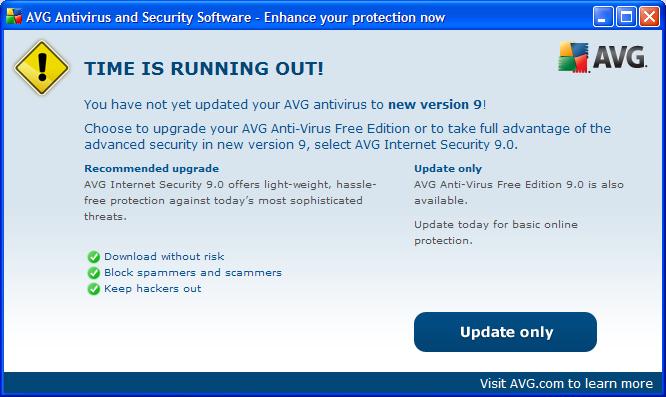
Last October AVG released version 9.0 of their security software, including AVG Anti-Virus Free Edition which we recommend for most people. If you have an older version of AVG Anti-Virus installed on your computer, you will likely get a notification (pictured below) on your screen about the availability of the new version.
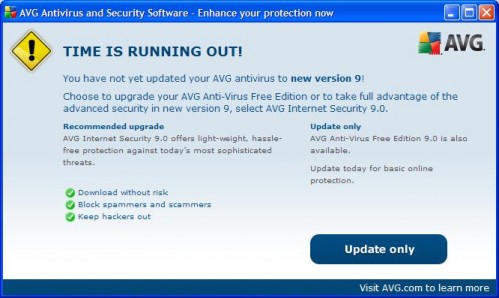
If you click on the notification, it will take you to their product page that shows the different versions that AVG offers. Look carefully for links to download the Free (not trial) version.
Alternatively, for your convenience below is a direct link to their web page where you can download and install AVG Free Edition 9.0
When installing, look for the opportunity to uncheck the boxes to install the optional AVG/Yahoo Toolbar, and changing your default search provider to Yahoo. If you have any questions, or would like us to install AVG 9.0 for you, please contact us for an appointment.
Print This Article
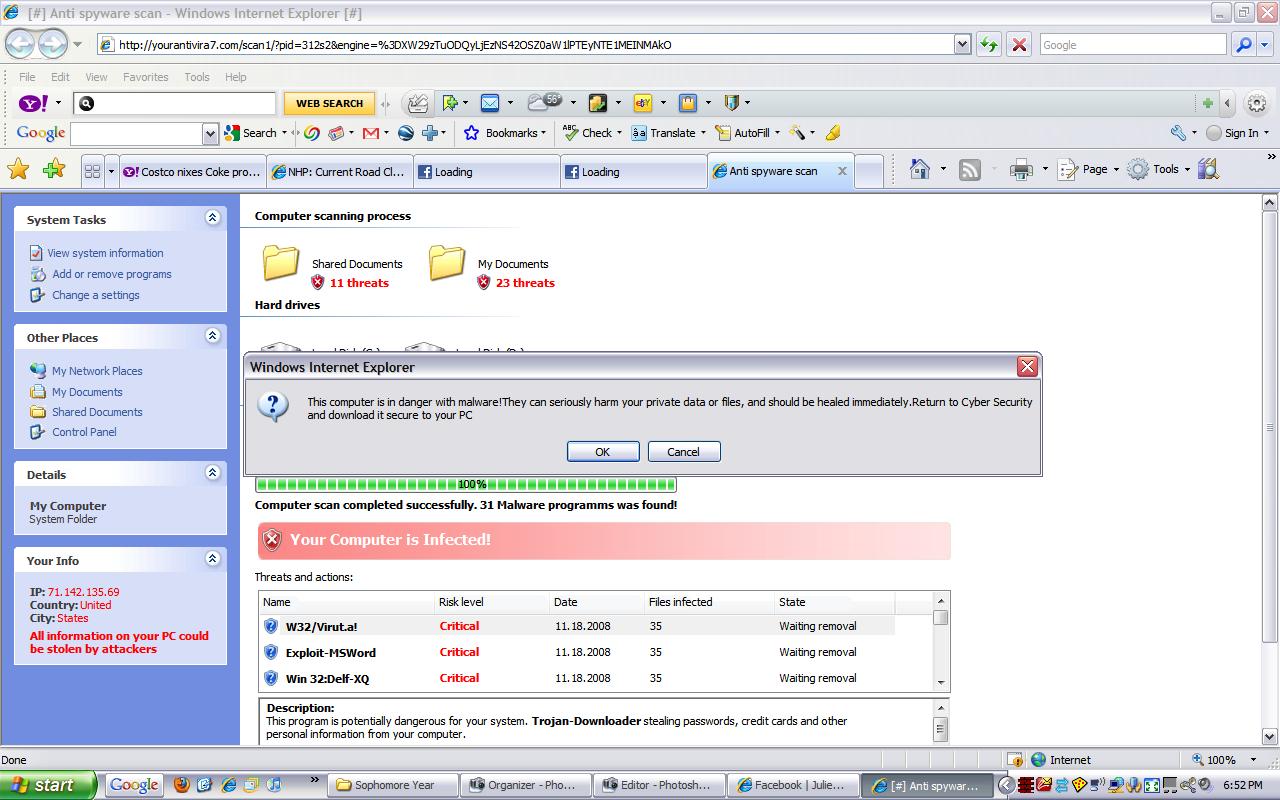
If you get a pop-up window from an unknown program telling you that there are multiple problems with your computer, immediately turn off or restart your computer and see if the program returns after your computer is back on. Do not try to close the window or click anything except for Start > Turn Off Computer. Other buttons that say “No”, “Cancel” and even the red “X” in the upper right corner of the box are often used to trick you into downloading or installing a malicious program without your consent.
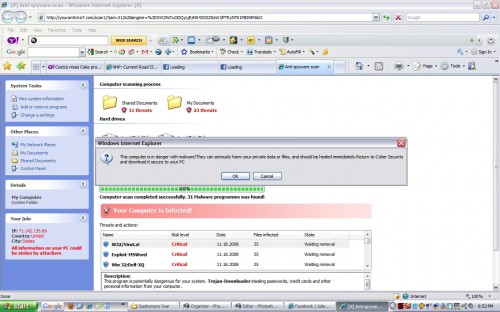
Above is a screen shot from a typical security warning that you may see. Logical thinking should tell you that what you are seeing is likely a scam:
• One minute your computer is fine. You click on a web link and all of a sudden you have multiple (perhaps hundreds) of problems or infections. You’ve been re-directed to a malicious web site. SCAM!
• You know that the anti-virus program on your computer is AVG, Norton, etc. A program that you’ve never heard of before tells you that you’ve got multiple problems. SCAM!
• A program that you’ve never heard of before is offering a free scan ( a come-on), or perhaps is asking your to register or buy a license key. SCAM!
Though I’ve been warning of these scams for years in our newsletter and website, we get calls daily from clients who got tricked into clicking on the fake warnings and inadvertently installing malicious software that will constantly pop-up and eventually ask you for your credit card to pay for the rogue software.
To become familiar with real vs. fake anti-virus warnings see the screen shots in the article How to recognize real vs. fake anti-virus warnings.
Print This Article
If you get a pop-up window from an unknown program telling you that there are multiple problems with your computer, immediately turn off or restart your computer and see if the program returns after your computer is back on. Other buttons that say “No” or “Cancel” and even the red “X” in the upper right corner of the box are often are used to trick you into downloading or installing a malicious program without your consent.
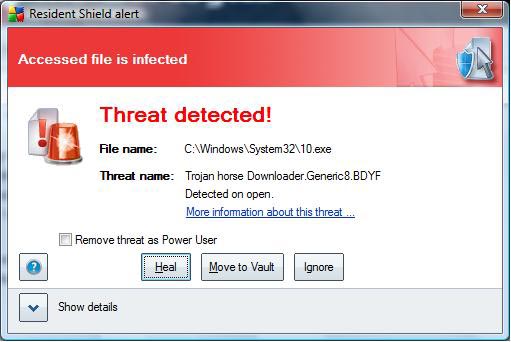
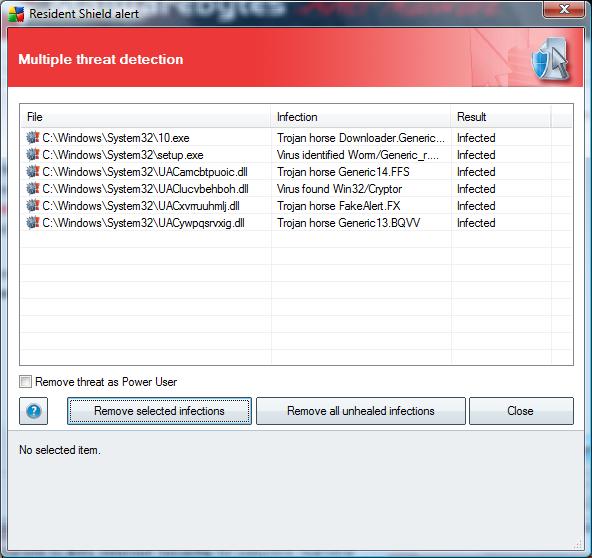
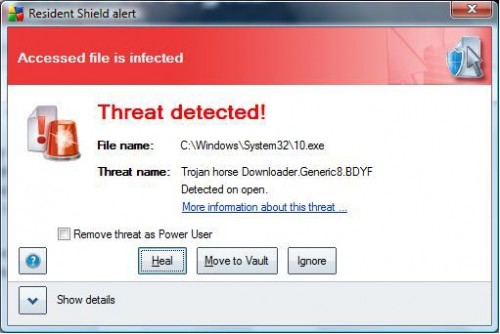
How can you recognize real vs. fake anti-virus warnings? In the case of AVG Anti-Virus, if it detects a virus it will prompt you to “Heal”, “Move to Vault” or “Ignore” a virus threat (as shown below).
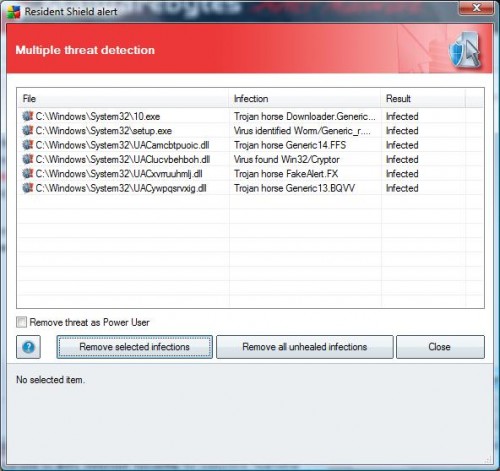
Common fake anti-virus programs prompt you to buy a license, or click for a “free” scan as shown by clicking “more…”
(more…)
Recently we have been warning clients about scams where fake anti-virus programs have been causing widespread problems. Some of these programs can get onto your computer by simply going to an infected website either directly, through a link, or via a link in an e-mail.
Computer Techs has begun referring to these programs as “Scareware” and “Malware”. We call it Scareware because the pop-up or program “scares” you into believing that what it is telling you is true, and that you must react quickly to cure the perceived problem. For example a pop-up might inform you that you have registry errors, or hundreds of viruses and password-stealing trojans on your computer. Malicious software is referred to as Malware because it does malicious and damaging things to your computer without your knowledge or consent.
Anti-virus software companies are having a difficult time keeping up with the malware because the malware is constantly changing its patterns, and it’s a cat-and-mouse game of the anti-virus trying to keep up with the new viruses. We recommend reading the advise in our previous articles about what to do at the first sign of Scareware in order to help prevent it from automatically installing malware on your computer.
If you have signs of Scareware or Malware it is important to give us a call as soon as possible to keep any malware that may have been installed from automatically downloading more malware and possibly irreversibly damaging your computer.
Print This Article
Update 4/20/09: The Conficker worm has so far proven to be what the title of this article says: hype. Most home computer owners were not affected by the worm since a patch to fix the security vulnerability and prevent spread of the worm was released as a Windows critical (high priority) update in October. By default critical updates are automatically downloaded and installed on most home computers. The computers that got infected were primarily business computers which are maintained by corporate IT managers who have chosen for some reason to manually apply Windows critical updates at their discretion and on their own schedule.
3/30/09: In the past few days the media has been publicizing the Conficker/Downadup computer worm, causing a lot of worry to PC users. Microsoft released a Windows Automatic Update patch last October, and most Anti-Virus programs detect the worm. Therefore as long as your automatic updates from Microsoft are installed, and your Anti-Virus program is up-to-date, there is nothing to worry about.
The worm prevents access to many security vendor websites, including this article about Conficker from Symantec. <– If you can’t access that link, you may be infected. If you can access it, there’s no need to download the security software they recommend in the article.
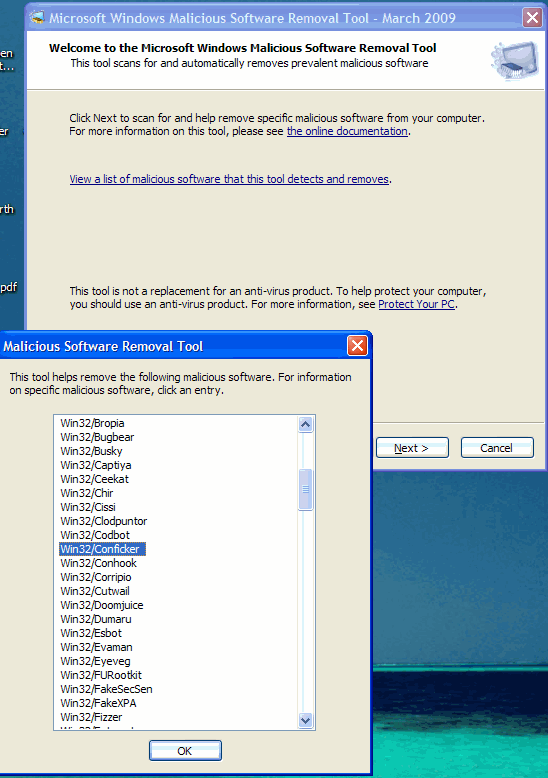
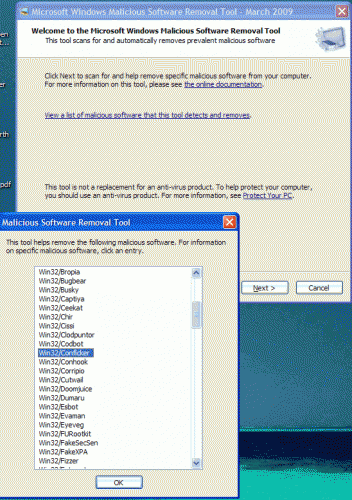 Recent versions of the Microsoft Windows Malicious Software Removal Tool detect Conficker. To run the tool go to Start > Run and type mrt in the box. Recent versions of the Microsoft Windows Malicious Software Removal Tool detect Conficker. To run the tool go to Start > Run and type mrt in the box.
You can read more information about the worm from Cnet.
« Previous Page — Next Page »
|