AVG Free 8.0 is now available, and you may have already received a notice that updates for AVG Free 7.5 will not be available after specified dates.
In AVG/Grisoft’s usual manner to stimulate sales of their not-free products, they are highly suggesting that people upgrade to their 8.0 full-featured paid product rather than their 8.0 Free version. As in the past I still only recommend their free product since security “suites” which include firewalls and other features are redundant and can significantly slow down your computer.
If you are still using an old computer with Windows 98 or Windows ME, Grisoft has followed many other security software developers by not supporting the older operating systems in their latest AVG 8.0. If you’ve been putting off buying a new computer, now is a logical time to make the switch into the new century.
There are a few ways you can download and install AVG Free 8.0:
METHOD 1. If you see a window as show below on your computer…
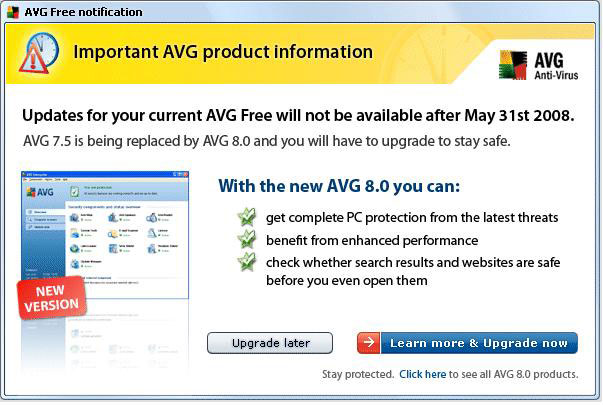
… To upgrade to the new FREE version, click the smaller “Click here” link at the bottom of that window which will take you to this web page as shown below…
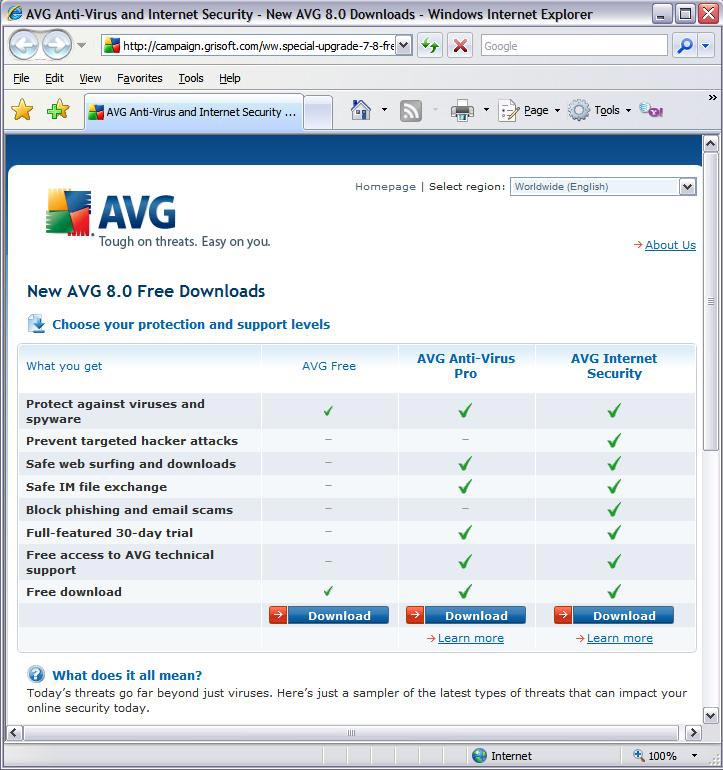
… Click on the “Download” button below AVG Free and follow the prompts to download. When prompted, save the file to your desktop (XP), Downloads folder (Vista) or another folder where you can find the file after you’ve download it. After the file has completed downloading, double-click the file on your computer “avg_free_stf_en_8_###a####.exe” to run the program which will uninstall your previous version of AVG and install the new version.
METHOD 2. I have also setup a direct link to the Free version download page at CTreno.com/avg Follow the download and install instructions listed above.
METHOD 3. I have put the installation file on the Computer Techs website. Click http://computertechsreno.com/files/avg_free_stf_en_8_176a1400.exe and follow the save and installation instructions described in Method 1.
During installation there will be a screen which asks if you want to install the AVG Security Toolbar – I recommend unchecking that box. If you leave it checked and later decide you don’t want the extra Internet Explorer toolbar to appear, you can right-click on a blank area of the Internet Explorer toolbars area, then left-click on “AVG Security Toolbar” to remove the checkmark and the toolbar.