Category: Computing Tips
 Sales of the iPad and Android-based tablet computers have skyrocketed in the past few years. People have discovered that tablets can be a handy secondary computing device, but they still can’t completely replace their desktop or laptop computer. Below are some of the things that you cannot do with a tablet and other drawbacks. Sales of the iPad and Android-based tablet computers have skyrocketed in the past few years. People have discovered that tablets can be a handy secondary computing device, but they still can’t completely replace their desktop or laptop computer. Below are some of the things that you cannot do with a tablet and other drawbacks.
- Typing and navigating around a touch-screen device can be challenging compared to the precision of a keyboard and mouse. A physical keyboard is only available as an extra stand-alone item, and there is no mouse pointing-device available.
- Some websites do not display properly (or at all) on a tablet’s web browser. Websites that require Flash Player, Java or other browser plugins will not work.
- Printing is available on some devices but limited to basic settings, and forget about printing decent quality pictures.
- There’s no Microsoft Office (Word, Excel, Powerpoint) yet, however Apple’s productivity apps and Google Drive are good alternatives if you don’t mind the learning curve.
- Tablets do not have a CD/DVD player, nor a way to transfer files from a USB flash drive or external hard drive.
- You cannot view more than one app at the same time on a tablet screen.
- The hardware and battery are not user replaceable. For the most part if your tablet breaks, you have to buy a new one rather than repair it.
More reading:
Why the iPad still can’t be a true PC replacement
8 Things Tablets Still Can’t Do
Can an iPad Really Replace a Computer?
 Print This Article Print This Article
AT&T recently began upgrading email accounts to a new look, and added a security feature that will help prevent the widespread hacking that has been occurring over the past few years. When the upgrade is ready, you will see the web page below if you access your “web mail” via http://att.yahoo.com/mail or http://mail.yahoo.com in a web browser. You may also access your web mail via the Mail icon on the AT&T/Yahoo or Yahoo home page. Click the “Switch Now” button to proceed with the upgrade.” If you only access your email through an program such as Windows Live Mail or Outlook you won’t notice the new look, however you should still enable the new SSL security feature described later in this article. You can click on the screen shots below to view a larger version.


To help prevent hacking of your email account, we recommend that that you immediately enable SSL. To do so, click on the gear icon on the upper-right corner of the upgraded web mail and select “Mail Options”. In the General section, click on the checkbox to the left of “Make your att.net Mail more secure with SSL (i.e. preventing others from accessing your account at Internet cafes)”. Click “OK” on the refresh notice, then click on “Save”. (See screen shot below).

Print This Article
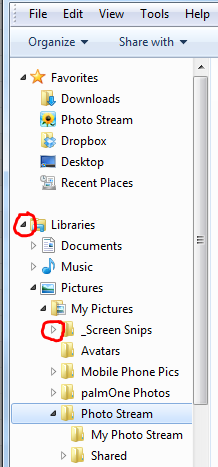 A sub-folder is a folder within a folder. When viewing folders on your computer, sometimes sub-folders are hidden until you click on the sideways triangle just to the left of the folder name (or double-click on the folder). When sub-folders are shown, the triangle will “point” downward instead of to the right. See the example shown in the graphic. A sub-folder is a folder within a folder. When viewing folders on your computer, sometimes sub-folders are hidden until you click on the sideways triangle just to the left of the folder name (or double-click on the folder). When sub-folders are shown, the triangle will “point” downward instead of to the right. See the example shown in the graphic.
Print This Article
Most internet service providers provide more than one way to access your email: Webmail (web-based email) and POP/IMAP mail which is accessed via an email client/program. The main advantage of using an email program is that you can avoid the ads that are shown when viewing your email in a web browser. Below is a chart detailing the 2 different ways to access your e-mail, and some advantages and disadvantages to both.
|
Feature
|
WEBMAIL
|
POP/IMAP MAIL PROGRAM
| |
Accessibility
|
Accessible via a web browser from any internet connected computer. Web browsers include Internet Explorer, Mozilla Firefox, Google Chrome or AOL’s desktop software.
|
Accessible with an email client/program such as Outlook/Outlook Express, Windows Mail/Live Mail or Mozilla Thunderbird.
| |
Speed
|
Faster particularly if you use a slower internet connection, such as basic DSL. Viewing your messages using webmail is as fast as displaying any other web page within your browser.
|
Slower to retrieve since POP mail is downloaded and stored on your computer. IMAP mail synchronizes your mail between your computer and your email provider’s mail server. Large emails with attachments can take several minutes to download particularly on a slow internet connection.
| |
Storage
|
Your mail is stored on your email provider’s computers.
|
If your email is setup as POP, email is downloaded to your computer then usually removed from your email provider’s computers (server). If it setup as IMAP, the same emails exist on both your computer and the server.
| |
Use with multiple computers/devices
|
When you read, write or delete a message the message folders will be the same on each computer or web browser that you check your mail with.
|
If your email is setup as POP, your email program needs to be configured to keep the messages on the server after downloading them. This allows you to download your messages onto multiple computers/devices or be able to view all your messages with webmail. *
| |
SPAM filtering software on your computer
|
Will not work with web mail.
|
Will work with most POP email client/programs.
| |
Photo sharing software
|
Many programs will not work using web mail.
|
Many programs integrate easily with POP/IMAP email programs
| |
Sending attachments to your e-mail
|
More complicated
|
Less complicated
|
* If you use POP mail, your internet service provider or Computer Techs can give you information on how to set-up your email program, and how to configure it to leave copies of your messages on their computer’s server.
Below is a list of common internet service providers and their webmail address. Note that you don’t need to enter in the “http://” prefix in the address bar of your browser – your browser should automatically fill it in the prefix for you after you enter the address.
AT&T/Yahoo – mail.yahoo.com or att.yahoo.com/mail
Charter/Spectrum – webmail.spectrum.net
AOL – mail.aol.com
Besides email provided by your internet service provider, there are many free email services. Yahoo is only accessible via a web browser with their free service. Google’s Gmail and Microsoft’s Outlook.com (formerly “Hotmail”) are good alternatives, however all of the free services show advertisements next to your email messages.
If you are interested in reading more details about the different email protocols, see Wikipedia for more information about webmail, POP email, or IMAP.
Print This Article
Update 5/8/13: AT&T has announced a June upgrade to their web mail that may include a security feature used by most other email services that encrypts email over the internet between Yahoo’s servers and your computer. The option to “turn on SSL” would help prevent the account hacking problem that currently plagues the email service. As such, you may want to hold off on switching away from using AT&T/Yahoo Mail until the upgrade has completed to see if extra security has been enabled.
Due to ongoing security issues with AT&T/Yahoo Mail, and other problems we’ve seen with randomly disappearing contacts and a 2-step verification process that does not work, we are now recommending that AT&T/Yahoo Mail users switch away from using the service. The most logical alternatives are Hotmail/Outlook.com and Gmail.
We can help you make the switch in about an hour in most cases, including setup of your new email account on all of your computers and portable devices. If you’d prefer to do it on your own, keep in mind that if you’re using an AT&T/Yahoo email account, you should not delete the email account associated with your AT&T account since it is also used as your username for access to your AT&T services.
Here’s how you can switch to Gmail http://support.google.com/mail/bin/answer.py?hl=en&ctx=mail&answer=117173
Here’s how you can switch to Hotmail/Outlook.com http://winsupersite.com/article/windows-live/outlookcom-tip-import-email-143978
Print This Article
Updated May 2013:
Microsoft has started automatically updating their web browser to Internet Explorer version 10 (on Windows Vista and 7 only). IE10 is more secure and has a more simplistic interface – the menus, toolbars and buttons are hidden when first installed. This is a drastic change from earlier versions of Internet Explorer and you might miss the various toolbars. To display the Menu, Command, Status, or Favorites bar, simply right-click an empty area next to a tab and check which items(s) you want displayed (see screen shot below). You might want to lock the toolbars as well so the settings you make don’t unexpectedly change.
Click here to learn more about Internet Explorer 10 on Microsoft’s website.
Also see How to change your browser’s home/start page.

Print This Article
 In April 2014, Microsoft will end support of Windows XP. The 12-year-old operating system was the standard operating system offered on new PCs from 2001 through 2007. A Windows XP computer won’t just stop working in April 2014, but the absence of monthly critical security updates will make it more susceptible to getting viruses and malware that can steal your personal information if the computer is continued to be connected to the internet. In April 2014, Microsoft will end support of Windows XP. The 12-year-old operating system was the standard operating system offered on new PCs from 2001 through 2007. A Windows XP computer won’t just stop working in April 2014, but the absence of monthly critical security updates will make it more susceptible to getting viruses and malware that can steal your personal information if the computer is continued to be connected to the internet.
There is no method to upgrade to a newer version of Windows on computers with Windows XP. Since the average life of a computer hard drive is approximately 5 years, now is a good time purchase a new computer. See this article for information on how you can still get a computer with Windows 7. Also see How to shop for a new PC and get the best deal.
Print This Article
Windows 8 was released in October 2012, and now that it’s been in stores for six months we’ve had quite a bit of experience with Microsoft’s “modern” operating system. Our advice last year that recommends getting a new computer with Windows 7 when possible still stands. Windows 7 is more familiar and intuitive for long-time Windows users.
If you prefer to shop for new computers at a local national retailer such as Costco, Best Buy, Staples or Office Depot, Windows 8 is the only operating system available on new PCs. However Windows 7 is still available on new computers custom configured direct from Dell and HP. See our most recent New Computer Deals newsletter for details and more buying advice.
Print This Article
Updated June 2024:
We often are asked what should be done with old computers, monitors or other electronic equipment. Due to the hazardous materials and metals in electronic equipment, they can’t be just thrown in the garbage.
If you are getting rid of an old computer, it is recommended that your personal data be wiped from the drive. If you’re giving an old computer to a friend or family member a new user account can be created, then your old user account(s) should be deleted. If the computer is being donated or recycled, the hard drive (which stores all of your personal data) should be removed and stored in a secure location, or reset/erased so that all personal files are removed.
Modern Microsoft and Apple operating systems include utilities to reset/erase wiping the device. Older devices may require a specialized data destruction procedure, otherwise have the hard drive removed. We have access to such programs, or can recommend one if you’d like to do it yourself. We can also remove the hard drive from your old computer.
If you have unused gadgets such as laptops, cell phones, portable music players, digital cameras or LCD monitors you can get cash for your unused gadgets.
Your computer equipment can also be recycled, donated or destroyed:
Print This Article
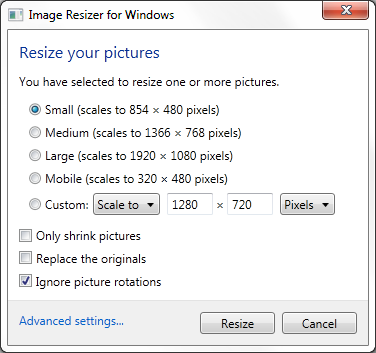
Have you ever run into problems sending an email or uploading a picture to Craigslist or eBay because the file size was too big? Image Resizer for Windows is a utility that lets you resize one or more selected image files directly from Windows Explorer by right-clicking. You can download and install the utility at http://imageresizer.codeplex.com

« Previous Page — Next Page »
|


