This month Microsoft officially launched its new email service and update to Hotmail – Outlook.com. Using the name of Microsoft’s “Outlook” business email, contacts and calendar management program, Outlook.com is a website that offers an uncluttered and easy-to-read design plus many more features that extend beyond email.
Computer Techs recommend having more than one email address with more than one service, and now Outlook.com is a logical choice to use as your primary or secondary email service.
Some of my favorite features of the new service include:
You can create an “alias” or a second email address that you can give to businesses or specific people that can be used to automatically filter specific email messages.
Outlook.com can be setup to sync your mail, contacts and calendars with iOS and Android mobile devices, or through Outlook and Windows Live Mail on your computer.
Outlook.com offers security features that will allow you to login to your account, reset a forgotten password or recover a hacked account via a text message, phone call or email sent to another address that you have access to.
You can easily access your personal Microsoft SkyDrive account, which lets you sync and store files between multiple devices and “the cloud”. The best feature of SkyDrive is easy access to the free Word, Excel, PowerPoint and OneNote web apps, which let you create, view and edit documents, spreadsheets, etc. without needing to purchase Microsoft Office or have the full Office suite installed on the computer that you’re working on.
If you’d like help setting up an Outlook.com email address, importing your contacts, setting up the service with external programs or mobile devices, and a tutorial – contact Mark Cobb at 775-742-1230 or via email at mcobb@CTreno.com
Available addresses are going fast (ie. “yourname@outlook.com”), so you should sign-up for an account at www.outlook.com soon. You can also get the same look and features but get a shorter email address (@live.com) by signing up for a new account at www.live.com.
More information about Outlook.com can be found on Microsoft’s website here.
Over the years we’ve helped lots of clients who’ve had their email account hacked – typically a Yahoo, Hotmail or AOL account. They usually first notice the problem when they are contacted by someone in their email contacts about unusual requests for money or a gift card. Other signs that an email account has been hacked include:
Lots of emails from “mailer-daemon” in a short period of time
No new email in the Inbox, and being filtered to the Trash or Archive folder
Some or all previous email have been deleted
All contacts have been deleted
“Reply-to” address changed
All messages being forwarded to a different address
Email signature added or changed
The language changed to something other than English
When attempting to login to their email some have discovered that their password has been changed and they are unable to access their account.
If your Yahoo account has been compromised, below are some helpful links:
If you’re still unable to access your account after following instructions in the resources above, you can call Yahoo at 866-562-7219 or AT&T at 800-288-2020.
It’s important that you DO NOT use your email account to send messages until you are absolutely sure that the hacker no longer has access to the account, all changes that were made are reversed, and two-factor authentication is enabled on the account to prevent future unauthorized access. If you need professional help with getting your email account back and everything fixed, give us a call.
Microsoft has released its new Office 2013 suite that includes “Word” word processor, “Excel” spreadsheets and “Powerpoint” presentations – plus other programs for notes, email, publishing and databases that are available with different versions or subscription options.
If you currently are using Office 2007 or 2010, you probably won’t want to upgrade unless you get a new computer, or want to access Office from any internet-connected device.
In summary, Office 2013 can be installed on 1 computer per license, with prices starting at $139. Office 365 Home Premium is a new subscription-based option that can be run from up to 5 computers in a household for an annual fee of $99. See a comparison chart here.
Windows 8 introduced a dramatically new design that many clients have have expressed frustration with. Fortunately you can get some of the look and feel of previous versions of Windows with a program called Classic Shell.
Classic Shell will put a “Start Button” in the Windows 8 desktop view, while providing links to programs and apps, Computer, Documents, Control Panel and other frequently utilized options that were easily accessible in Windows 7 and prior. Windows 8 can even be configured to start in the classic desktop view with icons, bypassing the new Windows 8 tile view altogether when you start your computer.
If you get a new computer with Windows 8 and are not happy with the new look, Computer Techs can help make Windows more familiar again. Contact us if you need help.
In light of recent media attention to the security vulnerabilities in Java, it is recommended that you disable Java in your web browser to minimize the risk of infected websites using Java to access your computer. But you first need to check your current version of Java and update to the latest version in order to disable it.
If you do not see Java in your computer’s Control Panel, the Java Control Panel applet may be launched by finding and running javacpl.exe manually. This file is likely to be found in one of the following folders on your computer: C:\Program Files\Java\jre7\bin or C:\Program Files (x86)\Java\jre7\bin.
Java is used in very few websites. The most common websites that use Java on your computer in order to work properly include many game websites, 3D mapping, financial trading and business specific applications. If you need Java for a specific website, consider adopting a two-browser approach. If you normally browse the Web with Firefox, for example, consider disabling the Java plugin in Firefox, and then using an alternative browser (Chrome, IE9, Safari, etc.) with Java enabled to browse only the site(s) that require it.
People tend to procrastinate. As you think about your new year’s resolutions or goals, please consider printing this article and complete these 5 recommended technology goals for 2013.
2. Adopt a password system similar to this one that makes passwords for different things easy to remember. If you already have a unique password for each web site that you log into, use a password manager to store your passwords using a method that’s more secure than a little black book.
4. Adopt a backup system so you won’t lose your important files and photos when your computer’s hard drive crashes – or in the case of theft, fire, flood, etc. Here’s how to do it.
A smart phone such as an iPhone, or one with the Android operating system lets you do so much more than just making and receiving phone calls – it’s like having a portable internet-connected computer. In this article I detail the many things that I was able to do with my smart phone while on a vacation in the San Francisco bay area, and in day-to-day life.
• With the Maps app I was able to get directions to different cities & landmarks, get travel times with traffic slow-down time estimates, and pinpoint our current location while traveling on a trolley car.
• With the mobile web browser I was able to search the internet to look-up a popular restaurant that I heard about, check reviews, and make a reservation.
• Used the “Check Please” app to help figure the tip on our dinner.
• While waiting at the trolley-stop, I used the mobile web browser to access the web address posted that was posted on a sign and found route map.
• I ordered Alcatraz ferry tickets.
• With the Email app I was able to receive receive dinner and ferry reservation confirmations.
• I used the mobile web browser to search for “bay bridge toll amount” and “new bay bridge completion” and downloaded an app that simulates driving on the bay bridge.
• I used the Google Places app to find nearby dining and reviews – which uses the smart phone’s built-in GPS to find my current location.
• When our XM Satellite Radio stopped working for a brief time, I brought up the Pandora Radio app to listen to music while driving.
• When it was time to fill-up the gas tank I used the Gas Buddy app to find the best price on fuel at nearby gas stations.
• I used the camera to take hundreds of pictures.
• Remembered how I used a Disneyland park attraction wait times app last year to help manage time waiting for attractions at the park.
• Read news from home using various apps from local media outlets.
• Played “Words With Friends” – a game similar to Scrabble – while waiting in long lines at the amusement park.
• While my wife was shopping with my daughter, and I was riding the trolley with my son, we both used the camera and picture messaging apps to send pictures back and forth.
• Each day I used a weather app to help decide how to dress for each day’s activities in the bay area’s micro-climates.
• I used my bank and credit card companies’ apps to check my balances, spending, transfer funds and pay bills.
• To compile this list I used the Notes app often as I thought of different things to add to the list.
So as you can see, a smart phone came in handy for more than just phone calls during our vacation. It also comes in handy every day in day-to-day life, and a backup for many of the things I do on my desktop computer. If you need help with setting up or getting more use from your smart phone or tablet computer, give us a call – we can help.
Please Print This Article and keep this list near your computer to remind you of common computer scams that can cost hundreds to thousands of dollars to unknowing individuals.
Calls from Microsoft. If you get an unsolicited call from someone claiming to be from “Microsoft”, “Windows”, “Apple”, “Google”, “Amazon” or any other well-known name, and claiming that there are problems with your computer or account – it’s a scam. The Federal Trade Commission has been cracking down on telemarketers masquerading as major computer companies that scare people with false claims that their computer or security is in danger, and eventually offer to fix the problem for a few hundred dollars. See Avoid Tech Support Phone Scams.
Remote support scare tactics lure you into paying to fix non-existent problems. Similar to companies in the scam mentioned above, there are foreign companies that advertise on search web sites such as Yahoo or Google that may help you with your initial problem, but then claim that they detect severe problems with your computer and attempt to coax you into a yearly tech support plan often costing hundreds of dollars. A recent variant of this scam has popped up on compromised websites which displays a warning message claiming that your computer has a severe problem and that you need to call a number displayed on the screen in order to fix it. See Learn how to spot scams that pop-up on your screen and Companies Pushing Tech Support Yearly Fee.
Deceptive ad links that show up in internet search results – Click to view larger image
Unusual/unexpected email from people you know. You may receive an email from someone you know asking for money, asking you to “check out” something on an unfamiliar web site, or asking you to open an unsolicited document. In these cases the email account of the sender has been hacked, and the hacker/scammer is sending emails to all of their contacts in attempt to get money directly via wire transfers, or indirectly via spam schemes. See Email Spam From Someone You Know Links to Websites That Hack Your Password.
Unusual/unexpected email from a business. You may receive an email from a business such as UPS, Amazon, United Airlines, Verizon, Apple, Google or PayPal that confirms a large transaction or delivery of an item, or a problem with your account. The email attempts to lure you into clicking a button, link or attachment in the email that would ultimately install malware or a virus on your computer. Others may simply ask you to reply to the email and give your email login credentials, which would ultimately result in a hacker being able to access your email account. See How to Spot Fake Email From Legitimate Companies, and Emails that Phish for Your Login Credentials On The Rise: What You Need To Do To Stay Safe.
Email account password hacking due to password re-use. Your email account can easily be hacked if you use the same password to login to your email as you do any other website that is vulnerable to hackers. See the dangers of using the same password for different websites.
If you think you’ve been a victim of a computer scam and need help or advice, please contact Computer Techs at 775-624-6888 or contact your technician.
New computers sold from 2010-2012 with the Windows 7 operating system came with Microsoft Office Starter 2010 – which includes limited versions of Word (word processor) and Excel (spreadsheet) programs. Though the programs are limited, they include about 90% of the features of the paid full versions of the programs, and the Starter versions are adequate for most home users. Microsoft Office Starter 2010 replaced Microsoft Works, a free program that came on earlier computers.
Word processing documents created with Microsoft Works were saved in a file format ending with the .wps file extension. On a new computer, when using Windows File Explorer to look at files and folders in the Documents folder for example, files with a .wps file extension cannot be opened. If you attempt to open such a file, Windows may prompt to search your computer for a program that will open the file. You should NOT proceed at that point because there is no program in the default list that will open the file. Instead you should follow the instructions below.
1. Start Microsoft Word Starter 2010 (which is on your Start menu).
2. Click the File menu, and then click Open.
3. In the Open dialog box, follow these steps:
Change the Look in box to the location of your Works document (it automatically defaults to your Documents folder)
In the Files of type box, click the drop-down arrow and choose All Files (*.*).
Select the Works document (.wps) that you want to open, and then click Open.
4. If the document opens correctly, when you are finished with it, click File, click Save As, and then change the file type to a Microsoft Word document (.docx).
5. Save the document and you have successfully converted the file to a Word document. It can then opened directly from File Explorer without having to open Word Starter first.
The average lifespan of computer hardware is about 5 years, and a computer with Windows XP is well past its lifespan. Computers with Windows XP preinstalled were manufactured from 2001-2008 (over 5 years ago). If you’re still using a computer with Windows XP the likelihood of hardware failure and data loss is very high considering the average life of a hard drive is 5 years.
Computer Techs can help you shop for a new PC and get the best deal. We can also setup your new system and transfer the data from your old computer – as long as the hard drive hasn’t failed.


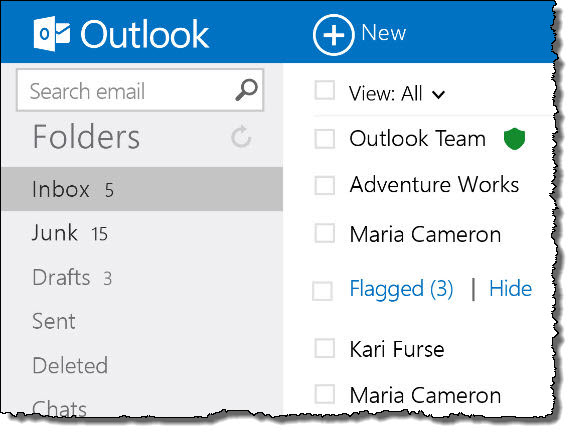 This month Microsoft officially launched its new email service and update to Hotmail – Outlook.com. Using the name of Microsoft’s “Outlook” business email, contacts and calendar management program, Outlook.com is a website that offers an uncluttered and easy-to-read design plus many more features that extend beyond email.
 Print This Article


 New computers sold from 2010-2012 with the Windows 7 operating system came with Microsoft Office Starter 2010 – which includes limited versions of Word (word processor) and Excel (spreadsheet) programs. Though the programs are limited, they include about 90% of the features of the paid full versions of the programs, and the Starter versions are adequate for most home users. Microsoft Office Starter 2010 replaced Microsoft Works, a free program that came on earlier computers.