Welcome to the Computer Techs Computer / Internet Tips & News blog. This purpose of this site is meant to provide a service to our valued customers, by keeping you informed with the latest news and tips related to your computer and the internet. Consider using the search box on the left side of the website to help you find a specific topic or article, or scroll through articles below to learn something new.
Get $25 Off your next service call for recommending Computer Techs
If you’re happy with our service, please consider recommending Computer Techs to a friend or relative. If we service their computer, you get $25 Off your next service call.
The details: Please have your friend or relative mention your name during the appointment, or after the appointment contact Mark Cobb with the name of the person that you recommended/referred. The referred person must be a new Computer Techs customer and not reside in the same household as the referrer.
 Update 4/30/09: Microsoft has made Internet Explorer 8 available through Windows automatic updates, but it must be manually installed. Updating to Internet Explorer 8 is optional. Update 4/30/09: Microsoft has made Internet Explorer 8 available through Windows automatic updates, but it must be manually installed. Updating to Internet Explorer 8 is optional.
The internet web browser is likely the most commonly used program on the computer, and Microsoft’s Internet Explorer is the most commonly used web browser. On March 19, 2009, a new version of the popular web browser was released. Internet Explorer 8 has many new privacy, security and navigational improvements.
As I’ve mentioned in a previous article, you should have more than one browser on your computer. As of this writing I have had very little time to evaluate Internet Explorer 8, and am not ready to say whether or not I like it better than my current favorite browser – Mozilla Firefox.
At this time I am providing a link to a full text review of Internet Explorer 8 by Wall Street Journal Personal Technology Columnist Walt Mossberg.
 Print This Article Print This Article
Update 4/20/09: The Conficker worm has so far proven to be what the title of this article says: hype. Most home computer owners were not affected by the worm since a patch to fix the security vulnerability and prevent spread of the worm was released as a Windows critical (high priority) update in October. By default critical updates are automatically downloaded and installed on most home computers. The computers that got infected were primarily business computers which are maintained by corporate IT managers who have chosen for some reason to manually apply Windows critical updates at their discretion and on their own schedule.
3/30/09: In the past few days the media has been publicizing the Conficker/Downadup computer worm, causing a lot of worry to PC users. Microsoft released a Windows Automatic Update patch last October, and most Anti-Virus programs detect the worm. Therefore as long as your automatic updates from Microsoft are installed, and your Anti-Virus program is up-to-date, there is nothing to worry about.
The worm prevents access to many security vendor websites, including this article about Conficker from Symantec. <– If you can’t access that link, you may be infected. If you can access it, there’s no need to download the security software they recommend in the article.
 Recent versions of the Microsoft Windows Malicious Software Removal Tool detect Conficker. To run the tool go to Start > Run and type mrt in the box. Recent versions of the Microsoft Windows Malicious Software Removal Tool detect Conficker. To run the tool go to Start > Run and type mrt in the box.
You can read more information about the worm from Cnet.
Updated March 28, 2009 (added link to more online articles):
Fake anti-virus programs have been appearing on an ever-increasing number of computers in the past year, tricking people into believing they have a large number of viruses and privacy threats on their computer and recommending that people buy specific software to fix the problems.
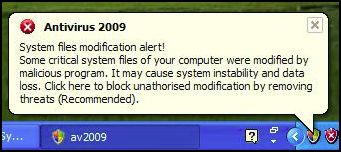
One common fake program, Antivirus 2009, pops up a realistic-looking Windows Security Center window that recommends the purchase of a license for the program. It also presents a balloon pop-up from the system tray (by the clock on the bottom right of the screen) that further alarms people, and leads them to believe that purchasing the program will remove the immediate threats to their computer’s security. The fact is that the program is a scam which shows false scan results and fake realistic-looking windows in an attempt to trick people into buying their program.
Screen shots at the bottom of this article show signs that you may have this fake program installed on your computer. Other signs that you may have a fake removal program on your computer include grammatical errors in the text of alerts that pop up, multiple alert methods, and urgent messages that suggest the immediate purchase/registration of a program that you’ve never heard of before.
What to do if you get warning messages from a program that you have never installed: To avoid or reduce the damage caused by these scammers, I suggest that if you get a pop-up window from an unknown program telling you that there are problems with your computer, you immediately turn off or restart your computer and see if the program returns after your computer is back on. Previous methods of clicking the red “X” on the upper-right corner of the box have been ineffective at keeping this malware from installing.
Many legitimate Anti-Virus programs do not yet completely remove fake anti-virus programs. Computer Techs often uses manual removal methods to completely remove the bogus program and the traces it leaves behind.
Fake anti-virus programs are not a new problem. Over 2 years ago I wrote about similar programs. There is even a website that until May 2007 attempted to provide current updates on the names and techniques of all the rogue anti-spyware programs.
More Articles: PC World writes “Fake infection warnings can be real trouble“. The Register has written an in-depth article on how this scam gets spread and entices people to install it.
(more…)
 AVG recently released version 8.5 of their popular security products. We often recommend and install AVG Anti-Virus Free Edition on customer’s computers. Computers with AVG Anti-Virus 8.0 or earlier have started to receive an upgrade notice on the screen. This is also AVG’s opportunity to advertise and sell people their paid products with more features, however we still recommend the free version for most computers. “Internet Security” suites use more system resources which slows computer performance and adds unnecessary and redundant extra programs. AVG recently released version 8.5 of their popular security products. We often recommend and install AVG Anti-Virus Free Edition on customer’s computers. Computers with AVG Anti-Virus 8.0 or earlier have started to receive an upgrade notice on the screen. This is also AVG’s opportunity to advertise and sell people their paid products with more features, however we still recommend the free version for most computers. “Internet Security” suites use more system resources which slows computer performance and adds unnecessary and redundant extra programs.


AVG places an icon on your desktop showing which version you have installed. If you have AVG Free 8.0 or earlier on your computer, please follow the update information below:
After you see an update notice on your screen, you may bypass the advertisements for the paid products that AVG offers and follow the instructions to download and install AVG Anti-Virus 8.5 Free Edition.
Alternatively you may download/save the installation file from the AVG website. After it’s finished downloading, run the installation file to install the program. During installation a screen will prompt you with 3 choices: Add/Remove features, Repair or Uninstall the program – choosing “Repair” will update AVG to the new version. On the following screen I suggest UNchecking the box to install the AVG Security Toolbar, then proceed with the rest of the installation.
Since a large number of people around the world are downloading the new version, it’s possible that the download may take a long time or fail. If so, try again at a later time.
In the near future earlier AVG versions will be completely phased out and no longer receive updates.
Print This Article
The free anti-virus software that we usually recommend for most people, AVG Anti-Virus, just released version 8.5 which adds additional protection for infected website protection. An AVG press release states “Active Safe-Surf checks the web page behind every link for hidden threats at the only time that matters – when users are about to click on that link.” The update also changes the look of the small icon in the system tray (by the clock) when the program is not up-to-date or in an error state.
AVG places an icon on your desktop showing which version you have installed – for example “AVG Free 8.5” If you have AVG Anti-Virus on your computer, please see the following update information:
AVG 8.0: Users of AVG 8.0 will receive an automatic program update to the new version. No user action is required. See update instructions posted here.
AVG 7.5 or earlier: If you are using AVG Free 7.5 or earlier, you will need to download and install the latest installation file from the AVG website. During installation of the updated program you will be prompted with 3 choices: Add/Remove features, Repair or Uninstall the program – choosing “Repair” will install the new version. AVG 7.5 will soon be completely phased out and no longer receive updates.
Print This Article
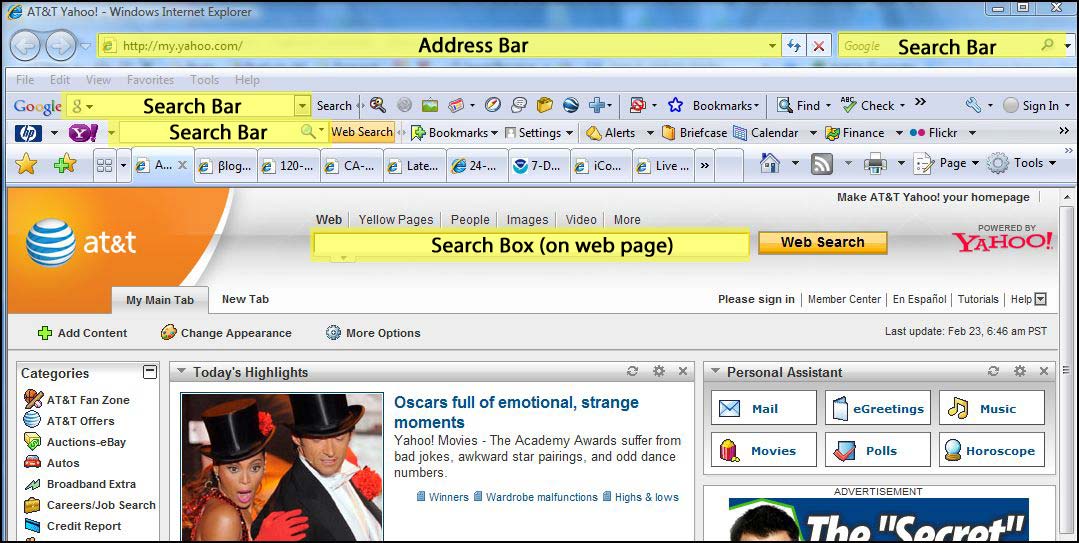
Web browsers have an address bar, and some also have search bars. Some web pages have search boxes. I am often asked which bar or box should be used to get to where you want on the internet.
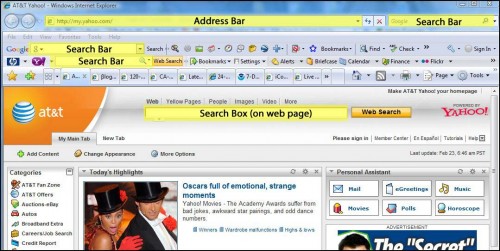
The address bar is used if you know the actual address of a web site or web page (eg. http://www.yahoo.com)
Tip: Did you know you don’t have to enter the leading “http://” or “www.” to get to most web sites?
The search bar is used if your are searching for something on the internet (eg. “computer repair”, “recipes”, “grammy winners”, etc.) Using the search bar will take you to search results from internet search providers such as Google or Yahoo.
A search box on a web page is similar to the search bar, but it will give you search results based on the internet search provider that is used by the web page. For example if you are on the AT&T home page (http://att.yahoo.com), anything you type in the search box on the web page will bring up internet search results provided by Yahoo. Charter’s home page brings up Google search results, as does AOL.com.
Another way to compare the different methods of accessing websites is like comparing it to dialing a phone number on your telephone. For example if you want to call the local Papa John’s Pizza and you know the phone number, you just dial the phone number (which is like entering a specific website into the address bar). If you don’t know the phone number, you dial 411/information (which is like using the search bar), which would give you results for all Papa John’s Pizzas from which you could then choose the one you want.
Print This Article
The Keyboard for Blondes features a “I Need My Space” (Space) key, an “Oops” (Backspace) key, a “No!” (Esc) key and a “Yes! I want it!” (Enter) key. The F1-F12 function keys spell out U-S-E-L-E-S-S K-E-Y-S. You can get yours at KeyboardForBlondes.com

Print This Article
2009 is Computer Tech’s 6th year in business. Since I started the business in 2003 we have serviced established relationships with approximately 1500 customers. Last year we performed service on approximately 1000 computers. I take great pride in people being able to trust Computer Techs, and know that we provide a great deal of computer experience.
Over the years techs have come and gone, and some I had to let go due to ethics or reliability issues. Occasionally I will be informed about a previous Computer Techs tech that is doing business independently but still using resources and supplies that were provided by Computer Techs. Computer Techs provides Work Order receipts, business cards, an answering service, advertising and licensing requirements for our current techs.
If it has been a while since you’ve contacted your previous tech for service please visit our contact web page to verify if he/she is still working for Computer Techs. If a phone number and e-mail address is listed, that tech is currently working for Computer Techs.
Updated December 2008:
If you’ve been holding off on getting a new computer with Windows XP (instead of Windows Vista) time is running out soon. Microsoft stopped shipping retail copies of Windows XP as of June 30, however it is still available installed on new PC’s from manufacturers as a “downgrade” from Windows Vista for a while longer. Though exact dates are hard to find, the Windows Life-Cycle Policy website suggests that the Windows XP license availability (end date) is January 31, 2009.
In a letter from Microsoft earlier this year they gave the latest official word about the availability and support dates of Windows XP, promote Vista and mention the next version of Windows – “Windows 7” – which is expected to be released late next year.
If you need a new computer without Windows Vista, Computer Techs can get you a new state-of-the-art HP desktop computer with Windows XP Professional for as low as $550. If you’re ready to move to Vista, we can get you a computer with Vista as well. Just contact us for all the details.
Print This Article
 PDF (Portable Document Format) is a file format created by Adobe Systems that lets a document be displayed with the exact same layout on different computers. Examples of PDF files include tax forms that can be downloaded and printed from the Internal Revenue Service website, or license and vehicle registration forms from the Department of Motor Vehicles website. Many manufacturers have user guides and product manuals available as a PDF file on their website. These types of documents must appear the same on every computer screen and printed, and cannot be altered. PDF (Portable Document Format) is a file format created by Adobe Systems that lets a document be displayed with the exact same layout on different computers. Examples of PDF files include tax forms that can be downloaded and printed from the Internal Revenue Service website, or license and vehicle registration forms from the Department of Motor Vehicles website. Many manufacturers have user guides and product manuals available as a PDF file on their website. These types of documents must appear the same on every computer screen and printed, and cannot be altered.
PDF files can be viewed by the free Adobe Acrobat Reader and PDF viewers from other companies. Most computers already have Acrobat Reader installed, though your version may be out-of-date due to frequent updates to the program.
Computer Techs has a PDF tutoring worksheet on our website that you can download and print. We suggest printing it and as you use your computer and discover things that you need help with or would like to learn, write them down on the worksheet. After you’ve got about an hour’s worth of items on your sheet, contact us so that we can help you get more use from your computer.
Print This Article
« Previous Page — Next Page »
|