Welcome to the Computer Techs Computer / Internet Tips & News blog. This purpose of this site is meant to provide a service to our valued customers, by keeping you informed with the latest news and tips related to your computer and the internet. Consider using the search box on the left side of the website to help you find a specific topic or article, or scroll through articles below to learn something new.


Get $25 Off your next service call for recommending Computer Techs

If you’re happy with our service, please consider recommending Computer Techs to a friend or relative. If we service their computer, you get $25 Off your next service call.

The details: Please have your friend or relative mention your name during the appointment, or after the appointment contact Mark Cobb with the name of the person that you recommended/referred. The referred person must be a new Computer Techs customer and not reside in the same household as the referrer.


Happy with our service? Write a review or tell your friends and get $25 off your next service call

Filed under: Tech Support - Jul 05 2010

If you’re happy with our service, please let others know by recommending us to your friends and family, and/or by writing a review about our service. If you personally recommend us to a friend or relative and we help them, you get $25 off your next service call.

Why trust someone who “knows” computers and works on them in their spare time? Why trust someone who you called from a pop-up ad on your computer? You shouldn’t! Computer Techs is a local business that works with computers and related devices on a daily basis and has been doing so since 2003. When you need help with your computing devices, you can trust Computer Techs to be there when you need us, and stand behind our service.

When people search for Computer Support or Repair Services on the internet, they often search Google, YellowPages.com or Yahoo Local. Please consider letting others know about our service by posting a review at one or more of the following web sites:

Google Review

Facebook

Yelp

YellowPages.com User Review

Angie’s List

Print This Article Print This Article
We’re not just computer techs – we can help with most tech gadgets too

Filed under: Tech Support - Jun 22 2010

Do you need help with transferring your pictures from a digital camera or cell phone? Or perhaps transferring music to an iPod or iPad? We can help with most technology gadgets. Below is a sample of some of the gadgets we’ve recently helped setup:

1. Digital camera – taking pictures at optimal size, transferring to the computer, editing and sharing them.

2. iPod – Converting CDs to play on an iPod and creating playlists for multiple family members.

3. iPhone, Blackberry & other smart phones – wirelessly connecting devices to personal wireless broadband network to minimize carrier data charges while at home.

4. iPad/iPod Touch – Setup in-home wireless internet access and iTunes account to enable purchase of eBooks, games and other apps.

5. DVD player & other set-top devices – Setup internet access to enable streaming Netflix movie & TV show rentals.

6. Wii, Xbox, Playstation – Setup in-home wireless internet access to enable updating the gaming device software and allow game-play with players from anywhere.

7. Free PC-to-PC video chat – Setup web camera, headset and free Skype account for talking and (optionally) seeing the other person.

Call us if you need help with any tech gadget, because we’re not only computer help experts.

Print This Article Print This Article

Make free worldwide PC-to-PC video calls

Filed under: Computing Tips - Jun 22 2010

Many clients have discovered that they can make free worldwide PC-to-PC audio or audio/video calls using a free service from Skype.

If you haven’t discovered Skype yet, there are just a few steps to getting started:

1. Setup a free Skype account

2. Get a microphone or headset

3. (Optional) Get a video web cam

4. Know someone else using Skype to converse with

If you’ve got a friend or loved one in another part of the country or world, ask them if they’re on Skype. If so, we can help you get setup.

Print This Article Print This Article

Upgrading to AVG “Internet Security 9.0 + RegstryBooster” not necessary

Filed under: Archived,Computing Tips,Security - Jun 08 2010

Updated June 2010:

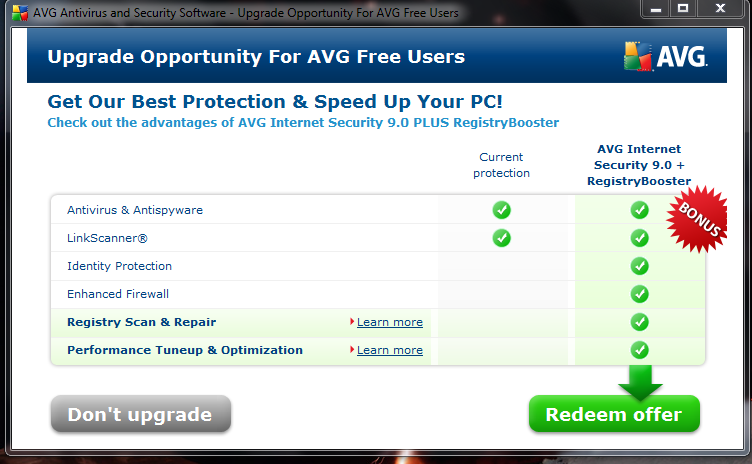
An advertisement pop-up from AVG Anti-Virus Free Edition has recently begun promoting an offer to upgrade to a paid version with more features. In my opinion most people don’t need the additional features that AVG Internet Security provides since most of the additional features are redundant or free from other sources. The upgraded program also has more components of AVG that run in the background, thus slowing down the computer. Specific examples of the additional modules included in AVG Internet Security are listed below:

  • Firewall: The Windows firewall already on your PC is sufficient and doesn’t pop-up an alert for every unknown program attempting to make an internet connection. Also, routers and some broadband modems provide more secure hardware firewall protection.
  • Web Shield: You can avoid viruses by not clicking on unknown links or files in Instant Messaging programs web sites.
  • Anti-Rootkit: AVG Free detects some rootkits
  • Anti-Spam: Anti-spam programs don’t work with AOL, Yahoo and other web mail services. If you use a mail program like Outlook or Windows (Live) Mail, their protection is likely no better than the junk email filters included with those programs.
  • Identity theft protection: Though the name of this protection is somewhat vague, this is the only extra protection I would recommend for some people. This protection “uses a technology called behavioral analysis to make sure all the programs running on your computer are operating the way they should. If it spots something suspicious that could indicate an attempted ID theft attack, it shuts that activity down, preventing any possible theft from happening”. This protection is also available as a $19.99 annual upgrade to AVG Free, or any other security product. You can also install a similar free product called ThreatFire.
  • RegistryBooster: Please read The truth about registry cleaners.

At this time for most people I recommend they decline the upgrade to AVG Internet Security 9.0 + RegistryBooster and close the pop-up window.

Print This Article Print This Article

Play Pac-Man on the Google search page

Filed under: Computing Tips - May 27 2010

In celebration of the classic video game Pac-Man, Google changed it’s home page last week to a playable version of the game.

The game and Google web search is still available at http://google.com/pacman

Should you get Microsoft Office 2010?

Filed under: Archived,Computing Tips - May 24 2010

Microsoft has begun distribution of Office 2010, and it will soon be available in stores. Microsoft Office is a bundled suite of applications such as Word, Excel & Powerpoint.

In my opinion there’s no compelling new features to justify the purchase of Office 2010 or upgrading from an earlier version.  If you don’t currently have Office, you can get the free OpenOffice.org

For a more comprehensive review and comparison of Microsoft Office 2010, I recommend reading PC Magazine’s Microsoft Office 2010 full review.

3 most common scams and malicious software to watch out for

Filed under: Passwords,Scams,Security - Apr 26 2010

Now that nearly every U.S. household can access the internet, it’s easy for scammers to infect millions of computers by tricking computer users to install viruses and malware. Below are 3 of the most common methods to watch out for which scammers use to install software without your consent which can render a computer useless until a ransom is paid, use the computer as a spambot or capture keystrokes and login information.

1. The phony e-mail attachment: You may get an e-mail that looks like it’s from UPS, Facebook, the IRS or Microsoft prompting you to open the attachment with the “.zip” extension to view “the package information”,  “your new password” or “a critical update”. What happens when the attachment is opened is a fake anti-virus program will be installed on your computer and render it nearly useless until you pay to register the program. Even paying for the program does not get rid of it. It’s a scam to get you to pay money for a problem you never had. We call it “ransonware” or “scareware”.

2. The phony e-mail with a link: You may get an e-mail that looks like it’s from your bank, PayPal, Amazon.com or e-mail provider without an attachment. There is a link in the e-mail that looks like it will direct you to the senders website to “verify information” or view the “details of your order”. When the link is clicked normally you would be directed to a fake yet realistic looking website that would prompt you to enter financial and/or personal information that would later be used for malicious purposes. Sometimes the link is directed to a website that would pop-up a fake anti-virus program as described above.

3. The fake website: you may click on a link in Facebook, forum or search result and then you see a pop-up for a legitimate-looking anti-virus program that looks like it’s scanning your computer and finding multiple threats. It’s a scam to eventually get you to purchase a program for a problem with your computer that didn’t exist until after you installed the fake program.

As mentioned in previous articles if you see a pop-up from an unknown program that is warning you about multiple security problems with your computer, you should immediately turn off or restart your computer. Do not click the “X” on the upper right corner of the window, nor anywhere on the pop-up. Doing so will likely install the unwanted program. If the pop-up is gone after you restart your computer, your computer is likely ok. If you continue to see warnings or strange behavior, contact Computer Techs so that we can check out your computer and remove any malware or viruses.

How to clean your screen

Filed under: Archived,Computing Tips,Humorous - Apr 01 2010

To clean your LCD flat screen you should use a soft cloth and special LCD screen cleaner, or LCD cleaning wipes. Either are available from office supply stores.

To clean the inside of your screen see Screen Clean

Spam e-mail on the rise: What you can do to help prevent it

Filed under: Computing Tips - Mar 23 2010

Spam/junk email has been on the rise in the past few months. Spammers are even faking e-mail addresses to make it look like the e-mail is coming from yourself. It’s just another method they use to get you to open the spam.

Below are some tips on what you can do to reduce the amount of spam you receive in your Inbox.

• If you have a Charter (@charter.net) or other email address that doesn’t offer spam filtering, consider signing up for a free Gmail email address and have Gmail filter your email for spam.

• Don’t forward an email message to more than one recipient unless you use Bcc (Blind Carbon Copy). Addressing everybody as “To” or “Cc” exposes the email addresses of all the recipients to each other and potential viruses and spambots that may be on any of their computers. Exposing the email addresses in your address book to EVERYBODY ELSE in your address book, and potentially all their address books is also a privacy concern.

• If you get an email which urges you to forward it to everyone in your address book, stop and check the validity of the message on a website which checks internet rumors such as Snopes.com or TruthOrFiction.com Many emails that urge you to forward it are likely an attempt by spammers to collect legitimate email addresses from people who don’t know how to forward email correctly using Bcc.

Print This Article Print This Article

Should you toss your cookies?

Filed under: Computing Tips,Passwords - Mar 23 2010

Browser cookies are text files stored by web sites on your computer. We are often asked if people should delete the cookies stored on their computer. Our advise is usually “No”.

By default web browsers will only accept cookies from web sites that you visit. For example if you go to Amazon.com the cookie may contain information about items that you look at on the site. This can be useful for the next time you visit Amazon.com. For example the cookie may help Amazon.com remember that you looked at books by Stephen King the last time you went to the website. Because of the information in the cookie it may suggest a new book by Stephen King during your next visit to the website.

Bank and financial institution websites store cookies to help recognize that your computer has logged into the website before. This will make it somewhat easier to login on subsequent visits, as you may get asked fewer questions to confirm your identity.

Webmail sites can save your login information using a cookie, so that you don’t have to enter your password each time you visit the website should you choose.

You can learn more about browser cookies on Wikipedia.

Print This Article Print This Article
« Previous PageNext Page »