Welcome to the Computer Techs Computer / Internet Tips & News blog. This purpose of this site is meant to provide a service to our valued customers, by keeping you informed with the latest news and tips related to your computer and the internet. Consider using the search box on the left side of the website to help you find a specific topic or article, or scroll through articles below to learn something new.
Get $25 Off your next service call for recommending Computer Techs
If you’re happy with our service, please consider recommending Computer Techs to a friend or relative. If we service their computer, you get $25 Off your next service call.
The details: Please have your friend or relative mention your name during the appointment, or after the appointment contact Mark Cobb with the name of the person that you recommended/referred. The referred person must be a new Computer Techs customer and not reside in the same household as the referrer.
 Before going online to shop and engage in financial transactions on your computer this holiday season, we recommend a check-up/tune-up so that you can be assured that your computer is secure and as speedy as can be. Before going online to shop and engage in financial transactions on your computer this holiday season, we recommend a check-up/tune-up so that you can be assured that your computer is secure and as speedy as can be.
Many of the viruses and malware these days are being distributed through infected web sites. If your computer doesn’t have the latest security patches for Adobe Reader, Java and other web-browsing plug-ins, viruses and malware can easily install on your computer without any action on your part. Some of the malware is undetectable with normal anti-virus software and require special tools to detect and remove.
If your computer is slow, hidden viruses and malware may be the culprit. Unnecessary programs running in the background and toolbars often slow-down the computer and internet browsing. Often times more memory (RAM) can be added to dramatically speed-up performance.
Give us a call today so we can schedule a security check-up and tune-up before you spend time shopping on the internet this holiday season.
 Print This Article Print This Article
Updated April 2012:
Shopping for a new computer can present people with confusing choices. Frequently I research the best deals on new PCs from local retailers and publish my findings. If you’d like to receive an e-mail from Computer Techs about the best deals on recommended computers from local retailers, click here and sign-up for our “new computer deals” newsletter. You can view our most current newsletter at newpc.CTreno.com.
Whether you take our advice or want to shop on your own, below are some tips to help you select a new PC and get the best deal:
• Don’t spend more for a faster speed of the same processor. For example, if a store is charging $100 to upgrade from a 2.8Ghz processor to 3.0Ghz – the extra money does not justify the small increase in performance difference.
• Don’t spend extra for a larger capacity hard drive unless you plan on editing & storing video files.
 • Laptop, Netbook or desktop? If you need portability or don’t have the room for a desktop PC, consider a laptop. Laptops generally come with screen sizes of 11″-17″. They are nearly as quick and powerful as desktop computers these days. If considering a laptop, test it thoroughly in a store before purchasing – test keyboard and touchpad usability and comfort, and look at screen clarity. You may even want to consider getting a tablet computing device. • Laptop, Netbook or desktop? If you need portability or don’t have the room for a desktop PC, consider a laptop. Laptops generally come with screen sizes of 11″-17″. They are nearly as quick and powerful as desktop computers these days. If considering a laptop, test it thoroughly in a store before purchasing – test keyboard and touchpad usability and comfort, and look at screen clarity. You may even want to consider getting a tablet computing device.
• Many major electronic and office supply stores offer tech services that will tune-up and customize your new computer by removing unnecessary trial software, etc. Computer Techs offers more complete service including in-home setup of your new computer, connecting your internet/home network, printer, and other devices, transferring your files and installing programs to your new PC – all at a better value than offered elsewhere.
• I don’t recommend buying an extended warranty. Stores make a huge profit-margin on extended warranties, and the sales people usually make big commissions to push them. Extended warranties often only cover hardware repairs after the manufacturer’s warranty has run out. Only about 10 percent of our service calls involve hardware repairs – so repairs that would be covered by an extended warranty are rare.
• If you’re purchasing a new printer or other device that needs a USB cable, many stores mark-up the cable’s price by a few hundred percent. You can purchase a 15-foot USB cable for a printer from Computer Techs for approximately $15. If you’re replacing a printer, you can likely use the cable from your old printer.
• If the thought of going to the store, fighting the crowds, salespeople and choices overwhelm you – then don’t do it. For a nominal fee, we will purchase your new computer equipment for you, set it up in your home, and teach you how to use it.
Print This Article
 After seeing the popularity of Apple’s iPad tablet computer which was released earlier this year, manufacturers have been scurrying to release many new tablets to compete with the iPad and Amazon’s Kindle e-reader. By this holiday season there should be many tablet computers to choose from, at minimum most featuring the ability to read books and go to internet web pages on-the-go. More advanced devices will stream video, let you write documents, and just about everything that a regular computer can do – all on a 7-10″ portable touch-screen device. Tablet computers have come a long way since the days of the Palm Pilot. After seeing the popularity of Apple’s iPad tablet computer which was released earlier this year, manufacturers have been scurrying to release many new tablets to compete with the iPad and Amazon’s Kindle e-reader. By this holiday season there should be many tablet computers to choose from, at minimum most featuring the ability to read books and go to internet web pages on-the-go. More advanced devices will stream video, let you write documents, and just about everything that a regular computer can do – all on a 7-10″ portable touch-screen device. Tablet computers have come a long way since the days of the Palm Pilot.
Some advantages of getting a tablet computer to supplement your desktop computer include:
• Instant-on: You rarely need to turn-off a tablet computer since they don’t make noise or use the energy of a desktop computer. When you want to start using a tablet you simply press a button to bring it out of a stand-by power state, and it’s ready to use.
• Portable: With most tablets running from 7-10″ screen sizes, they are very portable and light-weight – some lighter than the popular netbook computers of last holiday season which feature a physical keyboard and no touch-screen. Most tablets have built-in wi-fi radios which let them connect to the internet via wi-fi hotspots which are common in the home, coffee shops, restaurants and airports. Some tablets also include a 3G cellular radio which let them connect to the internet via cell sites with monthly service plans provided by AT&T, Verizon, Sprint, T-Mobile, etc.
• A back-up computer: Tablet computers have become very powerful and cost effective to use as a back-up computer should your main desktop computer fail. With a tablet computer you can still use e-mail and the internet, and do on-line banking while you wait for your Computer Technician to arrive.
• Apps and fun: Because of the smaller screen size than desktop computers, developers have designed apps (aka applications) that utilize the smaller screen size to show web content, games and utilities. Many newspapers are moving towards delivery of their media via tablet apps, as are books. There are tens-of-thousands useful apps for just about anything you could think of doing on a portable computer.
Tablet computers also let you send and receive e-mail, store contact information, play music and video and view photo albums. Some devices even let you take pictures and video, and use it as a large screen GPS device.
For reviews of tablet computers, click to visit the following web sites:
PC World – Tablet Computer Reviews
PCMag.com – Tablet Reviews
Print This Article
 
AT&T has recently sent emails stating that if you still use the AT&T Yahoo! Browser, you should switch to using Internet Explorer, Firefox or other web browser of your choice by October 1.
Complete details can be found at http://www.att.net/browserupgrade_en
Updated September 2010:
We often recommend AVG Anti-Virus because it has good virus detection without slowing down your computer like other security suites do. However, AVG nor any other Anti-Virus software catches 100% of threats. The best offense is a good defense – read Don’t rely only on Anti-Virus software to keep your computer virus-free.
Sometime I compare protection for your car with protection for your PC. If you have all the best protection for your car (seat belt, multiple air bags, etc.) and then drive your car off a cliff, you’ll likely be killed. Similarly if you have all the best security protection on your PC and then install a malicious program on your computer, you’re likely to get your computer infected.
Historic tests of anti-virus products reveal that a majority of the programs detect 70-90% of known viruses (reactive detection), and 50-70% of unknown viruses (proactive detection). Since no program has a 100% detection rate, practice good defensive computing behavior to help prevent viruses.
 AV-comparatives also conducts regular tests of anti-virus products. Their test results can be found here. AV-comparatives also conducts regular tests of anti-virus products. Their test results can be found here.
Print This Article
Wi-fi routers and modems allow you to share your high-speed internet connection with multiple computers or wireless devices throughout your home. Though convenient, most wi-fi routers have security risks if not configured differently from the default out-of-the-box settings. Below are the first 3 things that Computer Techs professionals do to secure a newly installed wireless router:
1. Set-up WPA wireless encryption: Wireless encryption effectively “scrambles” the wireless radio signals between your router and wireless devices so that only devices that have the wireless encryption key can communicate with it. There are 2 standard encryption methods – WEP and WPA – we use the more secure WPA method whenever possible.
2. Changing the default SSID: The SSID is the name of your network that is broadcast that other people with wireless devices can see. We change the SSID to a name that is recognizable by you, but not necessarily by others within range of your wireless network. The typical range of a wi-fi wireless network is a few hundred feet.
3. Changing the router’s administrator/management password: The administrator/management password should be changed to help prevent unauthorized changes to the settings of your wireless router. Unauthorized changes could lock you out of your wireless router and network. Also computer malware can now change router settings to direct your internet browsing to fake web sites.
If securing your wireless router looks a bit confusing, give us a call so that a Computer Techs expert can properly secure your wireless router for you.
Print This Article
A language instructor was explaining to her class that French nouns, unlike their English counterparts, are grammatically designated as masculine or feminine. Things like ‘chalk’ or ‘pencil,’ she described, would have a gender association although in English these words were neutral. Puzzled, one student raised his hand and asked, “What gender is a computer?”
The teacher wasn’t certain which it was, and so divided the class into two groups and asked them to decide if a computer should be masculine or feminine. One group was comprised of the women in the class, and the other, of men. Both groups were asked to give four reasons for their recommendation.
The group of women concluded that computers should be referred to in masculine gender because:
1. In order to get their attention, you have to turn them on.
2. They have a lot of data but are still clueless.
3. They are supposed to help you solve your problems, but half the time they ARE the problem.
4. As soon as you commit to one, you realize that, if you had waited a little longer, you could have had a better model.
The men, on the other hand, decided that computers should definitely be referred to in the feminine gender because:
1. No one but their creator understands their internal logic.
2. The native language they use to communicate with other computers is incomprehensible to everyone else.
3. Even your smallest mistakes are stored in long-term memory for later retrieval.
4. As soon as you make a commitment to one, you find yourself spending half your paycheck on accessories.
Email spammers and scammers are now breaking into email accounts and collecting known “active” email addresses from people’s address books.
Known ways that spammers are hacking accounts include:
• Guessing a weak password.
• Guessing a known security question so that the password can be changed/reset.
• Sending an email from what looks like the email provider asking to reply to the email and give the email password.*
Once spammers get a hold of email addresses they send spam messages promoting bargain pharmaceutical drugs, software, etc. They forge their email address to appear to come from one of the people in the hacked address book since people are more likely to open an email that appears to come from someone they know.
Another recent scam is to send individual e-mails to everybody in the address book asking for money. The scam usually includes something like “I am on vacation in Europe and lost my passport and cell phone. Please wire me some money so that I can get back home.” Since the e-mail address is forged to look like coming from a known friend, the recipient may believe the e-mail and send money to a scammer.
* Below is an actual e-mail that looks like it’s from Yahoo, in which scammers have been getting Yahoo e-mail account information.

If you get an e-mail from what appears to be someone you know that contains advertisements or asking for money, it’s likely their e-mail address is being forged. Just delete the e-mail. If contacts are telling you that you are sending spam, immediately change your e-mail account password and password retrieval security questions, just in case your account has been hacked.
See Creating secure and memorable passwords.
Print This Article
On July 13, 2010, Microsoft ended support and updates for Windows XP versions earlier than Service Pack 3. Service packs are an accumulation of updates, reliability and security patches rolled into one large installation. At this time Microsoft is scheduled to continue support for Windows XP Service Pack 3 until April 8, 2014.
To check your version of Windows XP, go to the Control Panel, System and look under the General tab.
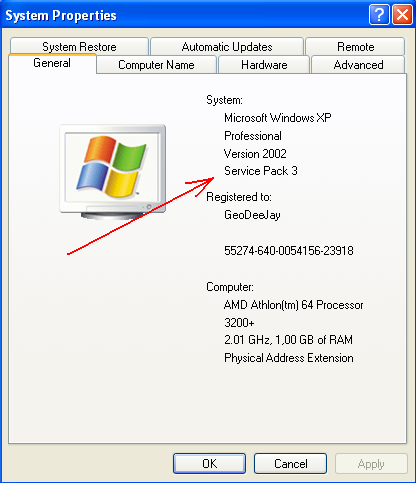
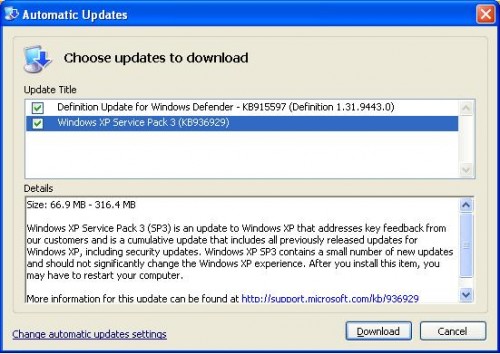
If your version on Windows XP is Service Pack 2 or earlier, it is recommended that you update to Service Pack 3 as soon as possible. Computer Techs can install Service Pack 3, or you can do it yourself. To update from Internet Explorer web browser go to http://www.windowsupdate.com. You can also check for current updates via the yellow security shield in the system tray by the clock on your task bar.
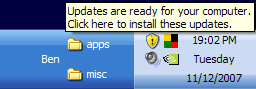
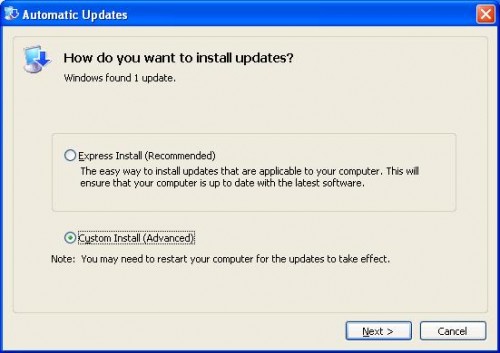
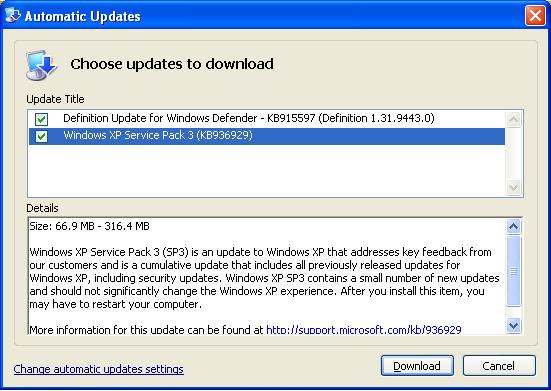
Clicking Custom Install (Advanced), should reveal Windows XP Service Pack 3…
Print This Article
« Previous Page — Next Page »
|