Welcome to the Computer Techs Computer / Internet Tips & News blog. This purpose of this site is meant to provide a service to our valued customers, by keeping you informed with the latest news and tips related to your computer and the internet. Consider using the search box on the left side of the website to help you find a specific topic or article, or scroll through articles below to learn something new.
Get $25 Off your next service call for recommending Computer Techs
If you’re happy with our service, please consider recommending Computer Techs to a friend or relative. If we service their computer, you get $25 Off your next service call.
The details: Please have your friend or relative mention your name during the appointment, or after the appointment contact Mark Cobb with the name of the person that you recommended/referred. The referred person must be a new Computer Techs customer and not reside in the same household as the referrer.
Updated March 2010:
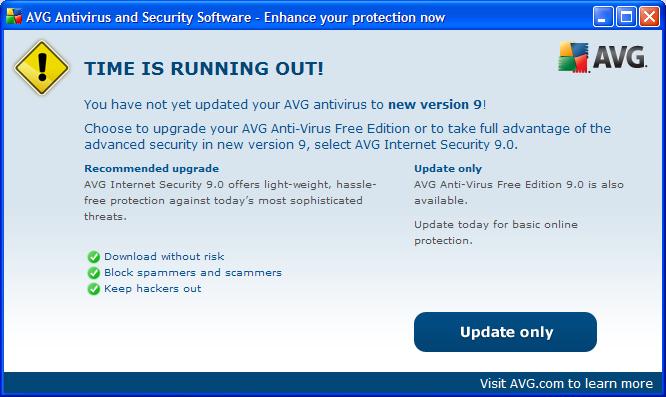
Last October AVG released version 9.0 of their security software, including AVG Anti-Virus Free Edition which we recommend for most people. If you have an older version of AVG Anti-Virus installed on your computer, you will likely get a notification (pictured below) on your screen about the availability of the new version.
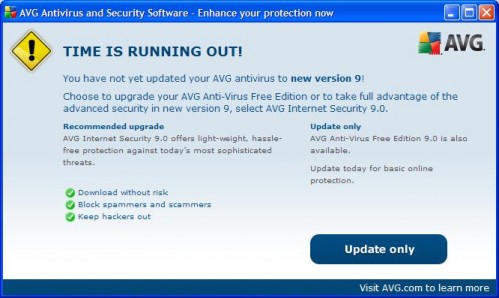
If you click on the notification, it will take you to their product page that shows the different versions that AVG offers. Look carefully for links to download the Free (not trial) version.
Alternatively, for your convenience below is a direct link to their web page where you can download and install AVG Free Edition 9.0
When installing, look for the opportunity to uncheck the boxes to install the optional AVG/Yahoo Toolbar, and changing your default search provider to Yahoo. If you have any questions, or would like us to install AVG 9.0 for you, please contact us for an appointment.
 Print This Article Print This Article
Caller: Hi, our printer is not working.
Customer Service: What is wrong with it?
Caller: Mouse is jammed.
Customer Service: Mouse? Printers don’t have a mouse!!!
Caller: Mmmmm??.. Oh really?… I will send a picture.
(Click “more…”)
(more…)
A common misconception is that increasing your internet speed plan will speed up your computer. Slow internet speed (below about 500 Kbps) will cause large web pages and downloads to load more slowly, but have no other speed effect on your PC.
You can check your internet speed at various speed test websites such as Speakeasy. Depending on which speed plan you subscribe to, most people with Charter high-speed internet will get about 1,000 – 20,000 Kbps. AT&T high-speed internet customers will get about 500-16,000 Kbps. Comparatively, a dial-up modem connection maxes out at approximately 50 Kbps. Anything above 500 Kbps shouldn’t show noticeable web page load delays.
If your web surfing seems slow even though your speed is above 500 Kbps, likely culprits are your web browser (Internet Explorer, Firefox, etc. ), too many web browser tool bars, or overall computer performance (not enough memory, a slow processor or a slow hard drive).
Computer Techs can run various diagnostic test to see what is causing your computer to be slow and tune-up your PC to make it speedier, with no need for extra monthly charges from your internet service provider.
Print This Article
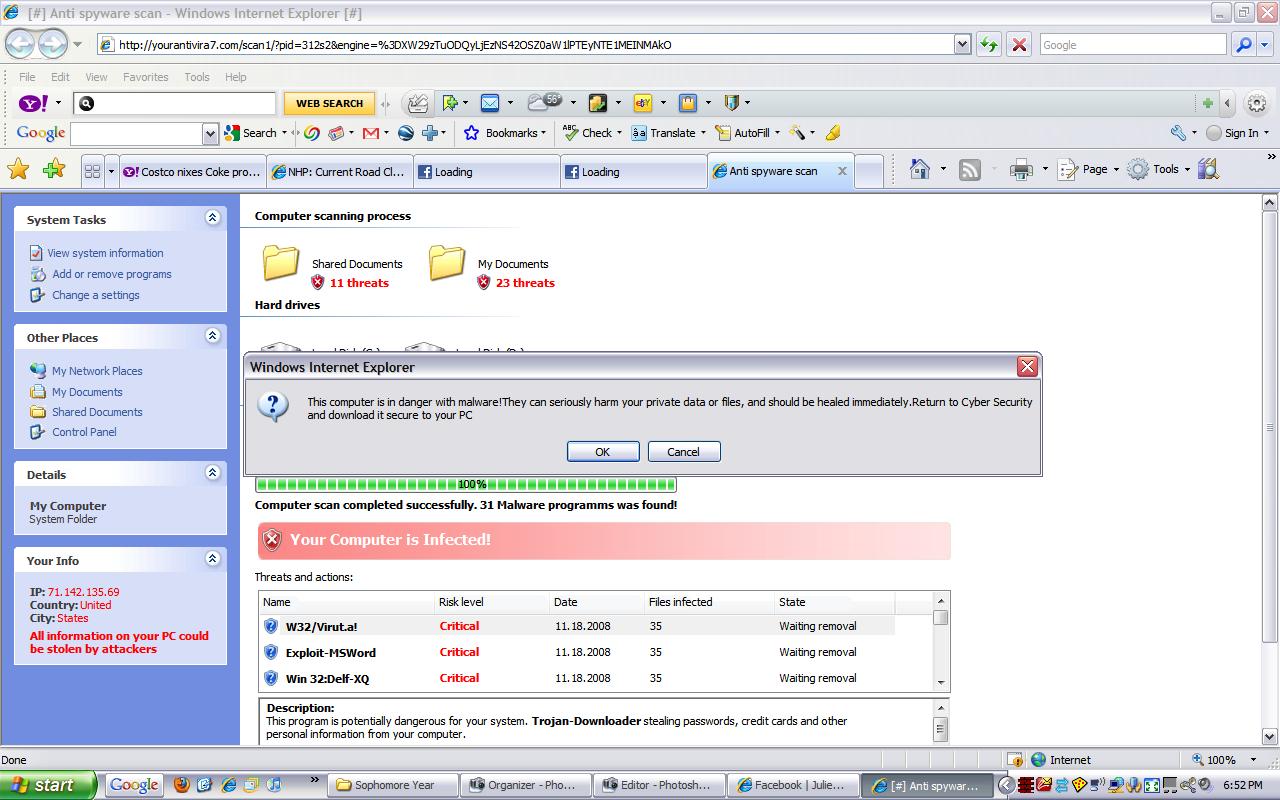
If you get a pop-up window from an unknown program telling you that there are multiple problems with your computer, immediately turn off or restart your computer and see if the program returns after your computer is back on. Do not try to close the window or click anything except for Start > Turn Off Computer. Other buttons that say “No”, “Cancel” and even the red “X” in the upper right corner of the box are often used to trick you into downloading or installing a malicious program without your consent.
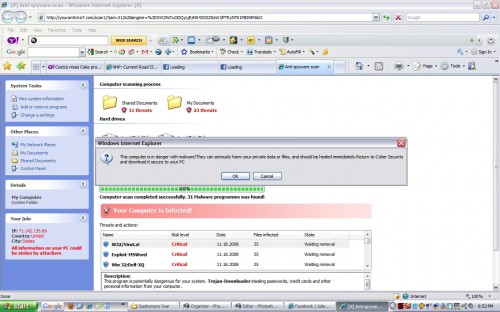
Above is a screen shot from a typical security warning that you may see. Logical thinking should tell you that what you are seeing is likely a scam:
• One minute your computer is fine. You click on a web link and all of a sudden you have multiple (perhaps hundreds) of problems or infections. You’ve been re-directed to a malicious web site. SCAM!
• You know that the anti-virus program on your computer is AVG, Norton, etc. A program that you’ve never heard of before tells you that you’ve got multiple problems. SCAM!
• A program that you’ve never heard of before is offering a free scan ( a come-on), or perhaps is asking your to register or buy a license key. SCAM!
Though I’ve been warning of these scams for years in our newsletter and website, we get calls daily from clients who got tricked into clicking on the fake warnings and inadvertently installing malicious software that will constantly pop-up and eventually ask you for your credit card to pay for the rogue software.
To become familiar with real vs. fake anti-virus warnings see the screen shots in the article How to recognize real vs. fake anti-virus warnings.
Print This Article
If you get a pop-up window from an unknown program telling you that there are multiple problems with your computer, immediately turn off or restart your computer and see if the program returns after your computer is back on. Other buttons that say “No” or “Cancel” and even the red “X” in the upper right corner of the box are often are used to trick you into downloading or installing a malicious program without your consent.
 Windows 7 was officially released on October 22, and we now have experience with upgrading previous versions of Windows and setting up new PCs with Windows 7 pre-installed. We’ve seen speed, reliability and feature improvements that make Windows 7 a worthwhile upgrade on some computers – or on a new PC. Windows 7 was officially released on October 22, and we now have experience with upgrading previous versions of Windows and setting up new PCs with Windows 7 pre-installed. We’ve seen speed, reliability and feature improvements that make Windows 7 a worthwhile upgrade on some computers – or on a new PC.
If you are interested in Windows 7, should you Upgrade to Windows 7, or buy a new PC?
For reviews of Windows 7, click on the links below:
Windows 7 Review – PC World
Microsoft Windows 7 At a Glance – PC Magazine
A Windows to help you forget | Walt Mossberg
Computer Techs can help you make a transition to Windows 7 as smooth as possible, weather you are upgrading or purchasing a new PC. Please contact us for help.
Print This Article
With the release of Microsoft’s newest operating system Windows 7 on October 22, we are frequently asked if people should upgrade their computer to Windows 7, or buy a new PC. For most people our advise is if you currently have a PC with Windows XP and happy with the performance, then keep what you’ve got and don’t upgrade. If you’re unhappy with the performance with your current PC, then get a new PC after Windows 7 becomes available. If you’ve got Windows Vista and are unhappy with it, consider upgrading the operating system to Windows 7.
Below is an article from PC World that goes into more detail about the features of Windows 7, and things to consider before upgrading or buying a new PC.
October 22 is quickly approaching, and excitement over Windows 7 is at an all-time high. Manufacturers are announcing new hardware, and software companies are readying their newest apps. Users who just have to have the latest OS from Microsoft are faced with a pressing question: Do I upgrade my computer, or do I buy a new one?
This decision may seem simple, but here are a few questions to examine before you decide.
Will Windows 7 run on my computer?
If your PC is less than 5 years old, the answer is almost certainly yes. Microsoft claims that a 1GHz processer, 16GB of disk space, and 1GB of RAM are the minimum specs required, and I’ve even run it successfully on below spec hardware. However, for the most productive and satisfying Windows 7 experience, you’ll want as fast of a computer as possible. I don’t recommend running Win 7 on anything less than a dual-core CPU with 2GB of RAM.
It’s also a good idea to run Microsoft’s Windows 7 Upgrade Advisor, which will check to see if your hardware and software are compatible with Windows 7. I’ve had issues with unavailable video drivers on some laptops, so even though Windows 7 would install, the experience was sub-par. A good rule of thumb is that if you’re already running Vista, Windows 7 will perform as well or better on the same hardware.
Will I get the most out of Windows 7 on my current hardware?
Though Windows 7 might run acceptably on your computer, older hardware could mean missing out on some of the new OS’s best features. For instance, Windows 7 has extensive multi-touch support, and you may want a multi-touch monitor or track pad to take advantage of it.
Windows 7 is also the first Microsoft OS to include native enhancements for SSDs. Considering the performance gains of a computer with an SSD running Windows 7, this is one temptation that makes sense to users who don’t have time to waste.
Will my computer support XP Mode, and do I need it?
XP Mode is a great feature of Windows 7 Professional and higher. It allows people to run applications that require Windows XP inside of a virtual machine. XP Mode relies on Windows Virtual PC, which not only has greater memory and CPU requirements, but also requires a processor capable of hardware virtualization. If you have apps that require XP you may be deeply disappointed if you assume your computer can handle XP Mode without verifying support first.
Is it time to leap to 64-bit? Will my computer support it?
We’ve finally reached the point where it’s cost effective to supply a PC with more memory than 32-bit Windows can handle, and I personally suspect that Windows 7 will be the last Microsoft OS to be offered in a 32-bit version. If you find yourself performing tasks that push your computer to use more than 3GB of memory, you should be considering 64-bit Windows. People who use their computers for office apps and Web surfing don’t really come close to exceeding the limits of a 32-bit OS. But if you find yourself running virtual machines, editing HD videos, and manipulating 12MP raw images, it’s probably time to switch to a 64-bit OS. The Windows 7 Upgrade Advisor can tell you if your CPU is ready for it.
Does it make sense to sink money into my old computer?
Purchasing an upgrade to Windows 7 Professional will set you back a solid $200, while Home Premium will run you $120. That’s a serious chunk of change that could otherwise be applied to a shiny new PC. Considering that a new laptop can be had for under $330 and $800 will buy you something pretty sweet, it’s easy to see that $120 to $200 as a discount on a new piece of hardware which already comes with the edition of Windows 7 that you want.
There’s also a bunch of newer features that a computer that’s more than a couple of years old may not have, such as HDMI, Blu-Ray, eSata, 802.11n, and LED backlighting.
If you’ve got a kid who can use your old computer for school, or if you really find yourself wishing you had an extra machine in the office, it might be best just to leave the old computer as-is and treat yourself to the latest technology. Besides, you deserve it, and our economy desperately needs your contribution.
Conversely, if your computer is relatively new and fully compatible with Windows 7, and you’re happy with its features and performance, it probably makes sense just to keep it and upgrade your OS.
Source: http://www.pcworld.com/businesscenter/article/172501/big_decision_upgrade_to_windows_7_or_just_buy_a_new_pc.html
Print This Article
When shopping for new flatscreen LCD monitors, you will find that most screens sold today are widescreen with a 16:9 ratio, meaning that they are nearly twice as wide as they are tall. Older monitors have a 4:3 ratio, meaning that they are nearly square. Since screens are measured diagonally, a new 17″ 16:9 monitor is actually shorter but wider than a 17″ 4:3 monitor. In detail, a new 17″ 16:9 monitor is 8.3″ H x 14.8″ W. An old-style 17″ 4:3 monitor is taller at 10.2″ H x 13.6″ W. Source: cavecreations.com
When shopping for a new monitor, consider the following to find a size that will be equal or greater than your current monitor:
If you have a 17-inch 4:3 monitor, get at least a 22-inch 16:9 widescreen to have the same height. (10.2″ H vs. 10.8″ H)
If you have a 19-inch 4:3 monitor, get at least a 24-inch 16:9 widescreen to have the same height (11.4″ H vs. 11.8″ H)
Print This Article
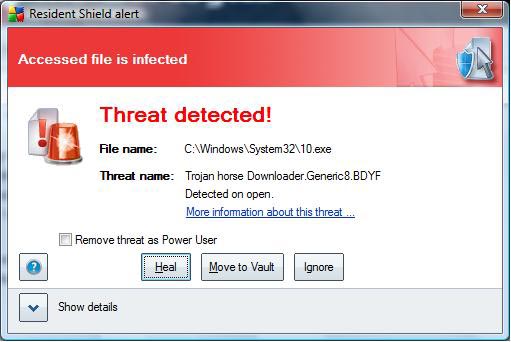
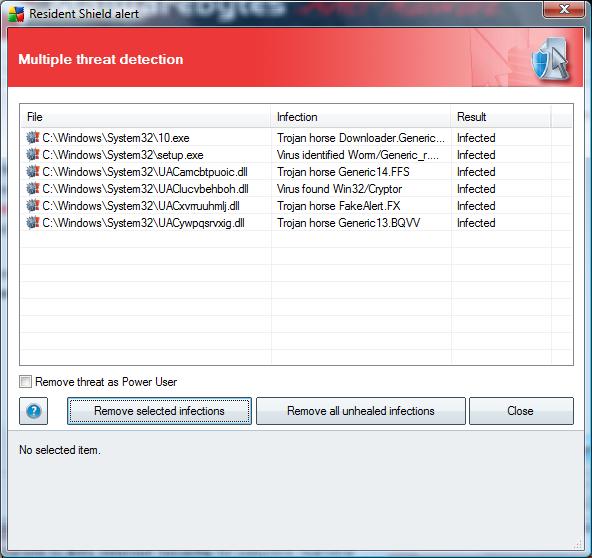
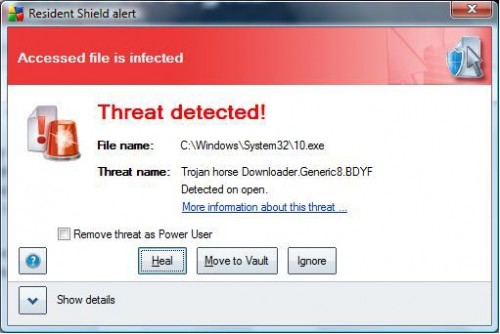
How can you recognize real vs. fake anti-virus warnings? In the case of AVG Anti-Virus, if it detects a virus it will prompt you to “Heal”, “Move to Vault” or “Ignore” a virus threat (as shown below).
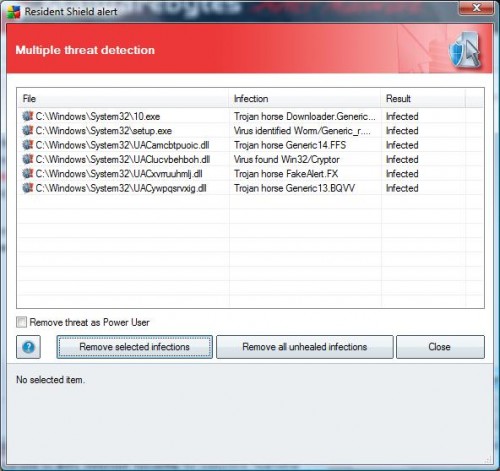
Common fake anti-virus programs prompt you to buy a license, or click for a “free” scan as shown by clicking “more…”
(more…)

AT&T High-Speed Internet Customers: If you currently use the AT&T Yahoo! Browser, AT&T has a support article (below) that states there will no longer be updates for it, and it is recommended that you un-install it. Your bookmarks can be accessed from the bookmarks icon on the Yahoo Toolbar, or from http://bookmarks.yahoo.com
There will be no further technical updates for the AT&T Yahoo! Browser and we recommend you follow the steps below to un-install. Your system will still have an Internet Explorer browser installed, which you could continue to use or upgrade.
Follow these easy steps:
- Uninstall AT&T Yahoo! Browser – Follow these steps to remove AT&T Yahoo! Browser from your computer:
- Click Start on the Windows Toolbar
- Click Settings and select Control Panel.
- Select Add/Remove Programs.
- Select AT&T Yahoo! Applications.
Note: on some versions this could read “SBC Yahoo! Applications” or “SBC Yahoo! Browser”
- Select Change/Remove.
- Select AT&T Yahoo! Browser.
- Select Uninstall.
- Select Yes
- Access the Internet via Internet Explorer
- Click on this icon on your desktop

- or find Internet Explorer under Start, Programs, Internet Explorer and select Open
- Consider updating your browser – We recommend downloading the new Internet Explorer 8 optimized for AT&T powered by Yahoo! which is compatible with your AT&T Internet service and can provide improved Internet browsing and security. However, any of the below browsers are compatible with AT&T Internet service and will provide a similar experience, along with the latest bug fixes from the software vendor. (If you already have one of these browsers installed on your computer, you do not need to take this step.) Compatible browsers include:
- Internet Explorer optimized for AT&T powered by Yahoo!:

- Mozilla Firefox
- Safari If you download a new browser, be sure to open the browser, go to att.net, and click the text link in the upper right corner to make att.net your homepage.
- Use your Bookmarks – Did you have bookmarks with your AT&T Yahoo! Browser that you want to retrieve – don’t worry, they’re saved. To access your AT&T Yahoo! Browser saved bookmarks, please visit http://bookmarks.yahoo.com and login with each user ID that had bookmarks saved.
Article URL: http://helpme.att.net/article.php?item=12284
If you have multiple AT&T Sub Accounts/e-mail addresses, at the bottom of the Member Center > Manage Sub Accounts page there is an option to save all of your accounts in a drop-down menu on your computer’s web sign-in page.

Print This Article
 Most modern-day mice have a scroll wheel which is a third button that is located between the left and right click buttons. Below are a few things to try with your scroll wheel: Most modern-day mice have a scroll wheel which is a third button that is located between the left and right click buttons. Below are a few things to try with your scroll wheel:
• While on a web page or while viewing a long document, use your middle finger to roll the scroll wheel to simplify scrolling up and down the page or document.
• While on a web page, hold down the “Ctrl” key on the keyboard and roll the scroll wheel to zoom in and out a web page.
• While on a web page, hold down the “Shift” key on the keyboard and slowly roll the scroll wheel to go back and forward to pages that you’ve visited. This offers an alternative to using the Back/Forward buttons on the toolbar.
• While on a web page, point your cursor on a link then press on the scroll wheel until it clicks. The link will open in a new browser tab.
Print This Article
« Previous Page — Next Page »
|