Category: Computing Tips
Windows updates that require acceptance of an End User License Agreement (EULA), will not automatically install. Instead the Windows Update shield will show in the system tray by the clock, and you have to accept the EULA before they are installed. Updates that don’t automatically install include updates for Internet Explorer and the Microsoft Windows Malicious Software Removal Tool.
In previous articles I’ve recommended against installing Internet Explorer 8 at this time. Below are some screen shots on how to not install it. Hover you cursor above each picture and instructions will pop-up.
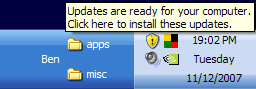 Click on the Windows Update shield 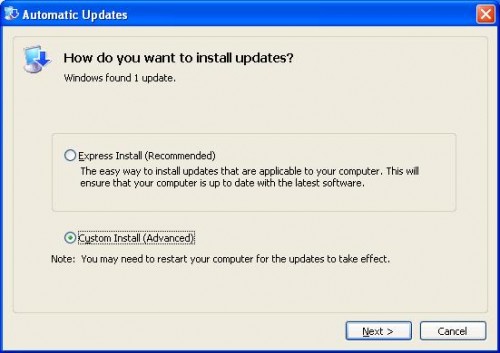 Select "Custom Install (Advanced)", then Next...  UNcheck the box next to any update(s) that you don't want installed  Choose if you want to hide the update from appearing again
 Windows 7, Microsoft’s newest operating system will be released on October 22. If you purchase a new computer today, it will most likely come with Windows Vista installed. To keep PC sales strong until October, some stores and manufacturer’s are offering a free upgrade copy of Windows 7 after it’s released if you purchase a new PC before October. Windows 7, Microsoft’s newest operating system will be released on October 22. If you purchase a new computer today, it will most likely come with Windows Vista installed. To keep PC sales strong until October, some stores and manufacturer’s are offering a free upgrade copy of Windows 7 after it’s released if you purchase a new PC before October.
A frequent question I am asked lately is if people should upgrade their current operating system (Windows XP or Windows Vista) to Windows 7. If your PC currently has Windows XP, then I do not recommend upgrading your current computer. However if you need a new computer, if you can wait for Windows 7 it would be a good choice rather than getting a new computer today with Windows Vista.
If you currently have a PC with Windows Vista, upgrading to Windows 7 may be a worthwhile upgrade. Once Windows 7 is available and we’ve had experience with the upgrade process, I will advise further.
 Print This Article Print This Article
We often are asked about technology products that we recommend. To help with your buying decisions we’ve recently added a page to our Tips website where you can view some of our most recommended technology products and computer software. You can read a short comment on why we recommend the item, and click on the item to view more information about it and even buy it from Amazon.com – all from our web page. If you’re interested in buying something else from Amazon.com, you can search for items directly from the Amazon.com search widget on our web page CTreno.com/tips/picks
You can also find a few of the items we recommend in a widget in the left column of the Computer/Internet Tips & News for Computer Techs clients website – www.CTreno.com/tips
I frequently purchase from Amazon.com since they have reasonable prices, detailed product descriptions, user reviews and good customer service. Check out our recommended products page or widget before your next technology purchase.
Print This Article
Microsoft recently launched a new internet search website called “Bing”. From the Bing search pages at bing.com you can use some of the innovative features to get more information about your search results without having to leave the bing.com website.
For example, a web search features a text preview of the websites in the search results. A video search shows thumbnail-size previews of the videos. A shopping search shows product pictures, if applicable, plus prices and reviews. A maps search shows a 3D bird’s eye view of the location. Try some searches for yourself at bing.com.

Microsoft has also launched a free 411 information service called Bing 411 that competes with Google’s GOOG-411. Bing 411 is an alternative to the for-pay information services offered by telephone companies and cellular providers. Instead of calling 4-1-1, you can call 1-800-Bing-411 from a land line or cell phone to find local businesses or restaurants, movie times and weather. The computerized service uses voice recognition to detect what information is being requested by you, and will automatically connect your call if desired. Program Bing 411 into your phone’s speed dial and try it today.
You can get more information about Bing and Bing 411 at DiscoverBing.com
Print This Article
If you need a simple and affordable way to occasionally receive or send a fax document without a fax machine, I recommend an affordable service from maxemail.com. For the past 5 years I’ve been using the “Maxemail Lite” service plan to receive faxes for just $24 per year.
How it works: People who send me a fax simply send it to my own dedicated 815-prefix telephone number. I receive the fax as an email attachment, which I can print or just view on my computer screen. I can also send faxes by emailing an attachment to Maxemail, which they then convert and send to the recipient’s fax machine. Sending faxes on my subscribed plan is just 5-10¢ per page.
With the fax-via-email service I save time and money since I don’t need a fax machine, nor the hassles of having to be at home to turn on the fax machine every time I want to receive a fax, or the need of a dedicated phone line for a fax machine. I also save ink and paper because I don’t print unwanted faxes.
For more information about the Maxemail Lite service plan visit their website.
Print This Article
 If you’ve been thinking about purchasing a new computer this year, you may want to hold off until at least June 26 or late October, depending on your needs. According to this source, after June 26 if you purchase a new PC with Windows Vista, you will be eligible to receive a free Windows 7 upgrade DVD after it’s released later this year. If you’ve been thinking about purchasing a new computer this year, you may want to hold off until at least June 26 or late October, depending on your needs. According to this source, after June 26 if you purchase a new PC with Windows Vista, you will be eligible to receive a free Windows 7 upgrade DVD after it’s released later this year.
Windows 7 is Microsoft’s newest operating system which will be available October 22, pre-loaded on most new computers. I’ve been testing Windows 7 Beta and Release Candidate since the beginning of this year, and I’ve been very impressed with the improved speed, design and functionality of the new operating system. If you’re familiar with Windows Vista which was released in early 2007, Windows 7 looks and operates similar to Windows Vista but with many improvements.
There’s too much to tell here about Windows 7, so below are some links to find out more information directly from Microsoft’s websites:
See how Windows 7 features will make using a PC faster and easier
Windows 7 Release Candidate videos
When it comes time to purchasing a new PC, Computer Techs can help you decide which computer is best for you and configure and setup your new PC in your home. Read our advice about how to select a new PC and get the best deal.
Print This Article
Internet Explorer 8 was released as a manual Windows Update about a month ago, and some customers have experienced various issues after installing the update. If you have not already installed it, I recommend waiting until some of the issues get fixed. If you have already installed it and are experiencing issues, you can uninstall it via the Add/Remove Programs Control Panel (Windows XP) or Programs and Features Control Panel (Windows Vista), which will also revert Internet Explorer back to version 7. You can selectively choose not to install the manual update by following these directions.
Some issues I’ve heard of or experienced include:
• Cannot install ActiveX controls that are required to use features on some websites
• When logged into financial institution web site, some time you may need to log-in again when clicking a link that opens a new window
• Conflicts with RoboForm form-filling software
• Incompatibilities with some toolbars
• Clicking an internet web page shortcut placed on the desktop will not open Internet Explorer
Print This Article
 Update 4/30/09: Microsoft has made Internet Explorer 8 available through Windows automatic updates, but it must be manually installed. Updating to Internet Explorer 8 is optional. Update 4/30/09: Microsoft has made Internet Explorer 8 available through Windows automatic updates, but it must be manually installed. Updating to Internet Explorer 8 is optional.
The internet web browser is likely the most commonly used program on the computer, and Microsoft’s Internet Explorer is the most commonly used web browser. On March 19, 2009, a new version of the popular web browser was released. Internet Explorer 8 has many new privacy, security and navigational improvements.
As I’ve mentioned in a previous article, you should have more than one browser on your computer. As of this writing I have had very little time to evaluate Internet Explorer 8, and am not ready to say whether or not I like it better than my current favorite browser – Mozilla Firefox.
At this time I am providing a link to a full text review of Internet Explorer 8 by Wall Street Journal Personal Technology Columnist Walt Mossberg.
Print This Article
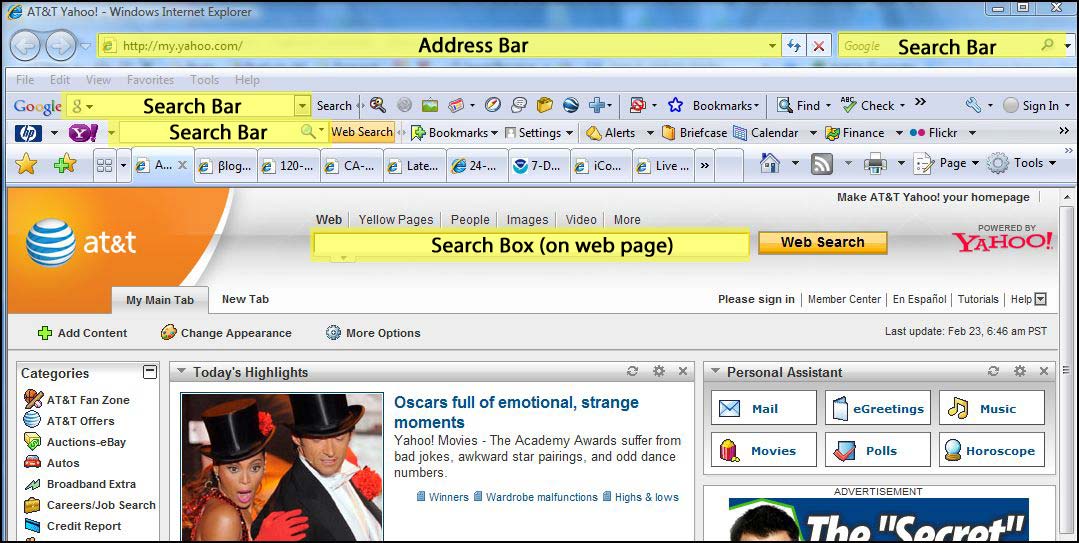
Web browsers have an address bar, and some also have search bars. Some web pages have search boxes. I am often asked which bar or box should be used to get to where you want on the internet.
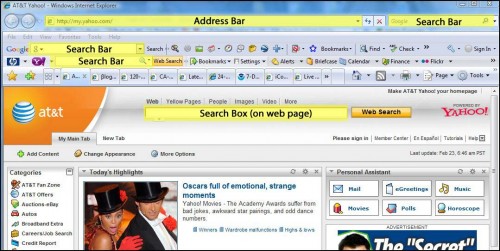
The address bar is used if you know the actual address of a web site or web page (eg. http://www.yahoo.com)
Tip: Did you know you don’t have to enter the leading “http://” or “www.” to get to most web sites?
The search bar is used if your are searching for something on the internet (eg. “computer repair”, “recipes”, “grammy winners”, etc.) Using the search bar will take you to search results from internet search providers such as Google or Yahoo.
A search box on a web page is similar to the search bar, but it will give you search results based on the internet search provider that is used by the web page. For example if you are on the AT&T home page (http://att.yahoo.com), anything you type in the search box on the web page will bring up internet search results provided by Yahoo. Charter’s home page brings up Google search results, as does AOL.com.
Another way to compare the different methods of accessing websites is like comparing it to dialing a phone number on your telephone. For example if you want to call the local Papa John’s Pizza and you know the phone number, you just dial the phone number (which is like entering a specific website into the address bar). If you don’t know the phone number, you dial 411/information (which is like using the search bar), which would give you results for all Papa John’s Pizzas from which you could then choose the one you want.
Print This Article
 PDF (Portable Document Format) is a file format created by Adobe Systems that lets a document be displayed with the exact same layout on different computers. Examples of PDF files include tax forms that can be downloaded and printed from the Internal Revenue Service website, or license and vehicle registration forms from the Department of Motor Vehicles website. Many manufacturers have user guides and product manuals available as a PDF file on their website. These types of documents must appear the same on every computer screen and printed, and cannot be altered. PDF (Portable Document Format) is a file format created by Adobe Systems that lets a document be displayed with the exact same layout on different computers. Examples of PDF files include tax forms that can be downloaded and printed from the Internal Revenue Service website, or license and vehicle registration forms from the Department of Motor Vehicles website. Many manufacturers have user guides and product manuals available as a PDF file on their website. These types of documents must appear the same on every computer screen and printed, and cannot be altered.
PDF files can be viewed by the free Adobe Acrobat Reader and PDF viewers from other companies. Most computers already have Acrobat Reader installed, though your version may be out-of-date due to frequent updates to the program.
Computer Techs has a PDF tutoring worksheet on our website that you can download and print. We suggest printing it and as you use your computer and discover things that you need help with or would like to learn, write them down on the worksheet. After you’ve got about an hour’s worth of items on your sheet, contact us so that we can help you get more use from your computer.
Print This Article
« Previous Page — Next Page »
|