Microsoft has begun distribution of Office 2010, and it will soon be available in stores. Microsoft Office is a bundled suite of applications such as Word, Excel & Powerpoint.
In my opinion there’s no compelling new features to justify the purchase of Office 2010 or upgrading from an earlier version. If you don’t currently have Office, you can get the free OpenOffice.org
To clean your LCD flat screen you should use a soft cloth and special LCD screen cleaner, or LCD cleaning wipes. Either are available from office supply stores.
To clean the inside of your screen see Screen Clean
Spam/junk email has been on the rise in the past few months. Spammers are even faking e-mail addresses to make it look like the e-mail is coming from yourself. It’s just another method they use to get you to open the spam.
Below are some tips on what you can do to reduce the amount of spam you receive in your Inbox.
• If you have a Charter (@charter.net) or other email address that doesn’t offer spam filtering, consider signing up for a free Gmail email address and have Gmail filter your email for spam.
• Don’t forward an email message to more than one recipient unless you use Bcc (Blind Carbon Copy). Addressing everybody as “To” or “Cc” exposes the email addresses of all the recipients to each other and potential viruses and spambots that may be on any of their computers. Exposing the email addresses in your address book to EVERYBODY ELSE in your address book, and potentially all their address books is also a privacy concern.
• If you get an email which urges you to forward it to everyone in your address book, stop and check the validity of the message on a website which checks internet rumors such as Snopes.com or TruthOrFiction.com Many emails that urge you to forward it are likely an attempt by spammers to collect legitimate email addresses from people who don’t know how to forward email correctly using Bcc.
Browser cookies are text files stored by web sites on your computer. We are often asked if people should delete the cookies stored on their computer. Our advise is usually “No”.
By default web browsers will only accept cookies from web sites that you visit. For example if you go to Amazon.com the cookie may contain information about items that you look at on the site. This can be useful for the next time you visit Amazon.com. For example the cookie may help Amazon.com remember that you looked at books by Stephen King the last time you went to the website. Because of the information in the cookie it may suggest a new book by Stephen King during your next visit to the website.
Bank and financial institution websites store cookies to help recognize that your computer has logged into the website before. This will make it somewhat easier to login on subsequent visits, as you may get asked fewer questions to confirm your identity.
Webmail sites can save your login information using a cookie, so that you don’t have to enter your password each time you visit the website should you choose.
You can learn more about browser cookies on Wikipedia.
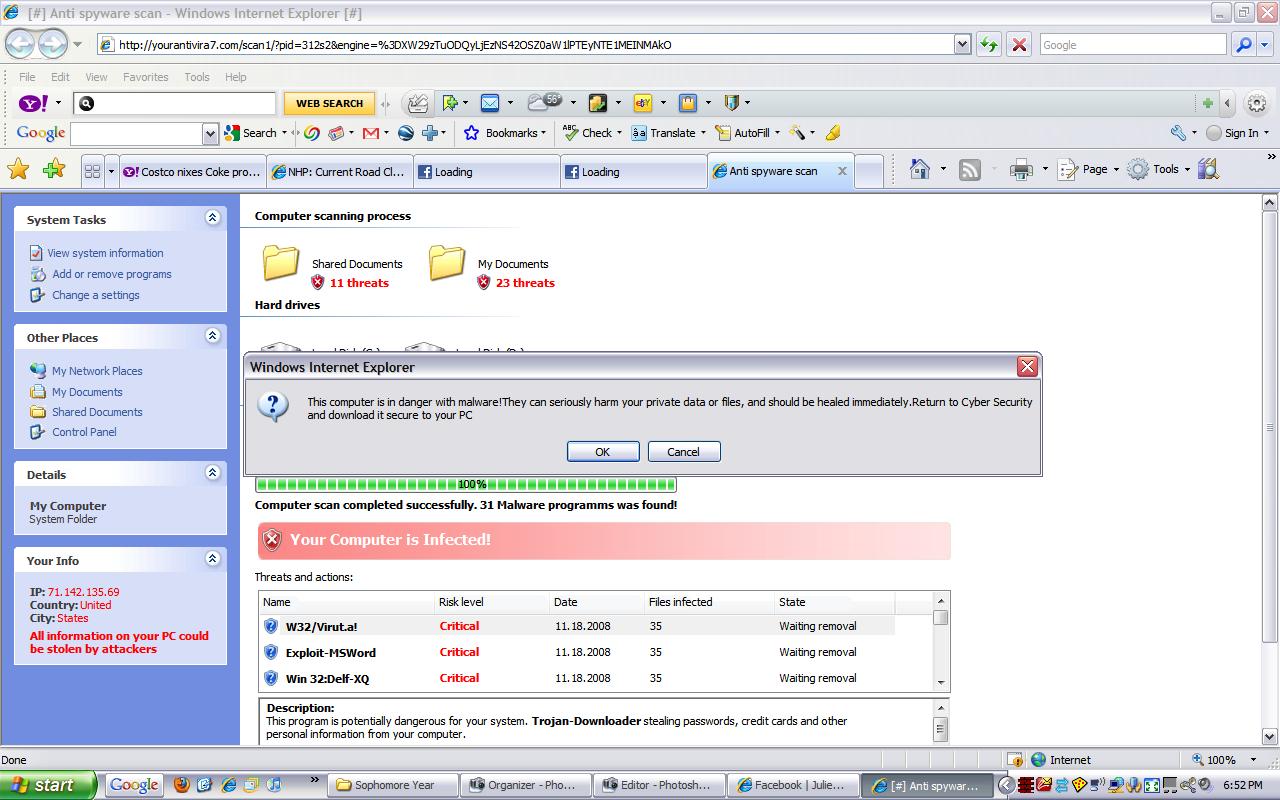
If you get a pop-up window from an unknown program telling you that there are multiple problems with your computer, immediately turn off or restart your computer and see if the program returns after your computer is back on. Do not try to close the window or click anything except for Start > Turn Off Computer. Other buttons that say “No”, “Cancel” and even the red “X” in the upper right corner of the box are often used to trick you into downloading or installing a malicious program without your consent.
Above is a screen shot from a typical security warning that you may see. Logical thinking should tell you that what you are seeing is likely a scam:
• One minute your computer is fine. You click on a web link and all of a sudden you have multiple (perhaps hundreds) of problems or infections. You’ve been re-directed to a malicious web site. SCAM!
• You know that the anti-virus program on your computer is AVG, Norton, etc. A program that you’ve never heard of before tells you that you’ve got multiple problems. SCAM!
• A program that you’ve never heard of before is offering a free scan ( a come-on), or perhaps is asking your to register or buy a license key. SCAM!
Though I’ve been warning of these scams for years in our newsletter and website, we get calls daily from clients who got tricked into clicking on the fake warnings and inadvertently installing malicious software that will constantly pop-up and eventually ask you for your credit card to pay for the rogue software.
If you get a pop-up window from an unknown program telling you that there are multiple problems with your computer, immediately turn off or restart your computer and see if the program returns after your computer is back on. Other buttons that say “No” or “Cancel” and even the red “X” in the upper right corner of the box are often are used to trick you into downloading or installing a malicious program without your consent.
Windows 7 was officially released on October 22, and we now have experience with upgrading previous versions of Windows and setting up new PCs with Windows 7 pre-installed. We’ve seen speed, reliability and feature improvements that make Windows 7 a worthwhile upgrade on some computers – or on a new PC.
Computer Techs can help you make a transition to Windows 7 as smooth as possible, weather you are upgrading or purchasing a new PC. Please contact us for help.
With the release of Microsoft’s newest operating system Windows 7 on October 22, we are frequently asked if people should upgrade their computer to Windows 7, or buy a new PC. For most people our advise is if you currently have a PC with Windows XP and happy with the performance, then keep what you’ve got and don’t upgrade. If you’re unhappy with the performance with your current PC, then get a new PC after Windows 7 becomes available. If you’ve got Windows Vista and are unhappy with it, consider upgrading the operating system to Windows 7.
Below is an article from PC World that goes into more detail about the features of Windows 7, and things to consider before upgrading or buying a new PC.
October 22 is quickly approaching, and excitement over Windows 7 is at an all-time high. Manufacturers are announcing new hardware, and software companies are readying their newest apps. Users who just have to have the latest OS from Microsoft are faced with a pressing question: Do I upgrade my computer, or do I buy a new one?
This decision may seem simple, but here are a few questions to examine before you decide.
Will Windows 7 run on my computer?
If your PC is less than 5 years old, the answer is almost certainly yes. Microsoft claims that a 1GHz processer, 16GB of disk space, and 1GB of RAM are the minimum specs required, and I’ve even run it successfully on below spec hardware. However, for the most productive and satisfying Windows 7 experience, you’ll want as fast of a computer as possible. I don’t recommend running Win 7 on anything less than a dual-core CPU with 2GB of RAM.
It’s also a good idea to run Microsoft’s Windows 7 Upgrade Advisor, which will check to see if your hardware and software are compatible with Windows 7. I’ve had issues with unavailable video drivers on some laptops, so even though Windows 7 would install, the experience was sub-par. A good rule of thumb is that if you’re already running Vista, Windows 7 will perform as well or better on the same hardware.
Will I get the most out of Windows 7 on my current hardware?
Though Windows 7 might run acceptably on your computer, older hardware could mean missing out on some of the new OS’s best features. For instance, Windows 7 has extensive multi-touch support, and you may want a multi-touch monitor or track pad to take advantage of it.
Will my computer support XP Mode, and do I need it?
XP Mode is a great feature of Windows 7 Professional and higher. It allows people to run applications that require Windows XP inside of a virtual machine. XP Mode relies on Windows Virtual PC, which not only has greater memory and CPU requirements, but also requires a processor capable of hardware virtualization. If you have apps that require XP you may be deeply disappointed if you assume your computer can handle XP Mode without verifying support first.
Is it time to leap to 64-bit? Will my computer support it?
We’ve finally reached the point where it’s cost effective to supply a PC with more memory than 32-bit Windows can handle, and I personally suspect that Windows 7 will be the last Microsoft OS to be offered in a 32-bit version. If you find yourself performing tasks that push your computer to use more than 3GB of memory, you should be considering 64-bit Windows. People who use their computers for office apps and Web surfing don’t really come close to exceeding the limits of a 32-bit OS. But if you find yourself running virtual machines, editing HD videos, and manipulating 12MP raw images, it’s probably time to switch to a 64-bit OS. The Windows 7 Upgrade Advisor can tell you if your CPU is ready for it.
Does it make sense to sink money into my old computer?
Purchasing an upgrade to Windows 7 Professional will set you back a solid $200, while Home Premium will run you $120. That’s a serious chunk of change that could otherwise be applied to a shiny new PC. Considering that a new laptop can be had for under $330 and $800 will buy you something pretty sweet, it’s easy to see that $120 to $200 as a discount on a new piece of hardware which already comes with the edition of Windows 7 that you want.
There’s also a bunch of newer features that a computer that’s more than a couple of years old may not have, such as HDMI, Blu-Ray, eSata, 802.11n, and LED backlighting.
If you’ve got a kid who can use your old computer for school, or if you really find yourself wishing you had an extra machine in the office, it might be best just to leave the old computer as-is and treat yourself to the latest technology. Besides, you deserve it, and our economy desperately needs your contribution.
Conversely, if your computer is relatively new and fully compatible with Windows 7, and you’re happy with its features and performance, it probably makes sense just to keep it and upgrade your OS.
When shopping for new flatscreen LCD monitors, you will find that most screens sold today are widescreen with a 16:9 ratio, meaning that they are nearly twice as wide as they are tall. Older monitors have a 4:3 ratio, meaning that they are nearly square. Since screens are measured diagonally, a new 17″ 16:9 monitor is actually shorter but wider than a 17″ 4:3 monitor. In detail, a new 17″ 16:9 monitor is 8.3″ H x 14.8″ W. An old-style 17″ 4:3 monitor is taller at 10.2″ H x 13.6″ W. Source: cavecreations.com
When shopping for a new monitor, consider the following to find a size that will be equal or greater than your current monitor:
If you have a 17-inch 4:3 monitor, get at least a 22-inch 16:9 widescreen to have the same height. (10.2″ H vs. 10.8″ H)
If you have a 19-inch 4:3 monitor, get at least a 24-inch 16:9 widescreen to have the same height (11.4″ H vs. 11.8″ H)
Most modern-day mice have a scroll wheel which is a third button that is located between the left and right click buttons. Below are a few things to try with your scroll wheel:
• While on a web page or while viewing a long document, use your middle finger to roll the scroll wheel to simplify scrolling up and down the page or document.
• While on a web page, hold down the “Ctrl” key on the keyboard and roll the scroll wheel to zoom in and out a web page.
• While on a web page, hold down the “Shift” key on the keyboard and slowly roll the scroll wheel to go back and forward to pages that you’ve visited. This offers an alternative to using the Back/Forward buttons on the toolbar.
• While on a web page, point your cursor on a link then press on the scroll wheel until it clicks. The link will open in a new browser tab.
Social networking websites such as MySpace, Facebook and Twitter have seen a tremendous gain in popularity in the past year. Even Oprah has begun to post on Twitter, as do all 3 local TV news stations. Whether or not you visit social networking websites, this article should help you learn more about the latest phenomenon.
In case you’re not familiar with these websites, social networking websites are a place that people can interact with others and upload pictures and video for other to see and comment about. They are a place where you can meet and interact with people who you know, and people that they know. Wikipedia defines a social networking service as a “service [which] focuses on building online communities of people who share interests and/or activities, or who are interested in exploring the interests and activities of others. Most social network services are web based and provide a variety of ways for users to interact, such as e-mail and instant messaging services.”
• MySpace reached it’s peak in 2006 as primarily a place that teens and singles designed their own web “space” where they can post photos and music, and interact with other people. But recently people have started using the more popular website, Facebook.
• Facebook is currently the largest worldwide online social network. Like MySpace it allows people to converse with friends and family members in an open or privacy restricted online community, and publish pictures, videos and links to other websites of interest. Facebook has lots of fun quizzes such as “What famous actor you look most like”, and share the results with your friends to comment on. It also has fan pages and group pages where you can follow businesses of interest, sports teams, and other organizations – and interact with people of similar interests. You can follow the Computer Techs Reno fan page. If you’ve got nothing better to do, Facebook can be fun and entertaining. Facebook can also be a timesink.
• My favorite social network is Twitter. Twitter is a unique social network that limits entries to 140 characters of text-only posts or “tweets”. To get by that limitation some people use link shortening services such as tinyurl.com or snipurl.com to post shorter links in tweets that direct readers to web pages that contain more information.
I primarily use Twitter to follow people and organizations in the technology industry that tweet technology related information. The limitation of 140-characters is helpful to me because it forces people to provide a short and to-the-point “headline” about what they are trying to communicate, and I can choose to follow a link (if provided) to get more information.
Some people tweet from their cell phones as a text message which is then transmitted to everybody that follows them – on the Twitter website, their cell phone or both. This is how information about the recent Iranian election riots first became known. I was among the first people to find out about Michael Jackson’s death because I was doing a live Twitter search for “Michael Jackson”, which updates public tweets every minute. Twitter is very useful if you want to follow news as it is happening.
People can make their tweets public where anyone can read them. One of my accounts is private, so that only the people that I selectively approve are allowed to view and follow my tweets. To make it interesting and useful, I only follow people who tweet interesting and informative things – and I do the same. I don’t follow people that frequently say something such as “I’m eating a ham sandwich”.
At the bottom of this article see the Twitter widget where you can see our recent Computer Techs Reno (CTreno) tweets, and follow us. Below that is the Computer Techs Reno Facebook fan box, showing our recent posts.
When joining a social network, be careful about adding friends to your network. Many services will offer to add friends if you give the website access to your email address book, then email an invitation to everybody in the list. I recommend adding friends one-by-one, and not giving a social network complete access to your entire address book.