Computer / Internet Tips & News – exclusively for Computer Techs clients
Support for Windows | macOS | iOS | Android
Welcome to the Computer Techs Computer / Internet Tips & News blog. This purpose of this site is meant to provide a service to our valued customers, by keeping you informed with the latest news and tips related to your computer and the internet. Consider using the search box on the left side of the website to help you find a specific topic or article, or scroll through articles below to learn something new.
Get $25 Off your next service call for recommending Computer Techs
If you’re happy with our service, please consider recommending Computer Techs to a friend or relative. If we service their computer, you get $25 Off your next service call.
The details: Please have your friend or relative mention your name during the appointment, or after the appointment contact Mark Cobb with the name of the person that you recommended/referred. The referred person must be a new Computer Techs customer and not reside in the same household as the referrer.
If you’re looking for a program or file on your computer or smart phone, don’t forget to use the search-as-you-type feature now available on most devices.
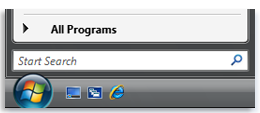
On the PC, beginning with Windows Vista all you have to do is click the Start button and start typing what file, file content or program you are looking for.
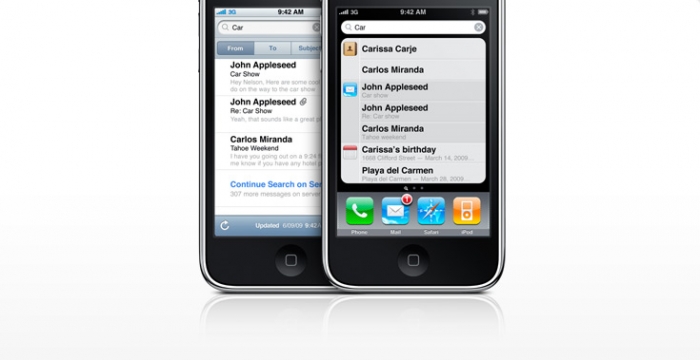
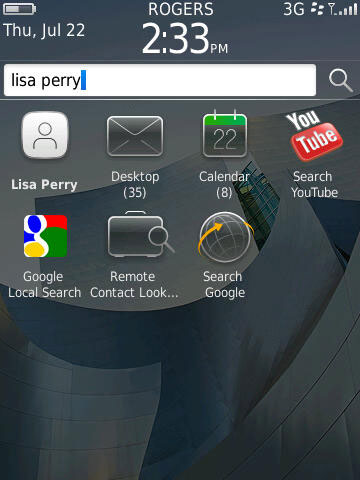
On many smartphones such as the iPhone, BlackBerry or Android devices, search-as-you type will help you find contacts, messages, media, apps, etc.
When downloading a file or program from a web site or e-mail, often you are prompted to “Run” or “Save” the item. We are often asked which you should do.
• For a file that you want to keep on your computer, you should select “Save”.
• For a program that you may need to install or re-install at a later time, you should select “Save”. Otherwise if you don’t need the ability to re-install it again without re-visiting the web site, you can choose “Run”.
A friend reports receiving a weird message from your e-mail account, a message you didn’t write. This could mean your account was hacked, or it could have a completely different cause. The PCMag.com article below explains how to tell if your e-mail was hacked, and what you can do about it. Did you get hacked, or was it someone else? Also mentioned is how you can recover from e-mail hacking and how to stay safe by preventing hacking in the first place by using good passwords.
When you open your web browser (Internet Explorer, Google Chrome, Mozilla Firefox, Safari, etc.) a “home page” or “start page” is the first web page that displays. It can be set to any page of your choice such as a search page like Google.com, or a news and information page such as Yahoo.com, Aol.com, Att.net or Charter.net. It can also be set to go directly to your webmail page like mail.yahoo.com, gmail.com or outlook.com
Sometimes your home/start page may get changed as a side effect of updating a program or installing adware. To change the page back to one of your choice, please click the link below to view a Google help article that gives directions on how to set your home page to Google – but you can choose any page you like: How to change your homepage
On the evening of December 1 I received 4 phone calls within about 30 minutes with each caller having the same problem following a prompt by AVG Anti-Virus to restart the computer. The problem was that their computer would not start up. A check of social media networks and other news sources indicated it was a widespread problem across the world. Since a large majority of Computer Techs clients use the free version of AVG for their anti-virus detection, I decided to notify our 1300+ clients via the Computer Techs monthly newsletter subscription list, and on our social networking news feeds at FaceBook.com/ComputerTechs and Twitter.com/CTreno.
Over time it was discovered that the newly released program update was incompatible with 64-bit versions of Windows Vista and Windows 7, causing Windows not to start. Once the problem update was discovered it was quickly pulled from AVG download servers to prevent problems on more computers.
AVG is not the only anti-virus vendor that has temporarily released an update that caused problems with computers. McAfee, Trend Micro and BitDefender have all had bad updates in the past few years. Microsoft has even released updates as part of their monthly automatic critical updates that have caused problems for millions of computer users.
We still recommend AVG anti-virus because it’s easy to use, provides good virus detection and the availability of a free version which is enough for most computers. If you are upset like we are about AVG’s new “PC Optimizer” and other add-ons that pop-up and eventually ask for payment, another free alternative is Microsoft Security Essentials. Remember that an anti-virus program is your second line of defense for computer security. Your first line of defense is practicing safe computing habits.
Antivirus and Antimalware program tests have shown than no software detects and/or disinfects 100% of all viruses and malware. Thousands of new viruses are unleashed each day, and antivirus programs cannot keep up with the new viruses fast enough. With millions of different viruses in the wild, your best defense against getting infected is practicing safe computing habits.
Below are a few tips to help keep you safe on the internet – copied from our FAQ page:
AVG Anti-Virus Free 2011 was released September 28th. A review by CNET indicates that it’s better than previous versions. I’ve noticed that AVG Identity Protection and Anti-Rootkit components are now included in the free version. This should improve detection over the previous version.
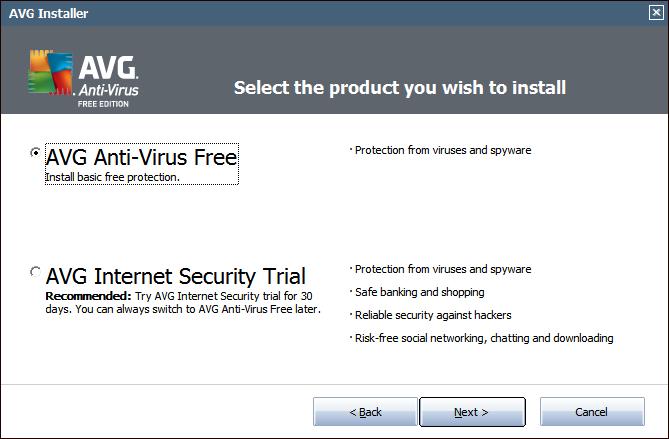
If you currently have AVG 9.0 or earlier you will likely see a prompt to update similar to the window shown below. I suggest selecting “Update your free protection” or “Basic Update”. The not-free Internet Security program adds redundant and unnecessary extra protection that usually slows down computers and presents confusing firewall prompts.
After visiting the AVG website and downloading the free version…
…if prompted to install the AVG/Yahoo! Browser Toolbar and change your default search engine, un-check the 2 boxes (the bottom then the top), then proceed with installing AVG without the toolbar (as shown below).
I recommend ignoring the PC Analyzer component. It looks for registry errors and junk files among other things – which are harmless – then prompts you to buy the add-on if you want items fixed.
If you need assistance downloading and installing the new AVG Anti-Virus, please call or e-mail us. We’ll be happy to take care of it for you, and give your computer a check-up/tune-up while we are there.
If you are unable to boot to your operating system after the last AVG 2011 update 3292, it is necessary to do the following to solve the situation:
EDIT 12/3/10: Follow the instructions on this AVG FAQ. This supersedes advice given below.
Method #1:
Windows 7 Startup Repair
Described at this Microsoft website – follow section “To open the System Recovery Options menu on your computer”
To open the System Recovery Options menu on your computer
Remove all floppy disks, CDs, and DVDs from your computer, and then restart your computer using the computer’s power button.
Do one of the following:
If your computer has a single operating system installed, press and hold the F8 key as your computer restarts. You need to press F8 before the Windows logo appears. If the Windows logo appears, you need to try again by waiting until the Windows logon prompt appears, and then shutting down and restarting your computer.
If your computer has more than one operating system, use the arrow keys to highlight the operating system you want to repair, and then press and hold F8.
On the Advanced Boot Options screen, use the arrow keys to highlight Repair your computer, and then press Enter. (If Repair your computer isn’t listed as an option, then your computer doesn’t include pre-installed recovery options, or your network administrator has turned them off.)
Select a keyboard layout, and then click Next.
Choose your User Name from the drop-down list and type-in your password (if none – leave blank).
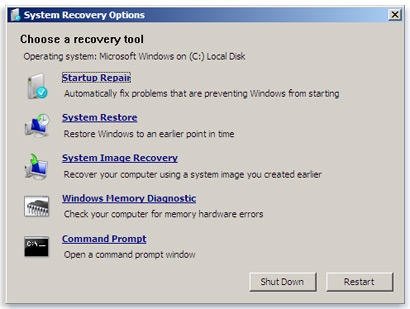
On the System Recovery Options menu, click a tool to open it.
Choose “System Restore”, follow the prompts to choose a restore point previous to December 1, then restart your computer when finished restoring. If your computer restarts normally, after logging to your operating system, please download the latest AVG installation file, run it and when asked, choose the Repair installation option.
If Method #1 is unsuccessful, follow the steps for Method #2 (below).
Method #2:
Download, create and run the AVG Rescue CD as mentioned in AVG Rescue CD guide. – We will leave copies of the AVG Rescue CD at Technology Center
Select the Utilities item in the main menu and run the Midnight Commander file manager.
In Midnight Commander, navigate to the following folder: mnt\sda1 (if you have more disks, number can vary)
Then navigate to:
Program Files (x86)\AVG\AVG10
Find the following files:
avgrsx.exe or avgrsa.exe
avgchsvx.exe or avgchsva.exe
Delete both files by pressing the F8 key and confirm the deletion.
Quit the Midnight Commander and reboot your computer by selecting the Reboot option in the main menu.
After logging to your operating system, please download the latest AVG installation file, run it and when asked, choose the Repair installation option.
Picasa is Google’s free and easy-to-use photo transfer and management program. The latest version includes features such as face recognition and grouping by person, photo retouching tools, movie and slideshow creation, and easy upload to Google’s free Picasa Web Albums or Google+ Photos.
Picasa can take the place of photo management software that comes with digital cameras and printers, allowing you to transfer photos from your camera or card reader into custom-named folders on your computer. A frequent problem that we see on people’s computers is multiple photo managements programs that are “fighting” to take control of transferring and displaying pictures from a camera.
Picasa also allows you to view all the photos on your computer on one screen without having to click in-and-out of folders to find and view them. The software also offers photo manipulation tools such as cropping, brightness adjustment, red-eye removal and blemish retouching. There are also several printing options that let you print pictures in many sizes and multiple pictures per page. It will also downsize photos for emailing or for uploading to your personal Picasa Web Albums website.
Some of my favorite Picasa features include:
Automatic picture downsizing when sending photos via e-mail
E-mailing photos directly from Picasa will launch your email client (such as Outlook or Windows Live Mail). If you don’t use an email client, you can create a free Google email address and send photos from your Gmail account.
Upload individual photos or entire albums to Google+ Photos or Picasa Web Albums, set privacy settings, and share your photos with friends and family. Google+ Auto Backup gives up to 15GB or unlimited free online storage depending on the picture size that is backed up online.
Friends and family don’t need to sign-up for anything to be able to view your photos, and they can download full-size copies at no charge (assuming you have allowed that freedom in the privacy settings you set).
Create a video slideshow of your photos, adding transitions, text and music.
Easy backup to CD or DVD options, or create a “gift CD” which can be sent to someone to play on their computer.
Easily send your photos to online services to have your pictures printed.
Watch the short video below for more information about Picasa 3. To view all of Picasa’s features and download it, visit their website to view a complete details. If you need help or would like to schedule private tutoring on how to transfer, manage, edit, share, print, and backup your photos with Picasa, give us a call.
If your hard drive crashes and you don’t have a backup of your pictures, documents, music, email, financial data, etc., data recovery services can attempt to recover your data at a cost of $500-$1000 or more. Or, for less than $6 per month – and in some cases for free – your data can be backed up automatically to a safe off-site location.
In previous articles I’ve discussed loss of personal data due to inevitable hard drive failure, computer theft or damage by fire, and methods of backup including: to CDs, flash drives and external hard drives. With normal wear-and-tear the general life span of a hard drive is approximately 5 years.
Our preferred backup method is now online automatic backup from services such as Carbonite. Online backup offers secure encrypted transfer and storage of your data (pictures, documents, music, email, etc.) that automatically backs up your important files on a daily basis.