Below is a scenario that we hear about many times each month – it could happen to you.
You’ve just spoken on the phone with someone claiming to be from Microsoft, Amazon, your Internet provider or other well-known company. You’ve given the stranger remote access to your computer and they’ve shown you a bunch of things that’s wrong with it – errors, security or firewall problems, exposed social security numbers, or even offered to help transfer funds to or from your bank account. But they have a “fix” – they can remedy the “problems” for a few hundred dollars. You may or may not have gone so far as given out your credit card number or purchased gift cards for payment, but the damage has already been done. Sometimes it happens so quickly and convincingly that you may not realize that you’ve been conned until long after you’ve hung up the phone.
You’ve let a stranger get into your personal business. What should you do now? You should immediately turn off your computer or device that was remotely accessed – then call Computer Techs or another honest, reliable and local computer professional. Don’t be embarrassed – the con artists are good at what they do and are very persuasive and convincing. Millions of people get scammed by these telemarketers each year. Computer Techs will check your computer for data they may have compromised or malicious programs left behind – such as stolen or changed passwords, deleted files, changed settings, malware or remote access tools.
In a matter of minutes a scammer can obtain or change passwords, purchase goods or services on your behalf, create accounts, or obtain passwords and credit card numbers stored in your web browser.
If you’ve allowed someone you don’t know to remotely control your computer – no matter what company they say they’re from – please contact us ASAP so that we can make sure that you’re computer is safe to use.
Since you’ve read this far, if you haven’t let a stranger remotely access your computer – please read how to avoid fake tech support calls in the first place.
We appreciate the opportunity to help you with each service call. Nonetheless each month we get dozens of calls that could have been avoided had the caller read our monthly newsletter. Below are the most common types of calls that could have been avoided:
Tech support phone and internet search scams
It starts with a call to or from an official sounding computer company representative. Maybe you saw a pop-up on your screen telling you to call a toll-free number. The remote “technician” usually with a foreign accent wants to take control of your computer to show you problems or offer to fix a problem that you had called about. After he or she is allowed remote control, they show you a bunch of scary problems with the computer then offer to “fix” the problems for a few hundred dollars. If they sense you’re getting skeptical, sometimes they’ll quickly put a password on your computer and lock you out, delete your files, or install spyware or malware.
How can this be avoided? Never let anyone that you don’t know take remotely control of your computer. If someone calls you telling you they detect problems with your computer, tell them you don’t have a computer then hang up.
It starts with a pop-up telling you that you need to update a program. Or maybe you’re looking for a program that someone told you about. When searching the internet for that program, you might click the first result you see and accept all the agreements without thoroughly reading everything. The next thing you notice is that your browser home page has changed, you’ve got extra icons on your desktop and you’re getting more pop-ups than before.
How can this be avoided? Don’t download anything from a website unless you specifically went looking for it. When searching the internet, scroll past the ad results and look for the official website to download programs. When installing programs, read each screen thoroughly and uncheck all optional extras such as browser toolbars or tuneup programs.
Letting many little problems build up into one big problem
It starts with your computer acting more slowly than before. Perhaps there are extra icons on your desktop that you don’t recognize. Maybe your browser home page has changed or you’re getting more pop-up ads. The longer little things like this are left unchecked, it can lead up to bigger problems down the road. Adware that starts letting other malicious software in can also alter your internet search results. Occasional slow downs can be hard drive errors that eventually lead to a complete failure or “crash” of the hard drive, and loss of personal data.
How can this be avoided? Once you start noticing unusual behavior with your computer, call Computer Techs sooner than later. A regularly scheduled check-up is less expensive than the hundreds of dollars it can cost to remove a nasty virus or replacing a hard drive that has completely failed. Consider our Quarterly Maintenance Plan to detect easy-to-fix issues before they become major problems.
There has been lots of attention lately by the news media about data breaches, phony tech support scams and computer ransomware – all things that we’ve been warning clients about over the years in the Computer Techs monthly email newsletter and website for clients.
Data breaches at Target, Home Depot, Anthem and others have inspired scammers to launch phishing email campaigns and cold-calling operations in hopes to gain the trust of the recipient, then persuade them to reveal personal information and send money.
If you receive an unexpected email from a friend, business or organization – never click a link or button in the email or open an attachment. It’s best to call the person or business, or type in the web address of the business to access their web site and confirm the validity of an email. However be careful when searching the internet for a business, as there are often ads that appear along with search results paid for by untrustworthy businesses running bogus tech support scam operations.
If you receive a telephone call, never give personal, computer or financial information over the phone. If in doubt, tell the caller that you will hang up and initiate the call by calling the number listed on your associated ID card or credit card to confirm the validity of the call. Microsoft nor any other legitimate computer company will ever call, email or pop-up a warning on your screen concerning problems with your computer. Never feel pressured to reveal information or act right away. Feel free to call Computer Techs for a 2nd opinion.
Phishing emails attempt to gather personal information such as passwords, account information or credit card numbers. The emails appear to be from a legitimate source – your bank, internet or email provider, or a business that you may have a credit card on file with. They are often designed to mimic the appearance of a legitimate business including company email addresses and logos. But with a closer look, you can often spot phishing emails from some of the characteristics listed below.
In any email that you receive, you should never click on a link in an email in which you are not 100% sure that the email came from the identified sender – and you know and trust that sender. If in doubt, contact them by typing their website address into your web browser and look for contact information on their website. No legitimate company will ask for a password or financial information via an unsolicited email or phone call.
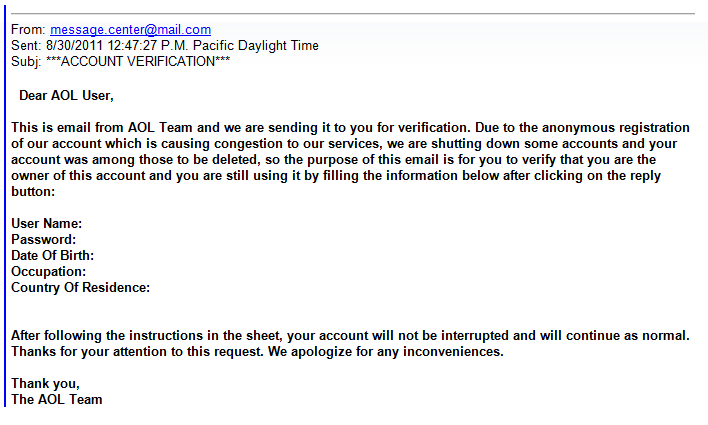
In the example above there are several characteristics that identify that the email is a phishing attempt:
Grammar – notice the sentence “Please you are to fill in the below informations to validate…”
Punctuation – Look for words that should/should not be capitalized, periods and commas in the wrong place, spaces that should/should not exist. Analyze it like your school English teacher would.
“From” – When hovering over the “From” address, it displays “web_upgrade2dsk@…” A legitimate email will be come from addresses such as “info@[company].com” or “customerservice@[company].com”. However the email address that it’s coming from should not be your only determination whether or not an email is real since an email address is easy for spammers/hackers to spoof.
“To” and greeting – The email shown is addressed to “undisclosed recipients” and “account owner”. – A company that you already do business with will send an email addressed to your email address and name.
A scare tactic – “Failure to follow this process … result in loss of important information”.
A sense of urgency for immediate action – “…exceeded the set storage limit”
Personal/private information – A company that you do business with already knows your name, email address, password, etc. Unless you are logging into your account on their official website, they would not ask you to enter it into an email or web form and send it back to them.
In the above example from “AOL” above, what characteristics do you see that it is a phishing email? Please post a note in the comments below.
This official-looking email includes bank logos and it appears to come from a bank email address. Yet if you carefully read the message in the email, grammatical and capitalization errors give a clue that this email did not come from a billion-dollar corporation. This email is attempting to get you to enter banking information into a form and opening an attachment to install a virus .
If your computer is slow or freezing up, your internet is not working or you can’t print – before calling for help there’s often some troubleshooting you can do that will likely fix the problem. Please Print This Article and keep the printed page near your computer for future reference.
Computer won’t power on
If it’s a desktop computer, unplug the power cord to your computer for at least 30 seconds, then plug it back in and see if it will then turn on via the power button. If it’s a laptop, tablet or smartphone, press and hold the power button until you see it turn on. If you’ve held the power button for at least 20-seconds, release and try again.
Computer freezing up, non-responsive or showing you error messages
Turn off or restart your computer. This will often fix problems by clearing out the computer’s temporary memory and giving the computer a fresh start. If your computer will not shut off normally you can press and hold the power button on the computer until it shuts off (usually after about 5 seconds).
You’re seeing a scary warning message that you’re computer is blocked, with instructions to call a phone number
It’s a scam designed you to scare you into calling the number – a scammer. See this article for instructions on how to get rid of the scare screen.
Can’t connect to the internet
First, check the network status icon in taskbar. If you see the Network unavailable icon that looks like a globe, there’s a problem with your internet connection. If you see the Wi-Fi available icon, you’re not connected to your wireless router. Go to the next steps to continue…
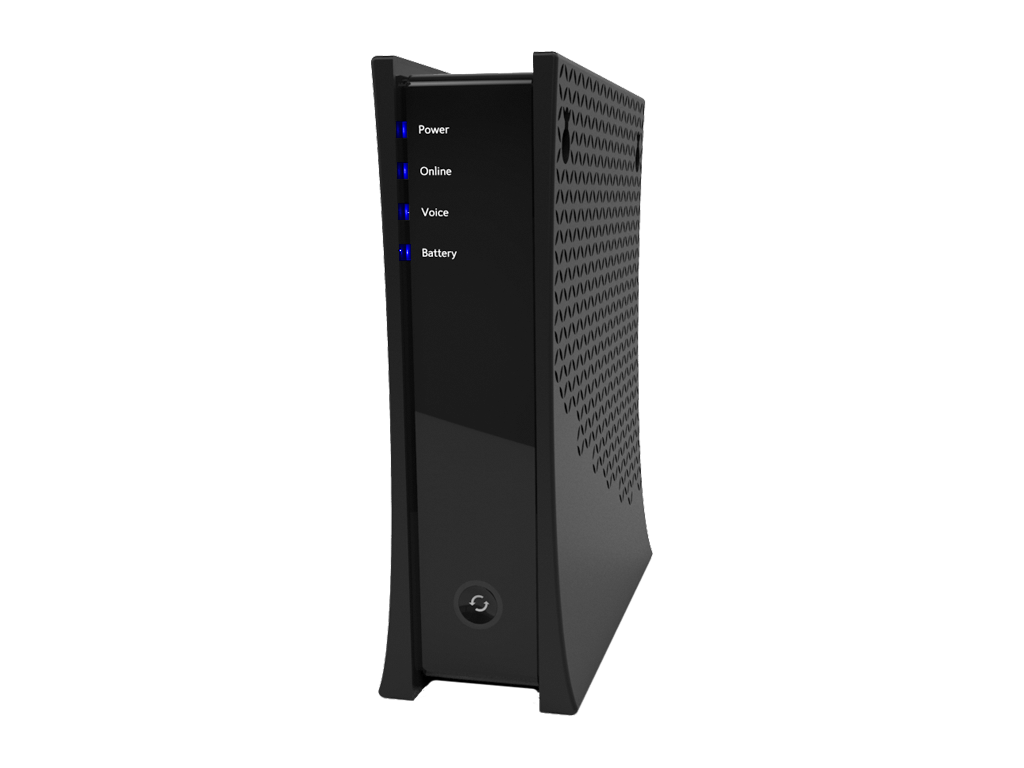
Are all the lights on your internet modem and/or router lit and their normal color? If not, turning off or unplugging the power to your modem and/or router for a minute will often fix internet connection problems. If you have a router, power-on your internet modem first – wait a minute for all the lights to come on – then power-on your router. If all the lights on your router and/or modem look normal, then maybe it’s a problem with your internet browser (see the next step).
Can you reach some/none websites in your browser?
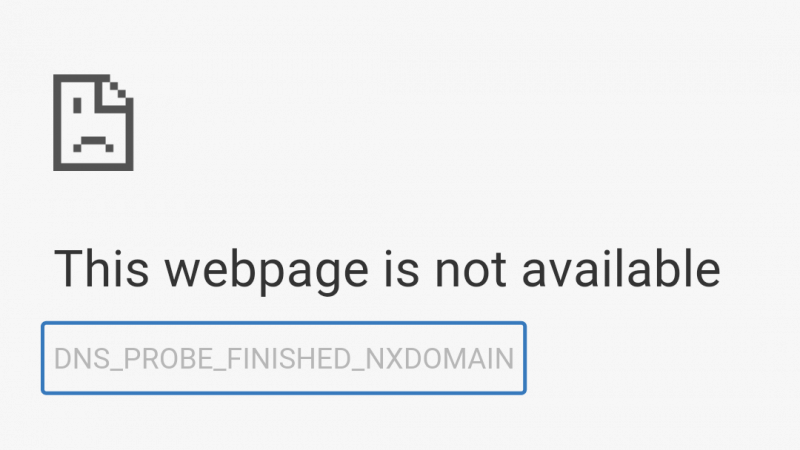
If you’re seeing “This webpage is not available”, it may just be a problem wIth the specific webpage or homepage that you’re trying to view. Try navigating to a different website.
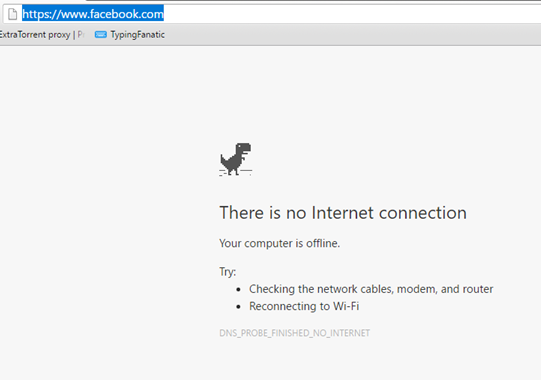
If you can’t access any websites, and it doesn’t say “no internet connection”, it could be a problem with the specific web browser that you’re currently using. The most common web browsers are Google Chrome, Mozilla Firefox, Microsoft Edge and Apple Safari. If a web page does not display normally (or at all) in your usual web browser, try using a different browser to go to the website(s) that are not working.
Printer not working
If nothing happens when you try to print, make sure you are printing to the correct printer. When in the print preview screen, double-check to make sure your Printer/Destination is selected accordingly. If there is no communication between the computer and printer, turn off the printer then back on. Otherwise, unplug the power to the printer, then plug it back in.
Printed pages are blank, have streaks not printing all colors? Print this test page, then compare the printed output vs. what you see on your screen. You may need to clean the printer’s print heads or change the ink(s). Refer to your printer manual for instructions.
For further printer troubleshooting, see this article.
Can’t send/receive email?
First check your internet connection (above).
If you use an email program such as Windows Mail, Outlook or Apple Mail, check to see if you’re able to send/receive email via your webmail – see below for the web address for the most common email services*.
Are you getting an error message about your password being incorrect? If so, type in your current password where prompted.
If it appears that only some of your email is coming in or out, try sending an email to yourself to see if you receive it back.
We recommend having email with more than one provider for times when one of your email services may not be working. You can sign up for a free email account with Google’s Gmail, or Microsoft’s Outlook.com.
* Type the following address into your web browser address bar to access the webmail version of common email providers: Yahoo or AT&T/Yahoo Mail: mail.yahoo.com Gmail: gmail.com AOL mail: mail.aol.com Charter/Spectrum email: webmail.spectrum.net Microsoft Hotmail/Outlook.com: outlook.com
When all else fails…
If the above steps do not solve your problem, please contact Computer Techs. See our website for contact information or call the number on your tech’s business card.
For several years we’ve been warning people about tech support scams where someone claiming to be from Microsoft, your internet service provider or computer manufacturer calls to inform you that your computer is in danger and filled with trojan viruses or critical errors, or that your Windows license has expired.
In a later twist, shady companies began advertising on Google, Yahoo, Bing and other websites targeting search terms such as “HP tech support number” in hopes that vulnerable computer users would call them. After calling the number the representative would say that in order to help with the problem they would need to remote access to the computer. See examples in this article. Then just like the unsolicited calls from “Microsoft” above, you are lead to believe that your computer is infected.
Recently shady companies are now advertising on mobile search websites targeting search terms such as “Android tech support” or “iPhone tech support”. Similar to other tech support scams, after calling the number you are told to connect your smartphone to your computer then allow them remote access to your computer. You are then led to believe that trojan viruses on your computer are the cause of your smartphone troubles, and they offer to “fix” your computer.
When you have a problem with your computer, printer or other technology device you may be tempted to search the internet to find a resolve for the problem. When you using Google, Bing, Yahoo, etc. you will usually get search results from multiple advertisers that if contacted the person on the phone will attempt to scare you into paying lots of money for made-up non-existent computer problems.
This is similar to the phony telemarketing calls from Microsoft scam, but since you are initiating the call you are lead to believe that you have contacted the official tech support for the company that you searched for. We frequently get calls from clients who have been the victim of such scams, after paying several hundreds of dollars and giving their credit card number to an untrustworthy person.
Click the screenshots below to see examples of search results I found recently. As you will see there are plenty of ads and phone numbers listed from companies that will likely attempt to swindle you.
The next time you have a tech support problem contact Computer Techs, a local trustworthy business who will give you honest advice and help you resolve your computer problems. We’ve been in business for over 10 years, and don’t charge clients for a quick phone call or email reply.
If you’ve been the victim of a tech support scam please contact us so that we can help you get your money back and check your computer for any malware or trojan software that the scammer may have left behind.
People tend to procrastinate. As you think about your new year’s resolutions or goals, please consider printing this article and complete these 5 recommended technology goals for 2013.
2. Adopt a password system similar to this one that makes passwords for different things easy to remember. If you already have a unique password for each web site that you log into, use a password manager to store your passwords using a method that’s more secure than a little black book.
4. Adopt a backup system so you won’t lose your important files and photos when your computer’s hard drive crashes – or in the case of theft, fire, flood, etc. Here’s how to do it.
Please Print This Article and keep this list near your computer to remind you of common computer scams that can cost hundreds to thousands of dollars to unknowing individuals.
Calls from Microsoft. If you get an unsolicited call from someone claiming to be from “Microsoft”, “Windows”, “Apple”, “Google”, “Amazon” or any other well-known name, and claiming that there are problems with your computer or account – it’s a scam. The Federal Trade Commission has been cracking down on telemarketers masquerading as major computer companies that scare people with false claims that their computer or security is in danger, and eventually offer to fix the problem for a few hundred dollars. See Avoid Tech Support Phone Scams.
Remote support scare tactics lure you into paying to fix non-existent problems. Similar to companies in the scam mentioned above, there are foreign companies that advertise on search web sites such as Yahoo or Google that may help you with your initial problem, but then claim that they detect severe problems with your computer and attempt to coax you into a yearly tech support plan often costing hundreds of dollars. A recent variant of this scam has popped up on compromised websites which displays a warning message claiming that your computer has a severe problem and that you need to call a number displayed on the screen in order to fix it. See Learn how to spot scams that pop-up on your screen and Companies Pushing Tech Support Yearly Fee.
Deceptive ad links that show up in internet search results – Click to view larger image
Unusual/unexpected email from people you know. You may receive an email from someone you know asking for money, asking you to “check out” something on an unfamiliar web site, or asking you to open an unsolicited document. In these cases the email account of the sender has been hacked, and the hacker/scammer is sending emails to all of their contacts in attempt to get money directly via wire transfers, or indirectly via spam schemes. See Email Spam From Someone You Know Links to Websites That Hack Your Password.
Unusual/unexpected email from a business. You may receive an email from a business such as UPS, Amazon, United Airlines, Verizon, Apple, Google or PayPal that confirms a large transaction or delivery of an item, or a problem with your account. The email attempts to lure you into clicking a button, link or attachment in the email that would ultimately install malware or a virus on your computer. Others may simply ask you to reply to the email and give your email login credentials, which would ultimately result in a hacker being able to access your email account. See How to Spot Fake Email From Legitimate Companies, and Emails that Phish for Your Login Credentials On The Rise: What You Need To Do To Stay Safe.
Email account password hacking due to password re-use. Your email account can easily be hacked if you use the same password to login to your email as you do any other website that is vulnerable to hackers. See the dangers of using the same password for different websites.
If you think you’ve been a victim of a computer scam and need help or advice, please contact Computer Techs at 775-624-6888 or contact your technician.
You’ve probably seen the TV ads or computer pop-ups for websites such as CyberDefender, PCMatic.com, MyCleanPC, FinallyFast.com and others. They promise to speed up your computer by fixing registry errors, reducing clutter, tweak settings, etc. Their websites promote a 100% guarantee, 5-star ratings from well-known web sites and user reviews that make their claims seem believable. But doing a little research shows the truth about many of these quick-fix programs and websites: many can be classified as scams.
An article which investigates MaxMySpeed.com echoes the warning signs and experiences of many people who try the service. The five-star user and website reviews are often inflated. The free programs scan your computer and always find problems, then offer to “fix” the problems for a fee. Trying to close out of the program or decline payment options often results in more pop-ups and scare tactics. And the results it finds are inflated and inaccurate. In summary they present false results to scare you into purchasing the product.
One person tried the free download, but was then told it would cost $390:
My computer was seriously slow and locking up… …So, I thought I’d go out on a limb and try Double My Speed. The good news: they fixed my computer and it runs great now. The bad news: it is a classic bait-and-switch. Their website allows a free scan but to fix the issues found requires buying their software. Then, they require a phone call to activate the software. This phone call is actually a sales event, where they try to sell their 24/7 service to support your computer. I went ahead and bought it, depending on the guarantee in case I was not satisfied. Their tech (what they called a “certified level 3 technician”) spend many hours connected to my computer. The result was as advertised. The price was ridiculously high–I could have bought a new desktop–but decided that if it didn’t work I would get my money back and if it did, I could avoid going to the store, shopping for a new desktop, lugging it home, transferring my files, and so on. The price was $130 three times (three easy payments!) and I was able to talk the rep down by discounting the amount I had paid online for their initial service. That also extended the license on the software from 1 year to 2.
Do yourself and your pocketbook a favor and avoid quick-fix programs and websites. There is no single program that will fix all of your computer problems. Computer Techs uses dozens of specific tools to fix your computer based on the problem(s). Stick with a local company that you can trust to work on your personal computer.


 Print This Article
 If you receive an unexpected email from a friend, business or organization – never click a link or button in the email or open an attachment. It’s best to call the person or business, or type in the web address of the business to access their web site and confirm the validity of an email. However be careful when searching the internet for a business, as there are often ads that appear along with search results paid for by untrustworthy businesses running bogus tech support scam operations.


 In a
In a 
