Category: Scams

Internet crimes up over 69% in 2020: Phishing scams more than double and people over 60 the most common victims

Filed under: Internet Tips,Passwords,Scams,Security - Mar 22 2021

The FBI’s Internet Crime Complaint Center has released its annual report. The 2020 Internet Crime Report includes information from 791,790 complaints of suspected internet crime—an increase of more than 300,000 complaints from 2019—and reported losses exceeding $4.2 billion.

Topping the list of types of reported internet crimes was phishing, which more than doubled last year. People over 60 were the most common victims according to the report. Nevada had the 8th most complaints of the states and territories included in the report – yet it is the 32nd most populous.

The phishing category also includes vishing, smishing and pharming – all techniques via email, voicemail, text messaging or via fraudulent websites that attempt to trick victims into divulging personal information such as passwords or credit card numbers.

People over 60 were the most common victim – likely due to the age group growing up in a more trusting society and their less understanding of technology.

Perhaps most surprising is that Nevadans reported the most complaints per thousand people than any other state.

In summary, become educated on how to spot internet crimes so that you or someone you know doesn’t become the next victim.

Print This Article Print This Article

Massive government and business computer hack will likely effect home users too – What you need to do

Filed under: Computing Tips,Passwords,Scams,Security - Dec 24 2020

A massive government and business computer hack was discovered early this month (December 2020), but the long term effects likely won’t be known for months or years as more knowledge is obtained about what companies were affected and what data may have been (or will be) breached.

Early details of the hack are explained in these comprehensive articles from CNN and CNET. The hack was spread to thousands of computer systems, altogether likely containing the private data of a majority of US citizens. That data may be compromised and leaked to miscreants if the data on those computer systems was not securely stored or encrypted. Hackers may be holding onto such data for months or years to come.

So what should the home computer user do?

  • Change your passwords ASAP: Data breaches usually contain email addresses and sometimes passwords. If you use the same password for different websites, you are more vulnerable to having your other accounts hacked. Click here to read the top 5 password tips that you need to know.
  • Make sure all of your devices are up to date: By default Windows and MacOS computers update automatically. But other internet connected software and hardware usually require manual updates – such as iOS, iPadOS, Android, internet routers, video doorbells and cameras, streaming media players, etc. If you need help making sure all of your internet connected devices have the latest security patches, please contact us.
  • Be suspicious of every email, phone call, SMS or browser pop-up: Initially do not trust any unsolicited email, phone call, SMS or pop-up in your web browser – particularly if it’s asking you to do something. Treat everything as “guilty until proven innocent”. See how to recognize scams and phishing attempts, and for more information review all of our security articles.

Can you spot “phishing” or a scam? Take the quiz.

Filed under: Computing Tips,Scams,Security - Jun 24 2020

How well can you spot a scam? Take the following quizzes to help protect yourself the next time you get an email, text message, website pop-up or phone call.

Scam Spotter

Can you spot when you’re being phished?

OpenDNS Phishing Quiz

Listen to these recordings of scam calls so that you can recognize them and not fall victim

Filed under: Scams,Security - Jul 25 2019

Please listen to our recordings of scam voicemails below, so that you can become familiar with them and not respond to similar calls that you’ll likely receive some day. To listen, click the orange button on the 4 recordings below, or listen to all uploaded recordings of Scam calls on clyp.it.

Email scam uses data from breached websites to craft authentic looking email – How to check if your email address was exposed

Filed under: Passwords,Scams,Security - Nov 29 2018

Updated October 2024 to include new scare tactics:

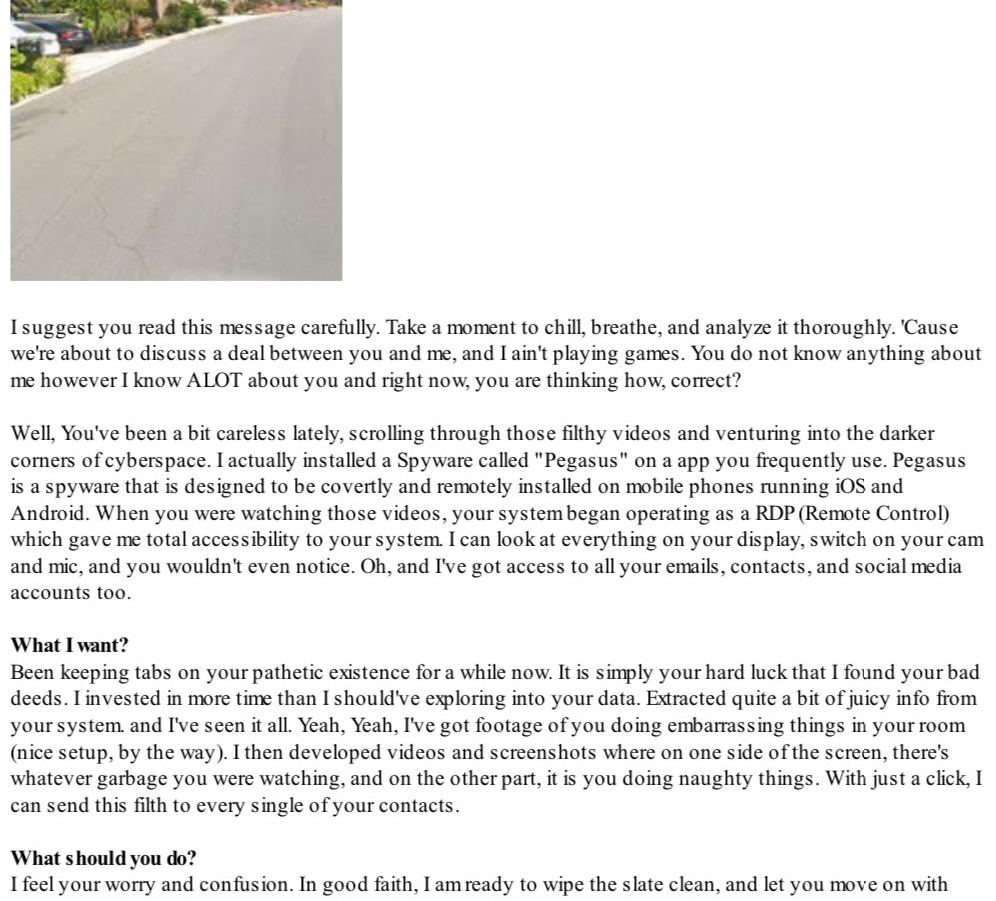
An email scam that we initially wrote about in 2018 has been quickly spreading with different variants that claims to have hacked the recipient’s email account and includes a password used by the recipient. One variant further claims to have caught the recipient looking at pornographic websites, and demanding “ransom” in the form of Bitcoin cryptocurrency payment to prevent the release of webcam photos being sent to all the recipient’s contacts. Examples of the “sexstortion” emails are shown below.

Above: This new variation of a “sexstortion” email seen in 2024 mentions the recipient’s home address and includes a photo obtained from Google Maps street view.
This email from 2018 claims that the sender hacked the recipient’s email account, and even includes a password obtained from a data breach.

If you’re the recipient of such an email you may think “how did someone hack into my email account, and know my password?” The answer: they likely didn’t hack your account.

Here’s how they have information about you: Data breaches from companies such as LinkedIn, Yahoo and countless others have exposed the email addresses, passwords and street addresses of millions of users. Clever scammers have taken widely available information from the data breaches and crafted emails that contain some of that information. If the password used to login to your email isn’t used anywhere else, they likely just forged the email address to make it look like it came from your own account. With the addition of potentially embarrassing information, the “sextortion” scammer asks for Bitcoin cryptocurrentcy to prevent the release of information to everybody in your contact list (which they probably don’t really have).

In summary, just ignore/delete the email and change the password on any websites that match the password in the email. You shouldn’t be using the same password on multiple sites anyways.

To find out if your email address(es) have been exposed in a data breach, you can safely enter your email address in the following websites: Mozilla Monitor and Have I Been Pwned

Also see our top 5 password tips that you need to know.

Print This Article Print This Article

What you need to know about the Summer 2017 Equifax data breach

Filed under: Passwords,Scams,Security - Sep 11 2017

Updated 9/13/17 to include information from Consumer Reports. Updated 10/5/17 with additional resources and clarifications:

Equifax, one of the large credit reporting agencies in the U.S. recently announced a data breach that may affect over 143 145 million Americans. In case you’re not familiar with the population of the United States, there’s currently about 250 million Americans over the age of 18. Initial reports indicate that exposed data may include names, Social Security numbers, birth dates, addresses and, in some instances, driver’s license numbers. Note that Equifax DOES NOT have access to passwords to your financial accounts.

The Federal Trade Commission posted a helpful article with suggestions on what you can do to help protect your financial data now that the data breach has come to light. However, contrary to Equifax’s advice that includes entering your personal information to check to see if you’ve been affected by the breach and sign up for their free credit monitoring service (do you feel comfortable about entering your information on a website operated by a company that didn’t keep your information secure in the first place?) – security researcher Brian Krebs recommends placing a credit freeze on your file, and further explains how to do it in this article.

Additional information from the FTC includes:

  • Check your credit reports from Equifax, Experian, and TransUnion — for free — by visiting annualcreditreport.com. Accounts or activity that you don’t recognize could indicate identity theft. Visit IdentityTheft.gov to find out what to do.
  • Monitor your existing credit card and bank accounts closely for charges you don’t recognize.
  • Consider placing a credit freeze on your files. A credit freeze makes it harder for someone to open a new account in your name. Keep in mind that a credit freeze won’t prevent a thief from making charges to your existing accounts.
  • If you decide against a credit freeze, consider placing a fraud alert on your files. A fraud alert warns creditors that you may be an identity theft victim and that they should verify that anyone seeking credit in your name really is you.
  • File your taxes early — as soon as you have the tax information you need, before a scammer can. Tax identity theft happens when someone uses your Social Security number to get a tax refund or a job. Respond right away to letters from the IRS.

Additional resources:

Consumer Reports has updated information on How to Lock Down Your Money After the Equifax Breach.

FTC’s link to websites and phone numbers for the 3 major credit bureaus.

Print This Article Print This Article

Learn how to spot scams that pop-up on your screen – and how to get rid of them

Filed under: Scams,Security - Mar 20 2017

Updated February 2025:

Please Print This Article Print This Article this article for future reference so you know how to close a fake warning web page if it appears to lock-up your computer.

Malicious advertisements or links can redirect your web browser to webpage designed to look like an official warning from Microsoft or Apple. The fake warnings often have the following characteristics:

  • Tell you that there’s a problem with your computer, it’s been blocked, and you need to call the number presented immediately to prevent harm
  • Tell you NOT to turn off your computer
  • The warnings are often accompanied by scary alert sounds or spoken messages.
  • Your mouse and/or keyboard may become non-responsive.
If you look closely at the “security warning” you will notice that it’s just a webpage designed to scare people into calling the number.

How to “unblock” your computer and get rid of the scare message

NEVER call the number presented on the screen – scammers claiming to be Windows, Apple or tech support representatives will try to gain access to your computer to convince you that you have security problems that you need to pay to have fixed.

Try the following steps in order to close the scare/scam window:

  1. Try closing your browser using the keyboard. Here’s a few a few methods to try:
    • Hold down the [Ctrl] key, then press the [W] key. On a Mac, hold down the [Command ⌘] key, then press the [W] key.
    • Press and HOLD the Esc key (located on the upper-left corner of the keyboard)
    • On a Windows PC, press the Alt + F4 key simultaneously.
    • On a Windows PC, simultaneously press and hold the [Ctrl]+[Alt]+[Del] keys on your keyboard, select Task Manager, select your web browser, then “End Task”. On a Mac use [Command]+[Option]+[Esc], select your web browser, then select “Force Quit”.
  2. If unsuccessful, on your Windows computer try to shut down or restart your computer via the Start button icon along the bottom left taskbar: If the fake warning website covers your full screen where you cannot see the Start button icon, use your keyboard and press the Windows key [  or ] located at the bottom left corner of your keyboard, which should bring the Start menu to the foreground. You should then be able to use your mouse to navigate to Power > Shut Down/Restart.
  3. If none of the above methods work, do the opposite of what the scare page says: Turn off your computer by pressing and HOLDING the power button. After HOLDING down the power button for at least 5 seconds, the computer should shut off.
  4. After your computer is off, leave it off for at least a minute. Then briefly press the power button to turn it back on.
  5. If one of the above steps works to close the scare page and regain control of your browser or computer, you should be good to continue using your computer. However, don’t immediately go back to the website or email that redirected you to the scare page before, and don’t restore your previous browser session if prompted.
  6. If the scare page comes back after powering off your computer, it is likely going to sleep rather than completely powering off when holding down the power button for at least 5 seconds. Try powering it off again. If the message still appears, contact us for assistance. Again, never call the number on the screen.

How does the fake pop-up occur?

On a virus-free computer these pop-ups can occur when you mistype a web address, click a search link which redirects you to the malicious website, or a malicious advertisement can redirect you. If your computer already has adware or malware these pop-ups may occur when you visit any website whether or not the site is malicious or not. If you see pop-ups similar to those pictured while logged into your financial websites, contact Computer Techs right away for computer service. We also advise you to have an alternative web browser installed on your computer in case you are unable to use your primary browser.

Browsers now including scareware protection

In late 2024, Microsoft announced the intention to include scareware protection in their Edge browser. Other browsers such as Chrome, Firefox and Safari will likely follow with protections of their own. Read: Stand up to scareware with scareware blocker, now available in Microsoft Edge.

(more…)

Recognize a scam website by double-checking spelling in the address bar

Filed under: Scams,Security - Mar 07 2017

When using your web browser to visit different websites on the internet, always double-check spelling in the address bar. Scammers typically use misspellings of popular websites to get you to divulge your secure personal and login information. Double-checking the website address can also give you an important clue into the authenticity of a pop-up or request to login to a website.

Also read: Address Bar vs Search Bar vs Search Box – which to use?

Anatomy of a support scam website – from the Microsoft Blog

The scam starts like any other. You are redirected to the website by nefarious ads. When the page loads, you get a pop-up message that says your computer has been locked because of virus infection. It asks you to immediately call a technical support number.

Click for larger view.

Figure 1. Dialogue box that pops up when the site originiftsnormalpro.xyz is accessed. Click for larger view.

The website also starts playing an audio message, a tactic to further cause panic, something that we’re seeing more and more in these scams. It says:

Important security alert! Virus intrusions detected on your computer. Your personal data and system files may be at serious risk. All system resources are halted to prevent any damage. Please call customer service immediately to report these threats now.

In usual scam sites, if you click OK or close the pop-up message, a dialogue loop kicks in. The website continues to serve the pop-up messages whatever you do, effectively locking your browser.
In this new site, however, if you click OK, things start to get very interesting.

It loads a page with what appears to be a pop-up message containing the same details, including the technical support hotline. You may think at this point you’re just getting the usual dialogue loop. But, upon closer inspection, it’s not really a pop-up message, but a website element of the scam page.

Click for larger view.

Figure 2. A fake dialogue box that is really a website element. Click for larger view.

If you click OK on the fake dialogue box (or basically anywhere on the page), it goes into full screen and brings in another surprise. At full screen, you get what looks like a browser opened to support.microsoft.com/ru-ru/en. But, alas, just like the pop-up message, the browser is just a website element.

Click for larger view.

Figure 3. A fake browser that is part of the design of the support scam website. Click for larger view.

This is how the scam site is able to spoof support.microsoft.com in the fake address bar. It even has the green HTTPS indicator to further feign authenticity. If you didn’t detect the scam at this point, you may think you were redirected to a Microsoft website and it’s serving you some messages about your PC.
Don’t fall for this. Exiting full screen puts things in perspective.

Click for larger view.

Figure 4. The support scam website outside full screen. Click for larger view.

Busting the scam

Just like all tech support scams, this new iteration is doing its best to make you think there’s something wrong with your PC. The new techniques are meant to improve its chances of you taking the social engineering bait.

The key to stopping the attack is to immediately recognize and break it. If you’re a Microsoft Edge user, there are a couple of ways to do this.

The first clue that something’s amiss is a message from Microsoft Edge. As the offending site goes into full screen, you get a notification from Microsoft Edge. You can exit the full screen at this point by clicking Exit now, and you stop the attack.

Click for larger view.

Figure 5. Alert from Microsoft Edge that the site has gone to full screen. Click for larger view.

The second clue is the change in the interface. Since the page is designed to look like Google Chrome, if you’re a Microsoft Edge user, you may catch the difference. Detecting the change in the interface may be easier said than done, but the opportunity to break the attack is there.

Click for larger view.

Figure 6. You can detect that the fake browser is different from the real one. Click for larger view.

Conclusion: Avoiding tech support scams

As this newly discovered support scam website shows, scammers are always on the lookout for opportunities to improve their tools. They can get really creative, motivated by the possibility of avoiding security solutions and ultimately increasing the chances of you falling for their trap.

Avoid tech support scam websites by being more careful when browsing the Internet. As much as you can, visit trusted websites only. Like most tech support scams, you are redirected to offending sites via malvertising (malicious ads). These ads are usually found in dubious websites, such as those hosting illegal copies of media and software, crack applications, and malware.

Use Microsoft Edge when browsing the Internet. It blocks known support scam sites using Microsoft SmartScreen. Microsoft Edge can also stop pop-up dialogue loops used by these sites. It also calls out when a website goes into full screen, giving you a chance to stop the attack.

Click for larger view.

Figure 7. Microsoft Edge blocks the support scam website using Microsoft SmartScreen. Click for larger view.

What’s wrong in these screenshots?

Filed under: Computing Tips,Scams,Security - Aug 28 2016


firefox-update-scam

Click on the screenshot above to see if you can spot what’s wrong, then click back to read below for the answers.

What’s wrong in the screenshot above?

  • Never install something from a website unless you specifically went looking for it.
  • Notice the website in the address bar. Is that a popular mainstream website that can be trusted?… No!

Click to view a larger image

Click on the screenshot above to see if you can spot what’s wrong, then click back to read below for the answers.

What’s wrong in the screenshot above?

  • Notice that it says “This site says…” Is the website in the address bar trustworthy?
  • Bad grammar and punctuation is a clue that this is not a website that is written by a professional company.
  • Warnings and urgency is meant to scare you into using your better judgement.
  • Never, ever call a phone number that pops up on your screen. It’s a scam!

If you see a screen similar to the one shown above, many times it won’t close by clicking the red “X” on the upper-right corner of the window. Instead, simply click on the Start button on the bottom-left corner of your screen, then follow the normal procedure to shutdown or restart your computer.

Print This Article Print This Article

Avoid Tech Support Phone Scams

Filed under: Scams,Security - Apr 25 2016

Originally posted April 2013. Updated April 25, 2016:

Microsoft, your Internet Service Provider (ISP), nor any legitimate company will call to tell you that your computer is infected, and that they need to remotely access your computer (for a fee) to fix it. It is a scam by crooks who are trying to access your computer, scare you into believing that there are multiple problems with it, and demand money to pay for a problem that didn’t exist in the first place.

Another common scam happens when you initiate the call. Don’t call a number that pops up on your screen unsolicited. If you call a company whose number you found from a web search, make sure you visit the company’s official web site – don’t click on an third-party ad. There are hundreds of fraudulent companies advertising on Google, Bing and other search sites masquerading as “tech support” for legitimate companies, and attempt to convince callers that they need to pay hundreds of dollars to “fix” multiple problems with their computer.

Never allow someone you don’t know remotely access your computer. For more detailed information please read New twists in tech support phone scams, Learn how to spot scams that pop-up on your screen, and the Federal Trade Commission’s information about Tech Support Scams.

Print This Article Print This Article
« Previous PageNext Page »