Welcome to the Computer Techs Computer / Internet Tips & News blog. This purpose of this site is meant to provide a service to our valued customers, by keeping you informed with the latest news and tips related to your computer and the internet. Consider using the search box on the left side of the website to help you find a specific topic or article, or scroll through articles below to learn something new.
Get $25 Off your next service call for recommending Computer Techs
If you’re happy with our service, please consider recommending Computer Techs to a friend or relative. If we service their computer, you get $25 Off your next service call.
The details: Please have your friend or relative mention your name during the appointment, or after the appointment contact Mark Cobb with the name of the person that you recommended/referred. The referred person must be a new Computer Techs customer and not reside in the same household as the referrer.
Microsoft’s Windows operating system lifecycle currently shows that extended support for Windows Vista will end on April 11, 2017. At that time Microsoft will no longer release security updates, and computers with Windows Vista will become increasingly dangerous to operate if connected to the internet.
Windows Vista was installed on new computers from early 2007 through late 2009. Computers manufactured in that time period are already past the typical useful lifespan of a computer – which is approximately 5-7 years. The average lifespan of a hard drive is 5 years, so if you’ve still got a computer with Windows Vista mechanical failure could be imminent.
Not only is the operating system and aging computer hardware nearing end-of-life, web browsers Internet Explorer and Google Chrome are already no longer being updated on Windows Vista. So if you are still using a computer with Windows Vista to access the internet, it’s now time to replace your computer. See our computer buying advice and how to shop for a new PC and get the best deal.
 Print This Article Print This Article
Updated 4-20-16 to update information on how to back-out of forced installation, how to rollback and how to stop the Windows 10 Update prompt.
Microsoft’s Windows 10 became available on July 29, 2015, and computer users have been seeing upgrade prompts ever since. If your computer has Windows 7 or Windows 8.1, you may have noticed a new icon has appeared on the right-hand side of your taskbar. The icon is Microsoft’s notification that invites users to upgrade to Windows 10 for free. Clicking the small Windows logo prompts users to initiate the download, then receive a notification when the operating system upgrade is ready to be installed. However just because it’s free doesn’t mean that you should install the upgrade.

If your computer has Windows 7 – we recommend that you DO NOT install Windows 10 and stay with Windows 7 until the year 2020 when support for Windows 7 is currently scheduled to be discontinued, then upgrade to the latest operating system or purchase a new computer at that time. Windows 10 is dramatically different, some programs and devices may not work with Windows 10, and there’s no compelling reason to upgrade. If you have Windows 8/8.1, if or when you decide to update make sure your data is backed up and proceed with caution – or have Computer Techs install the upgrade for you. Be aware that operating system upgrades can be problematic and several previous Windows features have been stripped from Windows 10.
Tip: If you’re tired of Microsoft nagging you to upgrade to Windows 10 there’s 2 handy programs that will disable the Windows 10 icon and prompts. Simply download and run Never 10 from this web site. Alternatively you can download and run the “standalone executable” GWX Control Panel found at this web site. If you need help with downloading, running or configuring the program – contact us.
If you’re curious about what Windows 10 has to offer, see Windows 10: Everything you need to know about Microsoft’s PC, smartphone and tablet OS and Microsoft: Get Started with Windows 10.
3-15-16: Microsoft has become more aggressive about forcing the installation of Windows 10 with a Window similar to the one pictured below that offers to install Windows 10 now or later with no obvious method to back-out or close the Window.

If you don’t want Windows 10 (again we don’t recommended it if you have Windows 7), choose “Start the upgrade now”, then click “Decline” when presented with a EULA window similar to the one pictured below.

If you’ve already installed Windows 10, you have up to 30 days to roll back to your previous version of Windows. For detailed instructions see this article, or contact Computer Techs and we’ll do it for you.
Afterwards, follow the advice in the “Tip” above to download and run Never 10 or GWX Control Panel to prevent future upgrade attempts.
Print This Article
Updated December 2015:
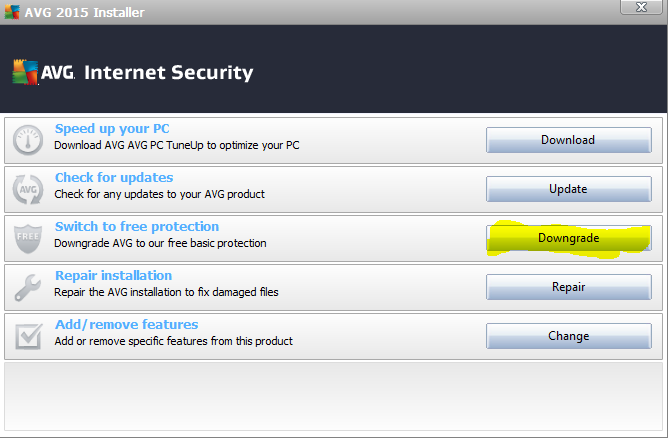
We’ve had several clients who have accidentally installed AVG Internet Security Trial when prompted to install the updated program version. We recommend the free, basic AVG Anti-Virus protection, and show you here how to install it. If you unintentionally installed the paid version of AVG, see the screen shots below to downgrade AVG Internet Security to AVG Anti-Virus Free.
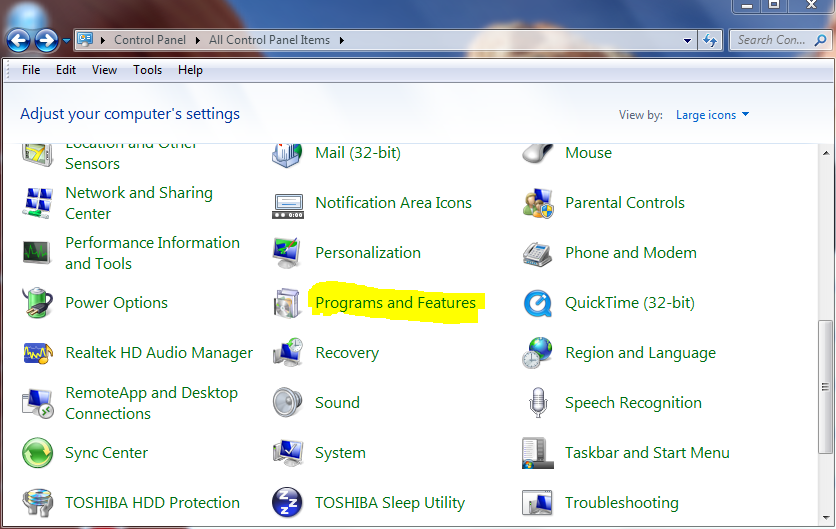
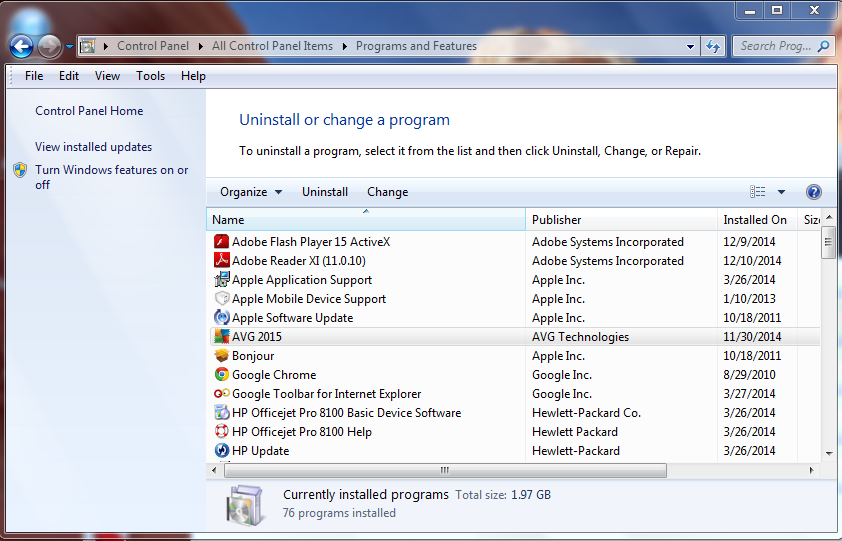
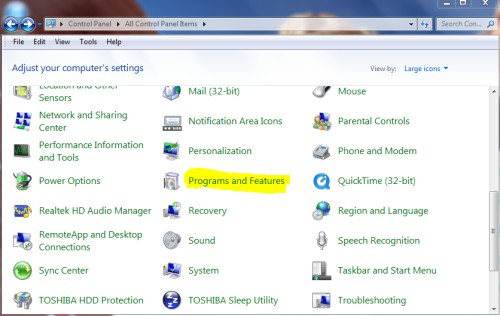 From your computer desktop, click the “Start” button then “Control Panel”, then “Programs and Features” (Windows Vista/7) or “Add/Remove Programs” (Windows XP) 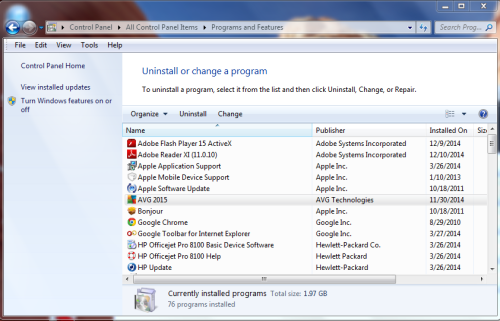 Highlight “AVG 201#” or “AVG Protection”, right-click and choose “Change”. If “Change” is not an option, select “Uninstall”. 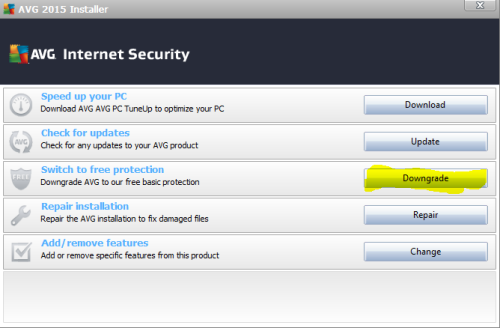 The next window that comes up may look different than pictured above. (1) When the Repair and Uninstall Options windows appears, click the Switch to free protection – “Downgrade” button. (2) Otherwise you’ll likely see a window offering to downgrade to AVG Free instead of uninstalling – do that. 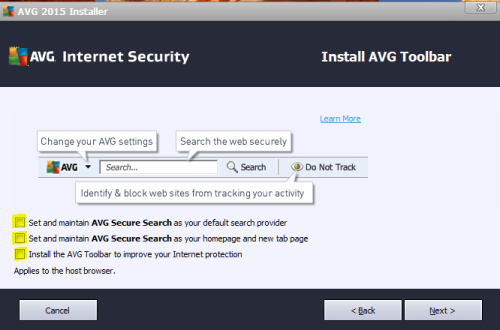 If you see another window come up, be sure to UNcheck any optional AVG toolbars and other browser changes.
If your internet browser home page / start page was changed after installing the AVG update/upgrade, see this article on how to change it back.
- If you’re getting tired of AVG’s tricky upgrades, consider our Computer Maintenance Plan where we take care of computer updates for you.
- If AVG’s frequent pop-ups and attempts to up-sell you to their paid products are bothersome, consider having us switch you to Bitdefender Antivirus Free Edition.
- If you prefer to pay for an Antivirus product, we recommend ESET NOD32 Antivirus. Click the ad in the left column of this page for a special offer.
Print This Article
Updated February 2020 to reflect that we no longer recommend 3rd party antivirus offerings:
Antivirus programs help detect and block the millions of viruses and malware in the wild that are increasing on a daily basis. Since no antivirus detects 100% of all viruses we feel that most home computer users don’t need to pay for antivirus and can just rely upon free offerings by Microsoft, select proven antivirus vendors, or those offered by your internet service provider. However, your best defense against getting infected is practicing safe computing habits.
Our favorite free antivirus for easy-of-use and detection rate is already included with Windows 8/10 – it’s Windows Security / Windows Defender. If you’ve got Windows 7, Microsoft Security Essentials is free. Other options that we’ve recommended in the past are Bitdefender Antivirus Free and AVG AntiVirus Free, however we no longer recommend 3rd party antivirus for most people due to the trouble they can cause and recent improvement in the built-in protection included with Windows.
Your internet service provider also offers security suites included as part of your monthly payment for internet service. AT&T Internet Security Suite powered by McAfee is offered to AT&T subscribers. Spectrum Security Suite by F-Secure is offered as part of a Charter/Spectrum Internet subscription.
Since there are plenty of free antivirus solutions, there is no reason to pay for antivirus. But since they don’t detect or block 100% of viruses and other malware, you must rely upon practicing safe computing habits to be your main line of defense against viruses.
If you’ve got an Apple Mac computer or iOS device, we don’t recommend installing 3rd party security apps. Please read Effective defenses against malware and other threats. You also don’t need an antivirus on an iOS or Android device either: Android Antivirus Apps Are Useless — Here’s What to Do Instead.
Print This Article
Microsoft’s Windows 10 became available on July 29, and we’ve helped several clients who have purchased a new computer or upgraded their existing computer from Windows 7 or 8/8.1. On older computers Microsoft’s notification invites users to register to download a free upgrade to Windows 10 – an offer which will be good until July 2016. But just because it’s free doesn’t mean that you should do the upgrade.
The Good: Windows 10 is an improvement over Windows 8/8.1. It brings back a “Start” menu that is more like what Windows 7 had. It also brings back the Windows 7 Backup & Restore feature. New to Windows 10 is improved search capabilities, and a new voice powered virtual assistant, Cortana, that you can speak with if your computer has a microphone. Though it’s fun to use for a little while – it’s likely that many will rarely use the feature.
The Bad: If you want to use the virtual assistant or Microsoft’s OneDrive cloud file sync service, you must register for a Microsoft account (if you don’t already have one). Using your computer with a Microsoft account requires you to enter a password or PIN each time you start your computer. Also Windows 10 still has two different user interfaces for adjusting settings which can make things hard-to-find and confusing. The icon for Microsoft’s new Edge web browser looks very similar to the icon for Internet Explorer – which is now hidden by default. If you decide to use the Edge browser, any website that requires a plugin – such as Flash Player or Java – will not work in Edge.
Microsoft has included the Microsoft Solitaire Collection card games in Windows 10, and playing the games also requires that your computer be signed into your Microsoft account. But unlike the version included with Windows 7, it now displays advertisements. You can remove the ads for $1.49/month or $9.99/year.
The Ugly: If your computer has Windows 7, Windows 10 is a dramatic change to what you are used to using. Some manufacturers will not be releasing drivers for Windows 10, which means things like your keyboard, printer or video card may not work properly or at all.
Should you upgrade to Windows 10? If your computer has Windows 7 – we recommend that you don’t install Windows 10 and just stay with Windows 7 until the year 2020. If you’ve got Windows 8/8.1 – don’t upgrade to Windows 10 yet. Let’s wait a few months for Microsoft and hardware manufacturers to get some of the glitches fixed, drivers released and upgrade process smoothed out.
Print This Article
Updated 12/12/25:
Below is a scenario that we hear about many times each month – it could happen to you.
You’ve just spoken on the phone with someone claiming to be from Microsoft, Amazon, your Internet provider or other well-known company. You’ve given the stranger remote access to your computer and they’ve shown you a bunch of things that’s wrong with it – errors, security or firewall problems, exposed social security numbers, or even offered to help transfer funds to or from your bank account. But they have a “fix” – they can remedy the “problems” for a few hundred dollars. You may or may not have gone so far as given out your credit card number or purchased gift cards for payment, but the damage has already been done. Sometimes it happens so quickly and convincingly that you may not realize that you’ve been conned until long after you’ve hung up the phone.
You’ve let a stranger get into your personal business. What should you do now? You should immediately turn off your computer or device that was remotely accessed – then call Computer Techs or another honest, reliable and local computer professional. Don’t be embarrassed – the con artists are good at what they do and are very persuasive and convincing. Millions of people get scammed by these telemarketers each year. Computer Techs will check your computer for data they may have compromised or malicious programs left behind – such as stolen or changed passwords, deleted files, changed settings, malware or remote access tools.
In a matter of minutes a scammer can obtain or change passwords, purchase goods or services on your behalf, create accounts, or obtain passwords and credit card numbers stored in your web browser.
If you’ve allowed someone you don’t know to remotely control your computer – no matter what company they say they’re from – please contact us ASAP so that we can make sure that you’re computer is safe to use.
Since you’ve read this far, if you haven’t let a stranger remotely access your computer – please read how to avoid fake tech support calls in the first place.
Other resources and education
When Information Is Lost or Exposed – IdentityTheft.gov
The surprising things we’ve discovered with our cybersecurity checkups for individuals.
How to manage your passwords – easily and safely.
Spend a few minutes to check out these scams so that you don’t become a victim.
Print This Article
While browsing the internet you may see ads that tell you that your computer’s drivers are out-of-date, or that your registry needs to be cleaned. The ads may offer to perform a free scan of your computer to look for driver or registry problems. However you should avoid the free scan because they typically are a come-on to persuade you to purchase a program that you don’t need.
Drivers are files on your computer that provide information about each hardware device – such as the mouse, keyboard, video adapter, DVD drive, etc. On a PC the registry is a database of the settings and preferences of the computer and its programs.
Drivers typically don’t need to be updated nor should they be updated unless you are having a problem with the specific device where a driver update is available.
The registry is complex – a program cannot accurately determine what’s safe to remove and what’s not. Programs that claim to “clean” the registry provide little to no performance benefit to a computer, and often can cause more problems than the things they claim to “fix”.
Internet marketers have placed ads for driver updaters and registry cleaning programs because most people don’t know everything there is to know about drivers and the registry. They are trying to make money from people’s ignorance. We recommend that you avoid the programs.
Print This Article
We appreciate the opportunity to help you with each service call. Nonetheless each month we get dozens of calls that could have been avoided had the caller read our monthly newsletter. Below are the most common types of calls that could have been avoided:
Tech support phone and internet search scams
It starts with a call to or from an official sounding computer company representative. Maybe you saw a pop-up on your screen telling you to call a toll-free number. The remote “technician” usually with a foreign accent wants to take control of your computer to show you problems or offer to fix a problem that you had called about. After he or she is allowed remote control, they show you a bunch of scary problems with the computer then offer to “fix” the problems for a few hundred dollars. If they sense you’re getting skeptical, sometimes they’ll quickly put a password on your computer and lock you out, delete your files, or install spyware or malware.
How can this be avoided? Never let anyone that you don’t know take remotely control of your computer. If someone calls you telling you they detect problems with your computer, tell them you don’t have a computer then hang up.
Click here to read more info about tech support scams.
Downloading software from a bad website
It starts with a pop-up telling you that you need to update a program. Or maybe you’re looking for a program that someone told you about. When searching the internet for that program, you might click the first result you see and accept all the agreements without thoroughly reading everything. The next thing you notice is that your browser home page has changed, you’ve got extra icons on your desktop and you’re getting more pop-ups than before.
How can this be avoided? Don’t download anything from a website unless you specifically went looking for it. When searching the internet, scroll past the ad results and look for the official website to download programs. When installing programs, read each screen thoroughly and uncheck all optional extras such as browser toolbars or tuneup programs.
Click here to view examples of internet searches with ads that should be avoided.
Click here to read more about “Free” security scans.
Letting many little problems build up into one big problem
It starts with your computer acting more slowly than before. Perhaps there are extra icons on your desktop that you don’t recognize. Maybe your browser home page has changed or you’re getting more pop-up ads. The longer little things like this are left unchecked, it can lead up to bigger problems down the road. Adware that starts letting other malicious software in can also alter your internet search results. Occasional slow downs can be hard drive errors that eventually lead to a complete failure or “crash” of the hard drive, and loss of personal data.
How can this be avoided? Once you start noticing unusual behavior with your computer, call Computer Techs sooner than later. A regularly scheduled check-up is less expensive than the hundreds of dollars it can cost to remove a nasty virus or replacing a hard drive that has completely failed. Consider our Quarterly Maintenance Plan to detect easy-to-fix issues before they become major problems.
Take this 5 question quiz to test your knowledge about computer spyware.
https://www.youtube.com/watch?v=9Tlx4t9HPAU
Click above to watch the video: Keep all of your store loyalty and savings cards conveniently in one place.
Many stores also have their own smartphone app that let you scan your loyalty/savings card from their app. Now you can leave the cards filling up your wallet and keyring at home. Search for Key Ring in the iOS App Store or Android Google Play Store.
 Updated 5/11/16: Updated 5/11/16:
Google Photos was launched in mid-2015 and has since become my favorite photo and video management, backup and sharing service for the web and smartphones. All photos and videos remain private unless you decide to share individual items or entire albums with people you know via a private link.
Some additional other features of the service include:
- Photos are searchable – for example type “dog”, “beach” or “Joe Smith” to show just the photos of that category or person.
- Edit your photos – brighten up dark areas or add filters to make your photos more interesting.
- Easily share individual items or entire albums of photos or videos via a private automatically generated link which you can paste into a message and share. See an example of some screen shots I’ve shared from my iPhone: https://goo.gl/photos/UdLYP6ghsmLzUWLJA
- Photos on your smartphone and PC can be automatically uploaded and backed up to your private Google Photos website.
- You can delete select or all items from your phone to save storage space, yet they still remain accessible via the Google Photos app and website.
- Automatically created stories – photos taken in a particular area will be group together in a fun animated story.
You can learn more by visiting the Google Photos Help Center – or to jump right in visit https://photos.google.com
Print This Article
« Previous Page — Next Page »
|