Welcome to the Computer Techs Computer / Internet Tips & News blog. This purpose of this site is meant to provide a service to our valued customers, by keeping you informed with the latest news and tips related to your computer and the internet. Consider using the search box on the left side of the website to help you find a specific topic or article, or scroll through articles below to learn something new.


Get $25 Off your next service call for recommending Computer Techs

If you’re happy with our service, please consider recommending Computer Techs to a friend or relative. If we service their computer, you get $25 Off your next service call.

The details: Please have your friend or relative mention your name during the appointment, or after the appointment contact Mark Cobb with the name of the person that you recommended/referred. The referred person must be a new Computer Techs customer and not reside in the same household as the referrer.


Top 5 password tips that you need to know

Filed under: Computing Tips,Passwords,Security - Nov 23 2017
  1. Is your email account easy to access by hackers? Click here to learn more and find out.
  2. Learn why your most important password is the one that secures your email
  3. Take a few moments to create a password system that’s secure and memorable. It’s not difficult.
  4. Even though you may have a password system, you still should keep a record of your passwords. Some people put their passwords in a notebook, Rolodex, on their mobile device or online password manager. Which is the best option for you?
    How to safely manage your passwords
  5. Use an additional step to secure your email and other sensitive online accounts:
    Secure your email account with 2-step verification
Print This Article Print This Article

What you need to know about the Summer 2017 Equifax data breach

Filed under: Passwords,Scams,Security - Sep 11 2017

Updated 9/13/17 to include information from Consumer Reports. Updated 10/5/17 with additional resources and clarifications:

Equifax, one of the large credit reporting agencies in the U.S. recently announced a data breach that may affect over 143 145 million Americans. In case you’re not familiar with the population of the United States, there’s currently about 250 million Americans over the age of 18. Initial reports indicate that exposed data may include names, Social Security numbers, birth dates, addresses and, in some instances, driver’s license numbers. Note that Equifax DOES NOT have access to passwords to your financial accounts.

The Federal Trade Commission posted a helpful article with suggestions on what you can do to help protect your financial data now that the data breach has come to light. However, contrary to Equifax’s advice that includes entering your personal information to check to see if you’ve been affected by the breach and sign up for their free credit monitoring service (do you feel comfortable about entering your information on a website operated by a company that didn’t keep your information secure in the first place?) – security researcher Brian Krebs recommends placing a credit freeze on your file, and further explains how to do it in this article.

Additional information from the FTC includes:

  • Check your credit reports from Equifax, Experian, and TransUnion — for free — by visiting annualcreditreport.com. Accounts or activity that you don’t recognize could indicate identity theft. Visit IdentityTheft.gov to find out what to do.
  • Monitor your existing credit card and bank accounts closely for charges you don’t recognize.
  • Consider placing a credit freeze on your files. A credit freeze makes it harder for someone to open a new account in your name. Keep in mind that a credit freeze won’t prevent a thief from making charges to your existing accounts.
  • If you decide against a credit freeze, consider placing a fraud alert on your files. A fraud alert warns creditors that you may be an identity theft victim and that they should verify that anyone seeking credit in your name really is you.
  • File your taxes early — as soon as you have the tax information you need, before a scammer can. Tax identity theft happens when someone uses your Social Security number to get a tax refund or a job. Respond right away to letters from the IRS.

Additional resources:

Consumer Reports has updated information on How to Lock Down Your Money After the Equifax Breach.

FTC’s link to websites and phone numbers for the 3 major credit bureaus.

Print This Article Print This Article

Use your digital assistant to call for help when you can’t reach the phone

Filed under: Computing Tips - Sep 04 2017

You’ve probably heard of services like Life Alert which can be used to call for help when you’ve fallen or otherwise can’t reach the phone. However, you probably already have a digital assistant that can be used to call for help when you can’t reach the phone.  Digital assistants such as Apple’s “Siri”, Amazon’s “Alexa” and Google Assistant allow you to make calls by just using your voice. They are often included with your smartphone, or stand-alone devices such as the Amazon Echo or Google Home.

In order to place calls by just using the sound of your voice, your digital assistant may initially need to be setup to be able to access your digital address book. If you’re unsure how to do that, contact Computer Techs for on-site setup of your digital assistant.

Print This Article Print This Article

Is your email account easy to access by hackers?

Filed under: Computing Tips,Passwords,Security - Sep 04 2017

Believe it or not, your email account is valuable to hackers. Miscreants can break into your email account and use it to send spam to your contacts or fool them into sending them money, and even break into your other accounts containing financial information by simply requesting a password reset. That’s why it’s very important to use a secure email service, and use multiple strong security methods to help prevent unwanted people from accessing your email account.

A secure email service is likely not one provided by your Internet service provider. In the Reno area, Charter and AT&T provide free email accounts as part of their service but they are not very secure because those accounts lack of security features make them easy targets by hackers. See Why you should ditch your Internet provider’s email.

A better option is to use Google’s Gmail because they block most suspicious login activity (such as logging in from another country), and they offer 2-Step Verification which requires providing a code or prompt sent to your phone the first time you access your account from your computer or device.

You also want to make sure that the password that you use to access your email is different from any other password that you use. See Why your most important password is the one that secures your email account.

If you need help with switching to Gmail and securing your account with a strong password and 2-Step Verification, contact Computer Techs today.

More reading: The Value of a Hacked Email Account

AT&T Email and account changes after Yahoo’s sale to Verizon

Filed under: Tech Support - May 24 2017

You may have recently heard the news or received an email about Yahoo selling its operating business to Verizon in June 2017. Below are some FAQs (Frequently Asked Questions) and answers about the sale.

  • You will not have to change your email address. However due to the insecurity of AT&T/Yahoo Mail as it is today, we suggest switching to a new email provider such as Gmail and having your current email address forward to Gmail. Please read this article for details.
  • If you currently have an AT&T email address (@att.net, @sbcglobal.net, @nvbell.net, @prodigy.net, etc) in order to use Yahoo services other than email, you will need to use an existing @yahoo.com address or create a new Yahoo account. Examples of such Yahoo services include Yahoo Finance, My Yahoo homepage, Yahoo Sports, etc. – read this for more details.
  • If you access your AT&T email from anyplace other that the att.net homepage (i.e. a smartphone or tablet app, Windows Mail, Apple Mail), the settings to access your email may need to be changed. If your email stops working while using an email client app, see this AT&T support article for details.

If you need assistance with switching to a new email provider or changing settings, please contact us.

AOL begins charging to use AOL Desktop software – here’s how to keep accessing your email for free

Filed under: Computing Tips - May 03 2017

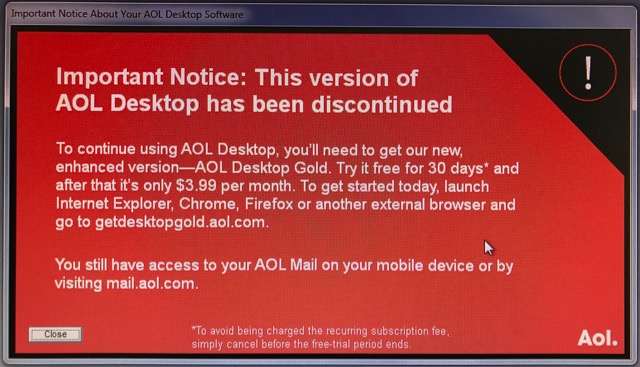
AOL has been notifying their users about a required update to their “AOL Desktop” software, that will require the payment of a $4 monthly fee. To avoid the fee you can access your AOL email and the rest of the internet via another web browser on your computer such as Chrome or Firefox, and navigate to mail.aol.com

Computer Techs can assist you with making the change to another browser, including importing any favorite websites that you may have stored in AOL Desktop. Contact us to schedule a convenient remote or on-site visit.

For more information about the change, continue reading below…


What happens to my email if I do not upgrade to AOL Desktop Gold?

If you sign up for AOL Desktop Gold, your email will be migrated to the new version of the software. If you do not to upgrade to AOL Desktop Gold, you may still access your email using the old version of AOL Desktop software. However, you will not be able to send or receive new email in the old versions. For more information, please refer to our help article What happens to my email if I do not upgrade to AOL Desktop Gold?.

Learn how to spot scams that pop-up on your screen – and how to get rid of them

Filed under: Scams,Security - Mar 20 2017

Updated February 2025:

Please Print This Article Print This Article this article for future reference so you know how to close a fake warning web page if it appears to lock-up your computer.

Malicious advertisements or links can redirect your web browser to webpage designed to look like an official warning from Microsoft or Apple. The fake warnings often have the following characteristics:

  • Tell you that there’s a problem with your computer, it’s been blocked, and you need to call the number presented immediately to prevent harm
  • Tell you NOT to turn off your computer
  • The warnings are often accompanied by scary alert sounds or spoken messages.
  • Your mouse and/or keyboard may become non-responsive.
If you look closely at the “security warning” you will notice that it’s just a webpage designed to scare people into calling the number.

How to “unblock” your computer and get rid of the scare message

NEVER call the number presented on the screen – scammers claiming to be Windows, Apple or tech support representatives will try to gain access to your computer to convince you that you have security problems that you need to pay to have fixed.

Try the following steps in order to close the scare/scam window:

  1. Try closing your browser using the keyboard. Here’s a few a few methods to try:
    • Hold down the [Ctrl] key, then press the [W] key. On a Mac, hold down the [Command ⌘] key, then press the [W] key.
    • Press and HOLD the Esc key (located on the upper-left corner of the keyboard)
    • On a Windows PC, press the Alt + F4 key simultaneously.
    • On a Windows PC, simultaneously press and hold the [Ctrl]+[Alt]+[Del] keys on your keyboard, select Task Manager, select your web browser, then “End Task”. On a Mac use [Command]+[Option]+[Esc], select your web browser, then select “Force Quit”.
  2. If unsuccessful, on your Windows computer try to shut down or restart your computer via the Start button icon along the bottom left taskbar: If the fake warning website covers your full screen where you cannot see the Start button icon, use your keyboard and press the Windows key [  or ] located at the bottom left corner of your keyboard, which should bring the Start menu to the foreground. You should then be able to use your mouse to navigate to Power > Shut Down/Restart.
  3. If none of the above methods work, do the opposite of what the scare page says: Turn off your computer by pressing and HOLDING the power button. After HOLDING down the power button for at least 5 seconds, the computer should shut off.
  4. After your computer is off, leave it off for at least a minute. Then briefly press the power button to turn it back on.
  5. If one of the above steps works to close the scare page and regain control of your browser or computer, you should be good to continue using your computer. However, don’t immediately go back to the website or email that redirected you to the scare page before, and don’t restore your previous browser session if prompted.
  6. If the scare page comes back after powering off your computer, it is likely going to sleep rather than completely powering off when holding down the power button for at least 5 seconds. Try powering it off again. If the message still appears, contact us for assistance. Again, never call the number on the screen.

How does the fake pop-up occur?

On a virus-free computer these pop-ups can occur when you mistype a web address, click a search link which redirects you to the malicious website, or a malicious advertisement can redirect you. If your computer already has adware or malware these pop-ups may occur when you visit any website whether or not the site is malicious or not. If you see pop-ups similar to those pictured while logged into your financial websites, contact Computer Techs right away for computer service. We also advise you to have an alternative web browser installed on your computer in case you are unable to use your primary browser.

Browsers now including scareware protection

In late 2024, Microsoft announced the intention to include scareware protection in their Edge browser. Other browsers such as Chrome, Firefox and Safari will likely follow with protections of their own. Read: Stand up to scareware with scareware blocker, now available in Microsoft Edge.

(more…)

Recognize a scam website by double-checking spelling in the address bar

Filed under: Scams,Security - Mar 07 2017

When using your web browser to visit different websites on the internet, always double-check spelling in the address bar. Scammers typically use misspellings of popular websites to get you to divulge your secure personal and login information. Double-checking the website address can also give you an important clue into the authenticity of a pop-up or request to login to a website.

Also read: Address Bar vs Search Bar vs Search Box – which to use?

Anatomy of a support scam website – from the Microsoft Blog

The scam starts like any other. You are redirected to the website by nefarious ads. When the page loads, you get a pop-up message that says your computer has been locked because of virus infection. It asks you to immediately call a technical support number.

Click for larger view.

Figure 1. Dialogue box that pops up when the site originiftsnormalpro.xyz is accessed. Click for larger view.

The website also starts playing an audio message, a tactic to further cause panic, something that we’re seeing more and more in these scams. It says:

Important security alert! Virus intrusions detected on your computer. Your personal data and system files may be at serious risk. All system resources are halted to prevent any damage. Please call customer service immediately to report these threats now.

In usual scam sites, if you click OK or close the pop-up message, a dialogue loop kicks in. The website continues to serve the pop-up messages whatever you do, effectively locking your browser.
In this new site, however, if you click OK, things start to get very interesting.

It loads a page with what appears to be a pop-up message containing the same details, including the technical support hotline. You may think at this point you’re just getting the usual dialogue loop. But, upon closer inspection, it’s not really a pop-up message, but a website element of the scam page.

Click for larger view.

Figure 2. A fake dialogue box that is really a website element. Click for larger view.

If you click OK on the fake dialogue box (or basically anywhere on the page), it goes into full screen and brings in another surprise. At full screen, you get what looks like a browser opened to support.microsoft.com/ru-ru/en. But, alas, just like the pop-up message, the browser is just a website element.

Click for larger view.

Figure 3. A fake browser that is part of the design of the support scam website. Click for larger view.

This is how the scam site is able to spoof support.microsoft.com in the fake address bar. It even has the green HTTPS indicator to further feign authenticity. If you didn’t detect the scam at this point, you may think you were redirected to a Microsoft website and it’s serving you some messages about your PC.
Don’t fall for this. Exiting full screen puts things in perspective.

Click for larger view.

Figure 4. The support scam website outside full screen. Click for larger view.

Busting the scam

Just like all tech support scams, this new iteration is doing its best to make you think there’s something wrong with your PC. The new techniques are meant to improve its chances of you taking the social engineering bait.

The key to stopping the attack is to immediately recognize and break it. If you’re a Microsoft Edge user, there are a couple of ways to do this.

The first clue that something’s amiss is a message from Microsoft Edge. As the offending site goes into full screen, you get a notification from Microsoft Edge. You can exit the full screen at this point by clicking Exit now, and you stop the attack.

Click for larger view.

Figure 5. Alert from Microsoft Edge that the site has gone to full screen. Click for larger view.

The second clue is the change in the interface. Since the page is designed to look like Google Chrome, if you’re a Microsoft Edge user, you may catch the difference. Detecting the change in the interface may be easier said than done, but the opportunity to break the attack is there.

Click for larger view.

Figure 6. You can detect that the fake browser is different from the real one. Click for larger view.

Conclusion: Avoiding tech support scams

As this newly discovered support scam website shows, scammers are always on the lookout for opportunities to improve their tools. They can get really creative, motivated by the possibility of avoiding security solutions and ultimately increasing the chances of you falling for their trap.

Avoid tech support scam websites by being more careful when browsing the Internet. As much as you can, visit trusted websites only. Like most tech support scams, you are redirected to offending sites via malvertising (malicious ads). These ads are usually found in dubious websites, such as those hosting illegal copies of media and software, crack applications, and malware.

Use Microsoft Edge when browsing the Internet. It blocks known support scam sites using Microsoft SmartScreen. Microsoft Edge can also stop pop-up dialogue loops used by these sites. It also calls out when a website goes into full screen, giving you a chance to stop the attack.

Click for larger view.

Figure 7. Microsoft Edge blocks the support scam website using Microsoft SmartScreen. Click for larger view.

Why you need an alternative web browser

Filed under: Computing Tips,Security,Tech Support - Mar 07 2017

Updated March 2017:

A web browser is the program that you use to access internet web sites. For most of this decade the most popular browsers include Internet Explorer, Google Chrome, Mozilla Firefox, Safari and the AOL browser. Some browsers are faster than others, while others have more security precautions built-in. Whichever one you use, it’s a good idea to install and become familiar with at least one alternative web browser now – in case your regular web browser doesn’t work or can’t access some or all web sites.

browser-icons

In 2015 Microsoft released a new browser called “Microsoft Edge” bundled with their Windows 10 operating system. Since the release of Edge, Microsoft has stopped updating features in the once-popular Internet Explorer. Internet Explorer has become less reliable and more prone to security issues in the past few years and we no longer recommend it using it as your primary browser. Currently the most popular and secure browser is Google’s Chrome browser.

In summary you need to have and be familiar with multiple browsers, so when one doesn’t work to access certain web sites, you’ve got a backup alternative browser.

Troubleshooting Tip: If accessing web sites with your regular browser does not work, but it does work with an alternative web browser, it can be assumed that it’s a problem with your browser or web site and not a problem with your internet connection. With an alternative browser you can continue to access web sites until Computer Techs can fix your regular browser.

Like backing up your computer before disaster strikes, we suggest installing an alternative web browser today so that you’ll have it available in case of an emergency.

Print This Article Print This Article
How to improve wireless reception at home

Filed under: Tech Support - Feb 16 2017

Updated May 2024:

Do you have poor Wi-Fi coverage inside your home due to low signal or interference from other nearby Wi-Fi routers? How about poor wireless cell phone coverage at home due to wireless carriers having trouble locating their cellular transmission antennas, towers and poles in residential neighborhoods? Resident complaints that cell towers will decrease property values or become eyesores within the landscape have persuaded elected officials to deny the permits needed to construct new cell sites.

Fortunately there are a few solutions that will improve Wi-Fi and wireless cell coverage in the home and other small-to-medium size buildings where coverage is weak.

Wi-Fi coverage

Wi-Fi provides wireless coverage around your home so your computers, mobile devices, and IoT devices such as wireless cameras, streaming media devices and smart speakers can access the internet. Wi-Fi technology has evolved over the years allowing manufacturers to produce more powerful Wi-Fi routers, range extenders and mesh network devices that increase range, speed and reduce “dead spots” within the home or office. See: Is it time to replace your Wi-Fi?

Wireless cell phone coverage

All major wireless carriers now offer Wi-Fi Calling, which is available on the newest smartphones. Wi-Fi Calling uses the existing Wi-Fi connection in your home to connect your phone to the wireless cellular network through your home broadband internet connection. When connected, calls and text messages will typically be as clear and reliable as your Wi-Fi connection.

Alternatively, the carriers also offer a device that connects to your home broadband internet connection which improves the wireless signal to cell phones located nearby. Each carrier has their own branded device – links for the individual carrier’s femtocell offerings follow:

The advantage of Wi-Fi Calling vs. getting a booster/extender is there is no cost to enable Wi-Fi Calling. A booster/extender can cost up to a few hundred dollars, however carriers will sometimes discount or fully subsidize the cost for the device for their more profitable customers.

If you have bad wireless cell phone coverage when out of your home, sometimes switching cellular service providers may be your best option. In the Reno area the Verizon network has the most cell towers, followed by T-Mobile, AT&T and Dish. Source.

Computer Techs can help with the setup of new Wi-Fi devices, Wi-Fi Calling on your smartphone or a booster/extender – just contact us to setup an appointment.

Print This Article Print This Article
« Previous PageNext Page »