Computer / Internet Tips & News – exclusively for Computer Techs clients
Support for Windows | macOS | iOS | Android
Welcome to the Computer Techs Computer / Internet Tips & News blog. This purpose of this site is meant to provide a service to our valued customers, by keeping you informed with the latest news and tips related to your computer and the internet. Consider using the search box on the left side of the website to help you find a specific topic or article, or scroll through articles below to learn something new.
Get $25 Off your next service call for recommending Computer Techs
If you’re happy with our service, please consider recommending Computer Techs to a friend or relative. If we service their computer, you get $25 Off your next service call.
The details: Please have your friend or relative mention your name during the appointment, or after the appointment contact Mark Cobb with the name of the person that you recommended/referred. The referred person must be a new Computer Techs customer and not reside in the same household as the referrer.
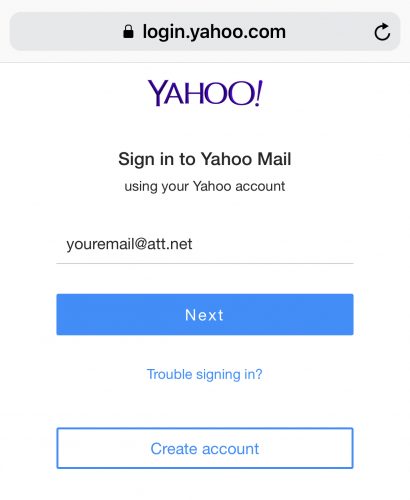
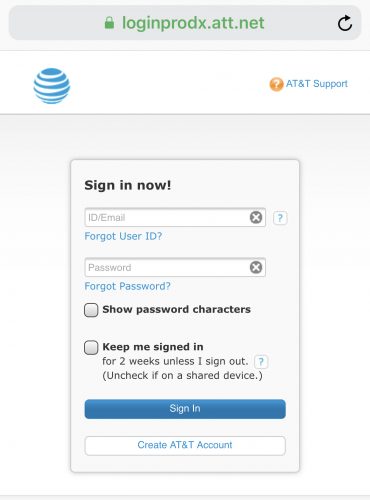
AT&T has recently changed the email login procedure when accessing an AT&T email address (@att.net, @sbcglobal.net, @nvbell.net, @prodigy.net, etc.) from a Yahoo.com website. When signing in from a Yahoo.com website you will be redirected to sign into your email account on an att.net webpage, then redirected back to mail.yahoo.com. Yes, you may be prompted to login twice.
Please listen to our recordings of scam voicemails below, so that you can become familiar with them and not respond to similar calls that you’ll likely receive some day. To listen, click the orange button on the 4 recordings below, or listen to all uploaded recordings of Scam calls on clyp.it.
Home security cameras and video doorbells have become quite popular in the past few years. Many of the systems from names such as Ring, Nest and Arlo require a speedy and stable wireless internet connection in order to be able to view the live video and recordings – a minimum of 2 Mbps upload speed is recommended per streaming camera . Does your wireless internet meet the minimum system requirements to run such a system? DSL internet and some of the slower speed tiers from AT&T do not meet the minimum upload recommendation.
You can check the internet speed at your computer here . Even if your internet speed qualifies on your computer, it may be too slow if walls, distance and other Wi-Fi devices interfere with the signal between your internet router and wireless security camera.
We can perform an on-site survey of your Wi-Fi and recommend/setup a wireless solution that will work with security camera. For more information read more…
Updated 1/20/20 to reflect that support for Windows 7 has now ended.
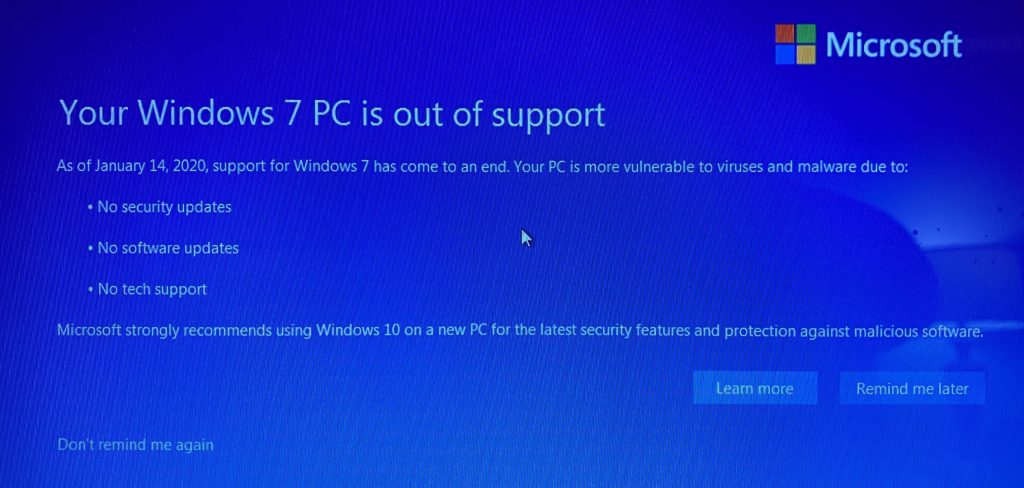
If you purchased a PC between 2009-2012 it most likely came with Windows 7. The operating system was released 10 years ago and has since been replaced with Windows 8 and Windows 10. Microsoft has decided to retire support for Windows 7 effective January 2020, thereby stopping the release of important security and reliability patches.
Computers with Windows 7 have been displaying informational messages similar to the one above reminding about the January 2020 end-of-support cutoff.
While you could continue to use your PC running Windows 7, without continued software and security updates, it will be at an ever-increasing risk for viruses and malware. Going forward, the best way for you to stay secure is on Windows 10. And the best way to experience Windows 10 is on a new PC. While it may be possible to install Windows 10 on your older computer, it is not recommended.
Why updating the operating system on existing computer hardware is not recommended:Since your computer was manufactured over 5 years ago the hardware is nearing the end of its useful life. Particularly, the HDD/mechanical hard drive has an average lifespan of 4-5 years. Additionally an old computer likely has a processor with an unpatched serious security flaw that was discovered in early 2018.
Assuming your computer can be upgraded from Windows 7 to Windows 10, the job typically takes 2+ hours. Since your current computer’s hardware is past it’s average lifespan – I would hate for you to spend the money for the time involved in upgrading only to have a mechanical failure happen soon thereafter. For about $500 you can get a new computer that’s much faster and reliable.
Therefore it’s time to start thinking about replacing your old computer which will come with the latest version of Windows. But don’t buy just any computer before reading our new computer buying information newsletter .
Some computers come with a Solid State Drive (SSD) instead or in addition to a mechanical/spinning Hard Disk Drive (HDD) – the part that stores the operating system and programs. Computers with a SSD are about 5-25x faster, more reliable and energy efficient – which is particularly useful if you’re using a laptop computer.
When setting up a new computer, we set it up in a manner that’s familiar to you – not the way that Microsoft recommends setting up a new computer utilizing a Microsoft account and unnecessary password/PIN that syncs everything with Microsoft’s servers. To read new computer buying information, click here .
Updated October 2024 to include new scare tactics:
An email scam that we initially wrote about in 2018 has been quickly spreading with different variants that claims to have hacked the recipient’s email account and includes a password used by the recipient. One variant further claims to have caught the recipient looking at pornographic websites, and demanding “ransom” in the form of Bitcoin cryptocurrency payment to prevent the release of webcam photos being sent to all the recipient’s contacts. Examples of the “sexstortion” emails are shown below.
Above: This new variation of a “sexstortion” email seen in 2024 mentions the recipient’s home address and includes a photo obtained from Google Maps street view.
This email from 2018 claims that the sender hacked the recipient’s email account, and even includes a password obtained from a data breach.
If you’re the recipient of such an email you may think “how did someone hack into my email account, and know my password?” The answer: they likely didn’t hack your account.
Here’s how they have information about you: Data breaches from companies such as LinkedIn, Yahoo and countless others have exposed the email addresses, passwords and street addresses of millions of users. Clever scammers have taken widely available information from the data breaches and crafted emails that contain some of that information. If the password used to login to your email isn’t used anywhere else, they likely just forged the email address to make it look like it came from your own account. With the addition of potentially embarrassing information, the “sextortion” scammer asks for Bitcoin cryptocurrentcy to prevent the release of information to everybody in your contact list (which they probably don’t really have).
In summary, just ignore/delete the email and change the password on any websites that match the password in the email. You shouldn’t be using the same password on multiple sites anyways.
To find out if your email address(es) have been exposed in a data breach, you can safely enter your email address in the following websites: Mozilla Monitor and Have I Been Pwned
If your smartphone or tablet is slowing down, closing your open apps could help speed it up. When you “close” most apps on a smartphone or tablet, it actually remains in memory running in the background. Over time you may have dozens of apps running in the background which can make it feel slower. Read the instructions in the articles below to close open apps.
If you’ve lost your smartphone or tablet, or if your device is stolen, you can often find its location by using another similar device or computer. But before your device can be located, your device needs to be setup to allow it to be located. Now is the time to check and make sure your device is setup – before it becomes lost or stolen.
For an iOS device such as an iPhone or iPad, go into Settings > iCloud, and make sure “Find My iPhone” is on. Once setup on your device you can go to iCloud.com/find in your computer web browser, or the “Find My iPhone” app on another mobile device, sign into your iCloud account and choose Find My iPhone. More information here.
For an Android device with software version 4.1 or above, follow the instructions here to turn on Android Device Manager on your device. Then go to android.com/find in your computer web browser, or “Find My Device” app on another mobile device, sign into your Google account and follow the prompts.
Wi-Fi enables your computing devices to wirelessly communicate throughout your home. When Wi-Fi was first introduced wireless devices used to just include computers, then later came smartphones, internet video streaming devices and speakers. In recent years the amount of wireless devices in your home may now include “smart home” devices such as wireless security cameras, digital assistants, internet-connected thermostats, light bulbs, garage door openers, sprinkler systems and kitchen appliances – just to name some of the more common devices.
In the past few years security flaws have been found in the Wi-Fi protocol that’s used in all routers and gateways, and patches have been released as firmware updates for only the newest routers manufactured in the past few years. As of May 2020, we only recommend the use of routers certified as “Wi-Fi 5” (802.11ac) or “Wi-Fi 6” (802.11ax).
If your Wi-Fi router or internet gateway (provided by your internet provider) is over a few years old, it’s time to replace it with newer, faster and more secure technology that can accommodate the dozens of wireless devices that connect through it and onto the internet.
A benefit of replacing your Wi-Fi not only fixes current known security vulnerabilities, a new Wi-Fi router can increase the range and reliability of your Wi-Fi.
If you recently set up a new Wi-Fi 5 or 6 router or gateway and you still have slow or unreliable Wi-Fi, it may need to be optimized in your environment.
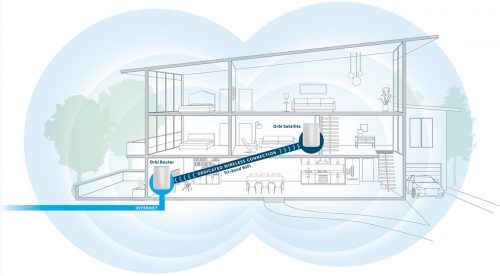
Optimization includes placing the device in the best location where the Wi-Fi signal isn’t blocked, and using the best channels and/or frequency bands to help reduce interference from neighboring networks. Adding an “extender” or “repeater” may actually degrade Wi-Fi performance in your home. On the other hand the latest “mesh” networking technology can help blanket your home in wireless coverage using 2 or more linked Wi-Fi access points.
To find out if you need to replace your Wi-Fi, contact us to for an evaluation of your current Wi-Fi equipment.
Internet Explorer is the web browser that Microsoft included with the Windows operating system through Windows 8.1. Beginning with Windows 10, Microsoft Edge is the new browser that’s included with the operating system and is continually being optimized with performance, feature and security updates. That leaves Internet Explorer 11 – released in late-2013 – as the last major version of Internet Explorer.
With other browsers being continually updated – such as Edge version 41, Firefox version 57 and Chrome version 62 (as of November 2017) , some websites have stopped supporting the use of Internet Explorer. One of those websites is Yahoo – which includes the popular Yahoo web portal, Yahoo Mail and Yahoo Finance.
An advantage of using a newer browser such as Chrome includes faster web browsing, improved security and upcoming features that will help stop fake warning messages that are often caused by webpage redirects and misleading advertisements.
If you need help switching away from Internet Explorer and transferring your Favorites and settings to a new web browser, please contact us.


 Print This Article