Category: Security
Updated 1/4/17:
We began recommending Bitdefender Antivirus Free Edition in late 2014 since it offers free detection of most viruses and malware, with little user interaction needed. For more details you can read PCMag’s review of Bitdefender Antivirus Free Edition (2017). After installation, Bitdefender requires creation of a free MyBitdefender account by providing your name, email address and a password to continue the free protection beyond 29 days.

After 29 days of installation if you have not created your free MyBitdefender account and confirmed your email address, you will get a notice that your computer is not protected. To create a MyBitdefender account, open the program and follow the prompts. After you create your account, go to your email and click the confirmation link in the email that Bitdefender sends immediately after registering. Within a minute or so, Bitdefender’s status should change to “Protected”.
If you have any questions or require assistance with registering or confirming your email address with Bitdefender, please contact your tech.
 Print This Article Print This Article
Updated 11/8/2016:
With email account hacking being a common occurrence, email providers Google, Yahoo and others introduced a 2-step verification process that can keep unwanted people from accessing your email account, or help you regain access to it in the event of a forgotten password or if it has been taken over by a hacker.
It is important to note that you must setup 2-step verification for your account before hackers have a chance to do it first – and potentially lock you out of your account. Computer Techs recommends that you set-up 2-step verification now, as a pro-active preventative measure to keep hackers from accessing and/or taking over your email account.
2-step verification, (also known as 2-factor or multi-factor authentication) requires that anyone accessing your online account have 2 pieces of information in order to prove legitimate access:
- Something the user knows (e.g., password, security answer, PIN)
- Something the user physically has (e.g., phone, smartphone displaying a randomly generated code, ATM card)
If you are unsure about setting up 2-step verification, please contact us and we will set it up for you. If you’d prefer to do it on your own, see the links below for instructions for the most popular email services.
• Google/Gmail: If you use Gmail on your iPhone, an email program on your computer, or certain other 3rd-party applications that access your Google/Gmail account, you will need to generate a one-time application-specific password in your Google account settings page for each device or application. Please read the information and watch the video Sign in using application-specific passwords before proceeding. You can then follow the instructions at Getting started with 2-step verification.
• Outlook Mail/Hotmail: See this Microsoft support article to setup two-step verification, or this blog post for more information.
• AOL: See AOL’s information about 2-Step Verification: Stronger than your password alone.
• Yahoo: See Two-step verification for extra account security.
• AT&T/Yahoo accounts (att.net/nvbell.net/prodigy.net/sbcglobal.net): AT&T/Yahoo email accounts do not offer a 2nd verification method for account security, therefore we do not recommend using their email service. If you login to att.com to access your AT&T paid services (wireless or U-verse) you should register a cell phone number with your account to make resetting your password easier. See Use your wireless number to reset your password.
Additionally we recommend that you secure your other online financial, social and file sharing accounts. See the THE ULTIMATE GUIDE TO TWO-FACTOR AUTHENTICATION (2FA) website for tutorials for most popular websites.
For help with setting up 2-step verification on any of your online accounts, please contact us.
Print This Article
Updated May 2020:
Over the years we’ve written various articles about AT&T/Yahoo email being plagued by account security issues, bothersome ads in their webmail interface, forced password resets, spam messages sent to user’s contacts and more. The revelation that over 500 million Yahoo accounts have been compromised in recent years leads us to once again advise people to stop using AT&T/Yahoo Mail, and switch to using a more secure and reliable email provider such as Gmail.
If your email address ends in @att.net, @sbcglobal.net, @nvbell.net, or @prodigy.net, the advice above includes you – since Yahoo provides the email and web content services for AT&T Internet customers. We’ve had several customers over the years permanently lose access to their AT&T/Yahoo email due to the lack of security of the service.
In May 2020 AT&T once again changed their login procedure, and began blocking use of the website if you use an ad blocker.
An important security option for online accounts is 2-step verification – neither AT&T/Yahoo or Charter/Spectrum email accounts offer the option. Therefore we recommend that you ditch your internet provider’s email service and switch to Google’s Gmail or Microsoft’s Outlook Mail.
If you’ve got an Android smartphone, you should already have a Gmail address associated with the Google account required for your phone. If you don’t already have Gmail, it’s easy to get a free address and setup your account – and we can help.
Switching email providers can be a hassle. But we can setup the initial change for you, and give follow-up guidance on how to systematically inform business correspondence of the change over time. We’ve got a step-by-step procedure that includes (but not limited to):
Discontinuing AT&T/Yahoo email:
(more…)
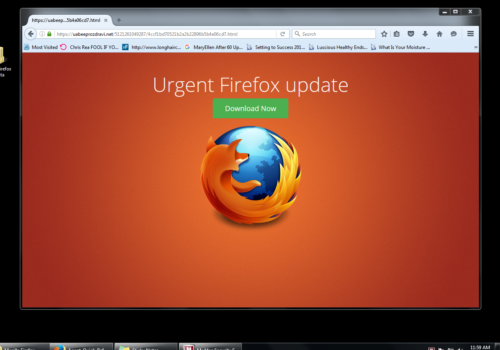 Click on the screenshot above to see if you can spot what’s wrong, then click back to read below for the answers. What’s wrong in the screenshot above?
- Never install something from a website unless you specifically went looking for it.
- Notice the website in the address bar. Is that a popular mainstream website that can be trusted?… No!
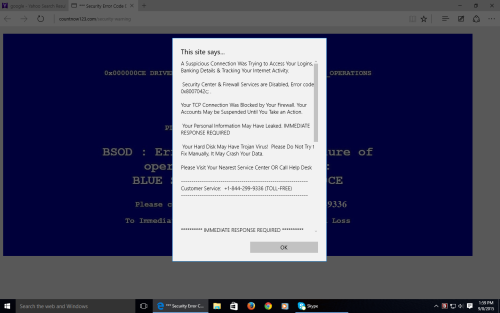 Click on the screenshot above to see if you can spot what’s wrong, then click back to read below for the answers. What’s wrong in the screenshot above?
- Notice that it says “This site says…” Is the website in the address bar trustworthy?
- Bad grammar and punctuation is a clue that this is not a website that is written by a professional company.
- Warnings and urgency is meant to scare you into using your better judgement.
- Never, ever call a phone number that pops up on your screen. It’s a scam!
If you see a screen similar to the one shown above, many times it won’t close by clicking the red “X” on the upper-right corner of the window. Instead, simply click on the Start button on the bottom-left corner of your screen, then follow the normal procedure to shutdown or restart your computer.
Print This Article
Originally posted April 2013. Updated April 25, 2016:
Microsoft, your Internet Service Provider (ISP), nor any legitimate company will call to tell you that your computer is infected, and that they need to remotely access your computer (for a fee) to fix it. It is a scam by crooks who are trying to access your computer, scare you into believing that there are multiple problems with it, and demand money to pay for a problem that didn’t exist in the first place.
Another common scam happens when you initiate the call. Don’t call a number that pops up on your screen unsolicited. If you call a company whose number you found from a web search, make sure you visit the company’s official web site – don’t click on an third-party ad. There are hundreds of fraudulent companies advertising on Google, Bing and other search sites masquerading as “tech support” for legitimate companies, and attempt to convince callers that they need to pay hundreds of dollars to “fix” multiple problems with their computer.
Never allow someone you don’t know remotely access your computer. For more detailed information please read New twists in tech support phone scams, Learn how to spot scams that pop-up on your screen, and the Federal Trade Commission’s information about Tech Support Scams.
Print This Article
Updated December 2015:
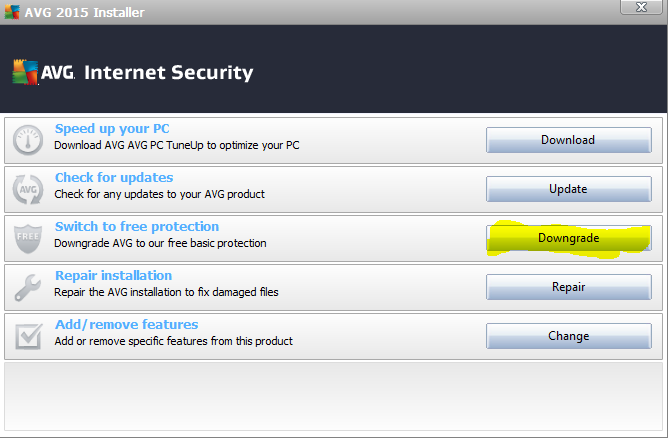
We’ve had several clients who have accidentally installed AVG Internet Security Trial when prompted to install the updated program version. We recommend the free, basic AVG Anti-Virus protection, and show you here how to install it. If you unintentionally installed the paid version of AVG, see the screen shots below to downgrade AVG Internet Security to AVG Anti-Virus Free.
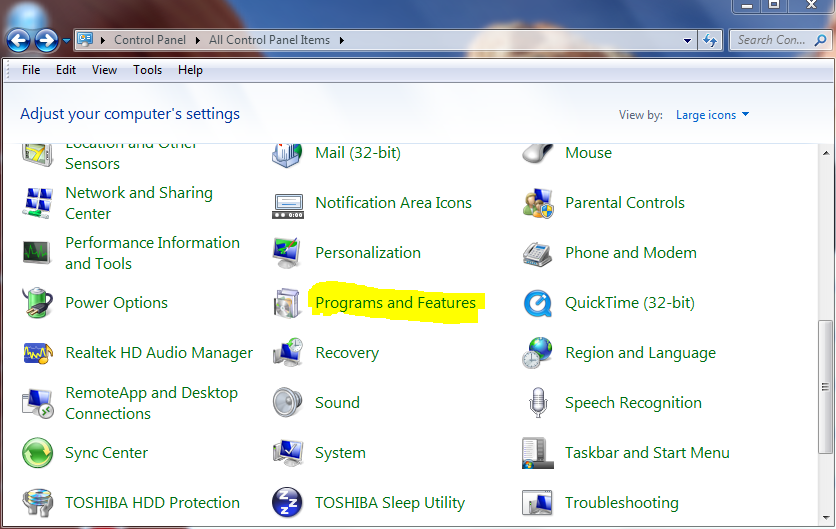
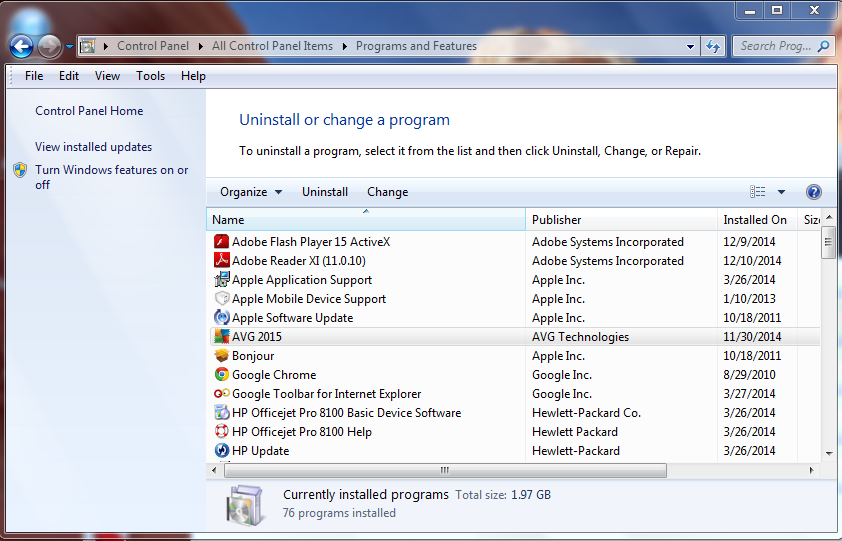
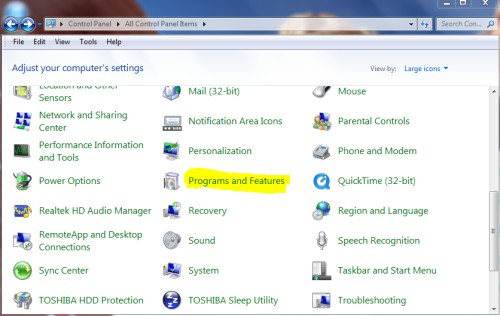 From your computer desktop, click the “Start” button then “Control Panel”, then “Programs and Features” (Windows Vista/7) or “Add/Remove Programs” (Windows XP) 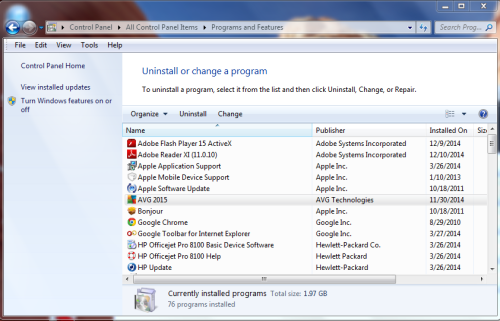 Highlight “AVG 201#” or “AVG Protection”, right-click and choose “Change”. If “Change” is not an option, select “Uninstall”. 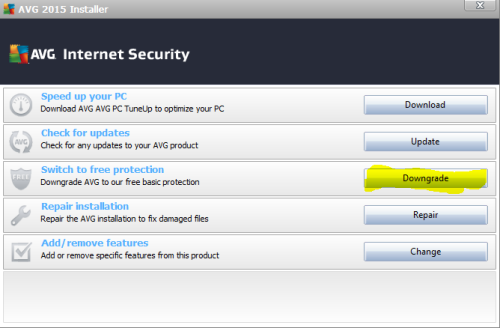 The next window that comes up may look different than pictured above. (1) When the Repair and Uninstall Options windows appears, click the Switch to free protection – “Downgrade” button. (2) Otherwise you’ll likely see a window offering to downgrade to AVG Free instead of uninstalling – do that. 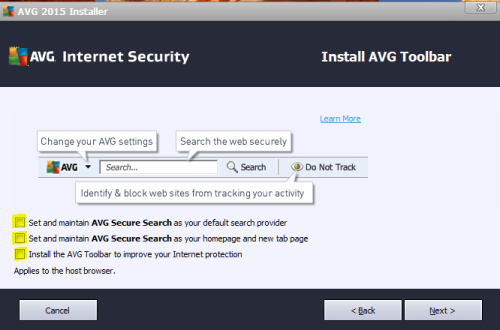 If you see another window come up, be sure to UNcheck any optional AVG toolbars and other browser changes.
If your internet browser home page / start page was changed after installing the AVG update/upgrade, see this article on how to change it back.
- If you’re getting tired of AVG’s tricky upgrades, consider our Computer Maintenance Plan where we take care of computer updates for you.
- If AVG’s frequent pop-ups and attempts to up-sell you to their paid products are bothersome, consider having us switch you to Bitdefender Antivirus Free Edition.
- If you prefer to pay for an Antivirus product, we recommend ESET NOD32 Antivirus. Click the ad in the left column of this page for a special offer.
Print This Article
Updated February 2020 to reflect that we no longer recommend 3rd party antivirus offerings:
Antivirus programs help detect and block the millions of viruses and malware in the wild that are increasing on a daily basis. Since no antivirus detects 100% of all viruses we feel that most home computer users don’t need to pay for antivirus and can just rely upon free offerings by Microsoft, select proven antivirus vendors, or those offered by your internet service provider. However, your best defense against getting infected is practicing safe computing habits.
Our favorite free antivirus for easy-of-use and detection rate is already included with Windows 8/10 – it’s Windows Security / Windows Defender. If you’ve got Windows 7, Microsoft Security Essentials is free. Other options that we’ve recommended in the past are Bitdefender Antivirus Free and AVG AntiVirus Free, however we no longer recommend 3rd party antivirus for most people due to the trouble they can cause and recent improvement in the built-in protection included with Windows.
Your internet service provider also offers security suites included as part of your monthly payment for internet service. AT&T Internet Security Suite powered by McAfee is offered to AT&T subscribers. Spectrum Security Suite by F-Secure is offered as part of a Charter/Spectrum Internet subscription.
Since there are plenty of free antivirus solutions, there is no reason to pay for antivirus. But since they don’t detect or block 100% of viruses and other malware, you must rely upon practicing safe computing habits to be your main line of defense against viruses.
If you’ve got an Apple Mac computer or iOS device, we don’t recommend installing 3rd party security apps. Please read Effective defenses against malware and other threats. You also don’t need an antivirus on an iOS or Android device either: Android Antivirus Apps Are Useless — Here’s What to Do Instead.
Print This Article
Updated 12/12/25:
Below is a scenario that we hear about many times each month – it could happen to you.
You’ve just spoken on the phone with someone claiming to be from Microsoft, Amazon, your Internet provider or other well-known company. You’ve given the stranger remote access to your computer and they’ve shown you a bunch of things that’s wrong with it – errors, security or firewall problems, exposed social security numbers, or even offered to help transfer funds to or from your bank account. But they have a “fix” – they can remedy the “problems” for a few hundred dollars. You may or may not have gone so far as given out your credit card number or purchased gift cards for payment, but the damage has already been done. Sometimes it happens so quickly and convincingly that you may not realize that you’ve been conned until long after you’ve hung up the phone.
You’ve let a stranger get into your personal business. What should you do now? You should immediately turn off your computer or device that was remotely accessed – then call Computer Techs or another honest, reliable and local computer professional. Don’t be embarrassed – the con artists are good at what they do and are very persuasive and convincing. Millions of people get scammed by these telemarketers each year. Computer Techs will check your computer for data they may have compromised or malicious programs left behind – such as stolen or changed passwords, deleted files, changed settings, malware or remote access tools.
In a matter of minutes a scammer can obtain or change passwords, purchase goods or services on your behalf, create accounts, or obtain passwords and credit card numbers stored in your web browser.
If you’ve allowed someone you don’t know to remotely control your computer – no matter what company they say they’re from – please contact us ASAP so that we can make sure that you’re computer is safe to use.
Since you’ve read this far, if you haven’t let a stranger remotely access your computer – please read how to avoid fake tech support calls in the first place.
Other resources and education
When Information Is Lost or Exposed – IdentityTheft.gov
The surprising things we’ve discovered with our cybersecurity checkups for individuals.
How to manage your passwords – easily and safely.
Spend a few minutes to check out these scams so that you don’t become a victim.
Print This Article
We appreciate the opportunity to help you with each service call. Nonetheless each month we get dozens of calls that could have been avoided had the caller read our monthly newsletter. Below are the most common types of calls that could have been avoided:
Tech support phone and internet search scams
It starts with a call to or from an official sounding computer company representative. Maybe you saw a pop-up on your screen telling you to call a toll-free number. The remote “technician” usually with a foreign accent wants to take control of your computer to show you problems or offer to fix a problem that you had called about. After he or she is allowed remote control, they show you a bunch of scary problems with the computer then offer to “fix” the problems for a few hundred dollars. If they sense you’re getting skeptical, sometimes they’ll quickly put a password on your computer and lock you out, delete your files, or install spyware or malware.
How can this be avoided? Never let anyone that you don’t know take remotely control of your computer. If someone calls you telling you they detect problems with your computer, tell them you don’t have a computer then hang up.
Click here to read more info about tech support scams.
Downloading software from a bad website
It starts with a pop-up telling you that you need to update a program. Or maybe you’re looking for a program that someone told you about. When searching the internet for that program, you might click the first result you see and accept all the agreements without thoroughly reading everything. The next thing you notice is that your browser home page has changed, you’ve got extra icons on your desktop and you’re getting more pop-ups than before.
How can this be avoided? Don’t download anything from a website unless you specifically went looking for it. When searching the internet, scroll past the ad results and look for the official website to download programs. When installing programs, read each screen thoroughly and uncheck all optional extras such as browser toolbars or tuneup programs.
Click here to view examples of internet searches with ads that should be avoided.
Click here to read more about “Free” security scans.
Letting many little problems build up into one big problem
It starts with your computer acting more slowly than before. Perhaps there are extra icons on your desktop that you don’t recognize. Maybe your browser home page has changed or you’re getting more pop-up ads. The longer little things like this are left unchecked, it can lead up to bigger problems down the road. Adware that starts letting other malicious software in can also alter your internet search results. Occasional slow downs can be hard drive errors that eventually lead to a complete failure or “crash” of the hard drive, and loss of personal data.
How can this be avoided? Once you start noticing unusual behavior with your computer, call Computer Techs sooner than later. A regularly scheduled check-up is less expensive than the hundreds of dollars it can cost to remove a nasty virus or replacing a hard drive that has completely failed. Consider our Quarterly Maintenance Plan to detect easy-to-fix issues before they become major problems.
Take this 5 question quiz to test your knowledge about computer spyware.
There has been lots of attention lately by the news media about data breaches, phony tech support scams and computer ransomware – all things that we’ve been warning clients about over the years in the Computer Techs monthly email newsletter and website for clients.
Data breaches at Target, Home Depot, Anthem and others have inspired scammers to launch phishing email campaigns and cold-calling operations in hopes to gain the trust of the recipient, then persuade them to reveal personal information and send money.
 If you receive an unexpected email from a friend, business or organization – never click a link or button in the email or open an attachment. It’s best to call the person or business, or type in the web address of the business to access their web site and confirm the validity of an email. However be careful when searching the internet for a business, as there are often ads that appear along with search results paid for by untrustworthy businesses running bogus tech support scam operations. If you receive an unexpected email from a friend, business or organization – never click a link or button in the email or open an attachment. It’s best to call the person or business, or type in the web address of the business to access their web site and confirm the validity of an email. However be careful when searching the internet for a business, as there are often ads that appear along with search results paid for by untrustworthy businesses running bogus tech support scam operations.
If you receive a telephone call, never give personal, computer or financial information over the phone. If in doubt, tell the caller that you will hang up and initiate the call by calling the number listed on your associated ID card or credit card to confirm the validity of the call. Microsoft nor any other legitimate computer company will ever call, email or pop-up a warning on your screen concerning problems with your computer. Never feel pressured to reveal information or act right away. Feel free to call Computer Techs for a 2nd opinion.
Please see our website to read more about scams related to your computer and the internet.
Also see our website to read more about phishing, and be sure to read the article “How to recognize emails that ‘phish’ for your information”.
Lastly a new type of virus has been in the news that demands a ransom to unlock the personal documents, pictures, etc. that the virus encrypts. To avoid ransomware follow the advice in our article, and make sure that all of your important data is backed up to an external source.
Print This Article and place this article near your computer and telephones.
« Previous Page — Next Page »
|