Category: Passwords

How to create a password system that’s secure and memorable

Filed under: Computing Tips,Passwords,Security - May 21 2012

Updated September 2020:

To help prevent unauthorized access to personal information, many websites require a password that consists of six or more characters, numbers and letters, and uppercase and lowercase letters. Creating a password that meets the requirements and being something you can remember doesn’t have to be a challenge.

I have created a password system that you can use or modify to create memorable passwords. The most important part of the system is that a different password is created for each website.

If you currently use the same password for different websites, if the password or website gets compromised, hackers could access your data on all other websites that you use. That would be bad.

The system divides a password into 3 memorable parts that create a secure 10-character password when put together:

Part 1 – First 3 letters of my name [Mar]
Part 2 – First 3 letters of the website – (Yahoo would be [Yah], Google would be [Goo], Amazon would be [Ama], etc.)
Part 3 – 4-digit month & year of my birthdate [0468]

To summarize, my Yahoo password created under this system would be MarYah0468 – created by putting the 3 parts together. Notice that I use uppercase letters as the first letter of each part for added security.

If you’re using a website or service that had a data breach and you’ve been told to change your password, you could just change the 3rd part to reflect the current month & year:

Part 3 – 4-digit month & year that the password was changed [0916]

To summarize, my new Yahoo password changed due to a data breach in September 2016 would be MarYah0916

If you keep a written or typed password list, for added security you could write the name of the website and date, while using an underscore “_” or dash “-” for characters of the password that you’ve memorized without showing the entire password on paper and revealing your password to someone that you may not want to read your password list. For example, my written Yahoo password would be M – – Y – – 0 9 1 6

You should use your own variation of this system. Here’s some suggestions:

• Capitalize the MIDDLE or LAST letter in each part

Use the first 3 letters of your MIDDLE or LAST name, the name of a loved-one – or your initials.

• For Part 2 remove the vowels from the website or service – Yahoo would be Ah, Google would be Ggl, Amazon would be Mzn.

• For Part 2 use the letter or character one key to the right on the keyboard – Yahoo would be Usj, Google would be Hpp, Amazon would be S,s

• For Part 3 of the system, use a 4-digit number from your graduation year, childhood phone number or street number, or any other number that you’ll remember for life. For added security you could use a different number based on the type of website – for example you could use part of your SS# for financial websites, a street number for shopping websites, your graduation year for social networking websites, and birth month+year for everything else.

• Add a special character such as [! ? # *] at the beginning, end or memorable location in the system. Alternatively you could use special characters instead of numbers by holding the shift-key when typing numbers – thus 0468 would be )$^*

• “Pad” or add something somewhere in your password that you don’t write down – such as putting a childhood phone number or zip code at the end of every password.

You may also want to visit the following website for ideas on creating a memorable password system: http://www.f-secure.com/weblog/archives/00001691.html

Also read how to safely manage your passwords.

Print This Article Print This Article

Emails that phish for your email credentials on the rise: What you need to do to stay safe

Filed under: Computing Tips,Passwords,Security - Nov 26 2011

In the past month we’ve received an unusually high number of calls from clients that have had their email accounts hacked. The hackers have accessed their email password either by simply asking for it via a phishing email, or hacking into other insecure web site databases then trying to use the same password to access their email account. After accessing their email account the hackers have done many of the following steps:

• Changed their password and account security questions to permanently lock them out of their email account

• Sent emails to their contacts saying that they are traveling in a foreign country and are in desperate need of money

• Deleted all of their saved email

• Deleted everybody from their contacts/address book

• Changed their email options so that all email forwards to the hackers email address, and all replies are sent to the hacker

• Made a copy of their address book and are continually sending out spam email to their contacts that looks like they are originating from the person whose email account was hacked

Many web sites (including financial institutions) have an option to reset your password by sending an email to your address-on-file. If a hacker has access to your email, they can easily receive the email, reset and change your banking or other password and steal money or purchase merchandise under your name.

Below is what you need to do now to help prevent your email account from being hacked in just 3 easy steps…

• See how to recognize emails that “phish” for your private information

How to help prevent your internet accounts from being hacked

Create a secure and memorable password system

Sadly, the clients that called for after-the-fact help could have prevented their email accounts from being hacked in the first place by taking a few minutes each month to read our monthly newsletter. Information about hacking and steps to avoid it has been mentioned in it each month for years.


Print This Article Print This Article
How to tell if your e-mail was hacked, and what you can do about it

Filed under: Passwords,Security - Jan 24 2011

A friend reports receiving a weird message from your e-mail account, a message you didn’t write. This could mean your account was hacked, or it could have a completely different cause. The PCMag.com article below explains how to tell if your e-mail was hacked, and what you can do about it. Did you get hacked, or was it someone else? Also mentioned is how you can recover from e-mail hacking and how to stay safe by preventing hacking in the first place by using good passwords.

Click here to read the article.

Fix for Dec. 1 AVG update snafu that renders 64-bit versions of Windows unable to boot

Filed under: Archived,Passwords,Tech Support - Dec 03 2010

If you are unable to boot to your operating system after the last AVG 2011 update 3292, it is necessary to do the following to solve the situation:

EDIT 12/3/10: Follow the instructions on this AVG FAQ. This supersedes advice given below.

Method #1:

Windows 7 Startup Repair

Described at this Microsoft website – follow section “To open the System Recovery Options menu on your computer”

To open the System Recovery Options menu on your computer
  1. Remove all floppy disks, CDs, and DVDs from your computer, and then restart your computer using the computer’s power button.
  2. Do one of the following:
    • If your computer has a single operating system installed, press and hold the F8 key as your computer restarts. You need to press F8 before the Windows logo appears. If the Windows logo appears, you need to try again by waiting until the Windows logon prompt appears, and then shutting down and restarting your computer.
    • If your computer has more than one operating system, use the arrow keys to highlight the operating system you want to repair, and then press and hold F8.
  3. On the Advanced Boot Options screen, use the arrow keys to highlight Repair your computer, and then press Enter. (If Repair your computer isn’t listed as an option, then your computer doesn’t include pre-installed recovery options, or your network administrator has turned them off.)
  4. Select a keyboard layout, and then click Next.
  5. Choose your User Name from the drop-down list and type-in your password (if none – leave blank).
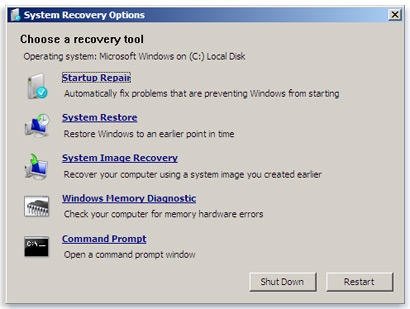
  6. On the System Recovery Options menu, click a tool to open it.

Choose “System Restore”, follow the prompts to choose a restore point previous to December 1, then restart your computer when finished restoring. If your computer restarts normally, after logging to your operating system, please download the latest AVG installation file, run it and when asked, choose the Repair installation option.
If Method #1 is unsuccessful, follow the steps for Method #2 (below).

Method #2:

  • Download, create and run the AVG Rescue CD as mentioned in AVG Rescue CD guide. – We will leave copies of the AVG Rescue CD at Technology Center
  • Select the Utilities item in the main menu and run the Midnight Commander file manager.
  • In Midnight Commander, navigate to the following folder:
    mnt\sda1
    (if you have more disks, number can vary)
  • Then navigate to:
    Program Files (x86)\AVG\AVG10
  • Find the following files:
    • avgrsx.exe or avgrsa.exe
    • avgchsvx.exe or avgchsva.exe
  • Delete both files by pressing the F8 key and confirm the deletion.
  • Quit the Midnight Commander and reboot your computer by selecting the Reboot option in the main menu.

After logging to your operating system, please download the latest AVG installation file, run it and when asked, choose the Repair installation option.

Print This Article Print This Article

Wi-fi router security tips

Filed under: Computing Tips,Passwords,Security - Aug 22 2010

Wi-fi routers and modems allow you to share your high-speed internet connection with multiple computers or wireless devices throughout your home. Though convenient, most wi-fi routers have security risks if not configured differently from the default out-of-the-box settings. Below are the first 3 things that Computer Techs professionals do to secure a newly installed wireless router:

1. Set-up WPA wireless encryption: Wireless encryption effectively “scrambles” the wireless radio signals between your router and wireless devices so that only devices that have the wireless encryption key can communicate with it. There are 2 standard encryption methods – WEP and WPA – we use the more secure WPA method whenever possible.

2. Changing the default SSID: The SSID is the name of your network that is broadcast that other people with wireless devices can see. We change the SSID to a name that is recognizable by you, but not necessarily by others within range of your wireless network. The typical range of a wi-fi wireless network is a few hundred feet.

3. Changing the router’s administrator/management password: The administrator/management password should be changed to help prevent unauthorized changes to the settings of your wireless router. Unauthorized changes could lock you out of your wireless router and network. Also computer malware can now change router settings to direct your internet browsing to fake web sites.

If securing your wireless router looks a bit confusing, give us a call so that a Computer Techs expert can properly secure your wireless router for you.

Print This Article Print This Article

Spammers and scammers hacking e-mail accounts to get addresses

Filed under: Passwords,Scams,Security - Jul 23 2010

Email spammers and scammers are now breaking into email accounts and collecting known “active” email addresses from people’s address books.

Known ways that spammers are hacking accounts include:

• Guessing a weak password.

• Guessing a known security question so that the password can be changed/reset.

• Sending an email from what looks like the email provider asking to reply to the email and give the email password.*

Once spammers get a hold of email addresses they send spam messages promoting bargain pharmaceutical drugs, software, etc. They forge their email address to appear to come from one of the people in the hacked address book since people are more likely to open an email that appears to come from someone they know.

Another recent scam is to send individual e-mails to everybody in the address book asking for money. The scam usually includes something like “I am on vacation in Europe and lost my passport and cell phone. Please wire me some money so that I can get back home.” Since the e-mail address is forged to look like coming from a known friend, the recipient may believe the e-mail and send money to a scammer.

* Below is an actual e-mail that looks like it’s from Yahoo, in which scammers have been getting Yahoo e-mail account information.

If you get an e-mail from what appears to be someone you know that contains advertisements or asking for money, it’s likely their e-mail address is being forged. Just delete the e-mail. If contacts are telling you that you are sending spam, immediately change your e-mail account password and password retrieval security questions, just in case your account has been hacked.

See Creating secure and memorable passwords.

Print This Article Print This Article

3 most common scams and malicious software to watch out for

Filed under: Passwords,Scams,Security - Apr 26 2010

Now that nearly every U.S. household can access the internet, it’s easy for scammers to infect millions of computers by tricking computer users to install viruses and malware. Below are 3 of the most common methods to watch out for which scammers use to install software without your consent which can render a computer useless until a ransom is paid, use the computer as a spambot or capture keystrokes and login information.

1. The phony e-mail attachment: You may get an e-mail that looks like it’s from UPS, Facebook, the IRS or Microsoft prompting you to open the attachment with the “.zip” extension to view “the package information”,  “your new password” or “a critical update”. What happens when the attachment is opened is a fake anti-virus program will be installed on your computer and render it nearly useless until you pay to register the program. Even paying for the program does not get rid of it. It’s a scam to get you to pay money for a problem you never had. We call it “ransonware” or “scareware”.

2. The phony e-mail with a link: You may get an e-mail that looks like it’s from your bank, PayPal, Amazon.com or e-mail provider without an attachment. There is a link in the e-mail that looks like it will direct you to the senders website to “verify information” or view the “details of your order”. When the link is clicked normally you would be directed to a fake yet realistic looking website that would prompt you to enter financial and/or personal information that would later be used for malicious purposes. Sometimes the link is directed to a website that would pop-up a fake anti-virus program as described above.

3. The fake website: you may click on a link in Facebook, forum or search result and then you see a pop-up for a legitimate-looking anti-virus program that looks like it’s scanning your computer and finding multiple threats. It’s a scam to eventually get you to purchase a program for a problem with your computer that didn’t exist until after you installed the fake program.

As mentioned in previous articles if you see a pop-up from an unknown program that is warning you about multiple security problems with your computer, you should immediately turn off or restart your computer. Do not click the “X” on the upper right corner of the window, nor anywhere on the pop-up. Doing so will likely install the unwanted program. If the pop-up is gone after you restart your computer, your computer is likely ok. If you continue to see warnings or strange behavior, contact Computer Techs so that we can check out your computer and remove any malware or viruses.

Should you toss your cookies?

Filed under: Computing Tips,Passwords - Mar 23 2010

Browser cookies are text files stored by web sites on your computer. We are often asked if people should delete the cookies stored on their computer. Our advise is usually “No”.

By default web browsers will only accept cookies from web sites that you visit. For example if you go to Amazon.com the cookie may contain information about items that you look at on the site. This can be useful for the next time you visit Amazon.com. For example the cookie may help Amazon.com remember that you looked at books by Stephen King the last time you went to the website. Because of the information in the cookie it may suggest a new book by Stephen King during your next visit to the website.

Bank and financial institution websites store cookies to help recognize that your computer has logged into the website before. This will make it somewhat easier to login on subsequent visits, as you may get asked fewer questions to confirm your identity.

Webmail sites can save your login information using a cookie, so that you don’t have to enter your password each time you visit the website should you choose.

You can learn more about browser cookies on Wikipedia.

Print This Article Print This Article

Watch out for “Scareware” or “Malware”

Filed under: Passwords,Scams,Security - May 27 2009

Recently we have been warning clients about scams where fake anti-virus programs have been causing widespread problems. Some of these programs can get onto your computer by simply going to an infected website either directly, through a link, or via a link in an e-mail.

Computer Techs has begun referring to these programs as “Scareware” and “Malware”. We call it Scareware because the  pop-up or program “scares” you into believing that what it is telling you is true, and that you must react quickly to cure the perceived problem. For example a pop-up might inform you that you have registry errors, or hundreds of viruses and password-stealing trojans on your computer. Malicious software is referred to as Malware because it does malicious and damaging things to your computer without your knowledge or consent.

Anti-virus software companies are having a difficult time keeping up with the malware because the malware is constantly changing its patterns, and it’s a cat-and-mouse game of the anti-virus trying to keep up with the new viruses. We recommend reading the advise in our previous articles about what to do at the first sign of Scareware in order to help prevent it from automatically installing malware on your computer.

If you have signs of Scareware or Malware it is important to give us a call as soon as possible to keep any malware that may have been installed from automatically downloading more malware and possibly irreversibly damaging your computer.

Print This Article Print This Article

Access your e-mail while traveling

Filed under: Computing Tips,Passwords - Dec 20 2007

If you use an e-mail program such as Outlook/Outlook Express, Windows Mail/Live Mail or Thunderbird, while traveling away from home you can access your e-mail from a computer at a relative’s house or hotel via webmail.

For AT&T Yahoo email, you can open the computer’s web browser and type mail.yahoo.com in the address bar. When prompted to login, use your full e-mail address (for example username@sbcglobal.net) and your password.

For Charter/Spectrum email, use webmail.spectrum.net

AOL users can access email via webmail.aol.com

Print This Article Print This Article
« Previous PageNext Page »