Considering all the data breaches lately, you should be monitoring and protecting your accounts and personal information – but what is the best method for you? Should you use a credit monitoring service or subscribe to identity theft protection instead? What’s the difference between the two methods?
Credit monitoring services monitor activity on your accounts with the major credit reporting agencies (TransUnion, Experian, and Equifax). Creditors report all activities related to borrowing money, including your payment history, to credit reporting agencies. Monitoring services may monitor your history with all three agencies or be exclusive to a certain agency.
With credit monitoring, you’re alerted to various changes in your credit report – for example, when a potential creditor asks for your credit history or when new credit card accounts or loans are opened in your name. Any activity that is reported to the credit reporting agency is monitored.
However, identity theft can involve more than fraudulent loans or credit accounts in your name. Thieves can use your Social Security number and other personal information to open bank accounts, get jobs, receive government benefits – even commit crimes in your name. None of these activities will show up on your credit report because borrowing is not involved.
Identity theft protection services typically include credit monitoring and also check for non-credit related abuses of your information – or let you know that your compromised information is out there, available to thieves for future abuse. Monitoring may include dark web scans, arrest records, court filings, changes of address, and social media accounts.
Identity theft protection services may also include help to restore your identity and resolve fraudulent uses and claims, as well as identity theft insurance. However despite the marketing claims to scare you into buying such protections there are things that identity theft services can and cannot do for you.
Victims of data breaches are often offered free credit monitoring or identity protection services for a limited period of time – however you need long-term protection, especially once your personal data has been compromised. You can always cancel accounts and change passwords, but once your Social Security number is compromised, you are in for a lifelong battle with identity thieves.
Note that most credit monitoring and identity theft protection services are reactive, not proactive. They let you know when suspicious activity has occurred, but they can’t prevent it from happening. You can supplement either service by using following these proactive tips:
Shred any sensitive information before discarding it.
Be suspicious of all e-mails, text messages, pop-ups and unsolicited phone calls claiming that there’s a problem that requires your immediate reaction – such as calling an unfamiliar phone number or divulging your personal information or login credentials over the phone or via an email link.
Check your credit frequently, and consider a credit freeze on your accounts to prevent thieves from opening fraudulent accounts in your name.
Help either service by making it more difficult for identity thieves to get your information, or to use your information if they do get it. Now is the time to follow through with whatever protection you choose. Identity thieves look for the easiest unprotected targets – don’t be one of them.
Updated 1/20/20 to reflect that support for Windows 7 has now ended.
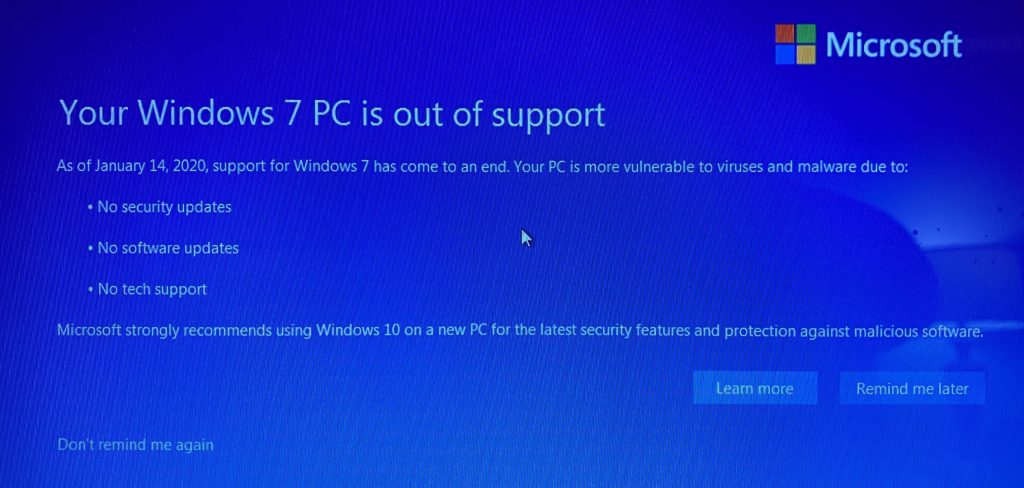
If you purchased a PC between 2009-2012 it most likely came with Windows 7. The operating system was released 10 years ago and has since been replaced with Windows 8 and Windows 10. Microsoft has decided to retire support for Windows 7 effective January 2020, thereby stopping the release of important security and reliability patches.
Computers with Windows 7 have been displaying informational messages similar to the one above reminding about the January 2020 end-of-support cutoff.
While you could continue to use your PC running Windows 7, without continued software and security updates, it will be at an ever-increasing risk for viruses and malware. Going forward, the best way for you to stay secure is on Windows 10. And the best way to experience Windows 10 is on a new PC. While it may be possible to install Windows 10 on your older computer, it is not recommended.
Why updating the operating system on existing computer hardware is not recommended:Since your computer was manufactured over 5 years ago the hardware is nearing the end of its useful life. Particularly, the HDD/mechanical hard drive has an average lifespan of 4-5 years. Additionally an old computer likely has a processor with an unpatched serious security flaw that was discovered in early 2018.
Assuming your computer can be upgraded from Windows 7 to Windows 10, the job typically takes 2+ hours. Since your current computer’s hardware is past it’s average lifespan – I would hate for you to spend the money for the time involved in upgrading only to have a mechanical failure happen soon thereafter. For about $500 you can get a new computer that’s much faster and reliable.
Therefore it’s time to start thinking about replacing your old computer which will come with the latest version of Windows. But don’t buy just any computer before reading our new computer buying information newsletter .
Some computers come with a Solid State Drive (SSD) instead or in addition to a mechanical/spinning Hard Disk Drive (HDD) – the part that stores the operating system and programs. Computers with a SSD are about 5-25x faster, more reliable and energy efficient – which is particularly useful if you’re using a laptop computer.
When setting up a new computer, we set it up in a manner that’s familiar to you – not the way that Microsoft recommends setting up a new computer utilizing a Microsoft account and unnecessary password/PIN that syncs everything with Microsoft’s servers. To read new computer buying information, click here .
Updated October 2024 to include new scare tactics:
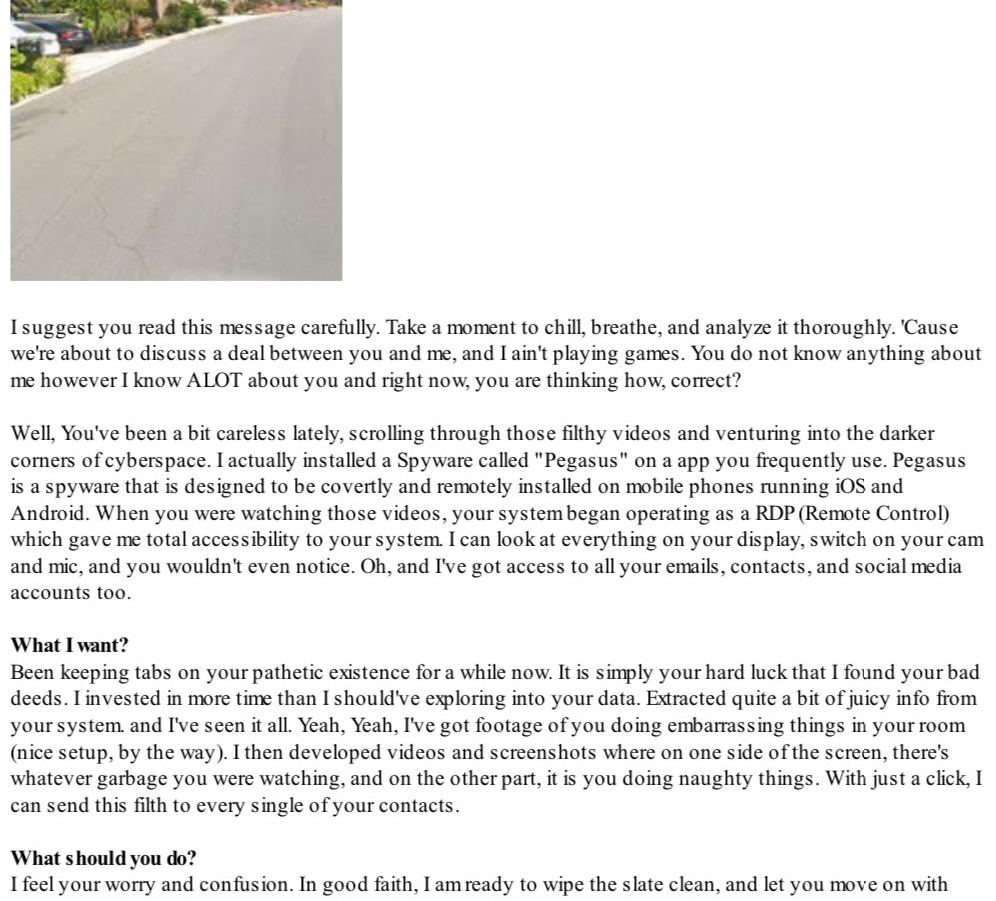
An email scam that we initially wrote about in 2018 has been quickly spreading with different variants that claims to have hacked the recipient’s email account and includes a password used by the recipient. One variant further claims to have caught the recipient looking at pornographic websites, and demanding “ransom” in the form of Bitcoin cryptocurrency payment to prevent the release of webcam photos being sent to all the recipient’s contacts. Examples of the “sexstortion” emails are shown below.
Above: This new variation of a “sexstortion” email seen in 2024 mentions the recipient’s home address and includes a photo obtained from Google Maps street view.
This email from 2018 claims that the sender hacked the recipient’s email account, and even includes a password obtained from a data breach.
If you’re the recipient of such an email you may think “how did someone hack into my email account, and know my password?” The answer: they likely didn’t hack your account.
Here’s how they have information about you: Data breaches from companies such as LinkedIn, Yahoo and countless others have exposed the email addresses, passwords and street addresses of millions of users. Clever scammers have taken widely available information from the data breaches and crafted emails that contain some of that information. If the password used to login to your email isn’t used anywhere else, they likely just forged the email address to make it look like it came from your own account. With the addition of potentially embarrassing information, the “sextortion” scammer asks for Bitcoin cryptocurrentcy to prevent the release of information to everybody in your contact list (which they probably don’t really have).
In summary, just ignore/delete the email and change the password on any websites that match the password in the email. You shouldn’t be using the same password on multiple sites anyways.
To find out if your email address(es) have been exposed in a data breach, you can safely enter your email address in the following websites: Mozilla Monitor and Have I Been Pwned
Even though you may have a password system, you still should keep a record of your passwords. Some people put their passwords in a notebook, Rolodex, on their mobile device or online password manager. Which is the best option for you? How to safely manage your passwords
Updated 9/13/17 to include information from Consumer Reports. Updated 10/5/17 with additional resources and clarifications:
Equifax, one of the large credit reporting agencies in the U.S. recently announced a data breach that may affect over 143 145 million Americans. In case you’re not familiar with the population of the United States, there’s currently about 250 million Americans over the age of 18. Initial reports indicate that exposed data may include names, Social Security numbers, birth dates, addresses and, in some instances, driver’s license numbers. Note that Equifax DOES NOT have access to passwords to your financial accounts.
The Federal Trade Commission posted a helpful article with suggestions on what you can do to help protect your financial data now that the data breach has come to light. However, contrary to Equifax’s advice that includes entering your personal information to check to see if you’ve been affected by the breach and sign up for their free credit monitoring service (do you feel comfortable about entering your information on a website operated by a company that didn’t keep your information secure in the first place?) – security researcher Brian Krebs recommends placing a credit freeze on your file, and further explains how to do it in this article.
Additional information from the FTC includes:
Check your credit reports from Equifax, Experian, and TransUnion — for free — by visiting annualcreditreport.com. Accounts or activity that you don’t recognize could indicate identity theft. Visit IdentityTheft.gov to find out what to do.
Monitor your existing credit card and bank accounts closely for charges you don’t recognize.
Consider placing a credit freeze on your files. A credit freeze makes it harder for someone to open a new account in your name. Keep in mind that a credit freeze won’t prevent a thief from making charges to your existing accounts.
If you decide against a credit freeze, consider placing a fraud alert on your files. A fraud alert warns creditors that you may be an identity theft victim and that they should verify that anyone seeking credit in your name really is you.
File your taxes early — as soon as you have the tax information you need, before a scammer can. Tax identity theft happens when someone uses your Social Security number to get a tax refund or a job. Respond right away to letters from the IRS.
Believe it or not, your email account is valuable to hackers. Miscreants can break into your email account and use it to send spam to your contacts or fool them into sending them money, and even break into your other accounts containing financial information by simply requesting a password reset. That’s why it’s very important to use a secure email service, and use multiple strong security methods to help prevent unwanted people from accessing your email account.
A secure email service is likely not one provided by your Internet service provider. In the Reno area, Charter and AT&T provide free email accounts as part of their service but they are not very secure because those accounts lack of security features make them easy targets by hackers. See Why you should ditch your Internet provider’s email.
A better option is to use Google’s Gmail because they block most suspicious login activity (such as logging in from another country), and they offer 2-Step Verification which requires providing a code or prompt sent to your phone the first time you access your account from your computer or device.
We began recommending Bitdefender Antivirus Free Edition in late 2014 since it offers free detection of most viruses and malware, with little user interaction needed. For more details you can read PCMag’s review of Bitdefender Antivirus Free Edition (2017). After installation, Bitdefender requires creation of a free MyBitdefender account by providing your name, email address and a password to continue the free protection beyond 29 days.
After 29 days of installation if you have not created your free MyBitdefender account and confirmed your email address, you will get a notice that your computer is not protected. To create a MyBitdefender account, open the program and follow the prompts. After you create your account, go to your email and click the confirmation link in the email that Bitdefender sends immediately after registering. Within a minute or so, Bitdefender’s status should change to “Protected”.
If you have any questions or require assistance with registering or confirming your email address with Bitdefender, please contact your tech.
With email account hacking being a common occurrence, email providers Google, Yahoo and others introduced a 2-step verification process that can keep unwanted people from accessing your email account, or help you regain access to it in the event of a forgotten password or if it has been taken over by a hacker.
It is important to note that you must setup 2-step verification for your account before hackers have a chance to do it first – and potentially lock you out of your account. Computer Techs recommends that you set-up 2-step verification now, as a pro-active preventative measure to keep hackers from accessing and/or taking over your email account.
2-step verification, (also known as 2-factor or multi-factor authentication) requires that anyone accessing your online account have 2 pieces of information in order to prove legitimate access:
Something the user knows (e.g., password, security answer, PIN)
Something the user physically has (e.g., phone, smartphone displaying a randomly generated code, ATM card)
If you are unsure about setting up 2-step verification, please contact us and we will set it up for you. If you’d prefer to do it on your own, see the links below for instructions for the most popular email services.
• Google/Gmail: If you use Gmail on your iPhone, an email program on your computer, or certain other 3rd-party applications that access your Google/Gmail account, you will need to generate a one-time application-specific password in your Google account settings page for each device or application. Please read the information and watch the video Sign in using application-specific passwords before proceeding. You can then follow the instructions at Getting started with 2-step verification.
• AT&T/Yahoo accounts (att.net/nvbell.net/prodigy.net/sbcglobal.net): AT&T/Yahoo email accounts do not offer a 2nd verification method for account security, therefore we do not recommend using their email service. If you login to att.com to access your AT&T paid services (wireless or U-verse) you should register a cell phone number with your account to make resetting your password easier. See Use your wireless number to reset your password.
Additionally we recommend that you secure your other online financial, social and file sharing accounts. See the THE ULTIMATE GUIDE TO TWO-FACTOR AUTHENTICATION (2FA) website for tutorials for most popular websites.
For help with setting up 2-step verification on any of your online accounts, please contact us.
When helping clients log in to their computer or websites, often I will see them pull out a scratch pad or sticky notes with various passwords scribbled on the page. There’s a better organized and more secure method to record your login information.
Use a password system
For years I’ve recommended using a variant of my password system to help you memorize the unique passwords that you use for every device and web site. When changing existing passwords I recommend starting with your email password, then financial and social networking websites, followed by the less-important web sites that you’ve used over the years. Your email password is your most important password since many websites send password reset requests to your email address. If a hacker gains access to your email, they could change the passwords and lock you out of all of your online accounts.
Use the password manager built into your browser or device…
In addition to using a system where most of my passwords are easy to remember, I also use a password manager to keep my passwords and secure notes well-documented and synchronized between devices. If you don’t need the sophistication and advanced features of a paid password manager, you can use the password manager built right into your web browser, device and/or smartphone.
…or consider a password manager with more features that can be synced between multiple devices
But if you want your passwords synced between multiple web browsers (Chrome, Edge, Firefox, etc.) and/or multiple operating systems (Windows, macOS, ChromeOS, iOS, Android, etc.), you’ll need to pay for a multi-platform password manager, that also offers more advanced features such as:
Multi-factor authentication: This adds an extra layer of security to your password manager by requiring you to enter a code from your phone in addition to your master password.
Password sharing: This allows you to share selected passwords with others securely.
Password audits: This feature can help you to identify weak or compromised passwords. Some password managers will even automatically generate new passwords for you if they detect that a password has been compromised.
Security breach alerts: This feature will notify you if your password manager is ever hacked. This will give you the opportunity to change your passwords and protect your accounts.
Emergency Access: Setting up emergency access lets you share all of your passwords with predetermined person(s) in the event that you unexpectedly become hospitalized or die. If the person(s) request access to your passwords, if you didn’t want to allow the request you would have to deny the emailed request after a predetermined period of time – usually a week. Otherwise your passwords would be available after the waiting period.
Photo storage: Store photos of important documents such as a passport, driver license, social security card, insurance cards and credit cards.
Password generator: A password generator can help you to create strong, unique passwords for all of your accounts.
Password strength checker: A password strength checker can help you to identify weak or compromised passwords.
Form filling: A form filling feature can automatically fill in your login information on websites and apps.
Secure notes: A secure notes feature can allow you to store sensitive information, such as credit card numbers, bank account numbers and social security numbers.
Travel mode: A travel mode feature can temporarily disable your password manager when you are traveling, which can help to protect your accounts from being accessed while you are away.
Limit access to certain countries: If you don’t travel beyond the United States, consider allowing access to your password manager while logged in from the U.S. When traveling, temporarily allow access when logged in from other countries of your choosing.
To help you decide on a multi-platform password manager with advanced features, check out a review of The Best Password Managers | PCMag.
Less secure options, but better than nothing
Another option to manage your passwords that also backs up to the cloud so you don’t lose them is to use the Notes app on Apple/iCloud devices, or Google Keep which is available on most devices. Make sure that each of your devices where you use Notes or Google Keep are synchronizing with your cloud account, and each device where you are logged in needs to be protected with a secure password.
If you prefer to keep your passwords in a typewritten form such as a document or spreadsheet, never name the file “passwords”, nor include the name “password” in the content of a file – both are easily searchable on a computer. You can also password-protect a document or spreadsheet with a password that you can easily remember or is stored in a secure and memorable location. Also, don’t type the entire password – just parts that aren’t easily memorable. For example you could type the name of the website and date, but use an underscore “_” or dash “-” for characters of the password that you’ve memorized without revealing the entire password to someone that you may not want to view your password list. For example, my typed Yahoo password would be M – – Y – – 0 9 1 6 – I know what characters are represented by dashes.
The least secure option, with no backup in case of loss
A low-tech method for keeping track of your passwords is using a password log book such as this #1 Best Seller at Amazon. I suggest not writing complete passwords in the book, but hints to the password (see above). Also you should store the book in a locked fire-proof safe or non-obvious location, remove the cover sleeve that says “passwords”, and make sure your spouse and next of kin know the location of the book.
For all logins include the following 5 pieces of information at a minimum:
Login name (e.g. AAA)
Website address (e.g. www.aaa.com)
Username/email address (e.g. myemail@myemail.com or mesmith89501)
Password – labeled “pw” (e.g. AbcAaa123)
Date (e.g. Changed 2/14/2014due to data breach)
If you need help setting up any of the methods mentioned above, we can help.
Over the years we’ve written various articles about AT&T/Yahoo email being plagued by account security issues, bothersome ads in their webmail interface, forced password resets, spam messages sent to user’s contacts and more. The revelation that over 500 million Yahoo accounts have been compromised in recent years leads us to once again advise people to stop using AT&T/Yahoo Mail, and switch to using a more secure and reliable email provider such as Gmail.
If your email address ends in @att.net, @sbcglobal.net, @nvbell.net, or @prodigy.net, the advice above includes you – since Yahoo provides the email and web content services for AT&T Internet customers. We’ve had several customers over the years permanently lose access to their AT&T/Yahoo email due to the lack of security of the service.
In May 2020 AT&T once again changed their login procedure, and began blocking use of the website if you use an ad blocker.
An important security option for online accounts is 2-step verification – neither AT&T/Yahoo or Charter/Spectrum email accounts offer the option. Therefore we recommend that you ditch your internet provider’s email service and switch to Google’s Gmail or Microsoft’s Outlook Mail.
If you’ve got an Android smartphone, you should already have a Gmail address associated with the Google account required for your phone. If you don’t already have Gmail, it’s easy to get a free address and setup your account – and we can help.
Switching email providers can be a hassle. But we can setup the initial change for you, and give follow-up guidance on how to systematically inform business correspondence of the change over time. We’ve got a step-by-step procedure that includes (but not limited to):


 Print This Article