Believe it or not, your email account is valuable to hackers. Miscreants can break into your email account and use it to send spam to your contacts or fool them into sending them money, and even break into your other accounts containing financial information by simply requesting a password reset. That’s why it’s very important to use a secure email service, and use multiple strong security methods to help prevent unwanted people from accessing your email account.
A secure email service is likely not one provided by your Internet service provider. In the Reno area, Charter and AT&T provide free email accounts as part of their service but they are not very secure because those accounts lack of security features make them easy targets by hackers. See Why you should ditch your Internet provider’s email.
A better option is to use Google’s Gmail because they block most suspicious login activity (such as logging in from another country), and they offer 2-Step Verification which requires providing a code or prompt sent to your phone the first time you access your account from your computer or device.
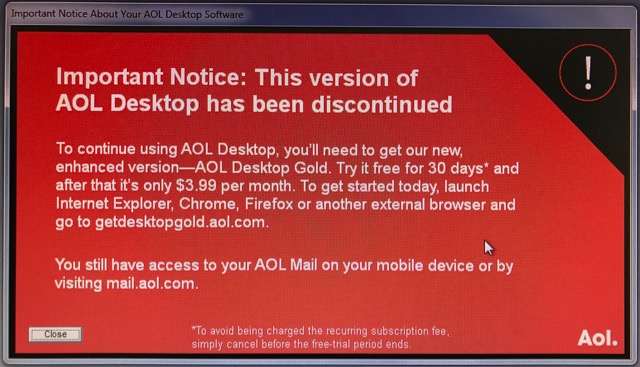
AOL has been notifying their users about a required update to their “AOL Desktop” software, that will require the payment of a $4 monthly fee. To avoid the fee you can access your AOL email and the rest of the internet via another web browser on your computer such as Chrome or Firefox, and navigate to mail.aol.com
Computer Techs can assist you with making the change to another browser, including importing any favorite websites that you may have stored in AOL Desktop. Contact us to schedule a convenient remote or on-site visit.
For more information about the change, continue reading below…
What happens to my email if I do not upgrade to AOL Desktop Gold?
If you sign up for AOL Desktop Gold, your email will be migrated to the new version of the software. If you do not to upgrade to AOL Desktop Gold, you may still access your email using the old version of AOL Desktop software. However, you will not be able to send or receive new email in the old versions. For more information, please refer to our help article What happens to my email if I do not upgrade to AOL Desktop Gold?.
A web browser is the program that you use to access internet web sites. For most of this decade the most popular browsers include Internet Explorer, Google Chrome, Mozilla Firefox, Safari and the AOL browser. Some browsers are faster than others, while others have more security precautions built-in. Whichever one you use, it’s a good idea to install and become familiar with at least one alternative web browser now – in case your regular web browser doesn’t work or can’t access some or all web sites.
In 2015 Microsoft released a new browser called “Microsoft Edge” bundled with their Windows 10 operating system. Since the release of Edge, Microsoft has stopped updating features in the once-popular Internet Explorer. Internet Explorer has become less reliable and more prone to security issues in the past few years and we no longer recommend it using it as your primary browser. Currently the most popular and secure browser is Google’s Chrome browser.
In summary you need to have and be familiar with multiple browsers, so when one doesn’t work to access certain web sites, you’ve got a backup alternative browser.
Troubleshooting Tip: If accessing web sites with your regular browser does not work, but it does work with an alternative web browser, it can be assumed that it’s a problem with your browser or web site and not a problem with your internet connection. With an alternative browser you can continue to access web sites until Computer Techs can fix your regular browser.
Originally posted March 2006 – updated “Storage Sizes” November 2016.
I’ve had far too many service calls where a customer’s hard drive has failed and their data is unrecoverable. People have lost financial data, important documents and irreplaceable family photos. A hard drive can be compared to a car’s engine – it spins at approx. 7200 rpm for thousands of hours over its lifespan. Eventually – 5 years on average – the hard drive fails. Now is the time to start a backup routine so that when – not ‘if’ – disaster strikes, you or a Computer Techs technician will be able transfer your backed up data to a new hard drive.
The purpose of a backup is to have a second copy of your important data. For example if you’ve backed up your data to a CD and your hard drive fails, your data can be copied back to a new hard drive from the backup on your CD. If your CD got lost, stolen or damaged you would be able to create another CD from the data on your hard drive. To put it another way, you want your important data in at least 2 different places.
Backup Media – What should you backup to?
Good: If you’re familiar with writing/burning CD’s or DVD’s then that may be the quickest way for you to start a backup routine. To backup to CD or DVD you can use CD/DVD burning software that comes with the drive, or use the CD Writing Wizard that comes with Windows.
Better: USB flash drives and external hard drives have become increasingly affordable for backing up larger amounts of data more quickly and easily than CDs and DVDs. USB Flash Drives and external hard drives are more durable than CDs and DVD’s and will likely last longer. Backing up to external USB devices is as easy as copying and pasting files or folders from your hard drive to the USB device, or letting a synchronization or backup program do the backing up for you automatically.
Best: In the past few years online backup and synchronization services have become popular because they allow a copy of your data to reside securely off-site and away from the threat of theft, fire, flood and natural disasters that could cause you to lose any backup stored in your home. Online backup methods also include programs that automate the backup process so that without human intervention required, data is backed up instantaneously or on a daily schedule once any data has been added or changed.
Below is a comparison chart for the most common media that you can backup your data to. A digital photo takes up about 1 Megabyte of space.
Backup Media
Storage Size (in Megabytes)
Approx. Cost
3.5” Floppy Disk(obsolete)
1.4 MB
Under $1
CD
650 MB
Under $1
DVD – DVD-DL
4500 MB – 9000 MB
Under $1
USB Flash Drive
2,000,000 – 256,000,000 MB
$5 – $100
External USB Hard Drive
500,000 MB – 4,000,000 MB
$60 – $200
Online
2,000 MB – 1,000,000 MB+
Free – under $10/month
What files and folders you should backup…
Depending on the size of your backup media, and how much data you’ve added to your computer (and would have to restore) help determine what you should backup.
• Backup just your data – At a minimum you should backup “My Documents”, “My Pictures” and financial program data. Depending on your Internet Service Provider and how you use its service, you may need to backup your contacts and e-mail addresses, email, and/or internet browser favorites/bookmarks since some Internet Service Providers do not store that information on their servers.
By default Windows puts all of the data you create in a folder with your username located in or C:\Users (current versions of Windows). You can use a CD/DVD burning program to make a copy of that folder or select sub-folders. Or if you use an external USB device you can manually copy that folder to it, or use a synchronization or backup program that will do it for you automatically.
If you backup just your data, in the event of a hard drive failure, your operating systems and all your programs would have to be re-installed and configured just the way you like them, potentially taking weeks to get everything back to exactly the way things were before a hard drive failure.
• Backup your entire computer – (This is what I do). “Windows Backup” comes with Windows 7, or you can use a program such as Norton Ghost or StorageCraft ShadowProtect with all currently supported versions of Windows. It makes a bit-for-bit image/copy of my main hard drive to an external USB hard drive on a daily schedule. If my computer’s hard drive fails or if my computer gets corrupted by a virus or software problem, I can restore my entire computer’s image from a previous backup. This backup method allows me to be working on my computer with all the programs and files restored just as they were on the date and time of the last backup, in less than one hour after replacing the failed hard drive.
• Online data backup – (I also do this). Even though I have my data and programs backed up to an external hard drive, what if my computer was stolen or destroyed by fire, lightning or earthquake? That’s why I use Carbonite, an online automatic backup service that keeps a copy of my personal files, pictures, music collection, etc. stored in a secure data centers across the nation.
If this seems a bit complicated, Computer Techs can setup a backup routine for your data in less than an hour. Call us today before disaster strikes.
If you access your email via a web browser and use email services such as Yahoo Mail, Outlook Mail, Gmail or AOL Mail, you may have noticed that printing an email may include ads and a listing of your mailbox folders. If so, here’s how to print an email so that you can read it – which includes just the body of the email without extra stuff surrounding the message:
Along the horizontal list of actions directly above the email message and to the right of “Reply”, “Forward”, etc., look for “More” or 3 dots “…“, the choose “Print”. Gmail users should look for a printer icon label “Print all”. When clicking “Print” or “Print all” as explained above, a new window should pop up with a preview displaying just the body of the email message. If a Windows doesn’t pop up, you may need to disable your browser’s pop up blocker for that website. You can then continue to follow the instructions on your screen to begin printing.
When helping clients log in to their computer or websites, often I will see them pull out a scratch pad or sticky notes with various passwords scribbled on the page. There’s a better organized and more secure method to record your login information.
Use a password system
For years I’ve recommended using a variant of my password system to help you memorize the unique passwords that you use for every device and web site. When changing existing passwords I recommend starting with your email password, then financial and social networking websites, followed by the less-important web sites that you’ve used over the years. Your email password is your most important password since many websites send password reset requests to your email address. If a hacker gains access to your email, they could change the passwords and lock you out of all of your online accounts.
Use the password manager built into your browser or device…
In addition to using a system where most of my passwords are easy to remember, I also use a password manager to keep my passwords and secure notes well-documented and synchronized between devices. If you don’t need the sophistication and advanced features of a paid password manager, you can use the password manager built right into your web browser, device and/or smartphone.
…or consider a password manager with more features that can be synced between multiple devices
But if you want your passwords synced between multiple web browsers (Chrome, Edge, Firefox, etc.) and/or multiple operating systems (Windows, macOS, ChromeOS, iOS, Android, etc.), you’ll need to pay for a multi-platform password manager, that also offers more advanced features such as:
Multi-factor authentication: This adds an extra layer of security to your password manager by requiring you to enter a code from your phone in addition to your master password.
Password sharing: This allows you to share selected passwords with others securely.
Password audits: This feature can help you to identify weak or compromised passwords. Some password managers will even automatically generate new passwords for you if they detect that a password has been compromised.
Security breach alerts: This feature will notify you if your password manager is ever hacked. This will give you the opportunity to change your passwords and protect your accounts.
Emergency Access: Setting up emergency access lets you share all of your passwords with predetermined person(s) in the event that you unexpectedly become hospitalized or die. If the person(s) request access to your passwords, if you didn’t want to allow the request you would have to deny the emailed request after a predetermined period of time – usually a week. Otherwise your passwords would be available after the waiting period.
Photo storage: Store photos of important documents such as a passport, driver license, social security card, insurance cards and credit cards.
Password generator: A password generator can help you to create strong, unique passwords for all of your accounts.
Password strength checker: A password strength checker can help you to identify weak or compromised passwords.
Form filling: A form filling feature can automatically fill in your login information on websites and apps.
Secure notes: A secure notes feature can allow you to store sensitive information, such as credit card numbers, bank account numbers and social security numbers.
Travel mode: A travel mode feature can temporarily disable your password manager when you are traveling, which can help to protect your accounts from being accessed while you are away.
Limit access to certain countries: If you don’t travel beyond the United States, consider allowing access to your password manager while logged in from the U.S. When traveling, temporarily allow access when logged in from other countries of your choosing.
To help you decide on a multi-platform password manager with advanced features, check out a review of The Best Password Managers | PCMag.
Less secure options, but better than nothing
Another option to manage your passwords that also backs up to the cloud so you don’t lose them is to use the Notes app on Apple/iCloud devices, or Google Keep which is available on most devices. Make sure that each of your devices where you use Notes or Google Keep are synchronizing with your cloud account, and each device where you are logged in needs to be protected with a secure password.
If you prefer to keep your passwords in a typewritten form such as a document or spreadsheet, never name the file “passwords”, nor include the name “password” in the content of a file – both are easily searchable on a computer. You can also password-protect a document or spreadsheet with a password that you can easily remember or is stored in a secure and memorable location. Also, don’t type the entire password – just parts that aren’t easily memorable. For example you could type the name of the website and date, but use an underscore “_” or dash “-” for characters of the password that you’ve memorized without revealing the entire password to someone that you may not want to view your password list. For example, my typed Yahoo password would be M – – Y – – 0 9 1 6 – I know what characters are represented by dashes.
The least secure option, with no backup in case of loss
A low-tech method for keeping track of your passwords is using a password log book such as this #1 Best Seller at Amazon. I suggest not writing complete passwords in the book, but hints to the password (see above). Also you should store the book in a locked fire-proof safe or non-obvious location, remove the cover sleeve that says “passwords”, and make sure your spouse and next of kin know the location of the book.
For all logins include the following 5 pieces of information at a minimum:
Login name (e.g. AAA)
Website address (e.g. www.aaa.com)
Username/email address (e.g. myemail@myemail.com or mesmith89501)
Password – labeled “pw” (e.g. AbcAaa123)
Date (e.g. Changed 2/14/2014due to data breach)
If you need help setting up any of the methods mentioned above, we can help.
If you have a Hotmail, MSN, Live or Outlook.com email address, Microsoft is in the process of making major changes to your “Outlook.com” email experience. For more information from Microsoft, read their support article.
Click on the screenshot above to see if you can spot what’s wrong, then click back to read below for the answers.
What’s wrong in the screenshot above?
Never install something from a website unless you specifically went looking for it.
Notice the website in the address bar. Is that a popular mainstream website that can be trusted?… No!
Click on the screenshot above to see if you can spot what’s wrong, then click back to read below for the answers.
What’s wrong in the screenshot above?
Notice that it says “This site says…” Is the website in the address bar trustworthy?
Bad grammar and punctuation is a clue that this is not a website that is written by a professional company.
Warnings and urgency is meant to scare you into using your better judgement.
Never, ever call a phone number that pops up on your screen. It’s a scam!
If you see a screen similar to the one shown above, many times it won’t close by clicking the red “X” on the upper-right corner of the window. Instead, simply click on the Start button on the bottom-left corner of your screen, then follow the normal procedure to shutdown or restart your computer.
SSD (Solid State Drive) is a newer type of hard drive for computers that is much faster and more reliable than the older standard HDD (Hard Disk Drive). The cost for SSD’s has come down considerably in the past few years, capacities have increased, and we are now recommending them to replace aging HDD’s in computers up to about 5 years old. Watch the short video below to see a comparison between a SSD and HDD.
In summary, the advantages of SSD’s are faster startup/boot times of typically 50% or greater, faster program load times, greater durability and a longer lifespan. We can replace your current hard drive with a speedy new SSD ranging from about $300-$375 which includes the drive and labor to clone your current drive to the new drive. We can also upgrade the drive in a new computer for the same price. Please contact us for details or to schedule an appointment.
Microsoft’s Windows operating system lifecycle currently shows that extended support for Windows Vista will end on April 11, 2017. At that time Microsoft will no longer release security updates, and computers with Windows Vista will become increasingly dangerous to operate if connected to the internet.
Windows Vista was installed on new computers from early 2007 through late 2009. Computers manufactured in that time period are already past the typical useful lifespan of a computer – which is approximately 5-7 years. The average lifespan of a hard drive is 5 years, so if you’ve still got a computer with Windows Vista mechanical failure could be imminent.
Not only is the operating system and aging computer hardware nearing end-of-life, web browsers Internet Explorer and Google Chrome are already no longer being updated on Windows Vista. So if you are still using a computer with Windows Vista to access the internet, it’s now time to replace your computer. See our computer buying advice and how to shop for a new PC and get the best deal.