Cleaning and disinfecting your screen – including the one on your smartphone or tablet – as well as your keyboard and mouse can be done with some common items that you most likely already have around the house.
For cleaning your computer and smartphone screen you can use a soft lint-free cloth and a mix of isopropyl alcohol and water or disinfecting wipe. Turn off your device before cleaning, be careful not to scratch the surfaces or allow liquids to seep into any holes, and allow time for the surfaces to thoroughly dry before turning it back on.
Cleaning your keyboard includes turning it over to knock loose any debris. Then a small amount of isopropyl alcohol and water mix or disinfecting wipe can be used clean the surfaces of your keyboard and mouse.
If you use a desktop computer, we recommend leaving it ON when not using it. Here’s why:
Your computer does important maintenance tasks when “idle” – basically the time when you walk away from it for 5-10 minutes or more. To be idle the computer needs to be left ON – not in sleep mode, standby, logged off, nor powered off.
Maintenance tasks include scanning for and installing Windows Updates, virus/malware scans, disk defragmentation, and any other updates that may be regularly checked by other apps.
If you are in the habit of turning on your computer, doing your business, then immediately turning it off – your computer may never get the chance to do maintenance tasks, or may eventually try to do them while you’re trying to use the computer. This can cause your computer to be much slower while you’re trying to use it.
If you use a laptop computer, we don’t recommend leaving it ON all the time, but rather leave it idle for a few hours once a week so that it can perform maintenance tasks while you’re not actively using it.
The rare occasion that we recommend turning the computer off is if there are currently thunderstorms approaching your area, or high winds that may cause the power to brown-out or completely go out. In those occasions it would be good to unplug the power and wired internet cables from the computer to help prevent any electrical surges from damaging it.
Microsoft’s Windows 10 operating system for personal computers has been said to be the “last version of Windows”. First released in July 2015, Windows 10 has been updated on roughly a semi-annual basis with “feature updates” – changes or improvements to the functionality or user interface of the operating system.
The latest version of Windows 10 – Version 1903 – has been slowly pushed out to computers over the past few months. Version 1903 was initially planned to be released in March 2019, but suffered some reliability problems and was delayed to May 2019.
Versions of Windows 10 have been identified by a 4-digit year and month of initial planned release – i.e. 1809, 1803, and so on going backwards to the original version of 1507. However due to frequent release delays, a new versioning system is expected to take effect with the next version of Windows 10 this fall. Subsequent versions are expected to be identified by the 4-digit year and half-year of planned release – i.e. 19H2, 20H1, and so on going forward.
For more information about the history of Windows 10, including changes that were made in the eight versions to-date, continue reading…
Updated 1/20/20 to reflect that support for Windows 7 has now ended.
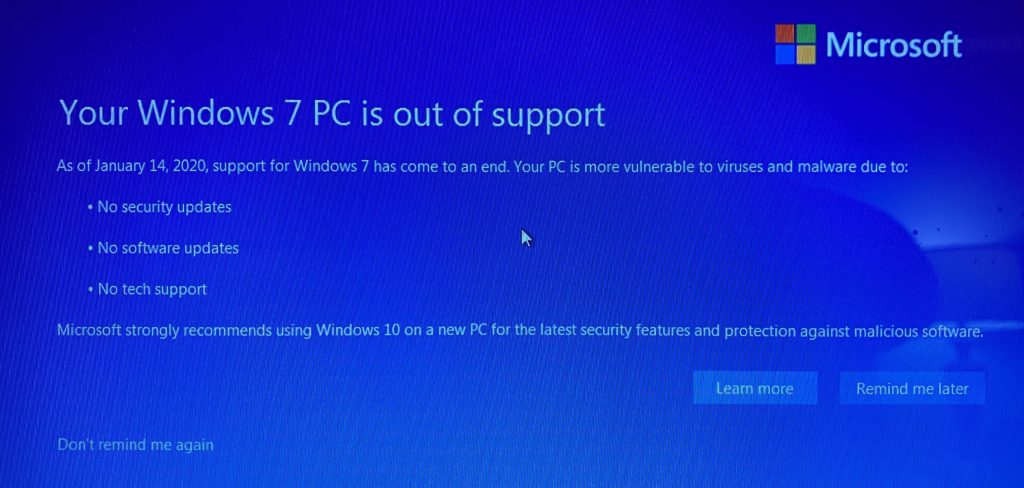
If you purchased a PC between 2009-2012 it most likely came with Windows 7. The operating system was released 10 years ago and has since been replaced with Windows 8 and Windows 10. Microsoft has decided to retire support for Windows 7 effective January 2020, thereby stopping the release of important security and reliability patches.
Computers with Windows 7 have been displaying informational messages similar to the one above reminding about the January 2020 end-of-support cutoff.
While you could continue to use your PC running Windows 7, without continued software and security updates, it will be at an ever-increasing risk for viruses and malware. Going forward, the best way for you to stay secure is on Windows 10. And the best way to experience Windows 10 is on a new PC. While it may be possible to install Windows 10 on your older computer, it is not recommended.
Why updating the operating system on existing computer hardware is not recommended:Since your computer was manufactured over 5 years ago the hardware is nearing the end of its useful life. Particularly, the HDD/mechanical hard drive has an average lifespan of 4-5 years. Additionally an old computer likely has a processor with an unpatched serious security flaw that was discovered in early 2018.
Assuming your computer can be upgraded from Windows 7 to Windows 10, the job typically takes 2+ hours. Since your current computer’s hardware is past it’s average lifespan – I would hate for you to spend the money for the time involved in upgrading only to have a mechanical failure happen soon thereafter. For about $500 you can get a new computer that’s much faster and reliable.
Therefore it’s time to start thinking about replacing your old computer which will come with the latest version of Windows. But don’t buy just any computer before reading our new computer buying information newsletter .
Some computers come with a Solid State Drive (SSD) instead or in addition to a mechanical/spinning Hard Disk Drive (HDD) – the part that stores the operating system and programs. Computers with a SSD are about 5-25x faster, more reliable and energy efficient – which is particularly useful if you’re using a laptop computer.
When setting up a new computer, we set it up in a manner that’s familiar to you – not the way that Microsoft recommends setting up a new computer utilizing a Microsoft account and unnecessary password/PIN that syncs everything with Microsoft’s servers. To read new computer buying information, click here .
If your smartphone or tablet is slowing down, closing your open apps could help speed it up. When you “close” most apps on a smartphone or tablet, it actually remains in memory running in the background. Over time you may have dozens of apps running in the background which can make it feel slower. Read the instructions in the articles below to close open apps.
If you’ve lost your smartphone or tablet, or if your device is stolen, you can often find its location by using another similar device or computer. But before your device can be located, your device needs to be setup to allow it to be located. Now is the time to check and make sure your device is setup – before it becomes lost or stolen.
For an iOS device such as an iPhone or iPad, go into Settings > iCloud, and make sure “Find My iPhone” is on. Once setup on your device you can go to iCloud.com/find in your computer web browser, or the “Find My iPhone” app on another mobile device, sign into your iCloud account and choose Find My iPhone. More information here.
For an Android device with software version 4.1 or above, follow the instructions here to turn on Android Device Manager on your device. Then go to android.com/find in your computer web browser, or “Find My Device” app on another mobile device, sign into your Google account and follow the prompts.
Internet Explorer is the web browser that Microsoft included with the Windows operating system through Windows 8.1. Beginning with Windows 10, Microsoft Edge is the new browser that’s included with the operating system and is continually being optimized with performance, feature and security updates. That leaves Internet Explorer 11 – released in late-2013 – as the last major version of Internet Explorer.
With other browsers being continually updated – such as Edge version 41, Firefox version 57 and Chrome version 62 (as of November 2017) , some websites have stopped supporting the use of Internet Explorer. One of those websites is Yahoo – which includes the popular Yahoo web portal, Yahoo Mail and Yahoo Finance.
An advantage of using a newer browser such as Chrome includes faster web browsing, improved security and upcoming features that will help stop fake warning messages that are often caused by webpage redirects and misleading advertisements.
If you need help switching away from Internet Explorer and transferring your Favorites and settings to a new web browser, please contact us.
Even though you may have a password system, you still should keep a record of your passwords. Some people put their passwords in a notebook, Rolodex, on their mobile device or online password manager. Which is the best option for you? How to safely manage your passwords
You’ve probably heard of services like Life Alert which can be used to call for help when you’ve fallen or otherwise can’t reach the phone. However, you probably already have a digital assistant that can be used to call for help when you can’t reach the phone. Digital assistants such as Apple’s “Siri”, Amazon’s “Alexa” and Google Assistant allow you to make calls by just using your voice. They are often included with your smartphone, or stand-alone devices such as the Amazon Echo or Google Home.
In order to place calls by just using the sound of your voice, your digital assistant may initially need to be setup to be able to access your digital address book. If you’re unsure how to do that, contact Computer Techs for on-site setup of your digital assistant.


 Print This Article