Category: Computing Tips

How to: Selecting multiple items from a list

Filed under: Computing Tips - Oct 23 2007

Whether we are uploading pictures to a website or copying files from one folder to another, it’s often faster to select multiple items from a list rather than one-by-one.

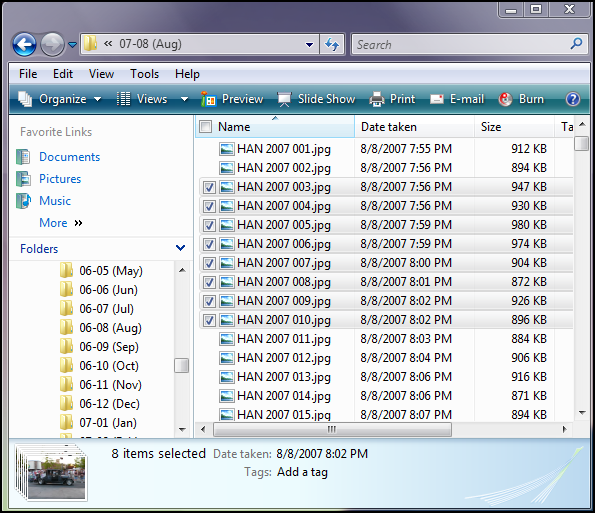
In the example below I have selected a range of picture files by clicking on the first item, then holding down “Shift” while clicking on the last item. I could then copy the selected pictures, move them, delete them, etc.

Shift+Click to select a range of items

(more…)

How to sort rows of information to organize your files and e-mail

Filed under: Computing Tips - Aug 31 2007

Occasionally a customer will tell me they can’t find their new e-mail amongst the rows of hundreds of e-mail messages. They say at some point their new messages start filling-in randomly in the middle of their list.

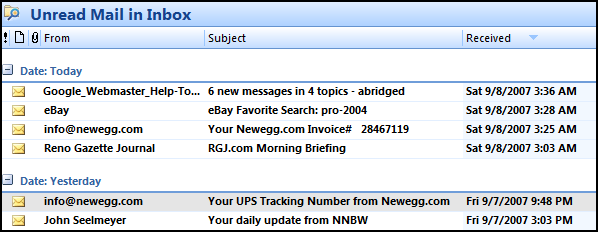
Usually what has happened is that they have inadvertently clicked on one of the column headers – “From”, “Subject”, or “Received”. Clicking on the row header will sort the rows (list of e-mail messages in this case) by that column. Clicking the same column header again will sort the items in reverse order (Z-A vs. A-Z, or date chronology).

Sorting email by Received date - newest first

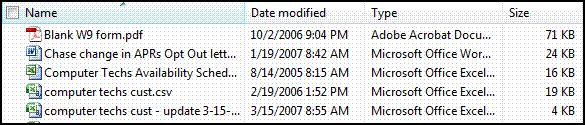
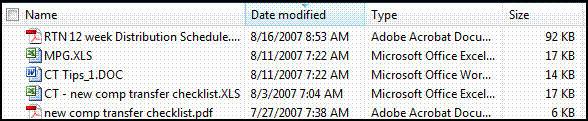
In the examples below, I am sorting files in “My Documents” folder. Note the triangle in the column header showing which column is being sorted, and a reverse sort order is indicated with an upside-down triangle.

Sorting Files by Name

Sorting files by Date Modified

If your files display as larger icons that don’t display the column headers, choose “Details” from the View Menu.

Print This Article Print This Article

Are you looking for a new computer WITHOUT Windows Vista?

Filed under: Archived,Computing Tips - Jul 30 2007

While most retail stores are only offering new computers loaded with Microsoft’s newest operating system – Windows Vista, Computer Techs still has access to new computers with Windows XP.

Businesses and corporations are hesitant to switch to Windows Vista since it is still too new, and it’s not compatible or 100% reliable with some consumer and business applications. Some hardware such as printers, scanners and cameras don’t work with Windows Vista. There are so many changes with Windows Vista, businesses don’t want to spend time and money to train people on the new operating system.

Similarly, people who are less computer savvy will find Windows Vista much different than Windows XP, or it’s predecessors Windows 98 or Windows ME.

As a service to Computer Techs’ clients, we are offering brand-new HP desktop computers loaded with Windows XP from our local wholesaler. The computers are configurable to your needs starting at approximately $575.

Get more out your iPod – try listening to a Podcast

Filed under: Computing Tips - Jul 27 2007

Podcasts are audio or video shows that can be downloaded from the internet. The shows cover a wide variety of specialized subjects. Podcasts cover daily news stories, comedy, or instructional. Many universities are offering classes or lectures in Podcast form. Categories include Technology, Cooking, Genealogy, languages and many more.

Despite the name, you do not need an iPod portable media player in order to listen to Podcasts. Podcasts can be played on many different portable players or on a computer.

Best of all most Podcasts are free. You can view a directory of Podcasts on your computer in the iTunes music player, or on a Podcast directory website such as Everyzing. Programs such as iTunes offer the convenience of automatically downloading new Podcast episodes from the internet as they become available.

You can view more information about a Podcast at Wikipedia.

Should I turn off my computer when I’m not using it?

Filed under: Computing Tips - Jul 27 2007

I often get asked this question. While you will often get different answers from different people – I leave my computer on most of the time. Every few days I will restart it, and occasionally I will turn it off overnight.

Consider this: The most wear and tear on your computer, car, etc. is when you start it up. The more frequently you turn off and on your computer, the more likely it is to fail. I like to use the analogy of a light bulb – when you turn on the light switch is usually the time the bulb burns out. Similar with your computer, it’s most likely to fail when you switch in ‘on’. The less you switch it ‘on’, the less likely it will fail.

Also similar to a car’s engine, excessive heating and cool down of a computer’s hard drive and other components will shorten the life of those parts.

Print This Article Print This Article

Quick Tips – Did you know?…

Filed under: Computing Tips - Mar 15 2007

• You don’t have to enter “http://” or “www.” as a suffix when you enter most website addresses in you browser. In your address bar you can just type ‘ctreno.com’ or ‘yahoo.com’ then the enter key.

Anti-Virus companies automatically charging your credit card

Filed under: Computing Tips,Security - Mar 15 2007

Beware of Anti-Virus companies that automatically renew your annual subscription even though you may not have their software installed on your computer. Companies such as Symantec and McAfee have begun to automatically charge customer’s credit cards every year for renewal subscription fees. See this PC World article. When giving your credit card information online, read carefully and thoroughly to see if the company will be automatically charging your card in the future.

Don’t believe everything you read in e-mails

Filed under: Computing Tips,Scams - Mar 15 2007

You’ve probably received an email about a missing person, cell phone numbers being given to telemarketers, typing in your PIN number backwards at an ATM machine will summon the police, and other information you haven’t heard about from other news sources. Most of these mails urge you to forward it to as many people as you can. Many of these emails that get forwarded are just urban legends. How can you tell? The next time you receive an email that urges you to forward it on – first go to www.snopes.com. Snopes.com is a website that tracks scams, rumors and chain emails, and they investigate whether they are truthful or just an urban legend. The website does have pop-up advertisements. However the information provided is useful and can keep you from wasting time and the embarrassment of forwarding false information.

Other popular websites that you can check include TruthOrFiction.com and Hoax-Slayer.com.

Initial impressions of Windows Vista

Filed under: Archived,Computing Tips - Mar 15 2007

Microsoft released it’s newest version of it’s Windows operating system in late January – Windows Vista. Most of my experiences with Vista have been troublesome. I’ve had several old model printers and games that don’t work. Also they’ve changed the way you do certain tasks and renamed commonly-used control panel items. If you’ve been thinking about upgrading – I suggest you wait. If you want other user opinions check out this PC World article. If you’ve been thinking about getting a new computer, Windows Vista is your only choice on the new computers sold in the major chain stores. However you can still get Windows XP if you custom order a computer from some manufacturer’s websites or from our local wholesaler – ask us for details. If you decide to upgrade or get a new computer with Windows Vista – be prepared to experience complications.

Picture Sharing tips

Filed under: Computing Tips - Mar 15 2007

Do you own a digital camera? Your camera likely came with software to organize and share your pictures via email or a web album. However you’re not limited to using the sometimes clunky and confusing software that comes with your camera. Here I will describe my favorite way to transfer pictures to my computer, organize them, and share them with friends and family.

For transferring my pictures I prefer to use the Scanner and Camera Wizard that is included with Windows XP. It lets you check just some or all of the pictures you want to transfer, lets you create a folder with a unique name for your transferred pictures (i.e. vacation Jun06, new dog Sept06, etc) and gives you the option to delete the pictures from the camera after you have transferred them to your computer.

When it’s time to share pictures, photos taken with most cameras are too big to email at their original size. Most pictures are between 500-1000 KB (1 MB), and most email services wont let you send attachments larger than 10 MB. So emailing anything more than 10-20 pictures will likely result in your email being rejected or filling up your friend’s or family’s mailbox. And if your recipient is still on a dial-up internet connection it could take them a long time to download and view your pictures.

(more…)

« Previous PageNext Page »