Category: Computing Tips

Free alternatives to Microsoft Office

Filed under: Computing Tips - Mar 25 2012

If you occasionally create a letter or spreadsheet, you may not need to purchase Microsoft Office – a $100+ suite of bundled programs which include Word, Excel, PowerPoint and others. Instead there are several computer programs and web apps that don’t cost a thing.

1. LibreOffice: You can download and install LibreOffice on your computer, which includes a word processor (similar to Microsoft Word), spreadsheets (similar to Microsoft Excel), presentations (similar to Microsoft Powerpoint), databases (similar to Microsoft Access), and a drawing program similar to Adobe Photoshop.

LibreOffice will open Microsoft Office and Word Perfect Office compatible files, and can be configured to automatically save files in those formats. A few common file formats supported include:

.doc/.docx – Microsoft Word document format

.xls/.xlsx – Microsoft Excel spreadsheet format

.ppt/.pptx – Microsoft Powerpoint presentation format

.wpd – Corel WordPerfect document format

.pdf – most files can be exported to the Adobe Acrobat PDF format

2. Gmail/Google Docs: If you just need to be able to read a document or spreadsheet, if you use Gmail you can open the attachment from within Gmail’s web interface and view the file with no special software required to be installed on your computer. If you’d like to be able create and edit documents, spreadsheets, presentations, forms and drawings, you can use Google Docs. Google Docs lets you work on your files in real time with other people (if you choose), and store them online for free.

3: Office Web Apps/SkyDrive: Similar to Google Docs, Microsoft also lets you create, store and share (if you choose) Word, Excel, PowerPoint and OneNote files online for free in your personal SkyDrive using Microsoft Web Apps. If you have the desktop version of Microsoft Office 2010 installed on your computer, you can also edit the files on your computer and transfer them between SkyDrive for a secure back-up method.

4: Microsoft Office Starter/New computer: If you’re in the market for a new computer, Microsoft Office 2010 Starter Edition comes pre-installed on new computers these days – which includes most of the features of the paid versions of Word and Excel.

Print This Article Print This Article

Emails that phish for your email credentials on the rise: What you need to do to stay safe

Filed under: Computing Tips,Passwords,Security - Nov 26 2011

In the past month we’ve received an unusually high number of calls from clients that have had their email accounts hacked. The hackers have accessed their email password either by simply asking for it via a phishing email, or hacking into other insecure web site databases then trying to use the same password to access their email account. After accessing their email account the hackers have done many of the following steps:

• Changed their password and account security questions to permanently lock them out of their email account

• Sent emails to their contacts saying that they are traveling in a foreign country and are in desperate need of money

• Deleted all of their saved email

• Deleted everybody from their contacts/address book

• Changed their email options so that all email forwards to the hackers email address, and all replies are sent to the hacker

• Made a copy of their address book and are continually sending out spam email to their contacts that looks like they are originating from the person whose email account was hacked

Many web sites (including financial institutions) have an option to reset your password by sending an email to your address-on-file. If a hacker has access to your email, they can easily receive the email, reset and change your banking or other password and steal money or purchase merchandise under your name.

Below is what you need to do now to help prevent your email account from being hacked in just 3 easy steps…

• See how to recognize emails that “phish” for your private information

How to help prevent your internet accounts from being hacked

Create a secure and memorable password system

Sadly, the clients that called for after-the-fact help could have prevented their email accounts from being hacked in the first place by taking a few minutes each month to read our monthly newsletter. Information about hacking and steps to avoid it has been mentioned in it each month for years.


Print This Article Print This Article

New operating system for Apple’s iDevices a worthwhile upgrade

Filed under: Archived,Computing Tips,Tech Support - Oct 31 2011

Apple released iOS 5 this month, an update for iPhones, iPads and iPods that improves device speed and adds over 200 new features and enhancements. Anandtech.com has posted a comprehensive review of iOS 5 with screen shots and videos detailing some of the changes and new features.

One of the most notable improvements that comes with iOS 5 is access to iCloud – a synchronization and backup system. Photos, contacts, calendars and email with @me.com addresses sync between iCloud and multiple iDevices and PCs or Macs. iTunes Match will sync your music with the cloud. Daily automatic backups will allow the device information and settings to be restored to an existing or new device if needed. And future iOS updates will be automatically installed after iOS 5 is installed.

Would you like to print from your device? Printers that support AirPrint will show up automatically when you select “Print” on your iDevice. If your printer is not listed, there is 3rd party software that can be installed on a PC or Mac that is connected to a printer that enables printing from your iDevice.

To upgrade your iDevice to iOS 5 you need the latest version of iTunes installed on your computer, and all apps should be updated to the most current versions. After your device is connected to your computer with the supplied USB cable – iTunes should detect your device and prompt to download and install iOS 5.

If you need help updating your device, setting up the iCloud backup and syncing features, setting up printing or showing you the new iOS 5 features – give Mark at Computer Techs a call.

Print This Article Print This Article
[Old Article] New AVG Anti-Virus 2012 available – How to install new free version

Filed under: Archived,Computing Tips,Security - Sep 28 2011

AVG has released the 2012 version of their free anti-virus and other paid versions. Installing the update should be quick and easy if you following the instructions below.

When a pop-up from the system tray appears – as shown below (near the clock on the bottom right corner of your screen), click “Update Now”.


By default “Full protection” is selected. For the free/basic version which we recommend, select “Basic protection” (as shown below) then click “Next”.


That’s it! The installation should continue, then prompt you to restart your computer when finished.

After installation if you get a prompt to scan your computer for errors or problems with the AVG PC Analyzer component, I recommend avoiding doing the scan. It looks for registry errors and junk files among other things – which are harmless – then prompts you to purchase the add-on if you want items fixed.

If you have problems with the automatic installer, you can manually download the new free version directly from AVG’s website:
http://free.avg.com/us-en/download.prd-afh

If you need assistance downloading and installing the new AVG Anti-Virus, please call or e-mail us. We’ll be happy to take care of it for you, and give your computer a check-up/tune-up while we are there.

Print This Article Print This Article
FAQ: What happens to your email address when you change internet providers?

Filed under: Computing Tips - Apr 23 2011

One consideration to make before switching internet providers is if you will be able to keep your email address. Changing your email address can take lots of time because you have to notify all of your contacts, and many web sites and services use your email address as your username or login.

If you cancel your AT&T Internet service, you can keep your (@sbcglobal.net, @att.net, @nvbell.net, etc.) email address. See section 5a in the AT&T Terms of Service.

If you have AOL and switch to high-speed internet, you can change to the “Free AOL” plan and keep your @aol.com email address as well as access to the AOL desktop program if you so choose.

On the other hand, if you have Charter Internet and you cancel your service, you lose your @charter.net email address. If you use their web site to view your email, you would also lose all saved emails. However if you use an email program such as Outlook, Outlook Express or Windows Live Mail, any saved emails would remain in that program.

I recommend that you get an email address independent of your internet service provider – such as Google’s Gmail or Microsoft’s Outlook.com – for instances when you want to switch or just have another way for people or businesses to contact you.

It’s also good to have more than one email address through a different provider as a backup -just in case there’s a problem with your main provider. It’s also a good way to separate email by using one account for correspondence with friends and family, and a different account for business, purchase confirmations, etc.

Use the search-as-you-type feature on your computer or smartphone to help you find what you’re looking for

Filed under: Computing Tips - Feb 28 2011

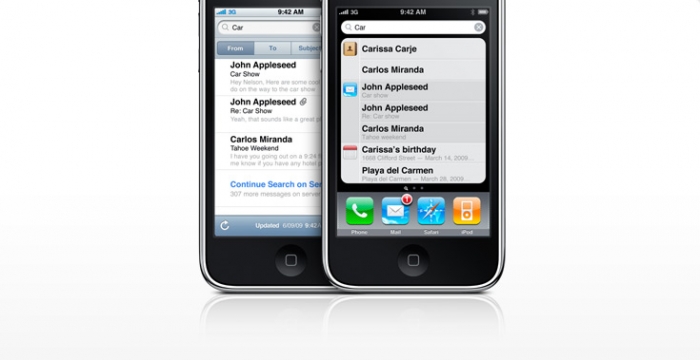
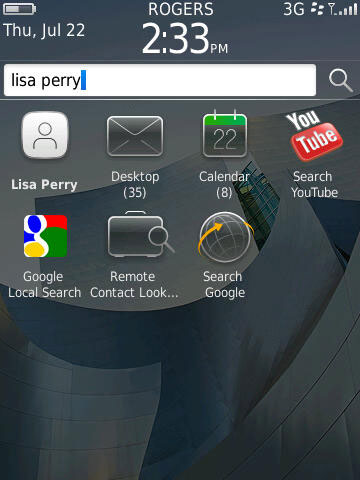
If you’re looking for a program or file on your computer or smart phone, don’t forget to use the search-as-you-type feature now available on most devices.

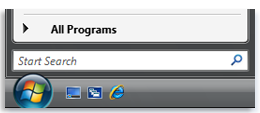
On the PC, beginning with Windows Vista all you have to do is click the Start button and start typing what file, file content or program you are looking for.

Search-as-you-type box on the Start Menu

On many smartphones such as the iPhone, BlackBerry or Android devices, search-as-you type will help you find contacts, messages, media, apps, etc.

FAQ: Should I “Run” or “Save” a download?

Filed under: Computing Tips - Feb 28 2011

When downloading a file or program from a web site or e-mail, often you are prompted to “Run” or “Save” the item. We are often asked which you should do.

• For a file that you want to keep on your computer, you should select “Save”.

• For a program that you may need to install or re-install at a later time, you should select “Save”. Otherwise if you don’t need the ability to re-install it again without re-visiting the web site, you can choose “Run”.


Print This Article Print This Article
How to change your web browser’s home page

Filed under: Computing Tips - Dec 27 2010

When you open your web browser (Internet Explorer, Google Chrome, Mozilla Firefox, Safari, etc.) a “home page” or “start page” is the first web page that displays. It can be set to any page of your choice such as a search page like Google.com, or a news and information page such as Yahoo.com, Aol.com, Att.net or Charter.net. It can also be set to go directly to your webmail page like mail.yahoo.com, gmail.com or outlook.com 

Sometimes your home/start page may get changed as a side effect of updating a program or installing adware. To change the page back to one of your choice, please click the link below to view a Google help article that gives directions on how to set your home page to Google – but you can choose any page you like: How to change your homepage

Print This Article Print This Article

A message about the December 2010 AVG Anti-Virus update problem

Filed under: Archived,Computing Tips,Security - Dec 27 2010

On the evening of December 1 I received 4 phone calls within about 30 minutes with each caller having the same problem following a prompt by AVG Anti-Virus to restart the computer. The problem was that their computer would not start up. A check of social media networks and other news sources indicated it was a widespread problem across the world. Since a large majority of Computer Techs clients use the free version of AVG for their anti-virus detection, I decided to notify our 1300+ clients via the Computer Techs monthly newsletter subscription list, and on our social networking news feeds at FaceBook.com/ComputerTechs and Twitter.com/CTreno.

Over time it was discovered that the newly released program update was incompatible with 64-bit versions of Windows Vista and Windows 7, causing Windows not to start. Once the problem update was discovered it was quickly pulled from AVG download servers to prevent problems on more computers.

AVG is not the only anti-virus vendor that has temporarily released an update that caused problems with computers. McAfee, Trend Micro and BitDefender have all had bad updates in the past few years. Microsoft has even released updates as part of their monthly automatic critical updates that have caused problems for millions of computer users.

We still recommend AVG anti-virus because it’s easy to use, provides good virus detection and the availability of a free version which is enough for most computers. If you are upset like we are about AVG’s new “PC Optimizer” and other add-ons that pop-up and eventually ask for payment, another free alternative is Microsoft Security Essentials. Remember that an anti-virus program is your second line of defense for computer security. Your first line of defense is practicing safe computing habits.

Print This Article Print This Article

Don’t rely only on Antivirus software to keep your computer virus-free

Filed under: Computing Tips,Scams,Security - Dec 27 2010

Updated September 2018:

Antivirus and Antimalware program tests have shown than no software detects and/or disinfects 100% of all viruses and malware. Thousands of new viruses are unleashed each day, and antivirus programs cannot keep up with the new viruses fast enough. With millions of different viruses in the wild, your best defense against getting infected is practicing safe computing habits.

Below are a few tips to help keep you safe on the internet – copied from our FAQ page:

(more…)

« Previous PageNext Page »