

How to: Selecting multiple items from a list
Whether we are uploading pictures to a website or copying files from one folder to another, it’s often faster to select multiple items from a list rather than one-by-one.
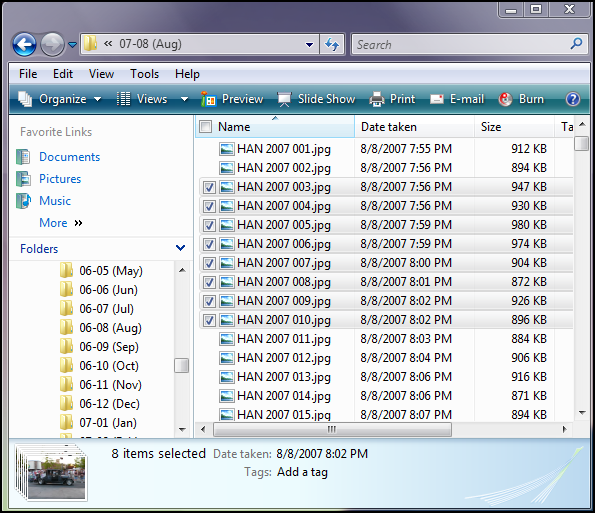
In the example below I have selected a range of picture files by clicking on the first item, then holding down “Shift” while clicking on the last item. I could then copy the selected pictures, move them, delete them, etc.
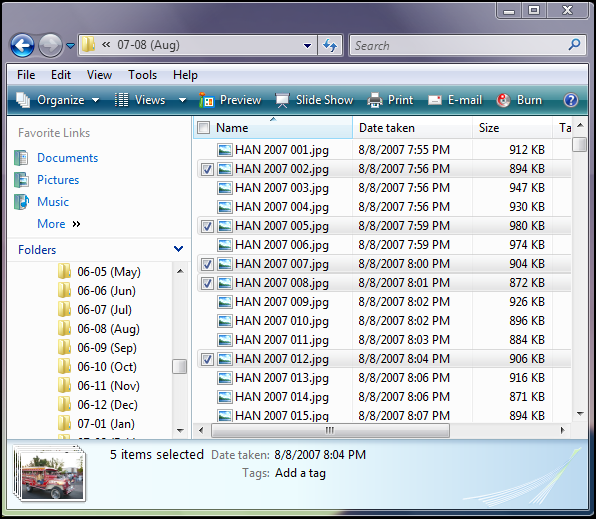
In this example below I have selected multiple items by holding down “Ctrl” while clicking on individual items in this list of pictures…
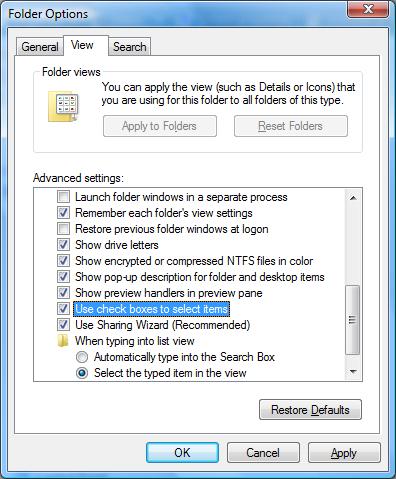
In the examples above, with Windows Vista you can also select multiple items by clicking on the check boxes to the left of the file name. Check boxes are turned off by default in Windows Vista but can be turned on in the Folder Options Control Panel as shown below…
 Print This Article