If you’ve been a victim of identity theft, the Federal Trade Commission’s IdentityTheft.gov is the federal government’s one-stop resource for identity theft victims. The site provides streamlined checklists and sample letters to guide you through the recovery process.
If you haven’t been a victim, read these tips to help keep your identity from being stolen or compromised in the first place: Prevent Identity Theft.
Adobe Flash Player – not to be confused with Adobe (PDF) Reader – in the last decade had been the most common method of viewing video and animation files in the web browser. But the latest web coding standards includes the ability to play videos and animations natively – without the need for a browser extension or add-on.
In July 2017 Adobe announced it would no longer support Flash Player at the end of 2020, and recently all major web browsers have blocked or completely removed the ability to play Flash content. Around that time many security vulnerabilities plagued the software and it became a common vector for spreading malware through the computer browser.
What can you do if the web content you are trying to view says it requires Flash Player? Nothing – it’s up to the website developer to reprogram the site with modern standards that doesn’t require Flash Player.
Shopping online is more common that ever as people have discovered the convenience of buying food, clothes and household supplies from their home computer or mobile device. Setting up accounts, payment methods and delivery/pick-up options with online retailers such as Amazon, Costco, Walmart, Raley’s or Smith’s can initially seem difficult. But with some virtual hand holding we can help you get everything setup for future ordering on your own.
Please contact us for more information, or to setup a remote or in-home appointment to help you get things started and place your first online order! After you receive your first order, you’ll be wondering why it took you so long to get started with such an easy and convenient process.
You likely spend most of the time on your computer using your web browser. Years ago the web browser was primarily used for reading news and email. Now we can do everything from grocery shopping, managing finances, word processing, and even work in browser-based versions of powerful business applications – without leaving a browser window. Part of what has made web browsers so useful – but also potentially hazardous – is the popularity of browser extensions.
Browser extensions are applications, often developed by third party developers, that users can download to expand the functionality of their web browsers. A few different extensions that we recommend can block ads, manage passwords, manage too many open browser tabs, or save web pages to Google Drive or Evernote – just to name a few. However there’s also an abundance of extensions that promise to do great things, yet cause far more trouble than they’re worth.
Some of these “bad” extensions just cause annoyances, displaying ads or automatically redirecting you to websites that you didn’t intend to browse to. Others are more malicious, spying on your browsing, stealing your data, or injecting malware into your system. What’s worse is that some extensions start out life perfectly legitimate, but then get bought by bad actors and become malicious.
Some of our most common calls for service are due to bad browser extensions. So how do you get the most out of browser extensions without falling prey to malicious ones? Here are 5 tips:
1. Be very wary of pop-ups advertising an extension.
Many users install extensions because they are prompted to in pop-up messages on websites. You always have the option to decline the extension, or close your browser to avoid installing a persistent installation prompt. If you didn’t go to a website looking to install an extension, it’s best to decline, since a large majority of the time the website is offering something that’s in their best interest – not yours.
2. Only download extensions from websites that you trust.
Do some research into the company behind the extension you’d like to download. Many extensions are developed by companies you know, such as Google or Microsoft, and these are generally safe. If you don’t recognize the vendor, be sure to read reviews of the extension on the browser’s extension interface – such as Chrome’s Web Store or Firefox’s Add-Ons page. Often malicious extensions will receive enough bad reviews to warn careful users away.
3. Take time to read all the fine print.
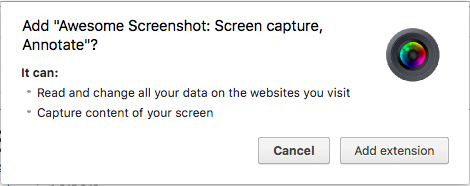
Whenever you’re downloading extensions, slow down to read all the messages your browser gives you about the extension. Chrome, for example, will show you exactly what information the extension will have access to, as pictured below.
In this example, you’d need to absolutely make sure that you want to give the extension – a third party app – access to “read and change all your data” and to “capture the content of your screen” before clicking “Add extension.”
4. Don’t download extensions bundled with other apps.
We’ve written before about the potential dangers of downloading/installing free software from the web. In many cases, free software applications will include browser extensions, which the user may download without paying attention, simply because they click “Next” on the installer window without reading the fine print. When downloading anything from the internet, always be sure to read every message carefully so that you are downloading only what you want and expect.
5. Monitor extension permissions
Be wary of any permission updates from extensions you already have installed. Pay attention to notifications about new permissions, especially if the extension has changed publishers.
6. Block or close prompts to allow websites to send notifications
Though not technically a browser extension – web browsers have enabled a “feature” to allow websites to pop-up notifications from a website, even when you’ve left that site. Though it may be useful to get notification alerts when you’re favorite news website is not open, or notifications about new email or Facebook activity – some untrustworthy websites have abused the feature and are causing excessive pop-ups for unrelated content. We recommend being very judicious if clicking to “allow” notifications, and only do so on websites that you know and trust. For more information read: How to block browser notification pop-ups.
Are you getting excessive pop-ups and getting redirected to websites that you didn’t intend to visit? Please contact us if you need help cleaning up your browser.
Considering all the data breaches lately, you should be monitoring and protecting your accounts and personal information – but what is the best method for you? Should you use a credit monitoring service or subscribe to identity theft protection instead? What’s the difference between the two methods?
Credit monitoring services monitor activity on your accounts with the major credit reporting agencies (TransUnion, Experian, and Equifax). Creditors report all activities related to borrowing money, including your payment history, to credit reporting agencies. Monitoring services may monitor your history with all three agencies or be exclusive to a certain agency.
With credit monitoring, you’re alerted to various changes in your credit report – for example, when a potential creditor asks for your credit history or when new credit card accounts or loans are opened in your name. Any activity that is reported to the credit reporting agency is monitored.
However, identity theft can involve more than fraudulent loans or credit accounts in your name. Thieves can use your Social Security number and other personal information to open bank accounts, get jobs, receive government benefits – even commit crimes in your name. None of these activities will show up on your credit report because borrowing is not involved.
Identity theft protection services typically include credit monitoring and also check for non-credit related abuses of your information – or let you know that your compromised information is out there, available to thieves for future abuse. Monitoring may include dark web scans, arrest records, court filings, changes of address, and social media accounts.
Identity theft protection services may also include help to restore your identity and resolve fraudulent uses and claims, as well as identity theft insurance. However despite the marketing claims to scare you into buying such protections there are things that identity theft services can and cannot do for you.
Victims of data breaches are often offered free credit monitoring or identity protection services for a limited period of time – however you need long-term protection, especially once your personal data has been compromised. You can always cancel accounts and change passwords, but once your Social Security number is compromised, you are in for a lifelong battle with identity thieves.
Note that most credit monitoring and identity theft protection services are reactive, not proactive. They let you know when suspicious activity has occurred, but they can’t prevent it from happening. You can supplement either service by using following these proactive tips:
Shred any sensitive information before discarding it.
Be suspicious of all e-mails, text messages, pop-ups and unsolicited phone calls claiming that there’s a problem that requires your immediate reaction – such as calling an unfamiliar phone number or divulging your personal information or login credentials over the phone or via an email link.
Check your credit frequently, and consider a credit freeze on your accounts to prevent thieves from opening fraudulent accounts in your name.
Help either service by making it more difficult for identity thieves to get your information, or to use your information if they do get it. Now is the time to follow through with whatever protection you choose. Identity thieves look for the easiest unprotected targets – don’t be one of them.
If you think the way to get less spam email is to click the “unsubscribe” link – not so fast. While legitimate email senders often will remove your email address from their list, spammers use unsubscribe links in emails to track people that take the time to open email and click the link. They then target you for even more junk email.
Some methods that you can use to help identify legitimately sent emails include:
Have you knowingly given your email address to the sender?
Look to see if the “from” email address closely matches the company that it says it came from. For example if you get an email from “JCPenney” promising $10 off, but the email address displays something@bestdeals.biz or someone@gmail.com – that’s not an email from JCPenney.
Does the grammar, spellling and punctuation in the email make it seem as if it was professionally written?
You should only unsubscribe from emails that you are absolutely sure that they came from a legitimate company that you have given your email address to or conducted business with. Otherwise, just mark the email as Junk/Spam to help train the computer programs that filter your emails to the Inbox or Junk/Spam folders.
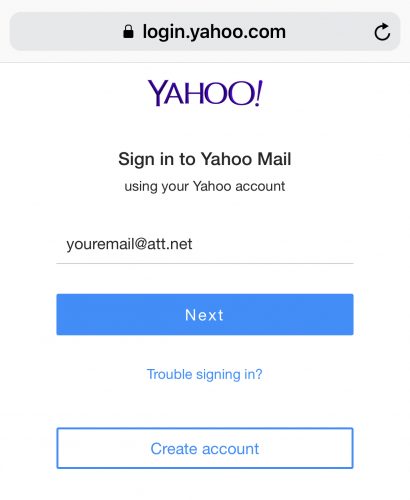
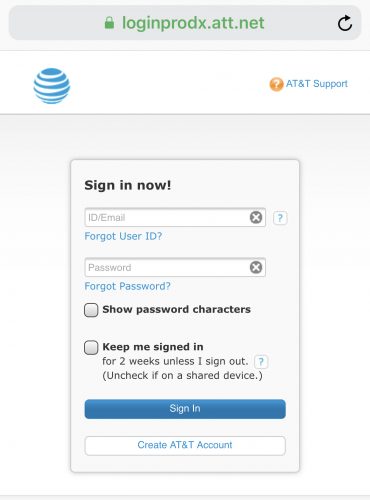
AT&T has recently changed the email login procedure when accessing an AT&T email address (@att.net, @sbcglobal.net, @nvbell.net, @prodigy.net, etc.) from a Yahoo.com website. When signing in from a Yahoo.com website you will be redirected to sign into your email account on an att.net webpage, then redirected back to mail.yahoo.com. Yes, you may be prompted to login twice.